
Use a Sardius EMLA Encoder with Akamai
Updated
Akamai HLS (HTTP Live Streaming) is a delivery method that allows your livestream to be distributed efficiently over the internet using Akamai’s global content delivery network (CDN).
These are the following steps to use a Paired EMLA Encoder with Akamai:
- Pair the EMLA Encoder with the Sardius Control Panel
- Add your Akamai Destination as an HLS Output.
- Add Additional Outputs such as YouTube, Facebook, or other RTMP/SRT destinations.
- Create a Template, if needed.
- Setup your Default Stream Settings
- Schedule an Event on your Channel
This article will guide you through setting up your channel's Default Stream Settings using the EMLA Encoder.
Create the Akamai Output
Before you can set up your channel, you will first need to make sure you have added your Akamai Output as an HLS Output. To learn more about how to do this, please review Using HLS Outputs with Sardius Entrypoint.
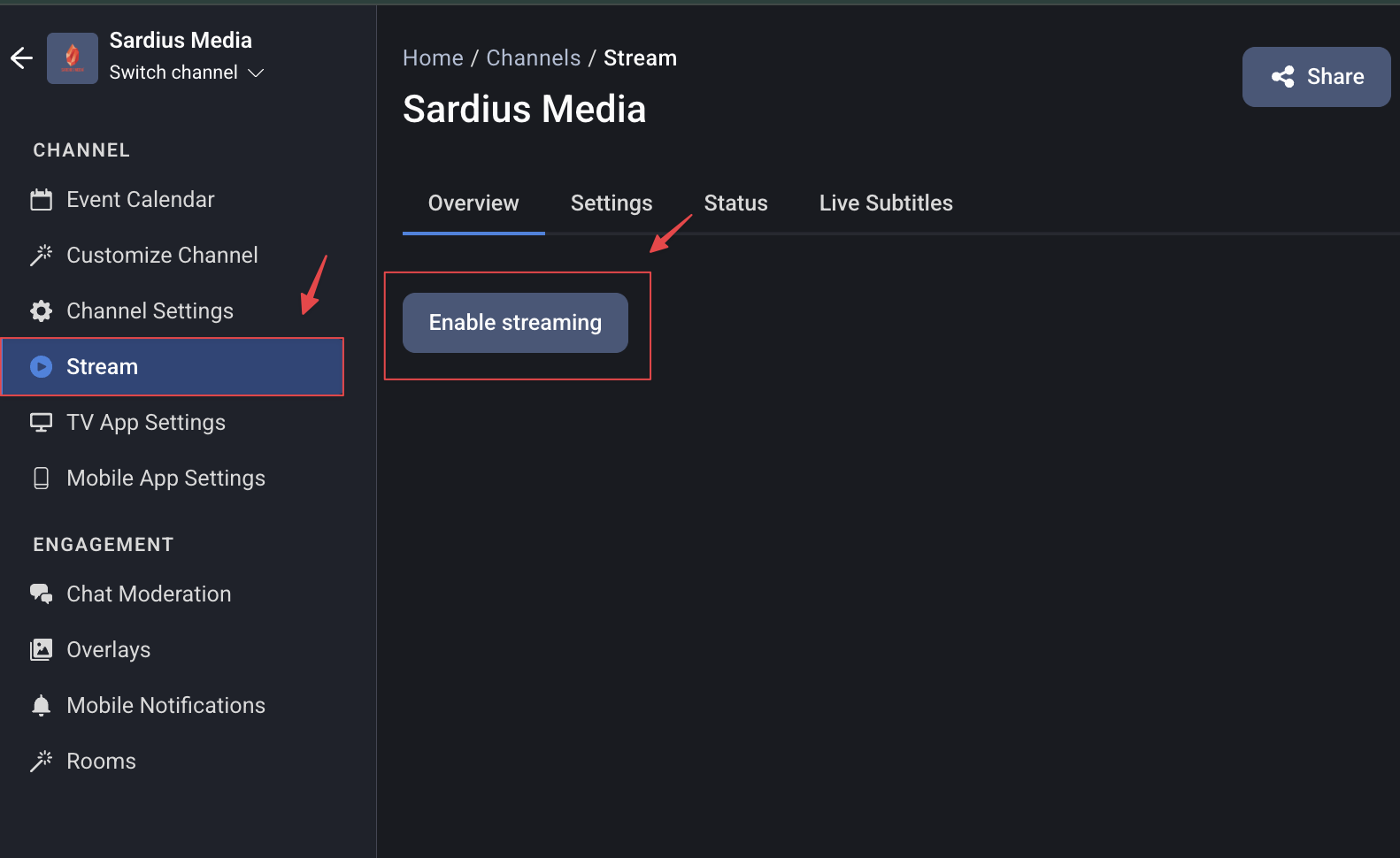
1. Enable Streaming for Your Channel
Before creating defaults, make sure streaming is enabled on your Sardius Channel:
-
Open the Control Panel and navigate to Channels.
-
Select the channel you want to configure.
-
In the sidebar, click Stream.
-
Click Enable streaming.
Once streaming is enabled, you'll be prompted to start defining your default stream settings
Click on "Set defaults" to set up your EMLA Encoder with this channel.
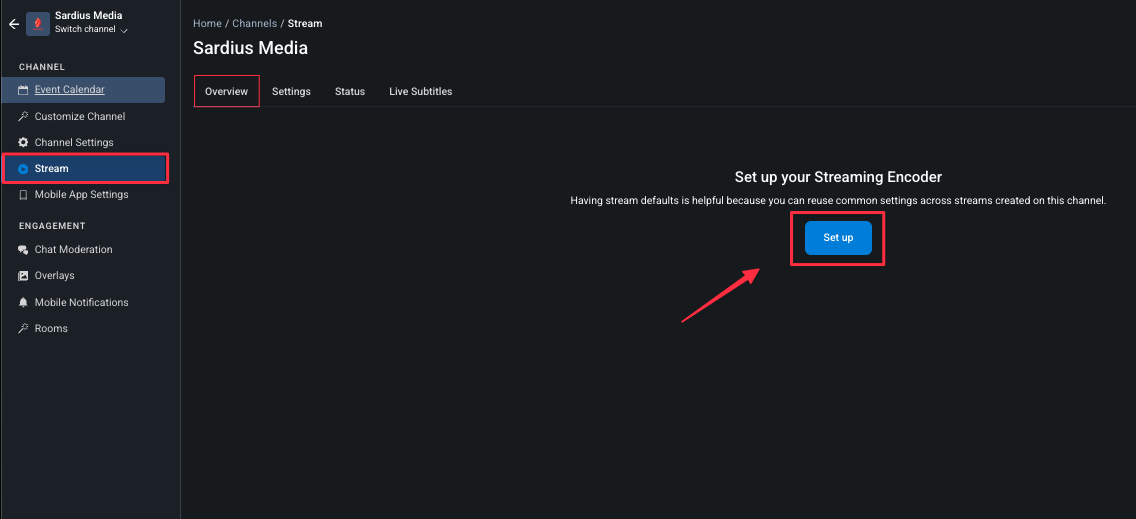
Your Sardius Channel will be updated in the background and prepared for streaming. This process takes only a couple of seconds, so do not leave or refresh the page. Once it is ready, you will be prompted to define your default settings.
A modal will appear in the center of the screen.
Step 1 of this setup will prompt you to select the source of the live stream. Select "Sardius Stream" and you will be taken to the next step.
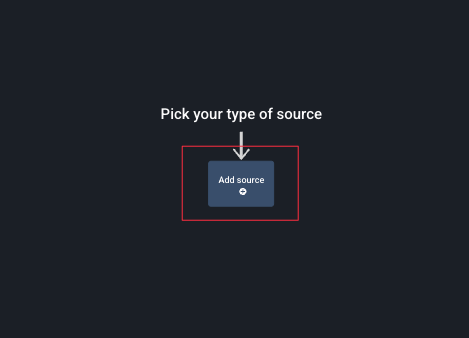
2. Configure Your Default Stream Settings
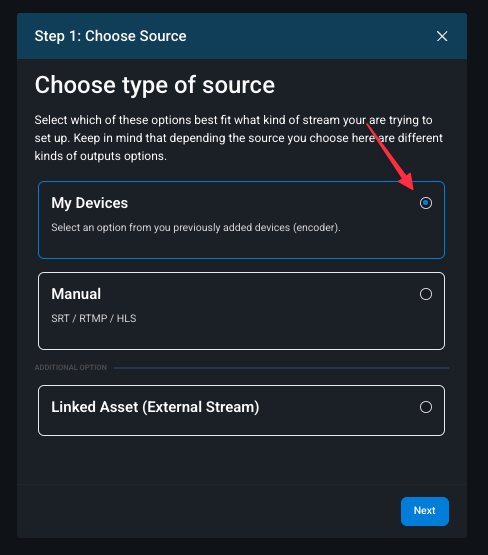
Select "My Devices" and click Next to be taken to the next step.
-
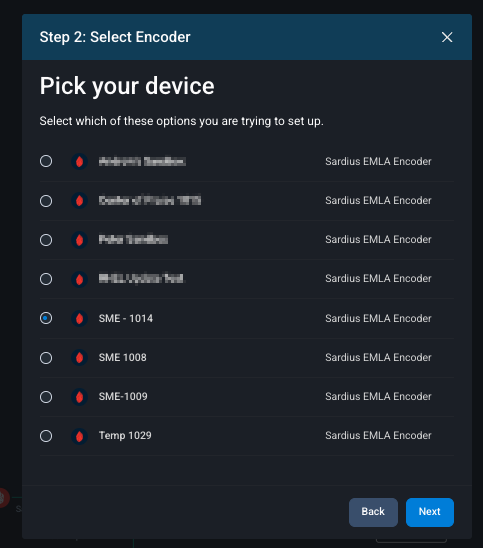
Select your EMLA Encoder from the device list and confirm the input you are using.
If your encoder does not appear:
- Please verify that it has been added in the Sardius Control Panel
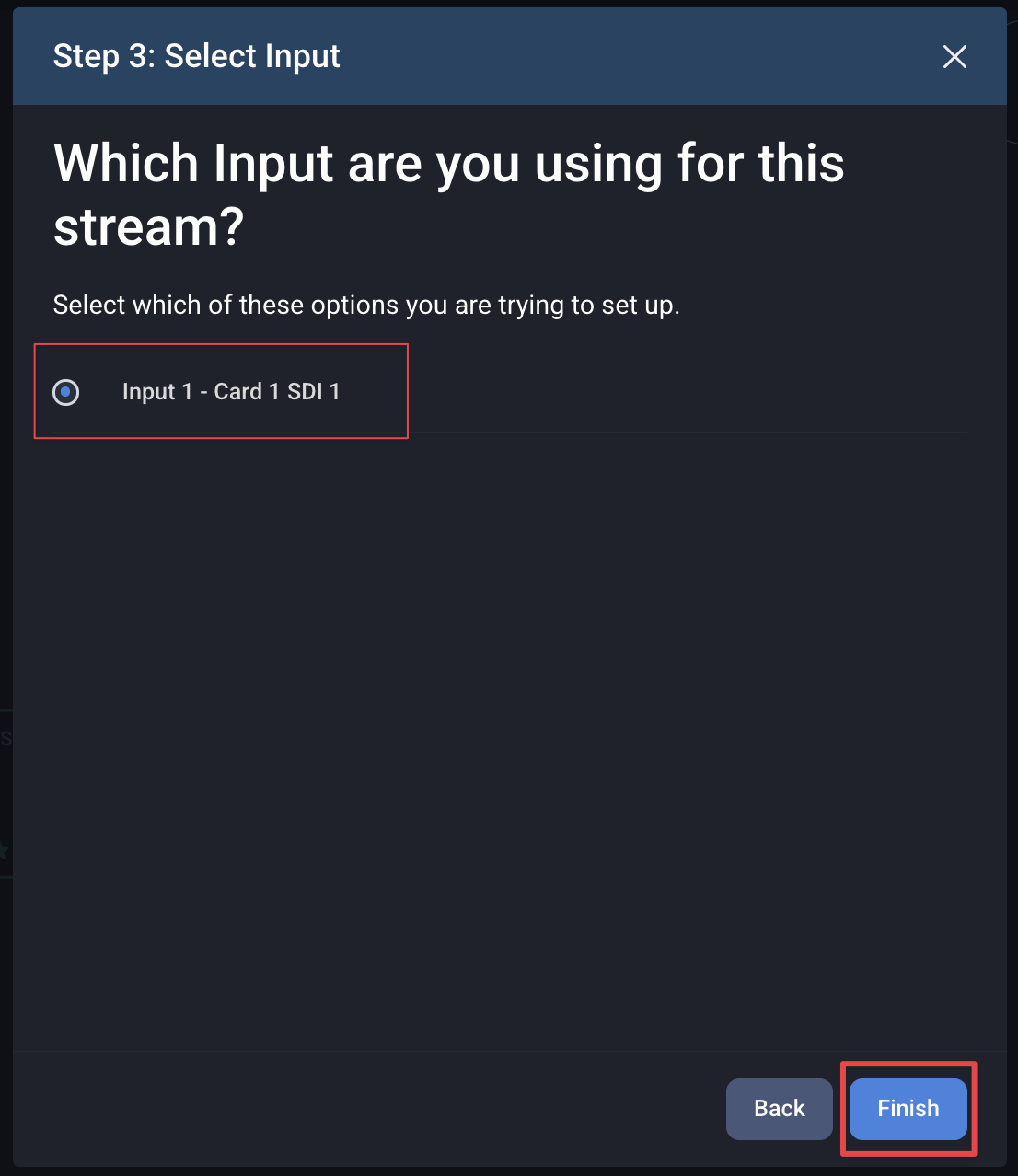
After selecting your encoder, Sardius will prompt you to confirm which input from that encoder should be used for the stream.
If multiple inputs are available, choose the input that corresponds to your active video feed (for example, SDI or HDMI) then click Finish.
Choosing Akamai
-
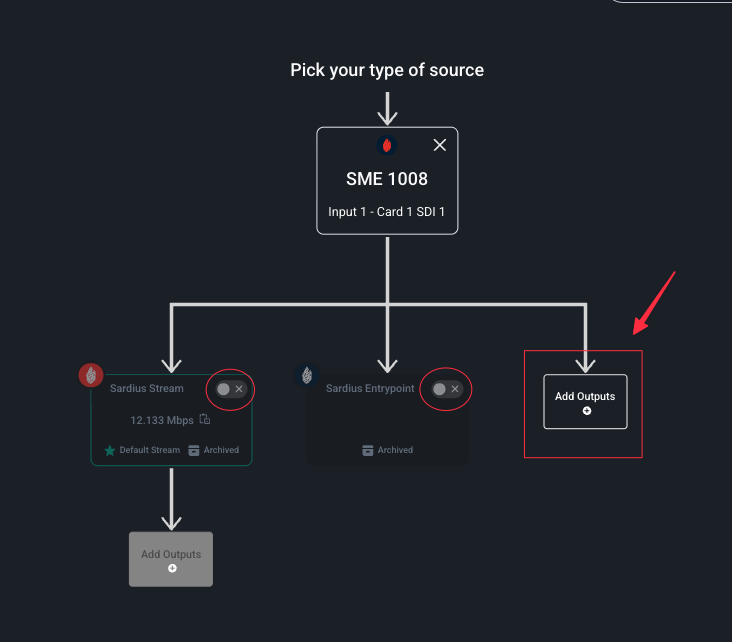
Disable Sardius Stream and Sardius Entrypoint in the stream stepper
-
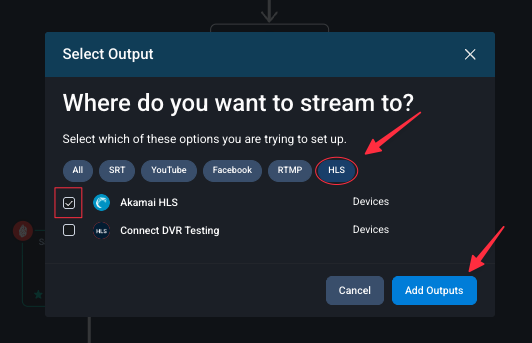
Click the Add Outputs button and choose your pre-configured Akamai output along with all other desired outputs
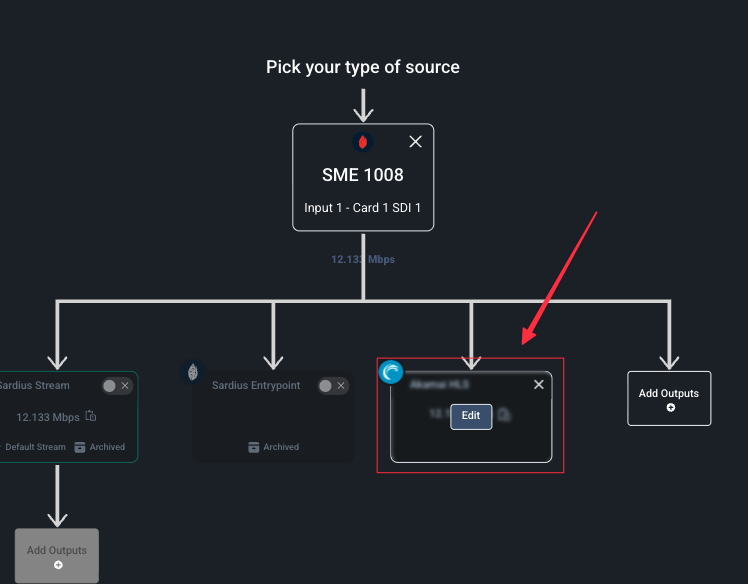
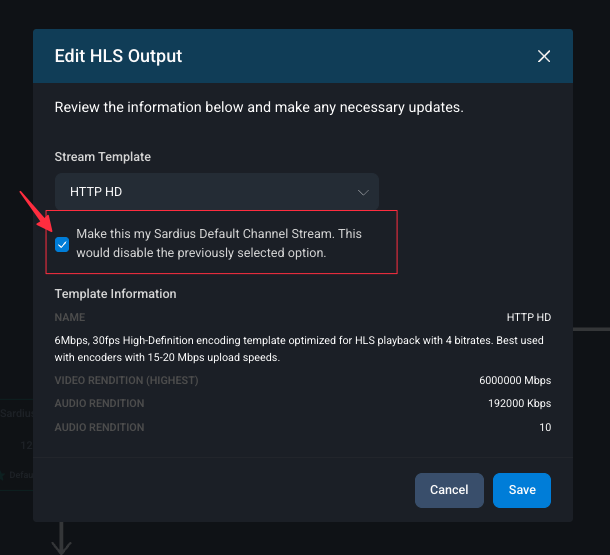
The final step is to review your settings to make sure everything looks good.
Make sure that your EMLA Encoder is showing in the Source and that all of the Outputs you selected are correctly appearing; including your Akamai HLS Output. If everything looks correct, click "Save" in the top right corner
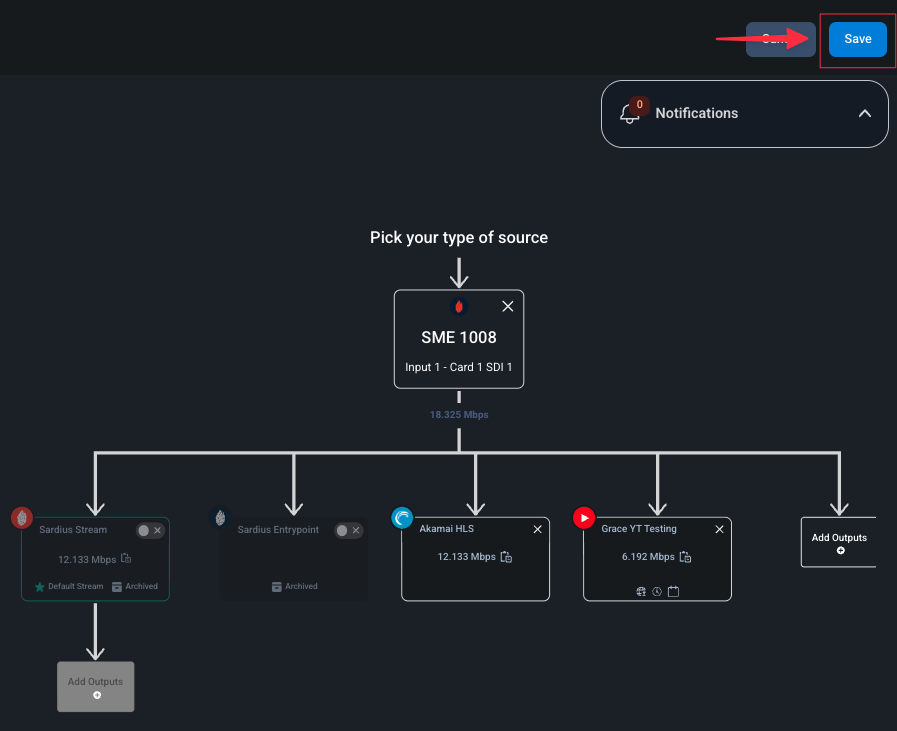
That's it! You have successfully set up your EMLA Encoder to stream to your Sardius Channel using Akamai! You can now schedule an event on your calendar and live stream!
When checking your device's settings, it is recommended that you take a close look at the following:
- Frame rate: this should match your camera/switcher settings.
- Bitrate: we recommend 4 Mbps - 6 Mbps
- Segment Duration: we recommend 6s - 10s.
Here is an example of these settings in templates.
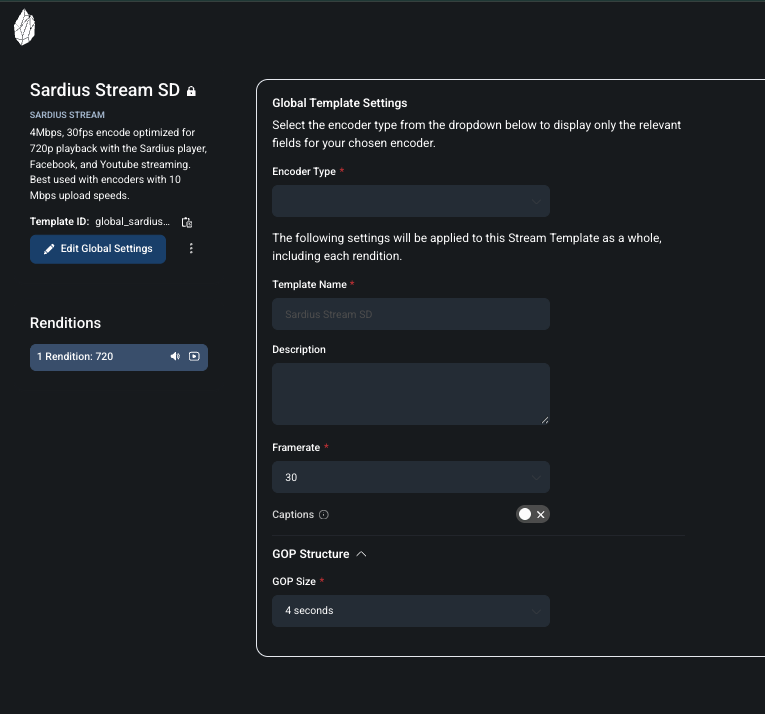
See the link above for more information on setting up templates.