
Create a Curator Embed
Updated
This article walks through creating your first Curator embed — picking a feed, setting up allowed websites, and getting the code onto your page — and shows what visitors actually see once it's live.
For where embeds live and how feeds, embeds, and website allow lists fit together conceptually, see What is Curator?.
Questions while you set this up: support@sardius.media
Create your first embed
The first time you open Embeds on an account with no Curator widgets yet, you get a three-step welcome. Pick a feed, allow your website, copy the HTML. Then you land on Insights.
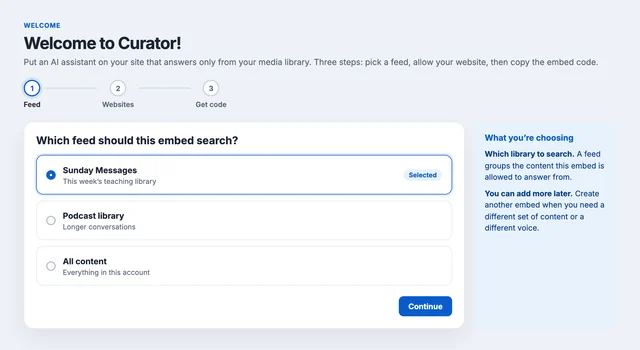
Continue stays off until you finish the current step, though you can always go Back. Nothing is actually created until you finish Step 3 (Get your code) — so leaving partway through won't leave a stray widget behind.
Step 1 — Which feed should this embed search?
This is the library the widget is allowed to answer from. Pick the messages, podcast, or campus people will actually ask about. AI Discover on that feed is what makes the moments searchable.
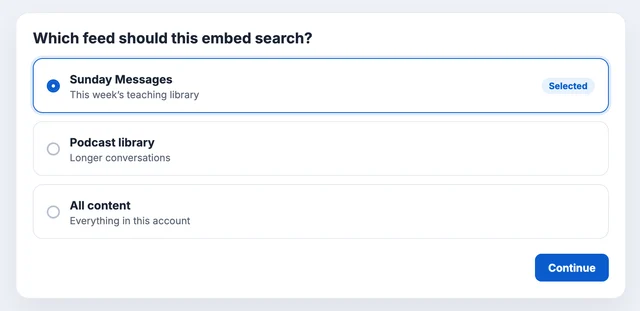
First visit, before any embeds exist — Continue stays dim until you pick a feed.
- Click a feed. Continue lights up.
- If you have no feeds yet, you'll be sent to Feeds first.
For more on creating feeds see: How to Create a Feed
Step 2 — Allowed websites
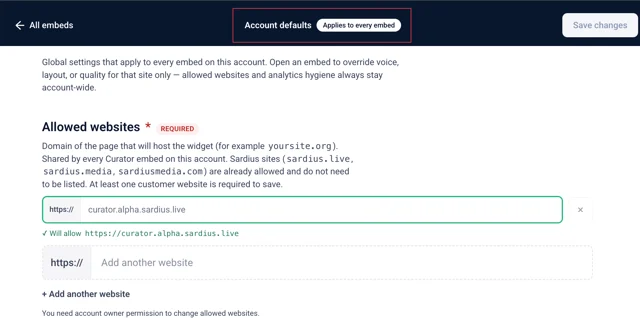
Add the domain(s) this widget will run on — Sardius sites are already allowed, and the list is shared across every embed.
Full detail is in Allowed websites.
Advanced settings are optional. Defaults settings already work — and each setting shows you what it's currently doing (a status badge plus a one-line summary) before you touch anything. Click Edit next to a row only if you want to change how answers feel. Leave everything as-is and continue if the defaults look right. Full list of what each setting does see: Curator Advanced Settings
Step 3 — Get your code
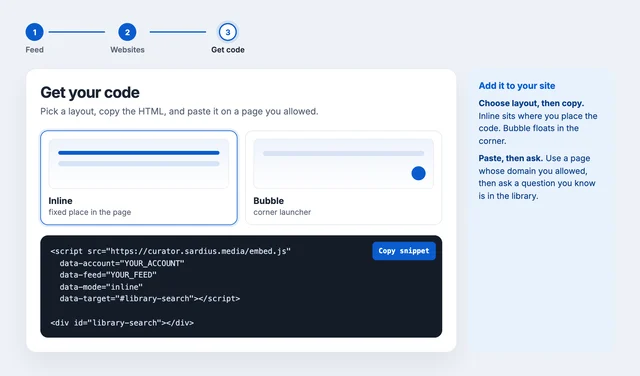
Pick how it sits on the page — Inline or Bubble — then copy the code and paste it on a site you allowed in the previous step. Control Panel fills in your real account and feed IDs automatically. Full detail on each layout see: Get the code.
What people see after you paste: What visitors see.
Done — dashboard welcome
Click Done. Curator registers the embed, sends you to Insights, and shows a one-time welcome:
- What you'll see — question volume, answers grounded in your media, topics, and gaps.
- Where the data comes from — real questions asked in your embed. Empty charts just mean nobody's asked yet — see After you paste for the quick way to test it.
Allowed websites
So the widget only runs on your site — not anywhere someone pastes the code. First-time setup needs at least one of your websites before you can continue.
What to enter
The domain of the page that will host the widget.
Example: yoursite.org. You can skip https:// — Control Panel adds it. If you have a staging site (a test version of your website you use before changes go live), add that domain here too, so testing works there as well.
Why this is required
So a random site can't load your widget. Until you list a website, setup isn't finished.
Already allowed
| Domain | Subdomains |
|---|---|
sardius.live | Yes |
sardius.media | Yes |
sardiusmedia.com | Yes |
You don't add these. They're already trusted so Sardius pages keep working.
Account vs. this embed
Some rows in this embed's website list carry an Account badge — those domains are shared across every embed on your account, not just this one, and therefore they are not editable here.
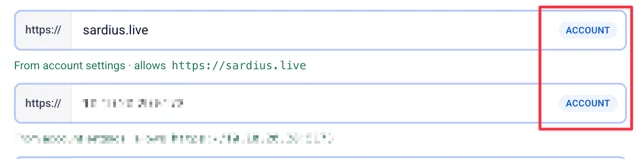
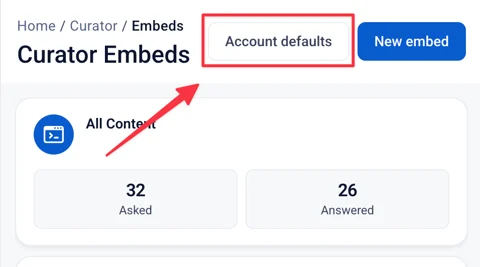
To change one, go to Embeds → Account defaults, and the update applies everywhere at once.
If a domain only matters for this specific widget, add it here instead — it stays local to this embed and won't affect any others.
Share link destination
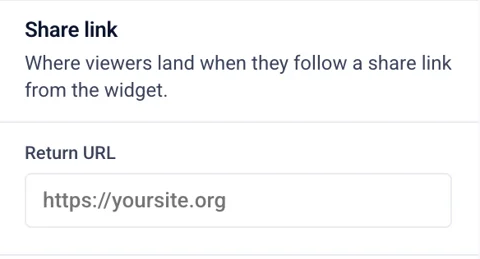
Optional. Visitors can share a specific answer using a share/copy-link option in the widget — this setting decides which page opens when someone clicks that shared link. Usually your watch page.
Get the code
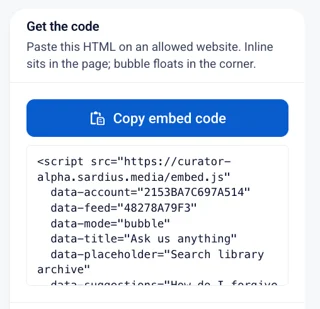
This is the last step before the widget is on your site. Pick how it should sit on the page, copy the HTML, paste it, and ask a real question. If that works, you're live.
Need the code again?
Embeds → open the card → Copy embed code.
Where it should live
Most teams start with Inline. Put the code on a watch page, a sermon archive, or an "ask us" page — wherever you want people to go deeper without hunting through a library.
Inline layout:
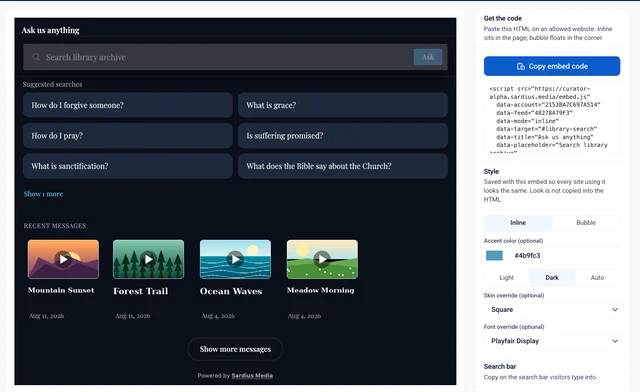
| Layout | Choose it when |
|---|---|
| Inline | You want the search right in the page, in a specific spot. The code includes a box for it to sit in. |
| Bubble | You want a small button in the corner on many pages, without redesigning the layout. Default is bottom-right. |
Bubble layout:
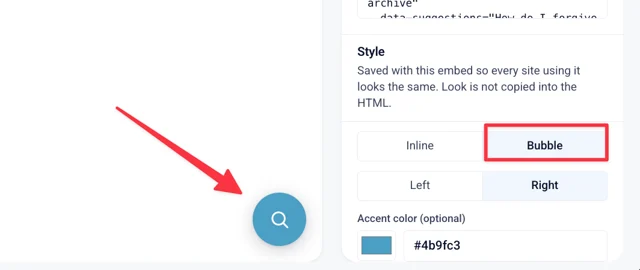
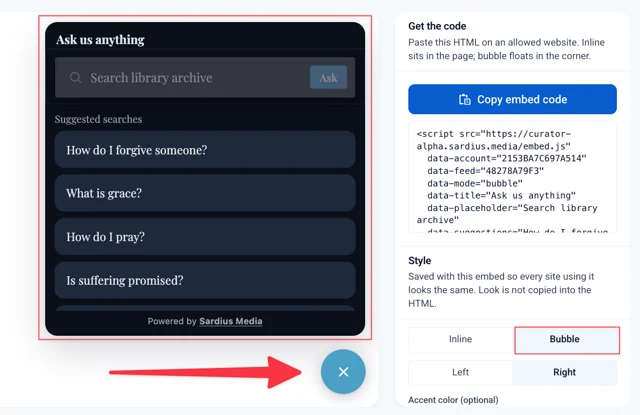
Make it look like you
Optional. Skip this if you're just testing with the defaults.
the Copy button bakes your current settings — color, title, font, and so on — into the HTML as literal text, like a snapshot of your choices at that exact moment. If you change a setting afterward but haven't pasted the code anywhere yet, click Copy again — otherwise you'll be pasting an outdated version.
Once the widget is live on your site, none of this applies anymore: change any of it later under Embeds and it updates automatically, with nothing to re-copy or re-paste.
| Setting | Why you'd change it |
|---|---|
| Accent color | So buttons match your brand instead of ours. |
| Title | So the widget sounds like your church or ministry — "Ask Sunday messages," not a generic label. |
| Skin | Default is fine. Rounded feels softer. Square feels more formal. Leave "Use settings" unless this page should look different. |
| Font | Pick the closest match to your site. Inter is the default. |
| Search button / Moments heading | Change "Ask" or the clips heading if that language doesn't fit. Empty keeps the default. |
After you paste
- Use a page on a site you allowed. If you listed yoursite.org, don't test on a different domain.
- Ask something you know is in the library. You should get clips from that feed only.
- Open Insights and refresh. Those test questions show up under People once they land.
What visitors see
This is the Curator embed on your website — not Control Panel. People search the library, get a cited answer, and jump to the minute. You choose how it sits on the page. They never see Insights, settings, or Admin.
Before they ask
The first screen is an invitation to search, not a blank chatbot.
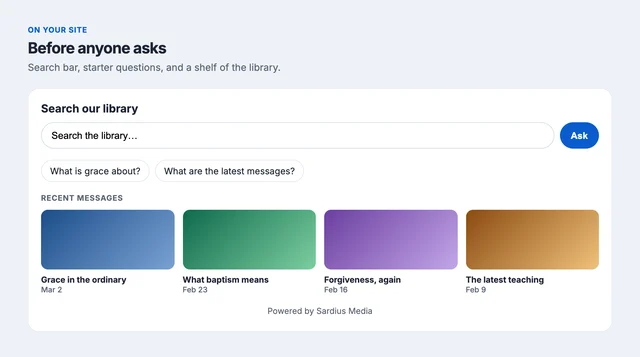
Title, search, Ask, starter chips, and a shelf of the library.
Powered by Sardius Media sits at the bottom unless you hide it.
| Piece | What it is |
|---|---|
| Title | Optional heading — "Search our library," "Ask Sunday messages." Empty = no heading. |
| Search field | Where they type. Placeholder is usually "Search the library…" |
| Ask | The button. You can rename it Search, or hide it so Enter is enough. |
| Starter questions | Chips they can click on instead of staring at an empty box. Up to eight. If you set none, they only see the field. |
| Home shelf | What's under the bar: recent items, series, category, or nothing. "Show more" loads the rest of that shelf. |
| Powered by Sardius Media | Small credit. You can hide it in the embed editor. |
Clicking on a series or a recent video is browsing.
Clicking on a chip is asking. Asking is what shows up in Insights.
After they ask
They should see a short summary, then the moments they can actually watch. Nothing here is invented — clips come from the feed you attached.
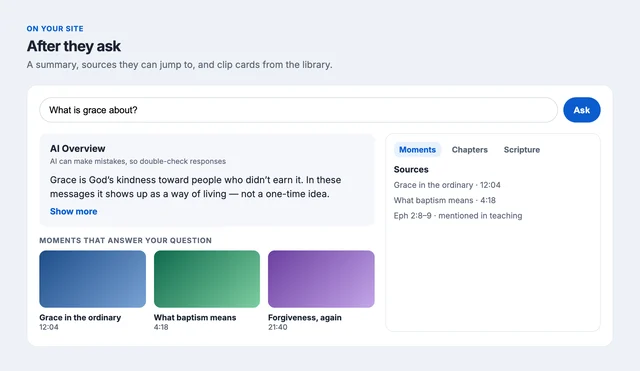
Overview on the left. Sources and tabs on the right. Clip cards jump to the timestamp.
| Piece | What visitors get |
|---|---|
| AI Overview | A short card so they know if it fits before they press play. You can rename it (Summary, etc.). |
| Disclaimer | Default: "AI can make mistakes, so double-check responses." Clear it in settings to hide it. |
| Show more | Long summaries start short. Off = the full text at once. |
| Moments | Clip cards from the library, with a time. Heading defaults to "Moments that answer your question." Click a card to play that minute. |
| Sources rail | The list beside the answer — jump-to moments, and scripture when Bible references are on. |
| Chapters tab | Cue points from the transcript, if chapters are on. You can name the tab. |
| Scripture tab | Verses that were actually said, if Bible references are on for this library. Not a Bible search engine. |
Chapters and Scripture tabs only appear if you've turned those features on — see Curator Advanced Settings.
If someone shares an answer, they land on the return URL you set (usually your watch page).
When the library doesn't have it
| Situation | What they see |
|---|---|
| A clear miss | It says the library doesn't have that — not a made-up answer. |
| A weak / partial match | Default: the answer shows with a "related" badge. You can hide weak answers instead. |
| Gibberish or spam | A short "can't answer." No long generated reply. |
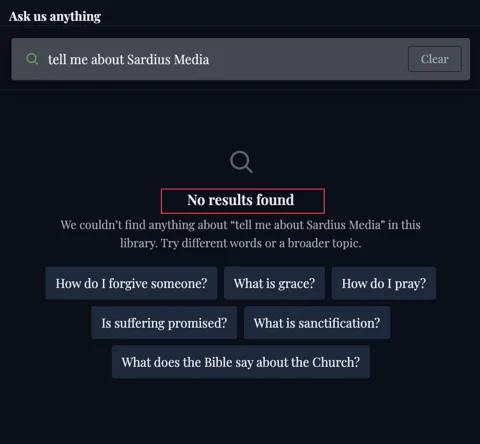
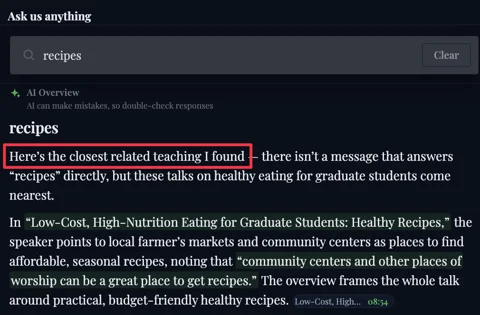
Those misses still matter though. They show up in Curator Insights as gaps — what to teach or clip next.
What you can change
Look and labels live on the embed:
Control Panel → Curator → Embeds → the card → Preview.
Change color, theme, shelf, and chips there. Save changes.
How it answers — match quality, chapters, Bible, voice — is Edit Settings on that same embed. For the full list and details see: Advanced Curator Settings.