
Curator Advanced Settings
Updated
This article covers every setting that shapes how Curator finds and displays answers, from match quality to how sources and clips are shown. These settings apply account-wide unless a specific embed overrides them; for per-embed overrides, see Curator Embed Management.
These are safe to skip during first-time setup — the defaults will already work. Come back later if you want to adjust how Curator finds answers, what visitors see before they ask a question, or how the answers and widget sound and look like you.
Questions while you set this up: support@sardius.media.
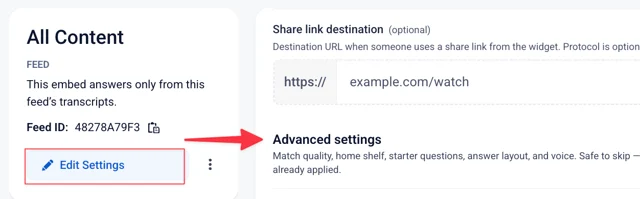
Click Edit next to any row to expand it — the description explains exactly what visitors will see if you turn that setting on. A few settings are internal-only and don't change anything on the live site; those descriptions say so directly, so you're never guessing whether a change actually shows up.
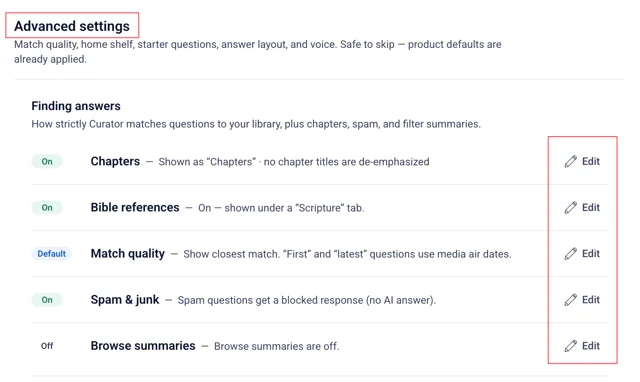
Finding answers
How Curator decides what to play — and what to skip.
Chapters (cue points)
Turn this on so people can jump to the right moment instead of scrubbing. Name the tab "Chapters" or "Moments" if that language fits. De-emphasize titles like worship or announcements when those rarely answer real questions.
Bible references
Off by default. Turn on if you want verses in the answer when they were actually said. The tab name can be "Scripture" or "Bible." Insights can then show a Scripture side of themes.
Match quality — when to show an answer
This is the "don't send people a weak clip" setting. Below the level you pick, Curator says it doesn't have it. The miss still shows up in Curator Insights so you know what to teach next.
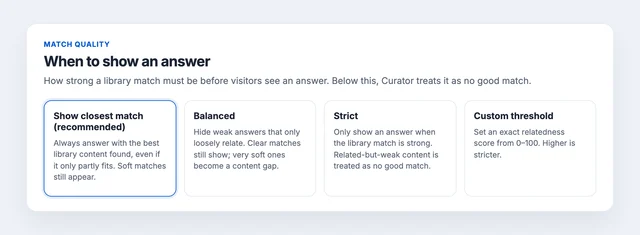
Show closest match is the recommended default. Strict hides weak answers. Custom sets an exact 0–100 threshold.
| Choice | What happens |
|---|---|
| Show closest match (recommended) | Always answer with the best library content found, even if it only partly fits. Soft matches still appear. |
| Balanced | Hide weak answers that only loosely relate. Clear matches still show; very soft ones become a content gap. |
| Strict | Only show an answer when the library match is strong. |
| Custom threshold | Exact relatedness score from 0–100. Higher is stricter. |
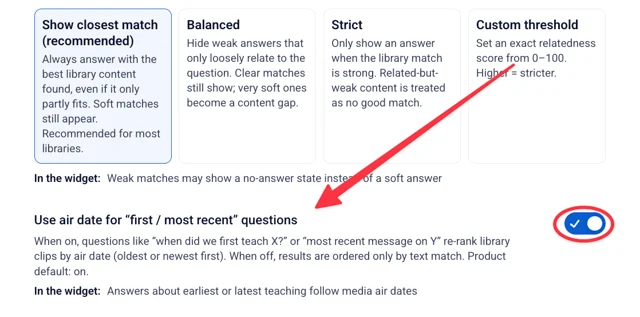
Air date for "first / most recent" questions
Leave this on if people ask "when did we first teach this?" or "what's the latest on…". Curator then uses the media date, not just how well the words match.
Spam & junk
Leave this on. Gibberish and empty asks get a short "can't answer" instead of a made-up search. You can still flag them in Curator Insights. "Answer anyway" is only if you'd rather show a clip than stop them.
Browse summaries
Off by default. Turn on if filtering by speaker or series should show a short recap above the list. It uses extra AI, so most teams leave it off.
First impression
What people see before they type — the difference between a blank box and an invitation.
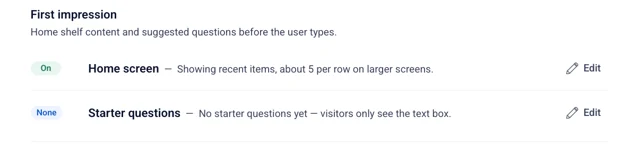
Home screen
A shelf under the search bar. Recent items help people browse what's new. Series or Category help if they already know a collection. Off keeps it search-only. Keep the count modest on phones.
Starter questions
Chips they can tap instead of guessing what to ask. Generate drafts from this library, keep the ones that actually answer, or type your own. Nothing goes live until you save. If you skip this, they only see the text box.
How answers look
This is the card people read before they press play. It does not change which videos are searched.
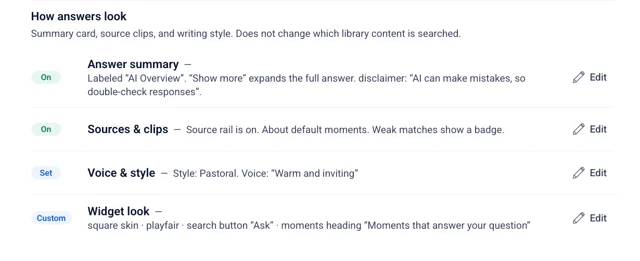
Answer summary
Leave the summary on so they know if the moment fits before they watch. "Show more" keeps long answers from dumping everything at once. Rename the card and keep a "double-check this" line if that fits your culture. Clear the disclaimer to hide it.
Sources & clips
Sources beside the answer are the jump-to moments — that's the point of Curator. Clip cards are how many of those moments to show. A "related" badge on a partial match is honest; hiding it makes a weak clip look like a direct hit.
Voice & style
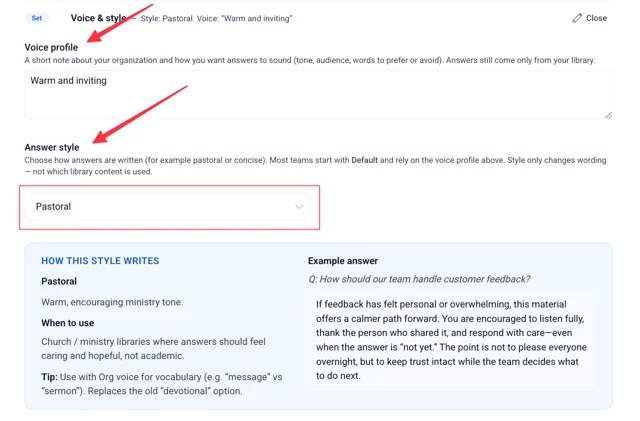
Voice profile - is a short note about your organization and how you want answers to sound — tone, audience, words to prefer or avoid (for example, "Warm and inviting").
Answers still come only from your library; this only changes how they're phrased.
Answer style - picks the writing style — Pastoral, Teacher, Concise, Study guide, or Default. Most teams start with Default and rely on Voice profile instead. Style only changes wording, not which library content is used.
| Style | When to use |
|---|---|
| Default (recommended) | Balanced answers without a fixed format. Pair with your voice profile for brand tone. |
| Pastoral | Church / ministry libraries that should feel caring, not academic. |
| Teacher | Training content, or "what does X mean?" questions. |
| Concise | Mobile embeds and quick FAQs. |
| Study guide | Summary plus discussion questions. |
Each style shows a sample answer for the same fictional question so you can compare shape, not theology.
Widget look
Defaults for this library. To preview on a live widget, open the embed and use Style — that's the easier place to restyle. See