
Curator Embed Management
Updated
Curator Embed Management
Once an embed exists, this article covers what you'll find on its own page — previewing how it looks, checking its Stats, and browsing its Assets.
Questions while you set this up: support@sardius.media.
Once a widget exists, Embeds is home for every widget you've put on a site. Open a card to change how it looks, copy the code again, or see whether people are actually using it.
Your widgets
- Each card is one embed — the same code and settings you've pasted onto a page.
- The title on the card is the library that embed searches, not the embed's own name, so two embeds pointed at the same library will show the same title.
- Asked and Answered are usage counts, not a health check. Answered means the library found a good match — not just that something came back. A new embed with no traffic yet isn't broken; it just hasn't been used.
- Account defaults and New embed are in the top right. Click a card to open it. If you have more than four, a search box appears so you can find one by name.
Add a new widget
Use a new embed when the library, the look, or the audience is different — a campus page, a podcast, a language. Visitors only hear answers from the feed you pick.
Pick a feed, then Continue. You can restyle it after it's created. The new card shows up even if nobody has asked yet. Zero asked is normal until the code is on a live page.
Preview page
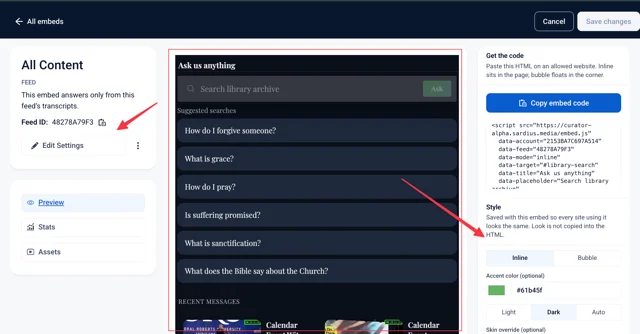
The embed page has three regions:
Left — the feed this embed searches, an Edit Settings link (see Curator Advanced Settings, and a menu to remove the embed. Removing an embed only deletes that deployment — the videos stay in your library.
Middle — Changes depending on Preview, Stats, and Assets. On Preview, this is the live widget itself, not a mockup, so it behaves exactly the way it will for visitors.
Right — style and settings controls. Change something here and the widget in the middle updates immediately, so you're seeing it the way a visitor will. Save keeps the changes; Cancel throws them away.
Copy the embed code when you need to paste the widget on a page. If the widget won't load, you probably still need an allowed website under Account defaults or this embed's settings — see Allowed websites.
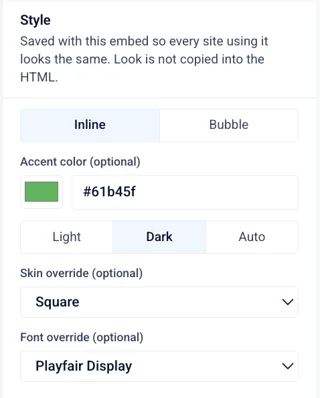
Style
So the widget feels like your site and not a generic box. Save changes writes this for every page using this embed.
| Setting | Why you'd change it |
|---|---|
| Inline / Bubble | Inline sits in the page. Bubble is a corner button when you don't want a big block. Bubble can sit on the right or the left. |
| Color | Buttons and highlights match your brand. |
| Light / Dark / Auto | Fit a light page, a dark page, or the visitor's device. |
| Skin | Default is slightly rounded. Rounded is softer. Square is more formal. |
| Font | Pick the closest match to your site. Inter is the default. "Match my site" works when the page already uses a normal system font. |
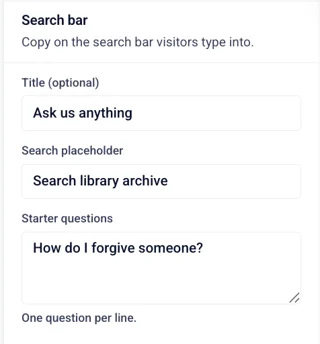
Search bar
This is the first thing people see. Title and placeholder should sound like you. Starter questions are chips they can tap instead of staring at an empty box — one question per line, things you know the library actually answers.
Home
What sits under the search bar before anyone asks. Recent items help people browse what's new. Series or Category help if they already know a collection. Nothing keeps it search-only.
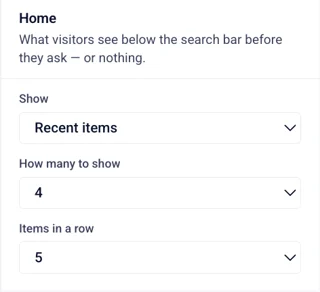
How many to show and items in a row only matter when a shelf is on. Keep it light on mobile-heavy pages.
Labels
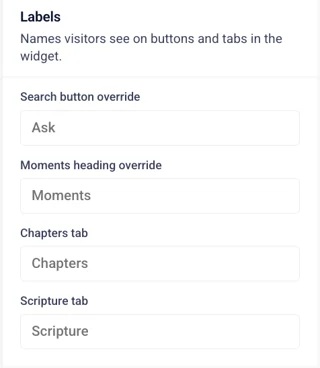
The words on the button and tabs. Change "Ask" to "Search" if that fits. Rename Chapters or Scripture if your community uses different language. Empty keeps the default.
Answers in the widget
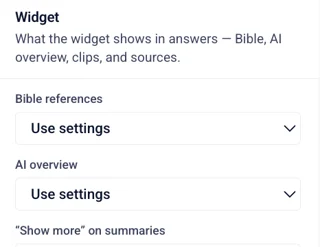
What shows up after someone asks a question. Most settings below are Use settings / On / Off — Use settings inherits whatever's configured under Edit Settings; On or Off overrides it for this embed only, for example hiding scripture on a kids page or showing fewer clips on a tight layout. Overview title and Overview disclaimer are text fields instead — type your own wording, or leave the placeholder as-is.
| Setting | Why it matters |
|---|---|
| Bible references | Show verses in the answer when they were actually said. |
| AI overview | A short summary so people don't have to watch before they know if it fits. |
| "Show more" on summaries | Lets them expand a long summary instead of dumping it all at once. |
| Sources beside the answer | The clips and citations next to the summary — so they can jump to the minute. |
| Overview title | Name the summary in your own language. Defaults to "AI Overview." |
| Overview disclaimer | Keep, edit, or clear the "double-check this" line. Defaults to "AI can make mistakes..." |
| Clip cards | How many moments to show. Fewer is cleaner. More is for people who want to browse. |
Share link
Return URL — Optional. Point it at your watch page — the one with the actual player — not just any URL on your site.
Advanced
Install details most sites can leave as-is — hand this to your web person if a change is needed.
| Setting | Why you'd change it |
|---|---|
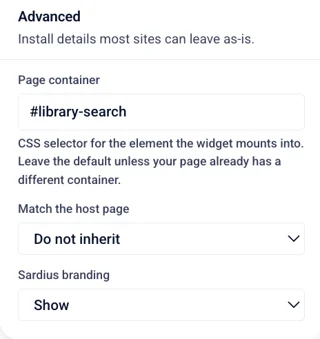
| Page container | The CSS selector the widget mounts into. Default is #library-search — only change it if your page already uses that selector for something else. |
| Match the host page | Inherit colors and font pulls the accent color and font straight from your page's own CSS, instead of the Accent color and Font set in Widget look. Do not inherit (the default) keeps the widget's own settings. |
| Sardius branding | Show or hide "Powered by Sardius Media." |
Stats page
Usage for this embed only — not the whole account.
Same 7 / 30 / 90 days as Insights.
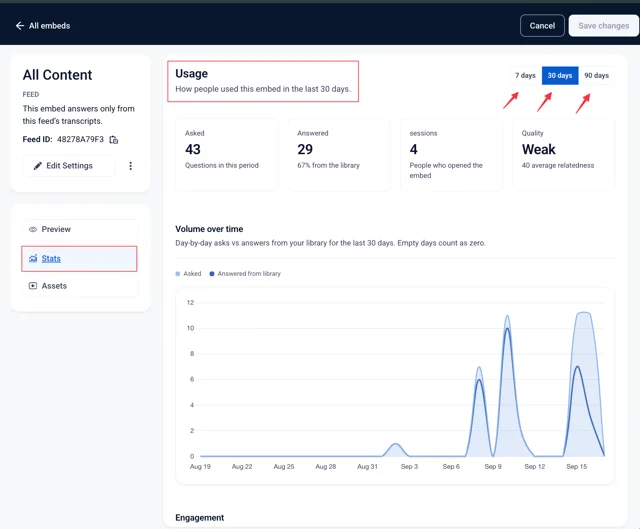
- Asked is how many times someone typed.
- Answered is how often the library actually had it.
- Sessions is people who opened the widget.
- Quality is how well the clips fit — empty until real answers exist.
- Zero questions still means your library is ready.
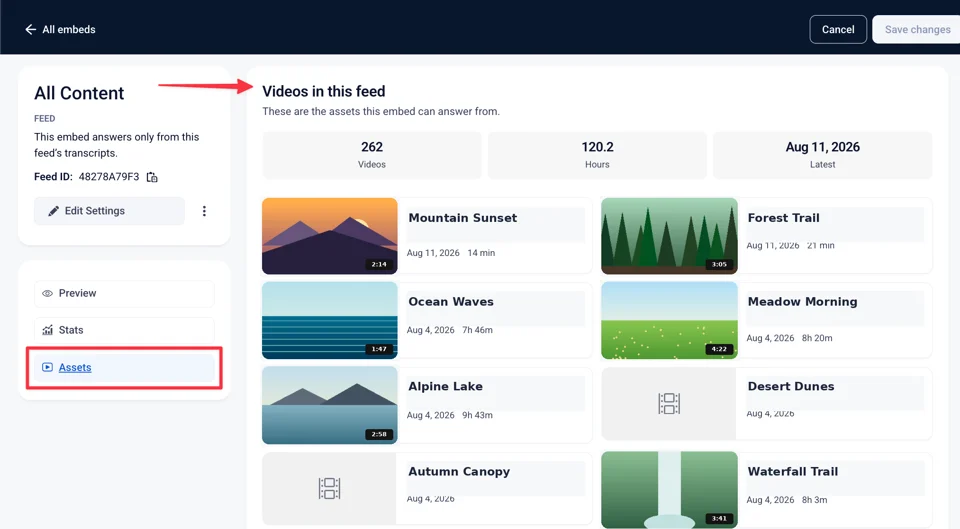
Assets page
This is your catalog.
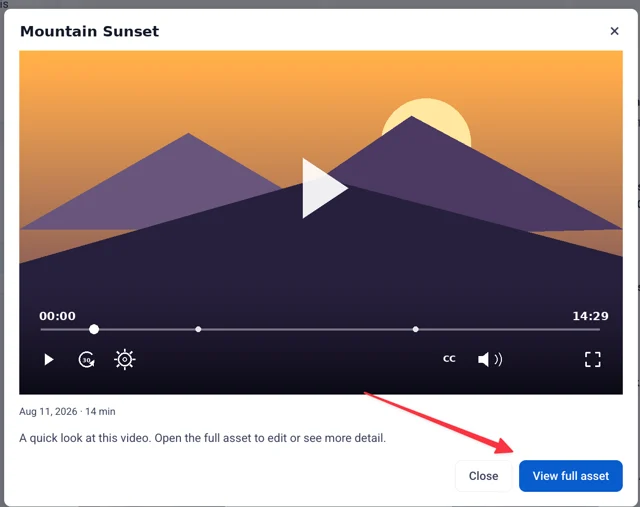
Videos in this feed — the assets this embed can answer from. Click a row for a quick look: the video, its date and length, and a short description.
View full asset takes you to the video's full recording, where you can make additional edits.
Once your embed is set up the way you want, Curator Insights is where you'll find out whether it's actually working — what people asked, how well the library answered, and what to teach or clip next.