
Player Playlists (Feeds)
Updated
Turn any Feed into a shareable, embeddable playlist. Think of it like a YouTube playlist: This is available for any account with Feeds enabled.
What Can You Do With a Playlist?
-
Share a playlist URL that viewers can open directly in a browser
-
Embed the playlist on your website
-
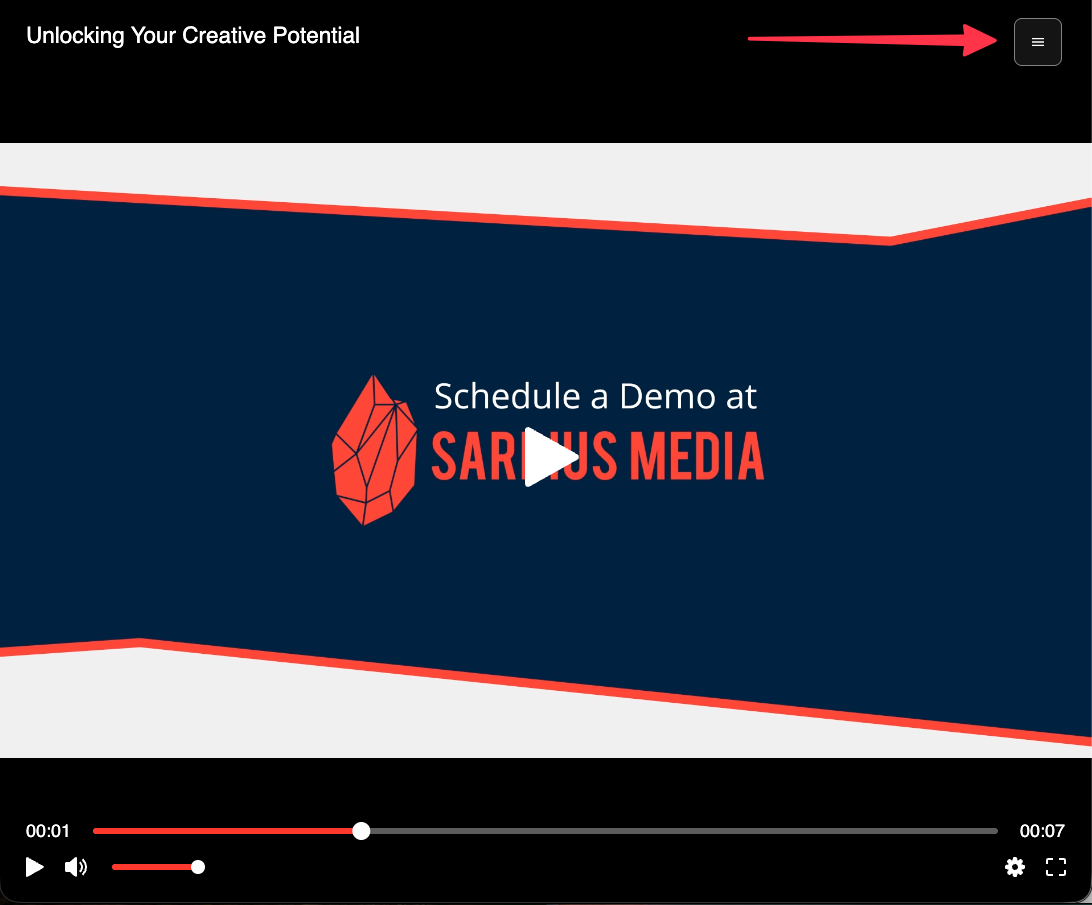
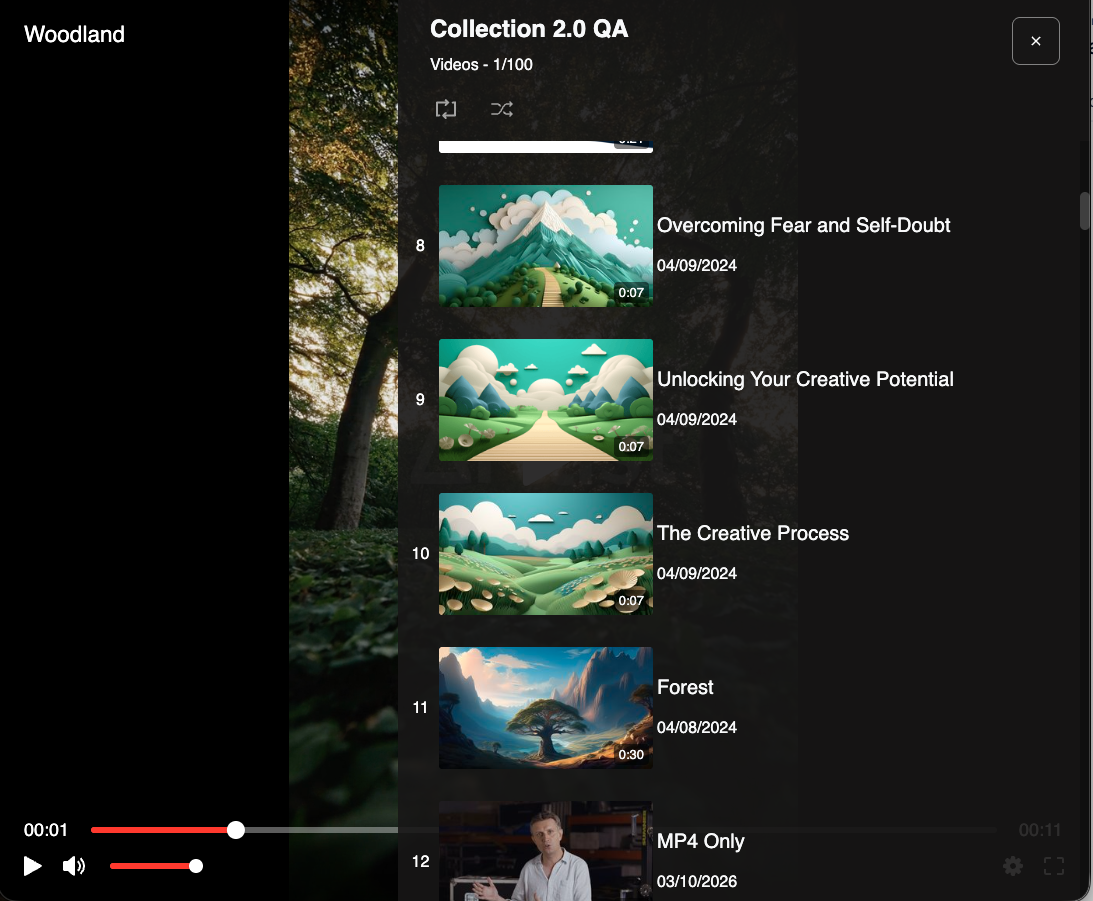
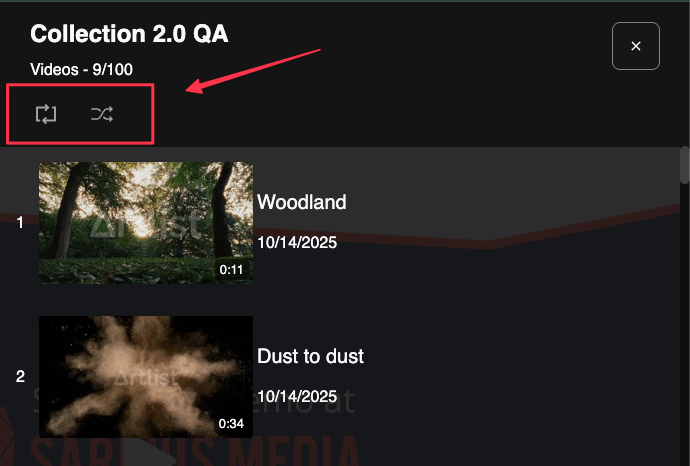
Let viewers repeat, shuffle, or skip through content
-
Set a maximum item count to control how many items appear
-
Give the playlist a custom name
-
Choose which player (Legacy or Sardius) powers the playlist
How to Create a Playlist
-
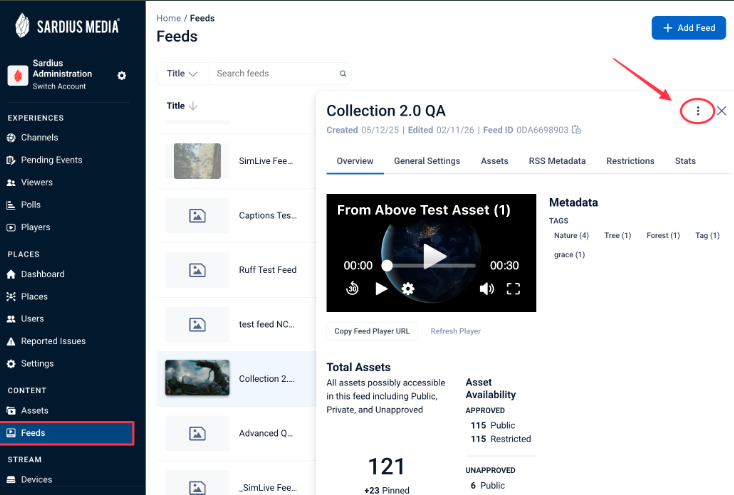
In the Sardius Control Panel, navigate to Feeds
-
Find the Feed you want to share as a playlist
-
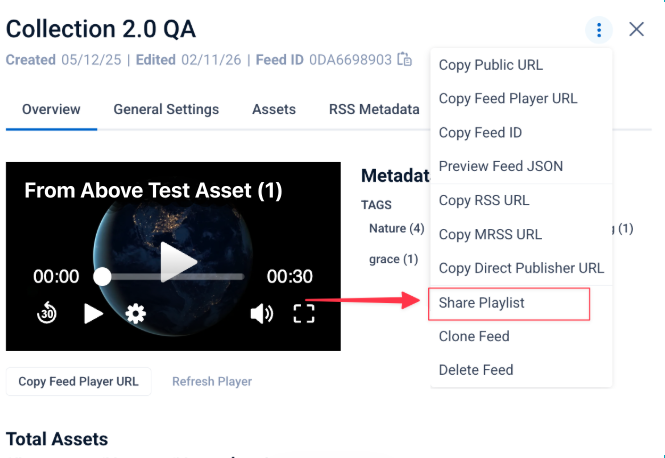
Click the kebab menu on the feed
-
Click the Share Playlist option
-
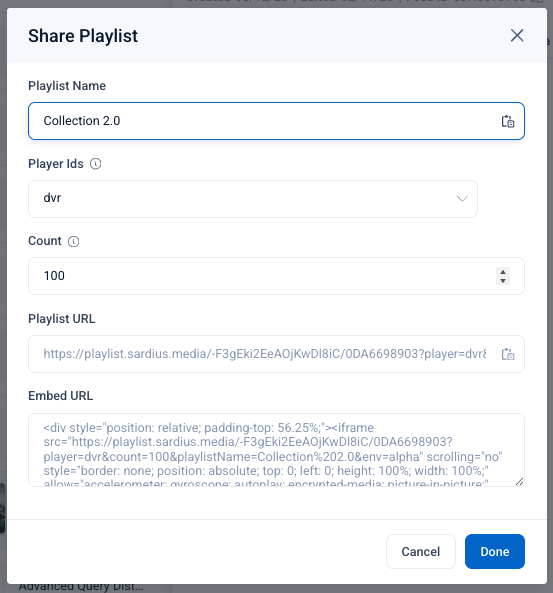
A modal will appear with the following options:
-
Playlist Name — Give your playlist a custom title
-
Player ID — Select which player configuration powers the playlist. which updates the Playlist URL and Embed URL automatically
-
-
- Max Count — Set a limit on how many items display
Copy the Playlist URL to share directly, or copy the Embed URL to add it to your website
Choosing a Player ID
The Player Ids field determines which player configuration is used to display your playlist. Your account may have multiple player configurations — for example, one with DVR enabled, one without, or one using the Legacy player vs. the Sardius player.
Selecting a Player ID from the dropdown will automatically update the Playlist URL and Embed URL shown in the modal to reflect that player. This means you don't need to manually adjust any URLs after copying them — just select the right player first, then copy.
If you're unsure which player to choose, the dvr player (the default option shown in the dropdown) is a good starting point for most use cases, as it supports scrubbing through VOD content. Contact Sardius Support if you need help identifying which player configuration is right for your playlist.
Viewer Experience
When a viewer opens a Playlist URL, they'll see:
Embed URL
The Embed URL can be placed in an <iframe> on your website to display the playlist inline. This is useful for ministry websites, landing pages, or event recap pages.
Notes & Limitations
-
Playlists are feed-based — you cannot manually arrange individual assets outside of how the Feed is ordered
-
The playlist reflects the current state of the Feed at the time of viewing
-
Feeds are cached. **Any updates to the feed can take up to 15 minutes to populate publicly.
**
Still have questions?
Contact Sardius Support for help setting up or embedding a playlist.