
Player Editor
Updated
How to Edit Your Channel Player
Overview
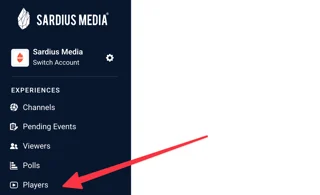
Players are account-level components that can be created once and assigned to multiple channels. Access and manage them from the Players menu in the Sardius Control Panel sidebar.
Creating or Finding a Player
-
Go to Players
-
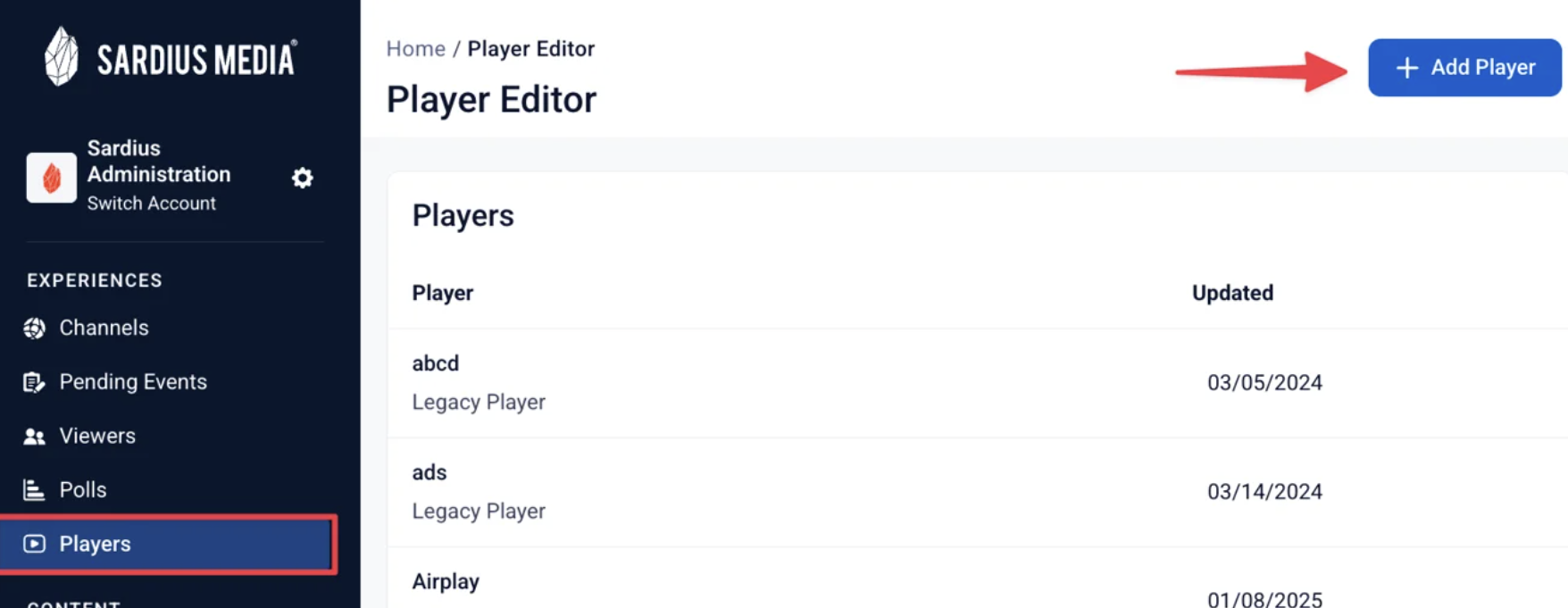
Click Add Player
-
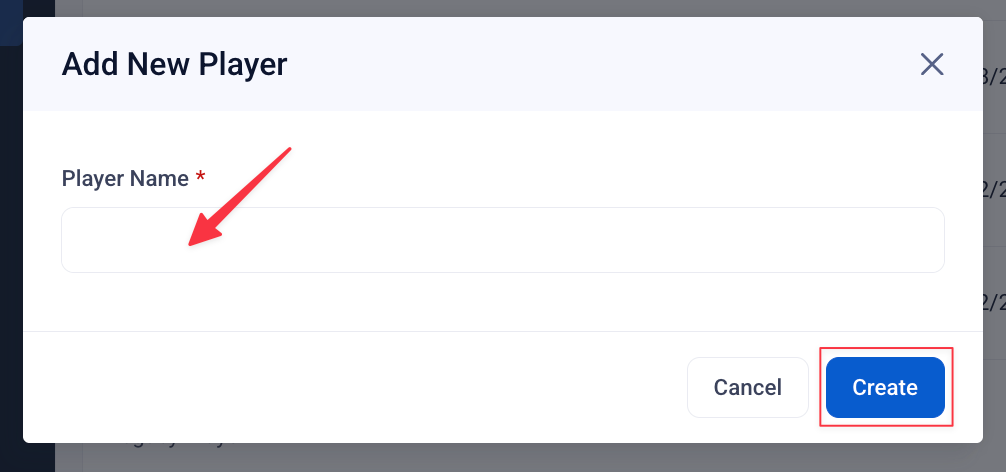
Enter a Player Name and click Create
 — or use the search bar to find an existing player by name or player ID
 -
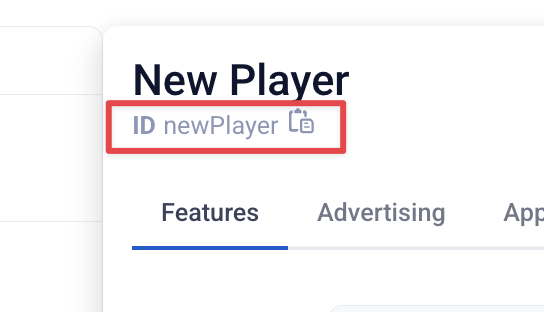
Each player's ID is shown at the top of the player's own settings panel (with a one-click copy icon) and can also be copied from a channel's settings for easy reference when troubleshooting
Features Tab
Customizes basic player functionality.
- Player Name: Change the name of the player.
- Player Type: Choose between the Sardius Player (default, latest features, mobile friendly) or the Legacy Player (older code base).
Overlays are not currently supported on the Sardius Player.
- Use as Background Player: Turns on Autoplay, Start Muted, and Loop, and hides the control bar/settings chrome — designed for background embeds where the player runs without visible controls. When turned on, other setting toggles will automatically turn off and go gray.
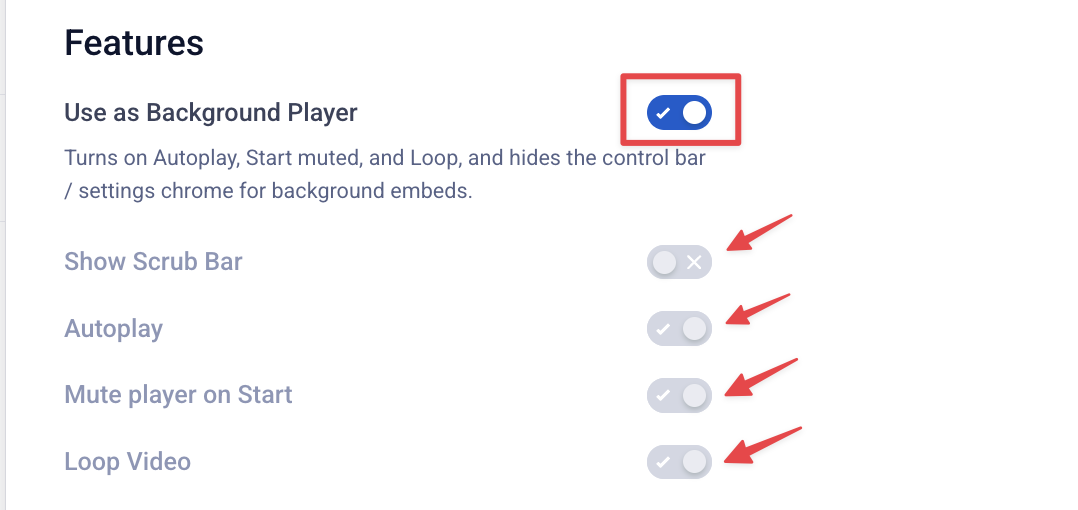
- Show Scrub Bar: Displays the video's playback progress bar.
- Autoplay: Enables the player to begin playing as soon as it finishes loading.
- Mute Player on Start: When enabled, the player begins with the sound muted.
- Loop Video: Allows the video to play on a continuous loop.
- iOS Native on Fullscreen: When on, uses the native Apple player for fullscreen. If off, the player won't go fullscreen on iOS devices.
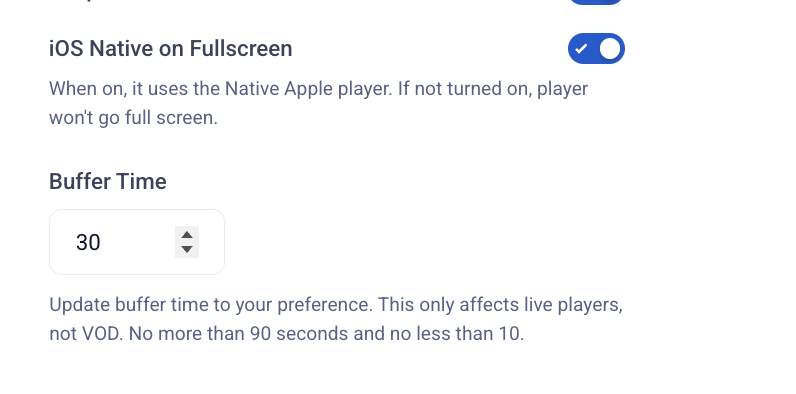
- Buffer Time: Allows you to adjust how many seconds of HLS video the player pre-loads, from 10–90 seconds (default: 90). This only affects livestreams — it has no effect on VOD (video-on-demand) content.
Advertising Tab
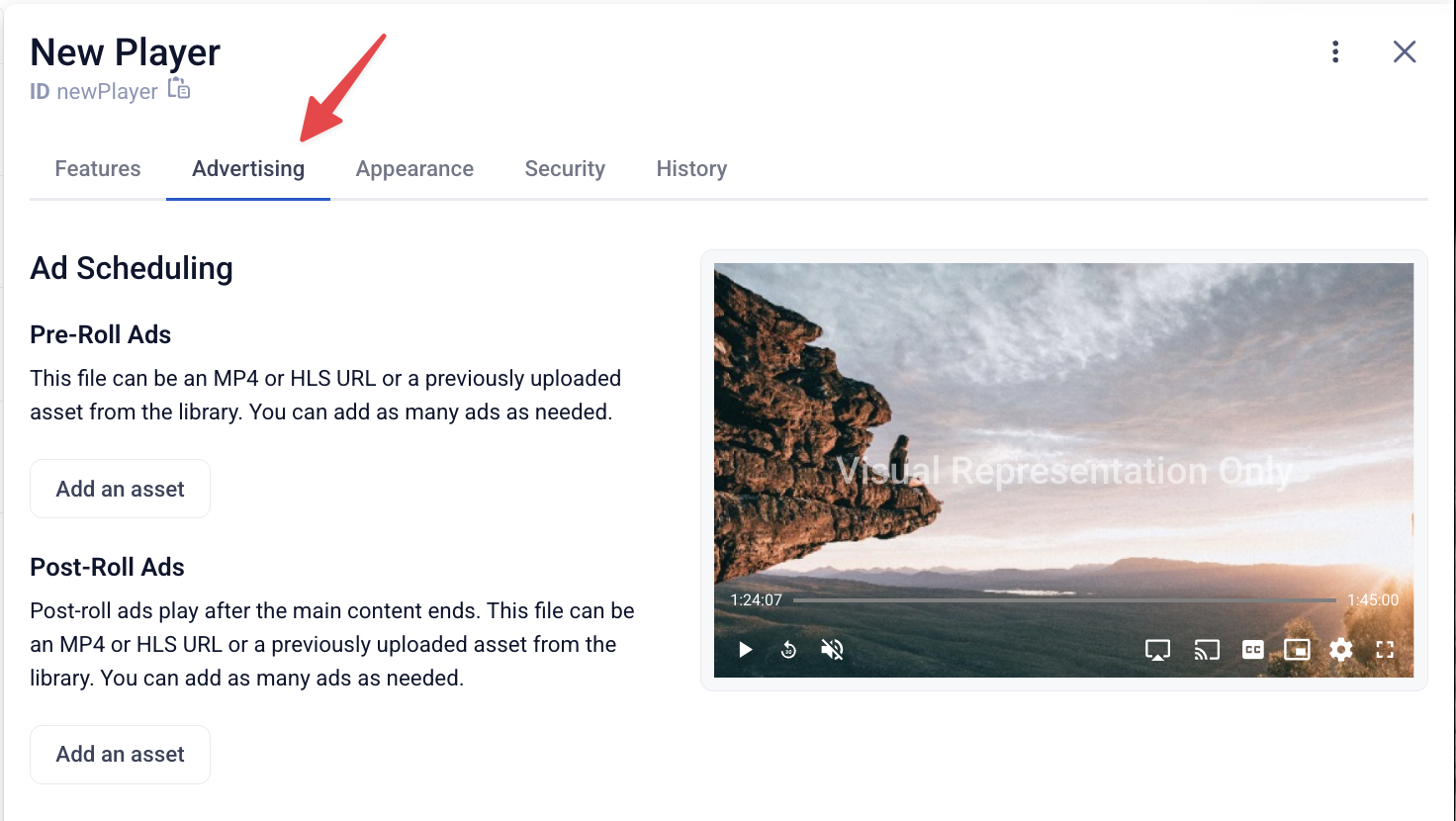
Ad Scheduling
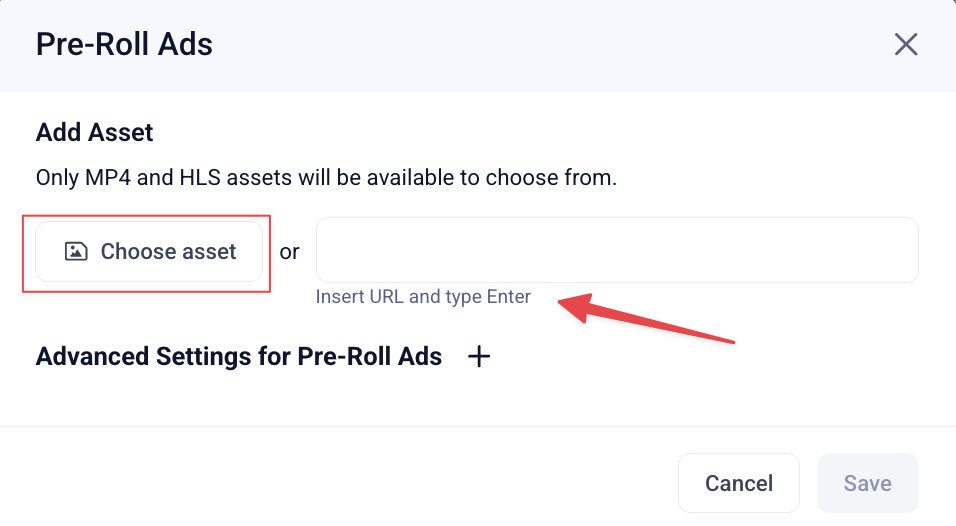
Pre-Roll Ads: Add one or more ads that play before content starts. Each can be an MP4 or HLS URL, or an asset already uploaded to your library.
Post-Roll Ads: Add one or more ads that play after content ends, using the same MP4/HLS/library asset options as Pre-Roll.
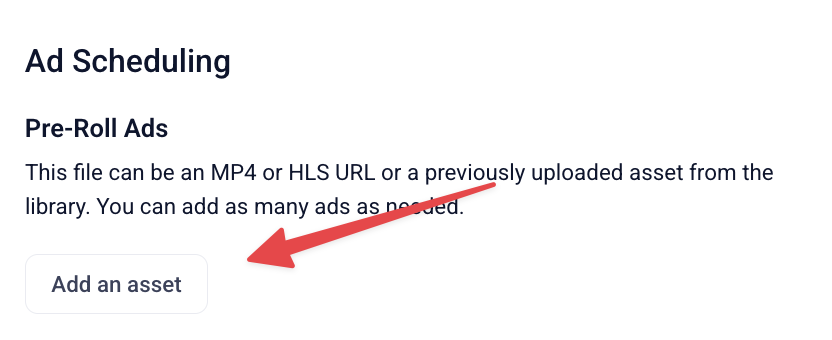
Adding an asset:
Click Add an asset, then either Choose asset from your library or paste a URL directly. Only MP4 and HLS assets are accepted.
Advanced Settings for Pre-Roll/Post-Roll Ads:
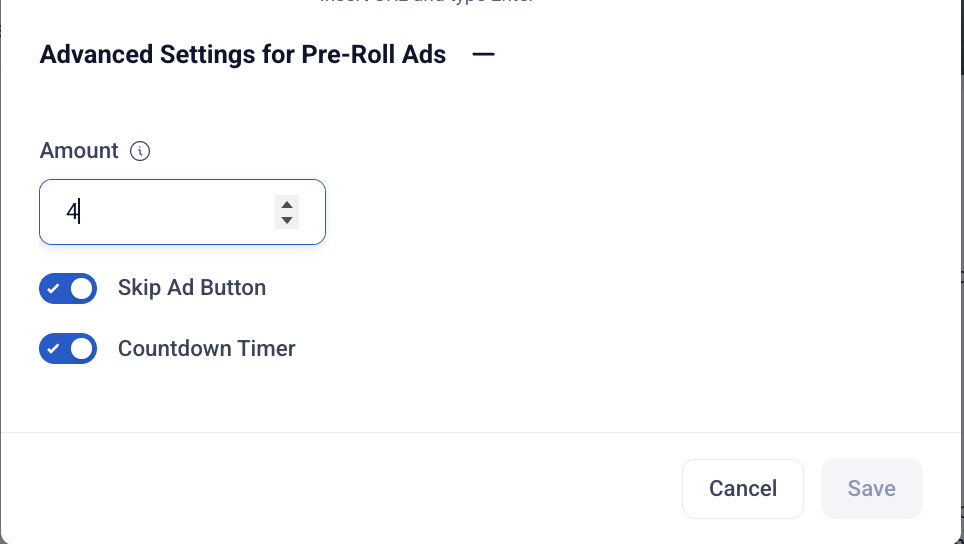
- Amount: Sets how many ads play. If this number is lower than the number of assets uploaded, the player randomly selects from the uploaded list each time.
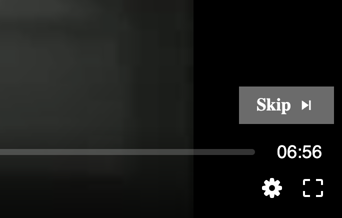
- Skip Ad Button: Toggle whether viewers can skip the ad.
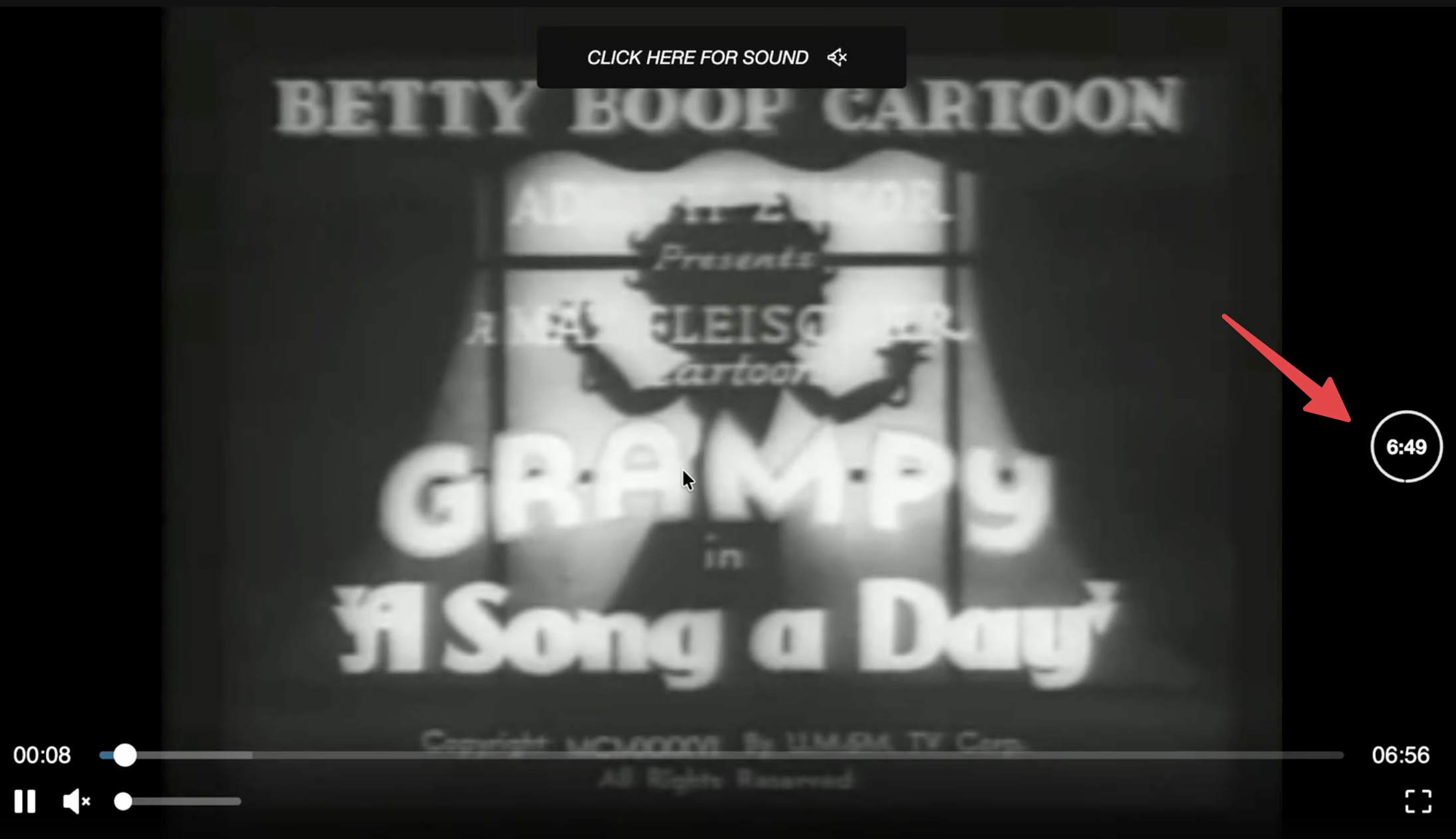
- Countdown Timer: Toggle whether a countdown displays during the ad.
(picture)
Choose how often the pre-roll should play:
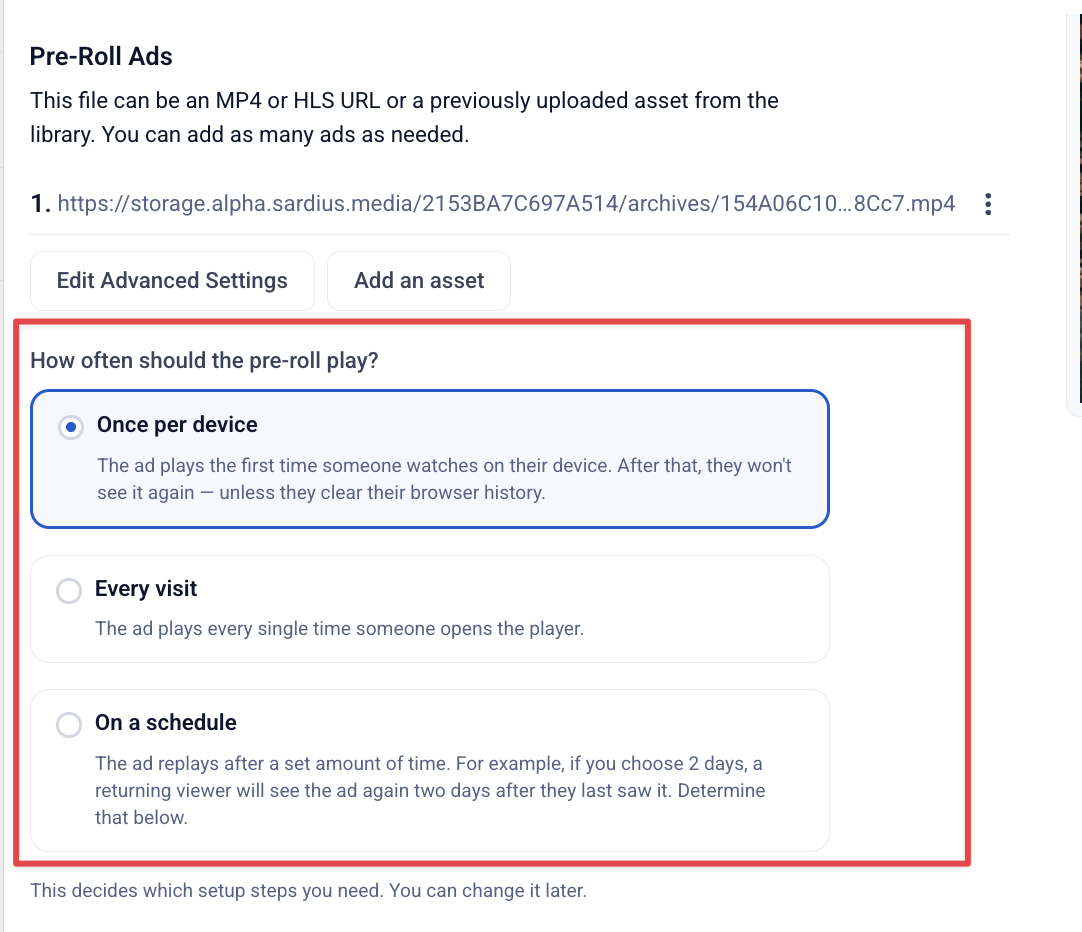
- Once per device (default): plays the first time someone watches on a given device, then not again unless they clear their browser history
- Every visit: plays every time someone opens the player
- On a schedule: replays after a set number of days (e.g., choosing 2 days means a returning viewer sees it again 2 days after their last view)
Appearance Tab
Customizes the player's visuals, captions, and controls.
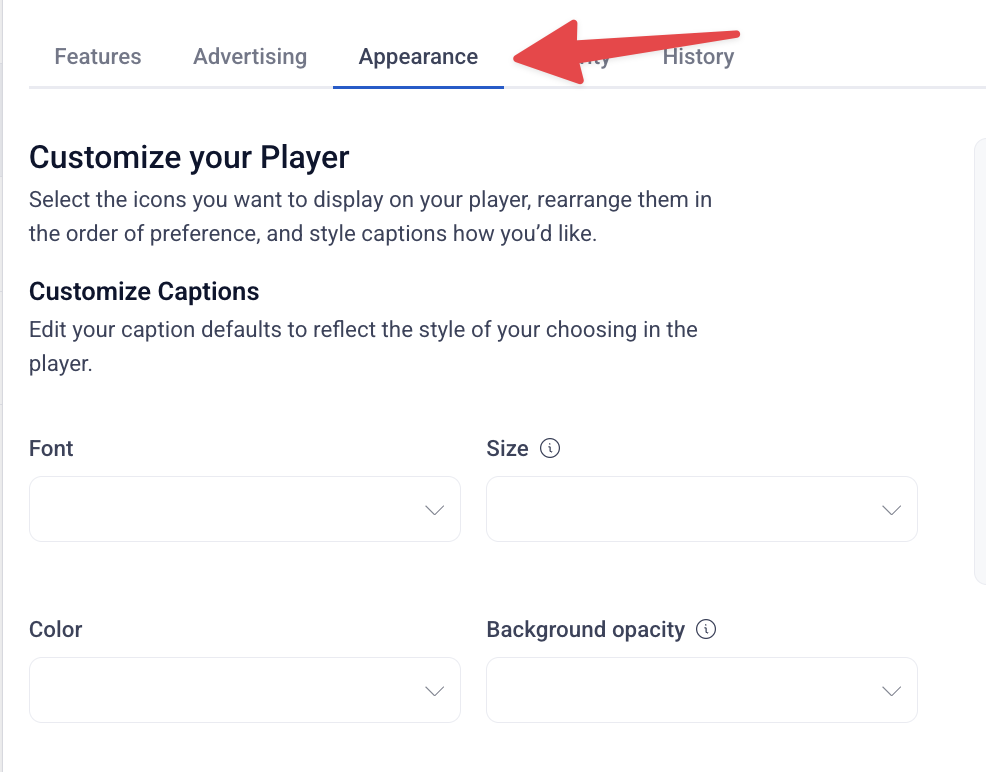
Customize Captions:
- Font: Choose between monospace or proportional serif/sans fonts.
- Size: Set caption text size as a percentage of default.
- Color: Set caption text color.
- Background Opacity: Set how transparent the caption background box appears.
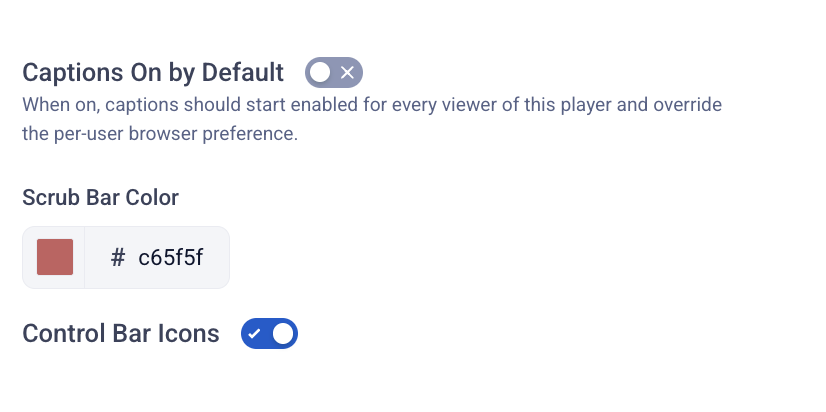
Captions On by Default: When on, captions start enabled for every viewer of this player and override each viewer's own browser/device caption preference.
Scrub Bar Color: Set via hex code or color picker.
Control Bar Icons: A toggle enables customizing which icons show and where. Once enabled, drag icons between three columns — Left side, Right side, and Hidden — to set what viewers see and in what order.
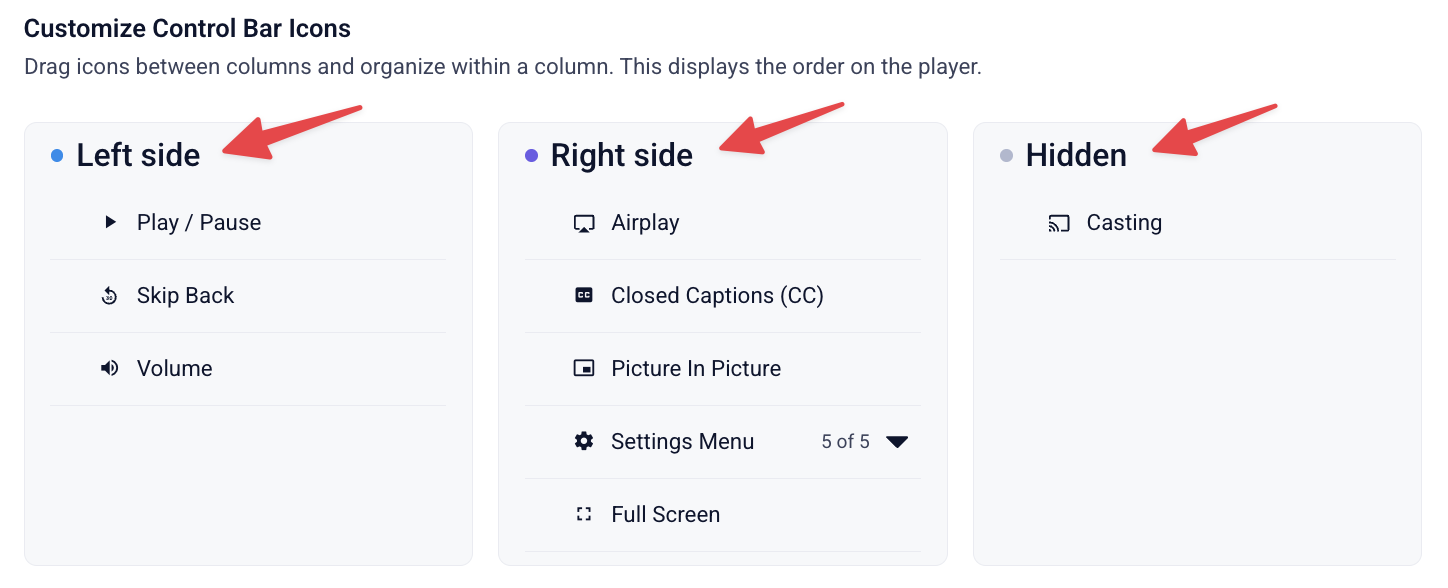
Available icons: Play/Pause, Closed Captions (CC), Volume, Airplay, Casting, Settings Menu, Full Screen, Skip Back, and Picture in Picture.
(picture)
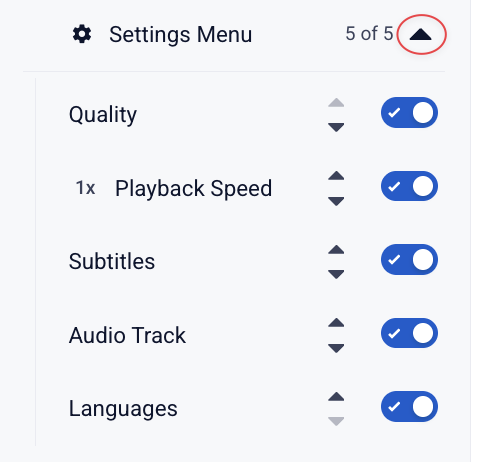
Settings Menu: The Settings Menu itself is one of the draggable icons above, and expands to 5 individually configurable items — Quality, Playback Speed, Subtitles, Audio Track, and Languages — each of which can be shown/hidden, reordered, and renamed independently within the menu.
Security Tab
-
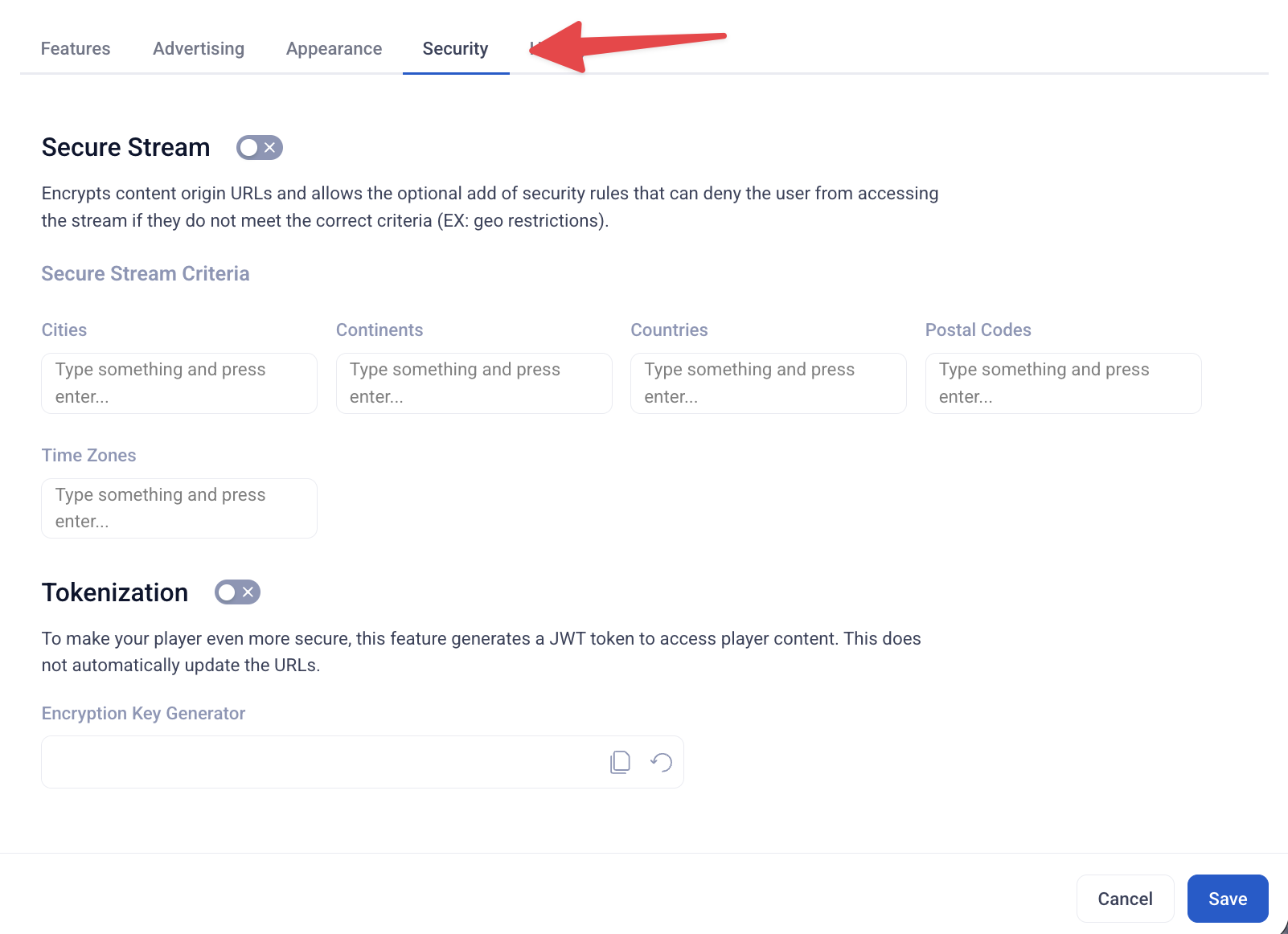
Secure Stream: Encrypts content origin URLs and lets you add rules that deny access if a viewer doesn't meet certain criteria (e.g., geo-restrictions) — restrict by city, continent, country, postal code, or time zone.
-
Tokenization: Generates a JWT token to access player content for additional security (does not automatically update existing URLs). Includes an Encryption Key Generator field.
History Tab
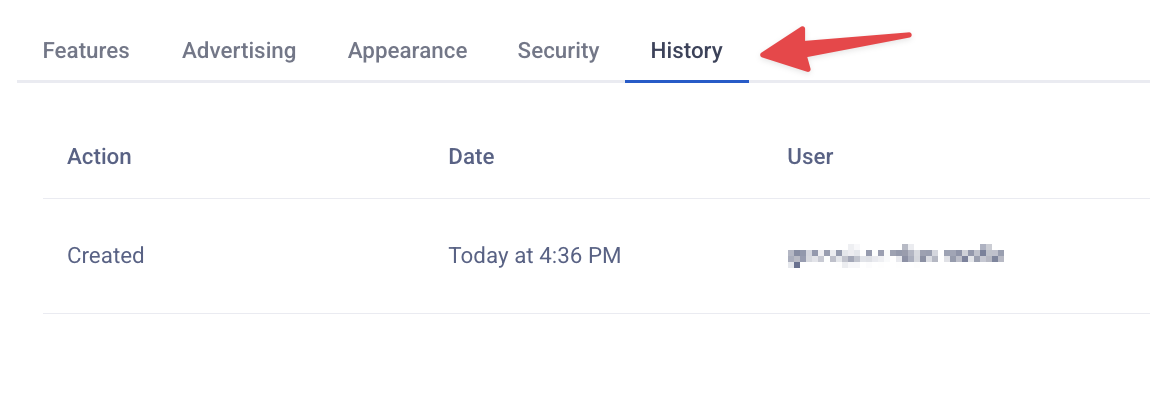
Displays a table of Action, Date, and User for the most recent change made to the player's configuration.
Assigning a Player to a Channel
- Go to the desired Channel
- Select Stream from the menu, then click Settings
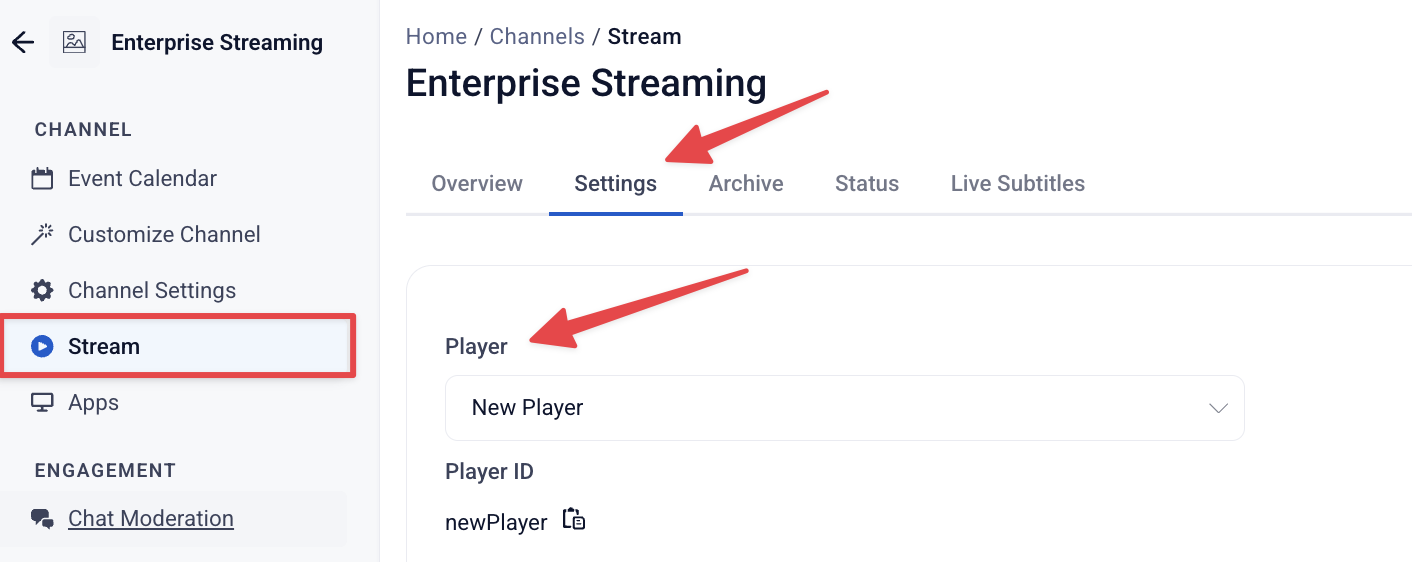
- Choose the player from the dropdown and save — this sets the default player for all content within that channel