
How to Upgrade the Legacy Player to the new Sardius Player
Updated
The Legacy Player will be sunset in 2027 and will no longer be available after that time. To ensure continued functionality and access to the latest features, we recommend migrating to the new Sardius Player. This guide walks through how to update your existing players and where to apply them across your platform.
Before You Begin
Before migrating, keep the following in mind:
-
The Sardius Player is the default and fully supported player
-
Legacy Player configurations may not translate or appear the same
-
You may need to review:
-
Player appearance settings
-
Control bar configuration
-
Advertising setup
-
Step 1: Create or Update a Player
-
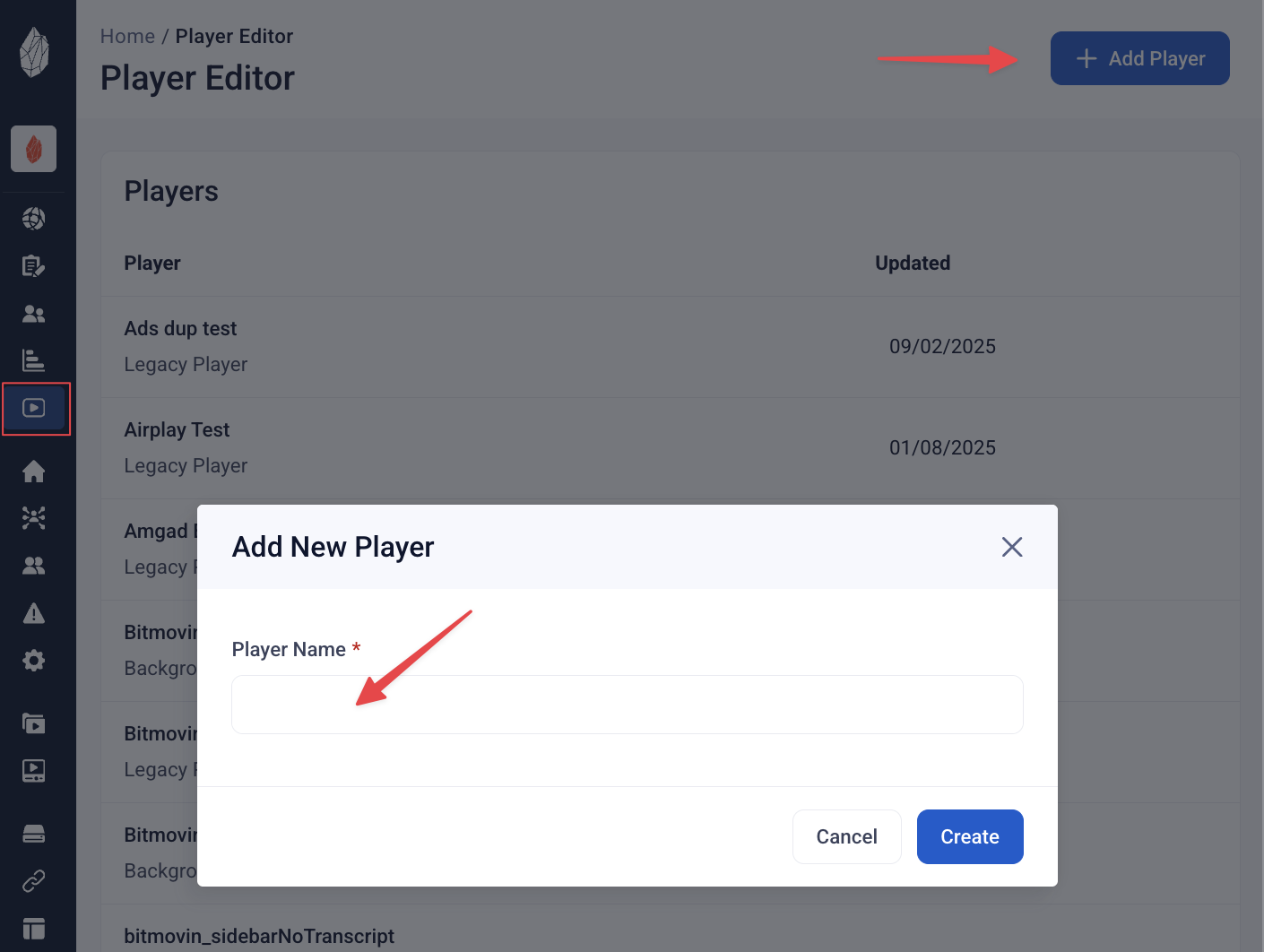
Navigate to Players in the sidebar menu
-
Select an existing player or click Add Player
-
Enter a Player Name
-
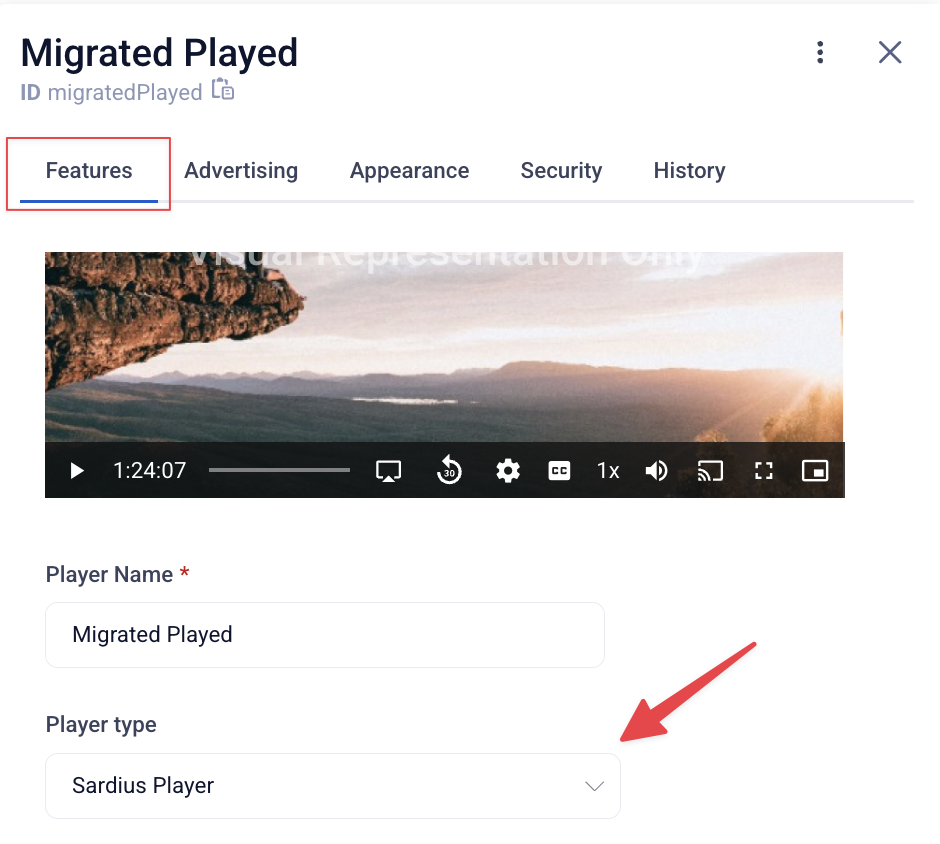
Open the Features tab
-
Set Player Type to Sardius Player
-
Click **Save
**
Step 2: Review Player Configuration
After switching to the Sardius Player, review the following and make sure they are set to your preference.
Advertising Tab (if applicable)
-
Verify pre-roll or post-roll assets are still configured correctly
-
Re-select assets if needed
Appearance Tab
-
Adjust Control Bar Icons
-
Set Scrub Bar Color
-
Confirm player controls display as desired
Subtitles / Accessibility
- Confirm subtitle styling (font, size, placement)
Step 3: Apply the Player to Your Channel
-
Navigate to the desired Channel
-
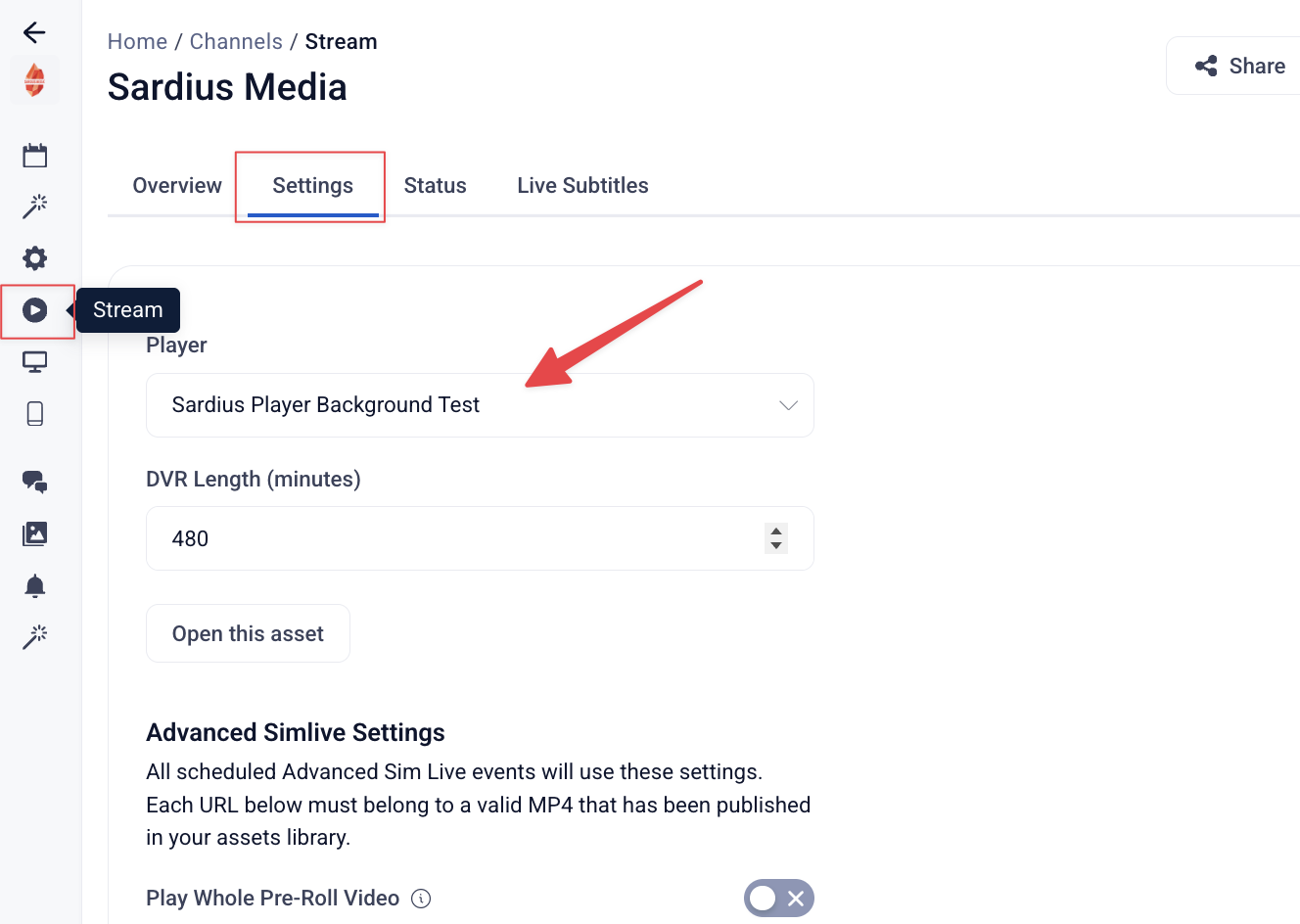
Select Stream from the left-side menu
-
Click Settings
-
Choose your updated Sardius Player from the Player dropdown
-
Save changes
This sets the default player for all content within that channel.
 Step 4: Review Event-Level Overrides (If needed)
If you use repeating events:
-
Open the Event
-
Click Add more Details
-
Navigate to Event Details
-
Scroll down to Player Type
-
Check if desired player is selected
-
Update to the Sardius Player if needed
Event-level settings override the channel default.
Step 5: Test Your Player
-
Play content on your channel
-
Confirm controls and playback behavior
-
Test any advertising or subtitle configurations
-
Verify on multiple devices if applicable