
Watch Live Campus Feeds in Pulse360
Updated
A multiviewer for every campus, right in your browser. Live puts all your campus feeds on one screen so you can see who is live, who is about to start, listen to any room, and zoom in when something looks off, with no hardware multiviewer and no extra software to install. Open it anywhere you are signed in to Pulse360, on a laptop, tablet, or phone, and keep eyes on the weekend from wherever you are.
Overview
Open Live
Click Live on the navigation bar.
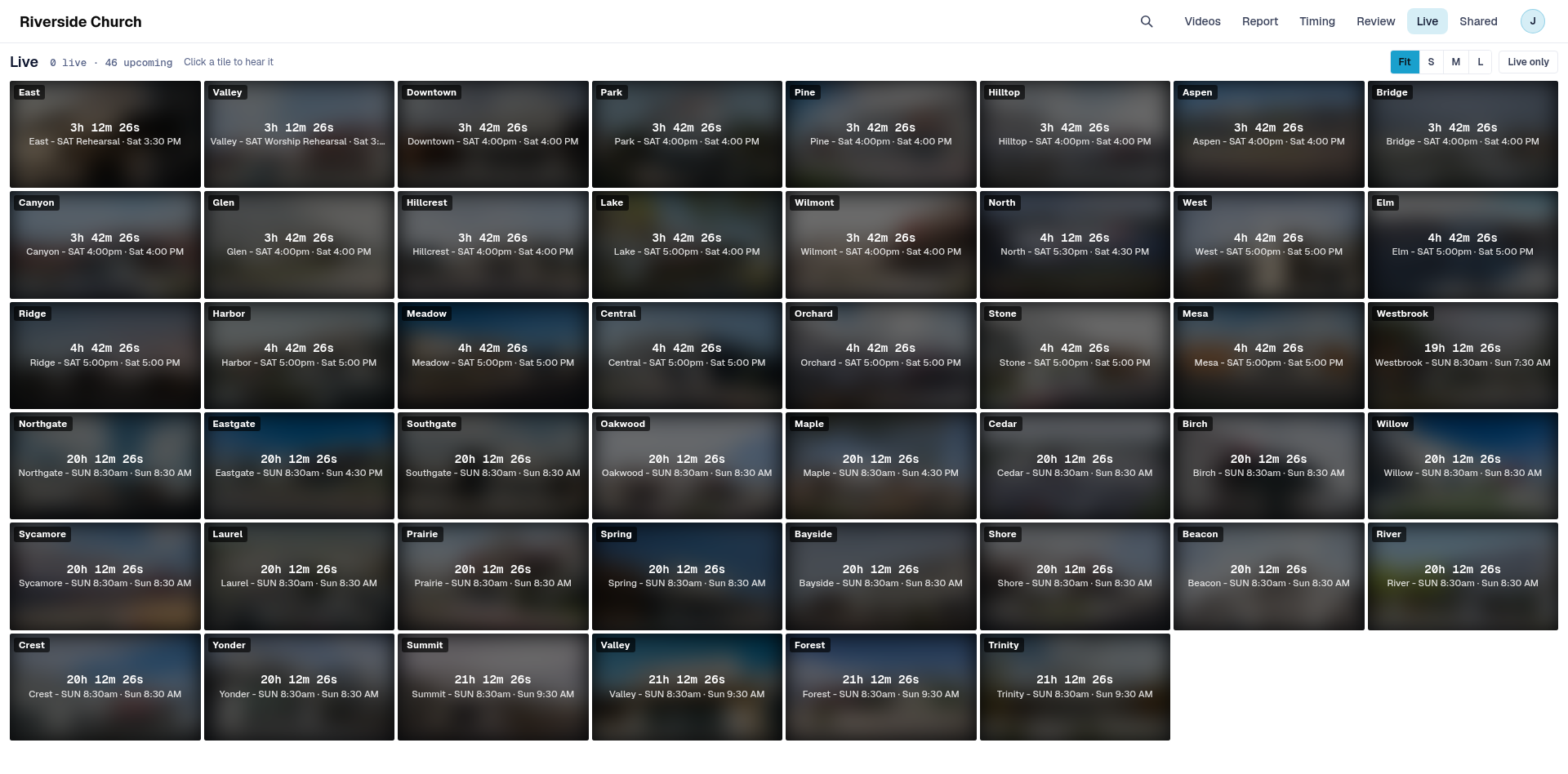
Watch the wall
On a computer, every channel is a tile.
- Scan for LIVE tiles (on air) and off-air tiles with a countdown to the next event.
- Click a live tile to hear it. Other tiles stay muted. Click it again, or click Mute in the header, to turn the sound off. Only one tile has sound at a time. Keys 1 through 9 pick the first nine tiles.
- Use Fit, S, M, or L to change tile size. Turn on Live only to hide off-air channels.
- Double-click a tile to show it large. Double-click again, or press Esc, to return to the wall.
On a phone or small window, Live shows one channel at a time: a player at the top and a list of channels under it. Tap a row to watch that channel with sound.
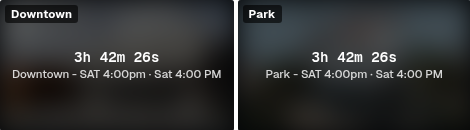
The header summary shows how many channels are live and how many have an upcoming event.
What the tiles tell you
- LIVE with a running time: that channel is on air.
- LIVE · unscheduled: the stream is on air, but nothing is on that channel's schedule for this moment.
- A countdown with an event name and start time: that channel is off air and waiting for its next event.
- No upcoming events: nothing is scheduled next for that channel.
- Play: a live channel is ready, but Live is not auto-playing it yet (the wall limits how many streams play at once). Click the tile to start it.
- If a stream drops, the tile shows that the signal was lost while Live checks again, then returns to a countdown when the channel is off air.
Good to know
- Live refreshes about every 20 seconds while the tab is open. It pauses when the tab is hidden.
- On-air status comes from the stream when it can, and from the channel schedule when the stream is unclear. A tile can lag a moment behind what is actually on air, or stay marked live from the schedule during a short drop.
- Only one tile has sound at a time. On a phone or small window, you watch one channel at a time.
- Some roles only see the channels they are allowed to watch.
Ways to use Live
Here's how Live answers real questions while campuses are on air.
1. Confirm every campus went live on time
- What you want to find out: Did every Riverside campus go live when the weekend services were supposed to start?
- Where Live answers it: Open Live at go-live and scan for LIVE tiles. Turn on Live only to hide campuses that are still waiting.
- What to do next: Note any campus still on a countdown after the others are live, then click that tile when it starts so you can listen in.
2. Wait on a late-starting campus
- What you want to find out: West is still dark. When does it go live this morning?
- Where Live answers it: Find West's off-air tile and read the countdown, event name, and start time.
- What to do next: Stay on the wall until the tile flips to LIVE, then click it to listen.
3. Listen in on one room's audio
- What you want to find out: Can I keep eyes on every campus but hear only Downtown while announcements run?
- Where Live answers it: Click Downtown's live tile so Audio is on that tile (the header also shows Audio for that campus). Other tiles keep playing muted.
- What to do next: Click Mute or click the tile again when you are done listening.
4. Zoom in on a campus with a problem
- What you want to find out: Something looks off at North. How do I watch it closely without losing the rest of the wall?
- Where Live answers it: Double-click North's tile to show it large. The other channels stay in the strip under it.
- What to do next: Double-click again or press Esc to return to the full wall when you are done.
Congratulations! You can see every campus channel in one place while the services run.
Related articles
- Pulse360 Overview
- Browse Campus Videos in Pulse360
- Compare Service Timing Across Campuses
- Sign In to Your Pulse360 Site
Questions about any of these features? Reach out to your Sardius Account Manager, or you can request a demo by clicking here.