
Sign In to Your Pulse360 Site
Updated
Pulse360 is part of your Pulse account, so there's no new login to remember. Sign in with the same options your organization already uses for Sardius Live, and every campus, every service, and every moment is a click away.
Open Pulse360 and sign in
-
Open the Pulse360 address your Account Manager gave you.
-
On the sign-in page, choose the method your organization uses. You may see:
- Email and Password, then Sign in
- Forgot password? (when password sign-in is available)
- Email me a sign-in code, then enter the Code from the email and Sign in
- A button for your organization's own sign-in (shown with its label on the page)
- Sign in with your organization's name (through Sardius Live, when that option is on)
-
Complete the steps on the page.
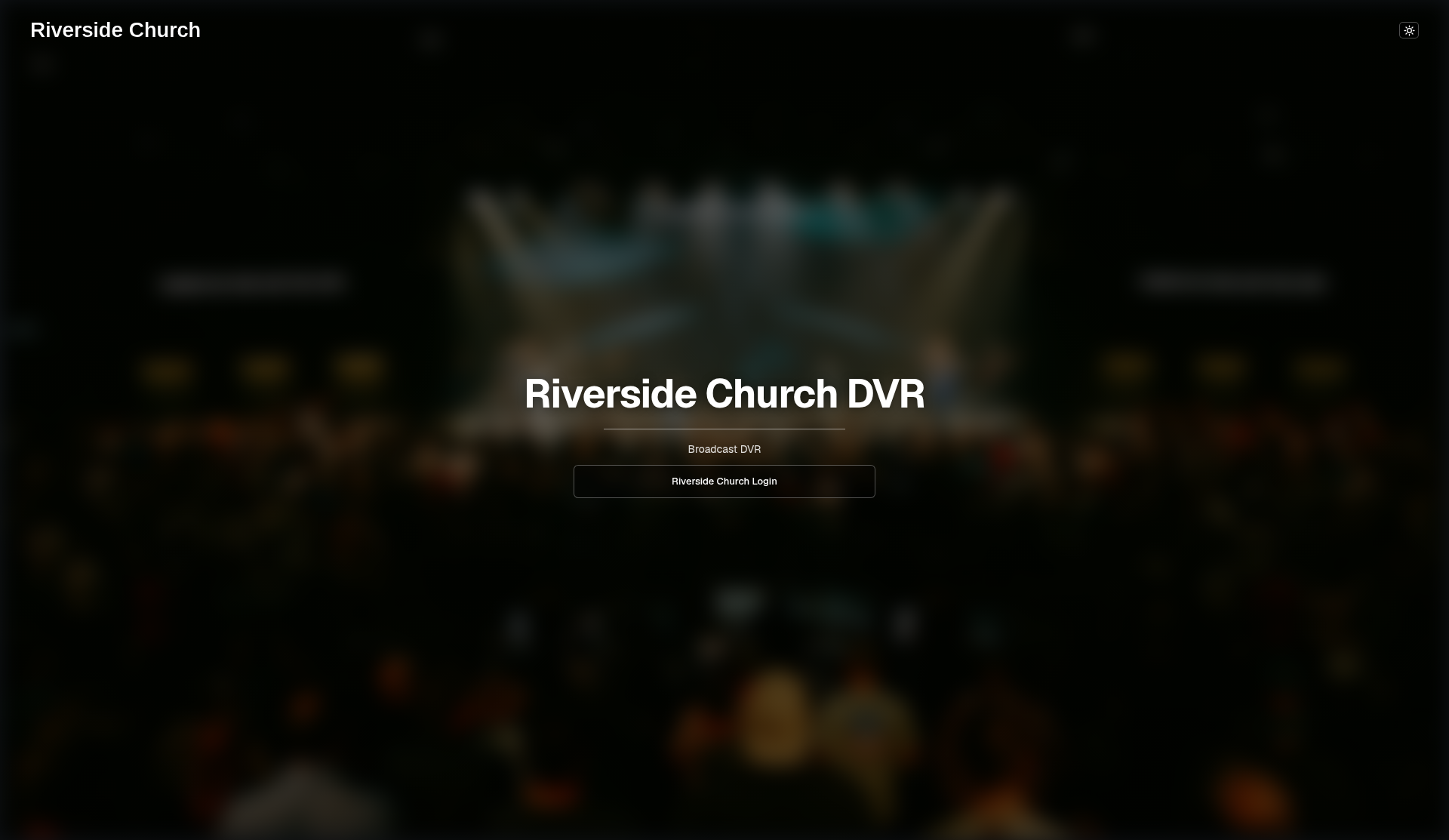
- When sign-in succeeds, Pulse360 opens to your review pages (often Videos on the navigation bar).
Sign out
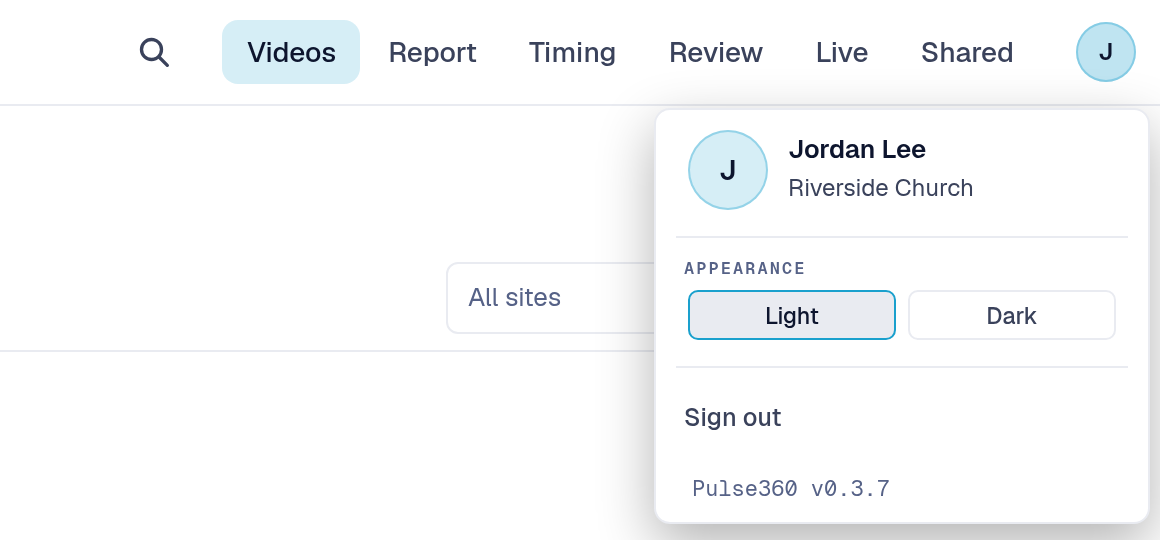
- Click your avatar or initials near the navigation bar.
- Click Sign out.
Congratulations! You are signed in and ready to review your campuses in Pulse360.
Related articles
Questions about any of these features? Reach out to your Sardius Account Manager, or you can request a demo by clicking here.