
Browse Campus Videos in Pulse360
Updated
Every campus, every service, one library. Videos puts all your recordings in one place so you can jump to a campus's weekend, catch the newest services, or pull up a whole series across campuses in a couple of clicks. Browse by site, newest first, category, tag, series, or speaker.
Open Videos
Click Videos on the navigation bar.
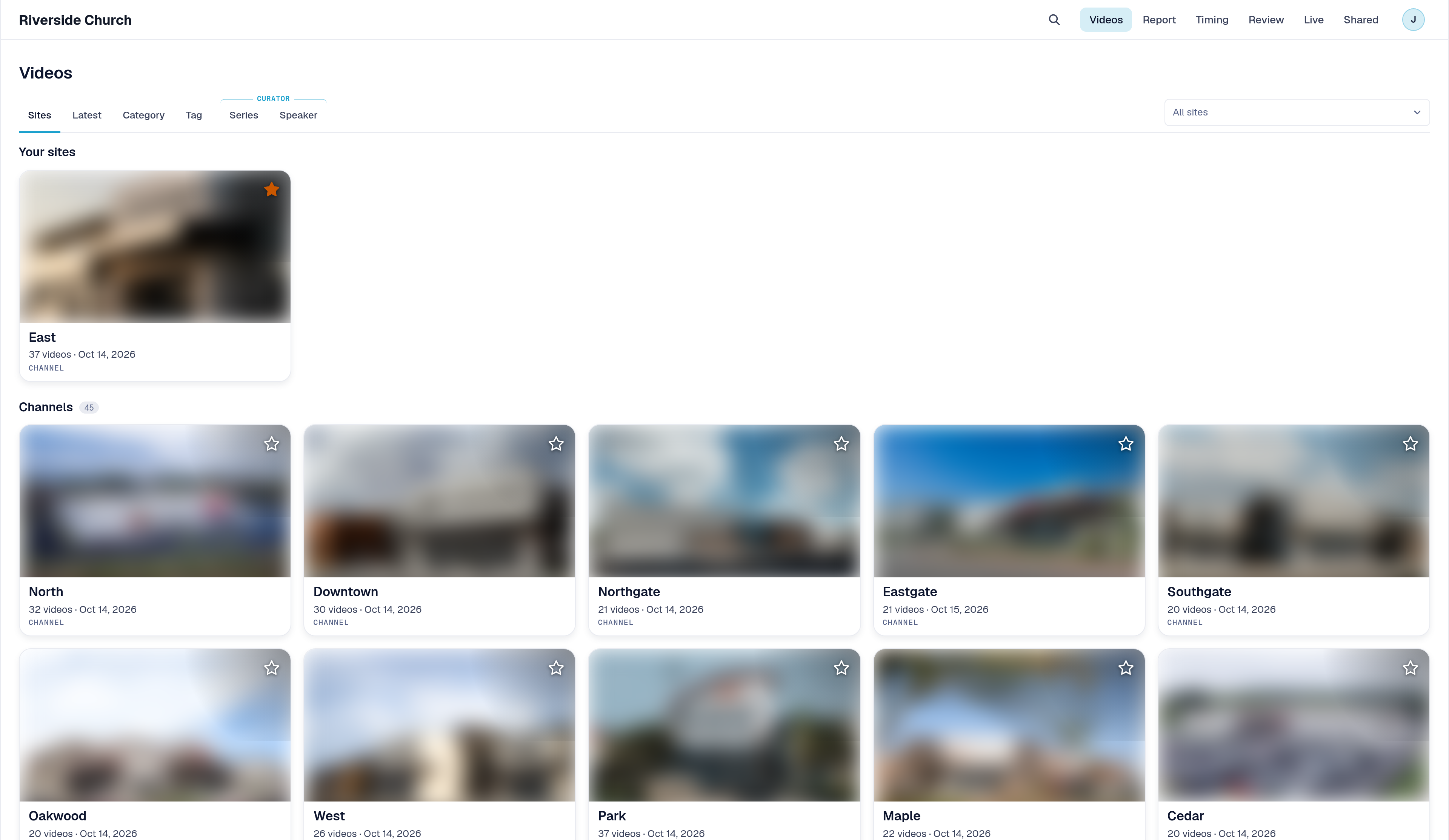
Browse by how you think about the library
- Use the tabs under Videos to change the view:
- Sites: services grouped by where they were recorded. Open a campus card to see that place's videos.
- Latest: every video newest first.
- Category or Tag: groupings from your library. Open a group to see its videos.
- Under Curator, Series or Speaker: groupings worked out from each service. Open a group to see its videos.
- Click a video to open it and watch.

Narrow what you see
On Sites, Category, Tag, Series, or Speaker (before you open a group), use the field beside the tabs to pick which cards or groups to show. Type to narrow the list, pick one or more, and click Clear to show them all again.
When you open a campus or group, or when you are on Latest, use Group by to arrange the list (Week, Service, Series, Message, or None). Use the filter field to narrow the videos in that list. Clear the filter when you want the full list again.
On Sites, click the star on a campus card to pin it under Your sites so it shows first. Click the star again to remove it.
Use the back control (for example All sites) to return to the card or group list for the current tab.
Ways to use Videos
Here's how Videos answers real questions about finding the right recording.
1. Find one campus's weekend
- What you want to find out: Where is Riverside Downtown's Sunday recording?
- Where Browse answers it: Open Sites, pick Downtown (or open its card), then find the Sunday service in the list. Set Group by to Week or Service if the list is long.
- What to do next: Click the video to open it and watch.
2. See what landed most recently
- What you want to find out: What are the newest services across all campuses?
- Where Browse answers it: Open Latest. Optionally set Group by to Week and use the filter field to narrow the list.
- What to do next: Open the video you need, or switch to Sites if you want one campus only.
3. Find one series across campuses
- What you want to find out: Where are this series' services at North, Downtown, and West?
- Where Browse answers it: Under Curator, open Series, then open the group that matches (the name is Pulse360's best read of the series, so it may not match your official title word for word). Use Group by or the filter field if you need to narrow further.
- What to do next: Open each campus's recording from the group. If the series is missing, check Sites or Latest for videos that are still being prepared.
4. Find videos by category or tag
- What you want to find out: Where are the services tagged for a ministry area or category?
- Where Browse answers it: Open Category or Tag, then open the group you need. Use the pick field beside the tabs to show only certain groups.
- What to do next: Click a video to open it. To share a clip from there, see Share a Clip from Pulse360.
Congratulations! You can find the right campus recording without scrubbing every feed first.
Related articles
- Pulse360 Overview
- Sign In to Your Pulse360 Site
- Search Across Campus Services in Pulse360
- Share a Clip from Pulse360
Questions about any of these features? Reach out to your Sardius Account Manager, or you can request a demo by clicking here.