
Share a Clip from Pulse360
Updated
Put the right moment in the right hands without sending the whole service. Share turns a part of a video into a link a campus pastor, worship leader, volunteer, or board member can open with no Pulse360 account and no scrubbing through a 90-minute recording, so feedback and follow-up happen faster. Links expire on a schedule you choose, and you can revoke them anytime, so you stay in control of who can still watch.
Sharing is off by default. Your Account Manager turns it on for your site when you are ready to use it. If you can see shared links but can't create or revoke them, your role may have view-only access.
Create a share link
- Open the video and move to the moment you want to share.
- Click Share. The dialog is titled Share part of this video.
- Choose what to share:
- This section · the section under the playhead
- This part · a shorter piece under the playhead, when one is available
- Custom · drag In and Out, or use Set in and Set out (keys I and O)
- Optionally add a Title and Note.
- Under Link expires, choose how long the link lasts (7 days, 30 days, 90 days, or Never). Your site may offer a shorter list.
- Click Create link.
- Click Copy, then send the link. Anyone with the link can watch this part, no sign-in needed.
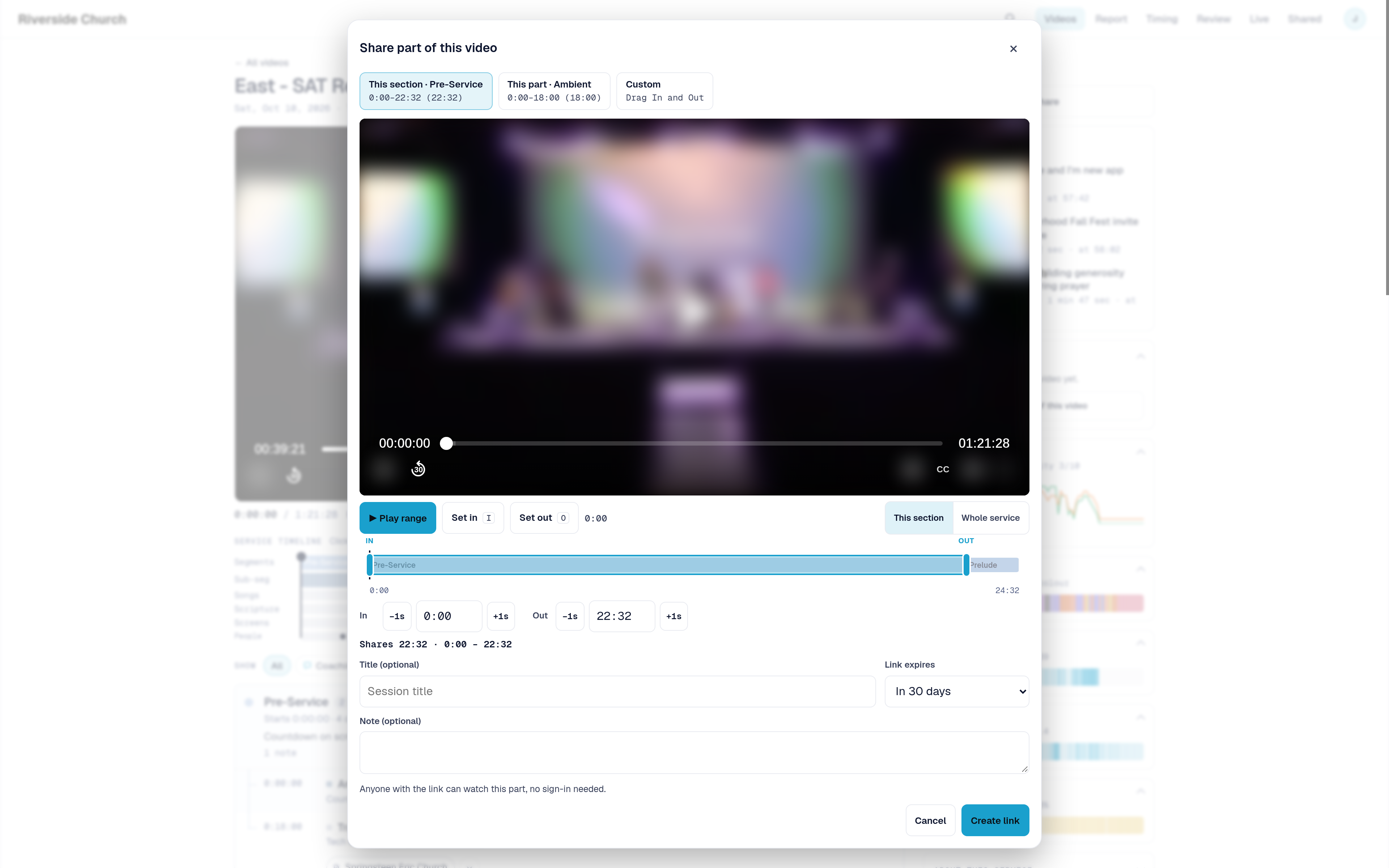
Use Play range to preview what the link will cover before you create it. You can zoom the timeline to This section or Whole service while you set In and Out.
Manage shared links
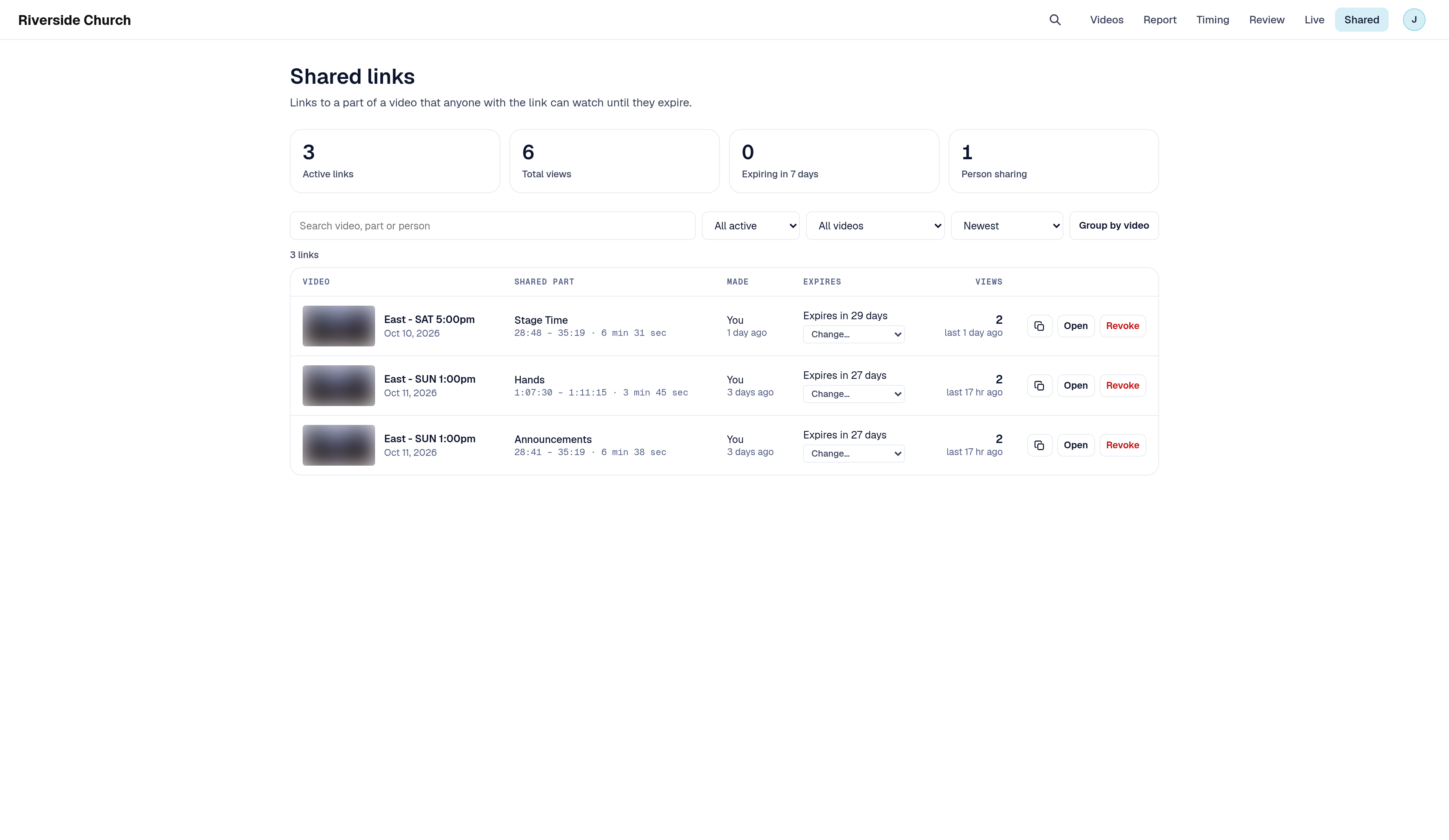
- Click Shared on the navigation bar. The page title is Shared links.
- Find the link in the list. Use search, status, video, or sort filters when you have many links. Group by video stacks links under each recording.
- Use Copy link to grab the URL again, or Open to see the shared page in a new tab.
- Click Revoke when the link should stop working. Anyone who had it will not be able to watch any more.
- Where you can manage a link, you can also change when it expires from the row.
Ways to use Share
Here's how Share answers real questions about sending a moment without the whole service.
1. Send a campus pastor the announcement that ran long
- What you want to find out: Can Downtown's pastor see only the announcement that ran long, not the whole weekend service?
- Where Share answers it: On that video, use Share and pick This section (or This part) for the announcement. Finish creating the link as in Create a share link above.
- What to do next: Send the copied link so they can watch just that moment.
2. Send a worship leader a song to review
- What you want to find out: Can the worship leader hear only the song that needs a second look?
- Where Share answers it: On the video, use Share, choose Custom, and set In and Out around the song. Preview with Play range, then create the link as above.
- What to do next: Send the link with an expiry that fits the review window.
3. See whether your team watched the link
- What you want to find out: Did anyone on the team actually open the clip you shared?
- Where Share answers it: Open Shared on the navigation bar and check Views on the row (and Total views in the summary).
- What to do next: Resend with Copy link if needed, or leave it until it expires.
4. Shut off a link sent by mistake or no longer needed
- What you want to find out: How do we stop a link that went to the wrong person, or that should not stay live?
- Where Share answers it: On Shared, find the row and click Revoke.
- What to do next: Confirm when asked. The link then stops working for everyone who had it.
Congratulations! You can pass along the exact moment someone needs to see.
Related articles
- Pulse360 Overview
- Browse Campus Videos in Pulse360
- Search Across Campus Services in Pulse360
- Sign In to Your Pulse360 Site
Questions about any of these features? Reach out to your Sardius Account Manager, or you can request a demo by clicking here.