
Compare Service Timing Across Campuses
Updated
Know in seconds whether every campus kept the same pace, no weekend of playback required. Timing puts every service's section lengths side by side for the dates you pick, so you can spot announcements that ran long, a Message that got cut short, a section someone skipped, or a campus that drifted from the planned start, all in one view, without watching hours of video.
Open Timing
Access
Click Timing on the navigation bar.
If you have not picked dates yet, Timing opens on a starting page: date choices (for example This weekend or Last weekend, This week, Last 2 weekends, Last 4 weekends, and Pick dates), suggested one-click starts (for example Everything flagged, Missing sections, or a section that ran long), and chips to narrow by campus, service time, or message series.
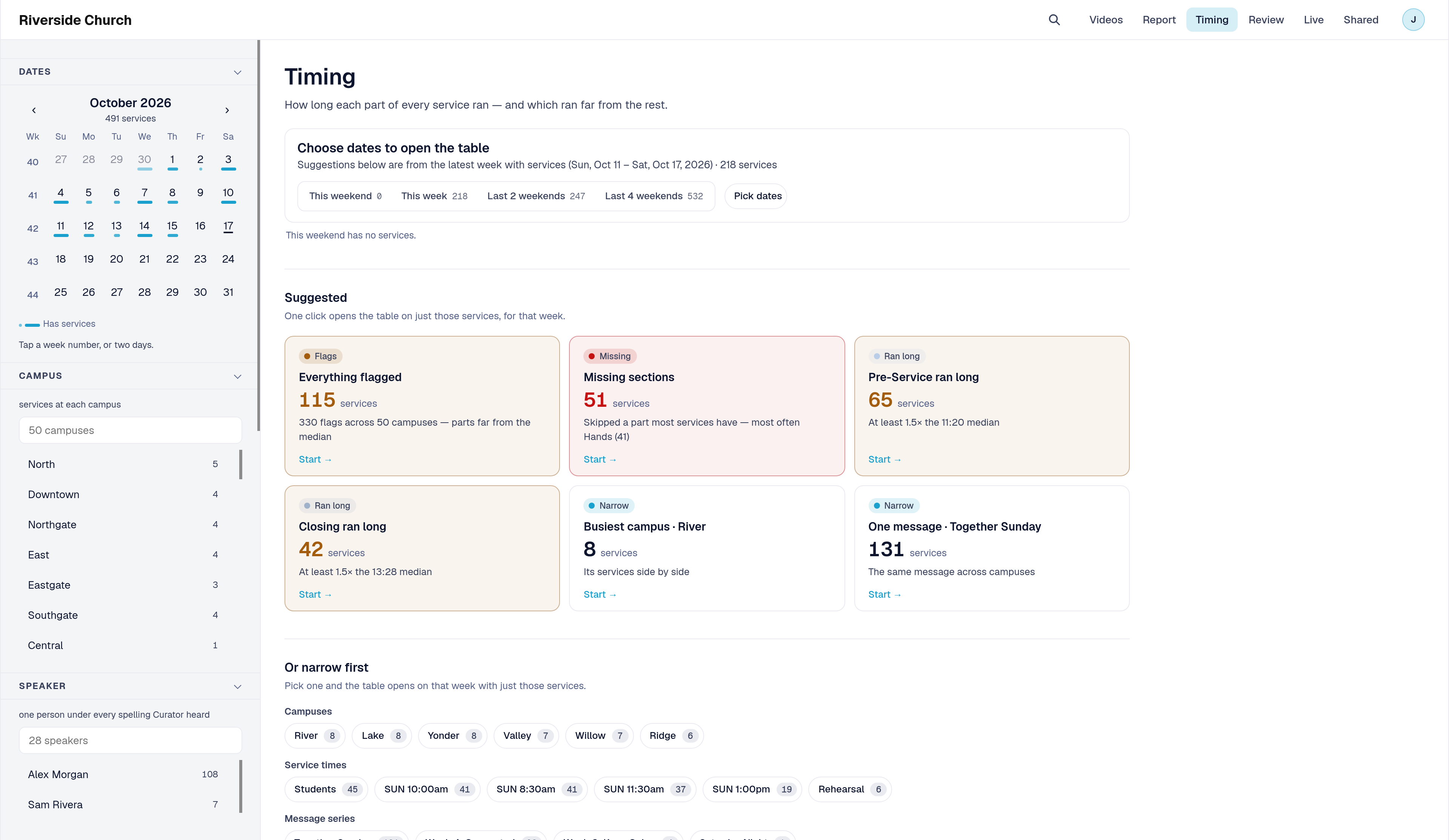
Choose dates and narrow the table
After you pick dates, Timing shows a Filters panel on the left (on a phone, tap Filters).
| Filter | What it does |
|---|---|
| Dates | Calendar for a day, a week, or a range |
| Campus | Services at the campuses you choose |
| Message | Services in the message series you choose |
| Service time | Services in that time slot (for example SUN 8:30am) |
Choose options in any group. A service shows only when it matches every group that has a selection. Clear filters clears Campus, Message, and Service time (your dates stay). Timing also offers Clear dates and Start over when you need a clean start.
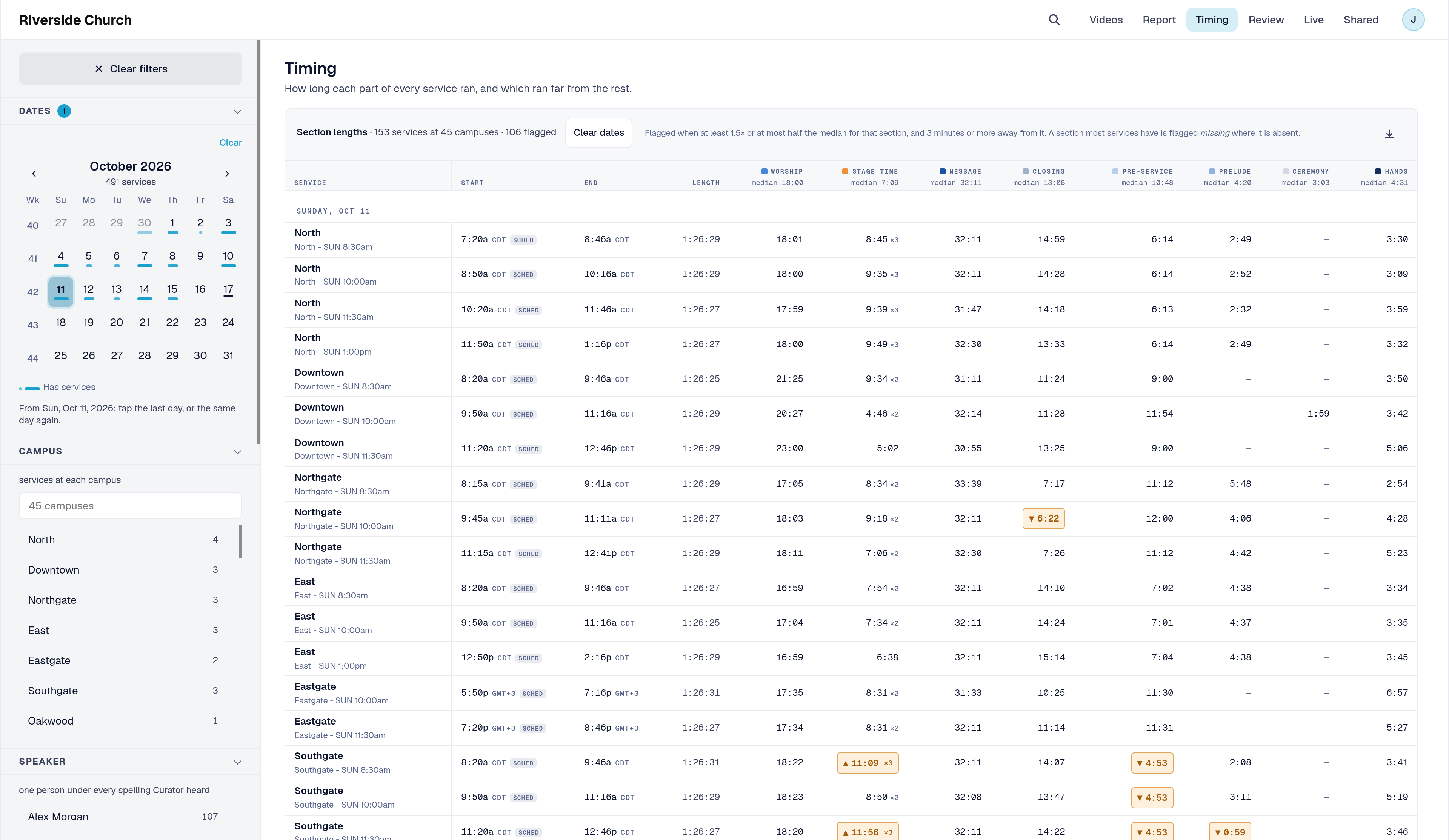
Read section lengths and flags
The table heading looks like Section lengths plus how many services, campuses, and flagged cells are in view.
Each row is one service: start and end, total length, and each section's length (Worship, Announcements, Message, and your other section names). A start marked SCHED used a scheduled calendar start rather than a recorded go-live time.
Flags mark parts that are far from the rest of what is on screen:
- Ran long or short (shown on the cell) when a section is much longer or shorter than the median for that section among the services you are viewing
- Missing when a section most services have is absent on that row
Click a flagged cell to open a quick view of that recording at the section. Use Open the full service when you want the full video page. Export CSV downloads the table.
When a suggestion narrowed the list (for example only flagged services), click Show every service to see them all again. Flags compare each section against the other services in view, so changing the Campus, Message, or Service time filters can change which cells are flagged.
Ways to use Timing
Here's how Timing answers real questions about length and consistency across your campuses.
1. Announcements ran long
- What you want to find out: Which Riverside services stretched announcements far past the others this weekend?
- Where Timing answers it: On the starting page, choose This weekend or Last weekend, then open a suggestion such as Announcements ran long, or use Dates and scan the Announcements column for long flags in Section lengths.
- What to do next: Click the flagged cell for a quick view at that section. You know which campuses ran long before you open every recording.
2. The Message got cut short
- What you want to find out: Did Downtown's Message end much sooner than North and West?
- Where Timing answers it: Keep your weekend in Dates. Optionally narrow with Campus or Message. Look for short flags on the Message column, or compare Message lengths row by row.
- What to do next: Open the short-flagged cell's quick view, or use Open the full service if you need the whole video page. Length is clear before you scrub for content.
3. A section went missing
- What you want to find out: Did any campus skip Announcements or another part most services have?
- Where Timing answers it: Starting-page card Missing sections, or Missing flags in the table after you pick dates.
- What to do next: Open the missing cell's quick view (it opens near where that section usually sits). Confirm the skip, then follow up with that campus.
4. Compare one message series across campuses
- What you want to find out: How did the same series run at Riverside North, Downtown, and West?
- Where Timing answers it: Narrow with Message (or a One message suggestion), then compare section lengths row by row.
- What to do next: Click Export CSV to share the table with your team.
Congratulations! You can spot length drift and missing sections across campuses without rewatching every feed end to end.
Related articles
- Pulse360 Overview
- Read Your Multi-Campus Report in Pulse360
- Build a Multi-Campus Report in Pulse360
- Sign In to Your Pulse360 Site
Questions about any of these features? Reach out to your Sardius Account Manager, or you can request a demo by clicking here.