
Schedule Your Event in Advance on YouTube
Updated
Learn how to schedule events in advance on your YouTube channel using Sardius Stream and the YouTube API Output.
The Sardius Control Panel allows you to schedule events up to 7 days in advance to your YouTube channel. When this option is utilized, the Control Panel will:
- Create an "Upcoming" event on your YouTube channel that your audience can interact with and set notifications for
- At the time of the event, Sardius will send your stream to YouTube and automatically start it for your subscribers and viewers
Set Your YouTube Output Defaults
We recommend that all Sardius Channels have a default configuration for their streaming workflows. Your channel may already have these defaults established and your YouTube Output already connected. We can alter these defaults to provide a default YouTube scheduling workflow.
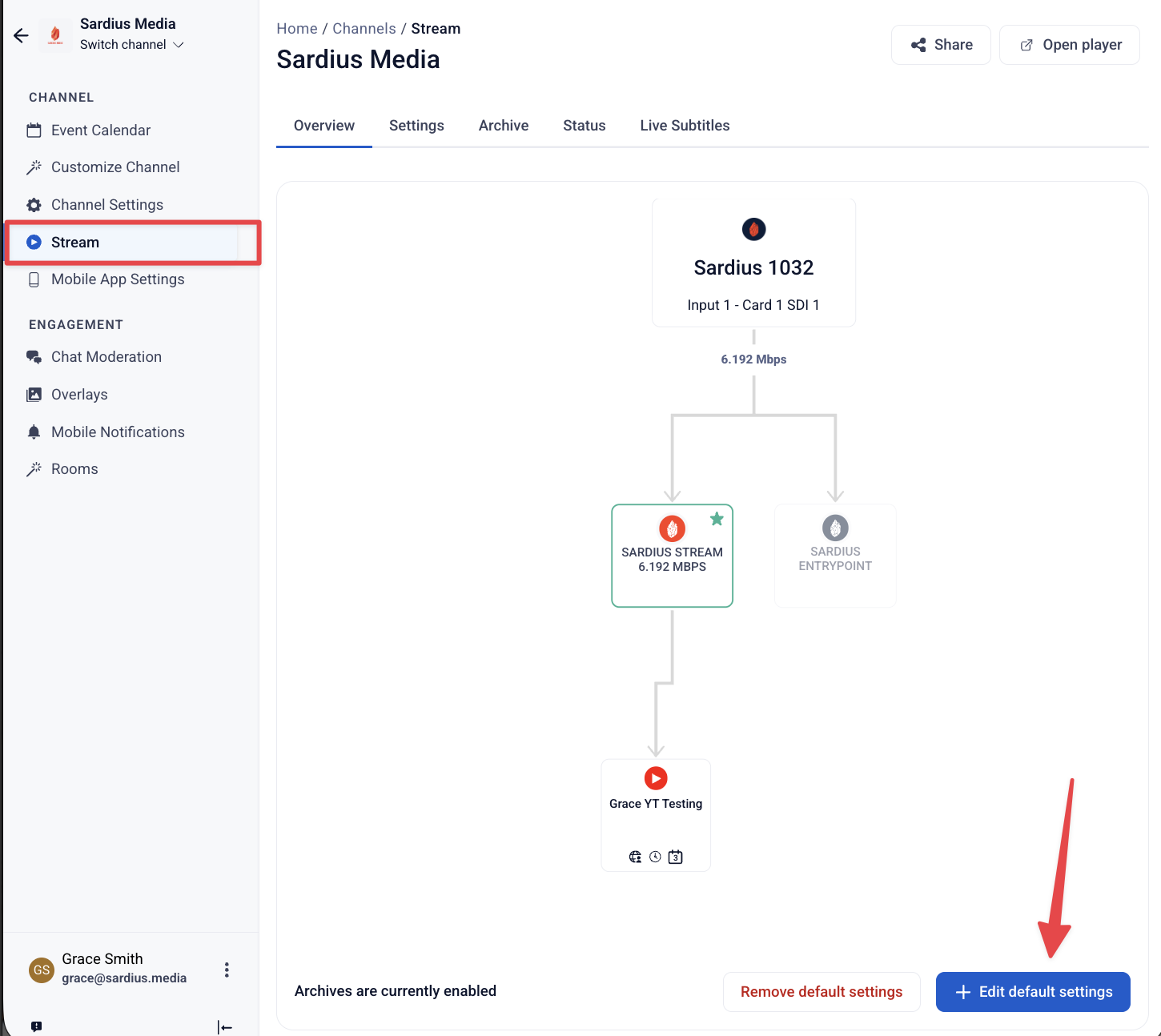
Locate your channel and access it. Then click Stream on the sidebar.
Here, you'll see your channel's streaming device, the channel stream web player, and your YouTube Output.
To set your YouTube scheduling channel defaults:
- While in your stream settings, click Edit Default Settings
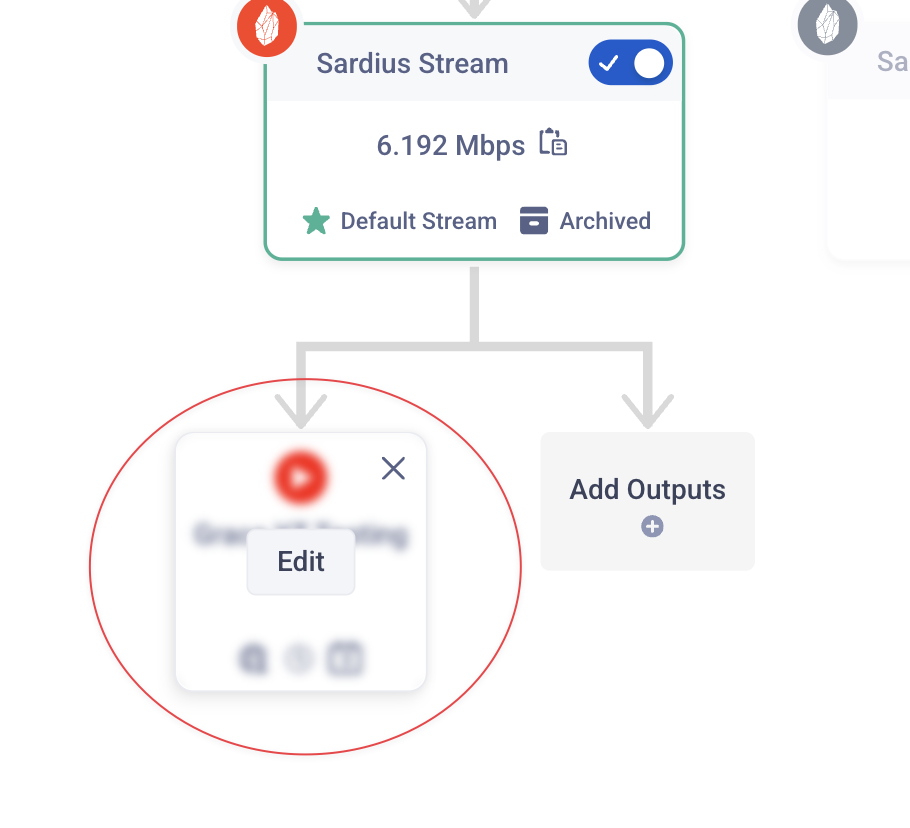
- In the modal that appears, click Edit on the output or Add Outputs
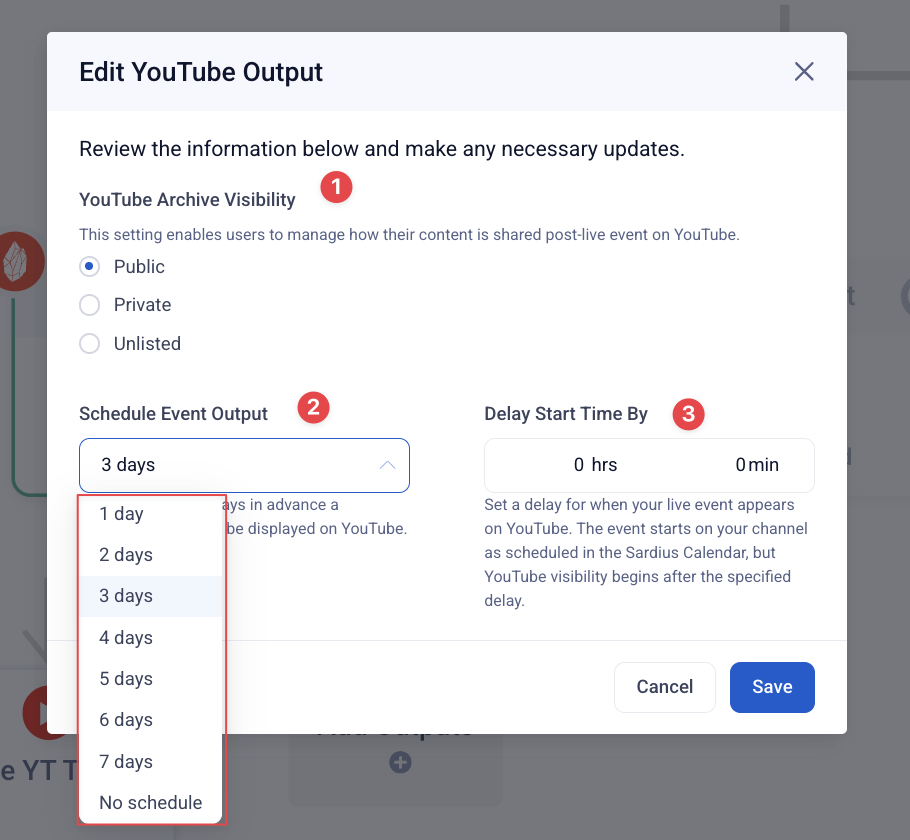
Configure your YouTube-specific settings:
-
- YouTube Archive Visibility (Public, Private, or Unlisted) — determines how your post-event archive is shared
- Public — Anyone on YouTube can find and watch the archive. Best for sermons, conferences, or any content you want widely discoverable.
- Unlisted — Only people with the direct link can view it. Useful for sharing with a specific audience (e.g., attendees, members) without making it searchable.
- Private — Only you and users you specifically grant access to can view it. Best for internal review, sensitive content, or events you want to archive without public access.
- YouTube Archive Visibility (Public, Private, or Unlisted) — determines how your post-event archive is shared
-
- Schedule Event Output — how many days in advance the event appears on YouTube
- Specify how many days in advance a scheduled event (countdown) will be displayed on YouTube.
- Delay Start Time By — optional delay before the stream becomes visible on YouTube
- Your audience on YouTube won't see the stream until after the delay period passes
- Schedule Event Output — how many days in advance the event appears on YouTube
-
Click Save, and your settings will be saved and applied.
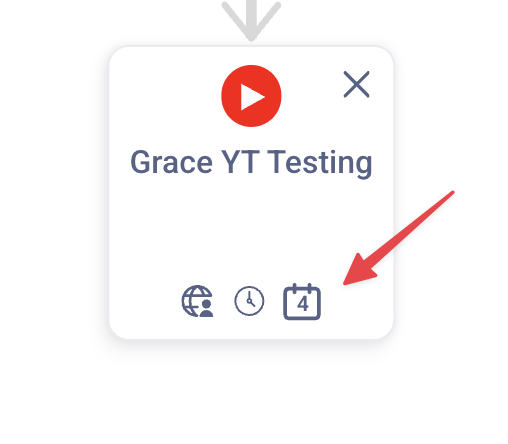
- You will see the calendar icon adjust with the scheduled days
Be aware that:
- Outputs can only be scheduled up to 7 days in advance.
- You can remove this schedule at any time without removing the output
Editing These Settings at the Event Level
You don't have to change your channel defaults to adjust these options for a specific event. Every event has its own Streaming tab where you can override the channel defaults without affecting future events.
To edit YouTube settings for a single event:
- Open your event from the Event Calendar
- Click the Streaming tab
- Click the YouTube Output card in the stream workflow
- Adjust YouTube Archive Visibility, Schedule Event Output, and Delay Start Time By as needed
- Click Save
Event-level settings only apply to that specific event. All other events on the channel will continue to use the channel defaults.
Customize the Event Name, Description, and Image
The YouTube Output allows for select event information to be forwarded from your Sardius Calendar to YouTube:
| Item | Supported on YouTube |
|---|---|
| Title | ✅ Yes |
| Date & Time | ✅ Yes |
| Description | ✅ Yes |
| Image/Thumbnail | ✅ Yes |
To edit these fields:
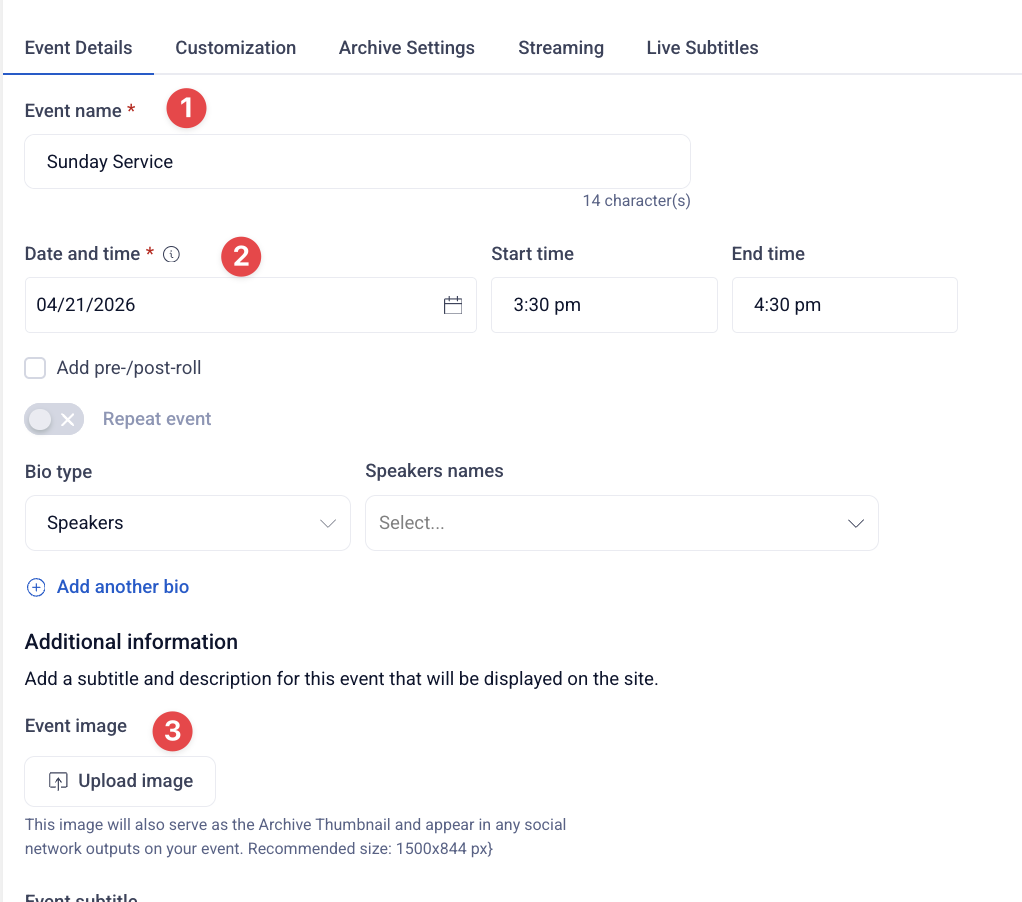
- Event Title — Find your event and click Edit. On the Event Details tab, enter a new name and click Save.
- Event Description — Edit your event. On the Event Details tab, scroll down to the Description box, enter your description which will display on Youtube
- Event Image — Edit your event. On the Event Details tab, scroll down to the Event Image option. Click Upload Image and select your file. (Recommended size: 1500 x 844 px). This image will also appear as your YouTube video thumbnail and will serve as your Archive Thumbnail once the event finishes.
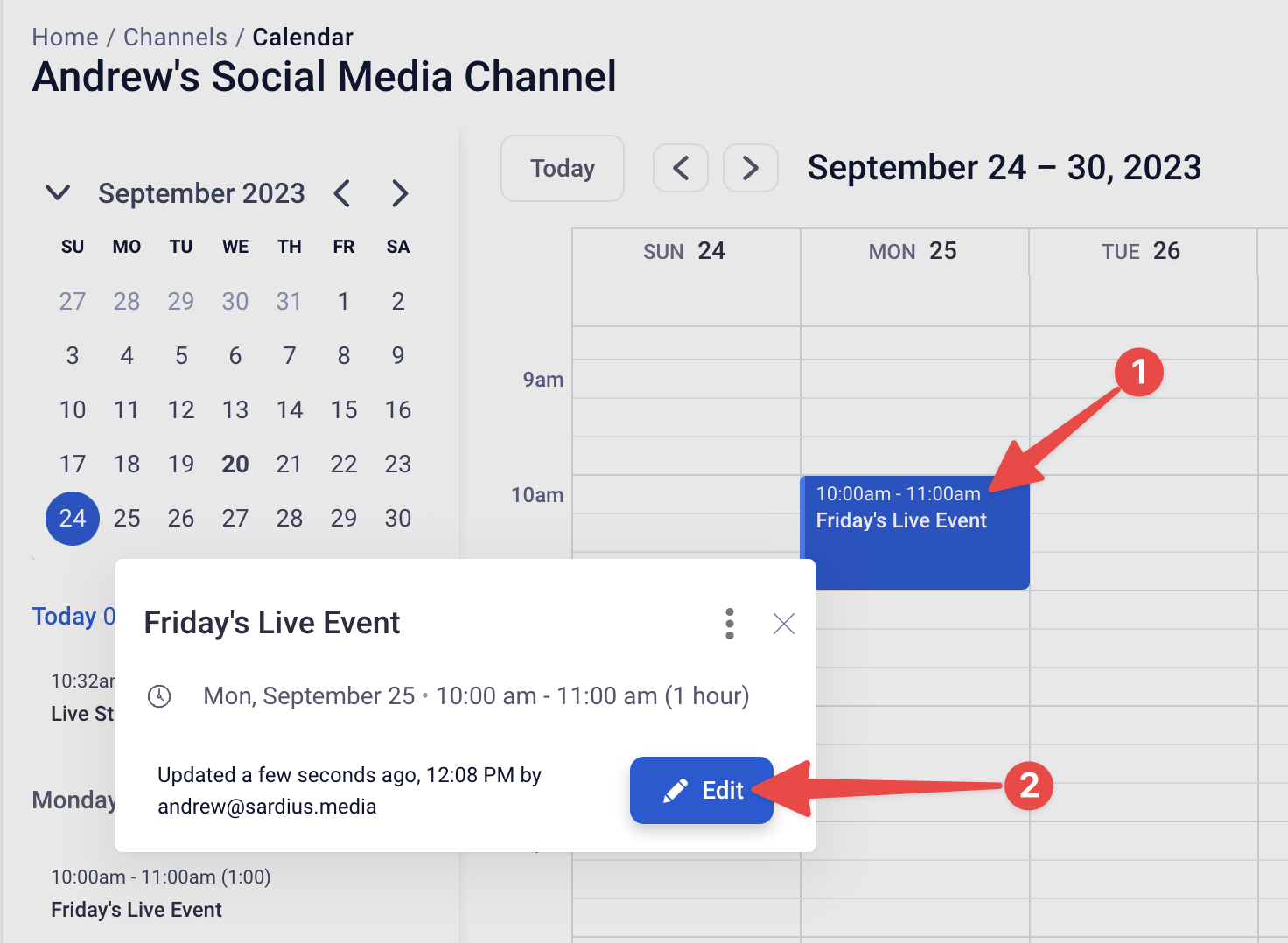
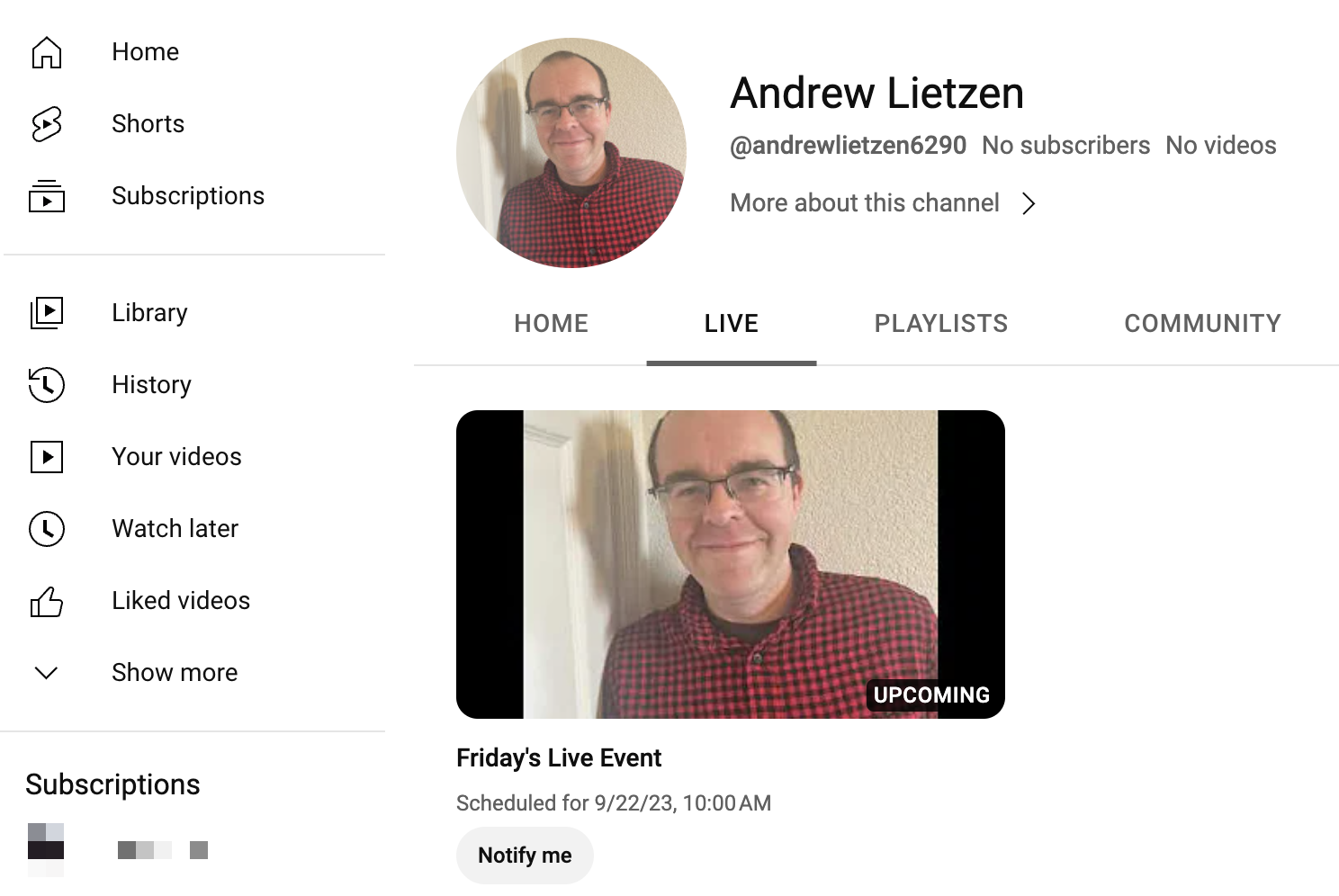
Once an update is complete, you can visit your social media platform to see the event scheduled on the platform.
Checking Scheduled Events
If you have multiple events scheduled during the week, you can easily see what's scheduled to YouTube.
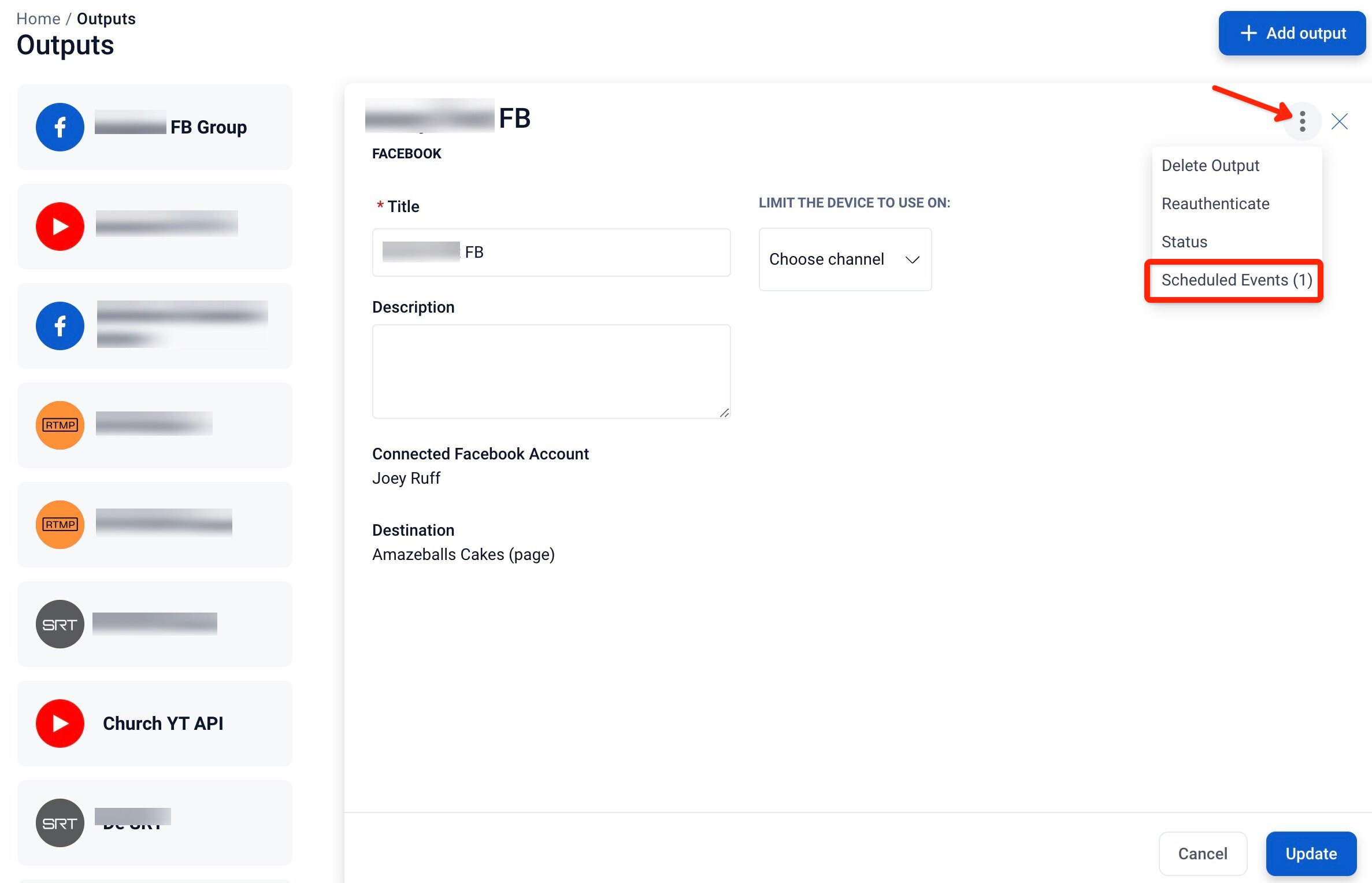
- Go into the Outputs area of the Control Panel
- Select your YouTube Output
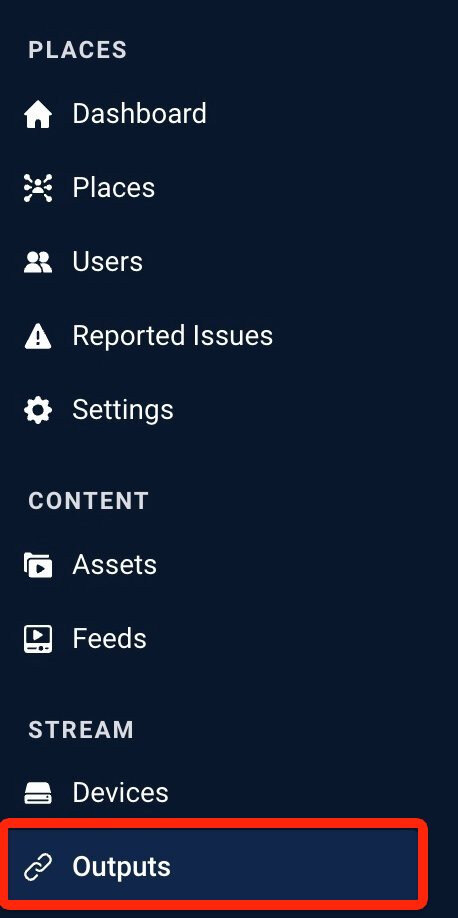
- Click the stacked dots in the top right of the Output screen
- Under Scheduled Events, you'll see how many are scheduled
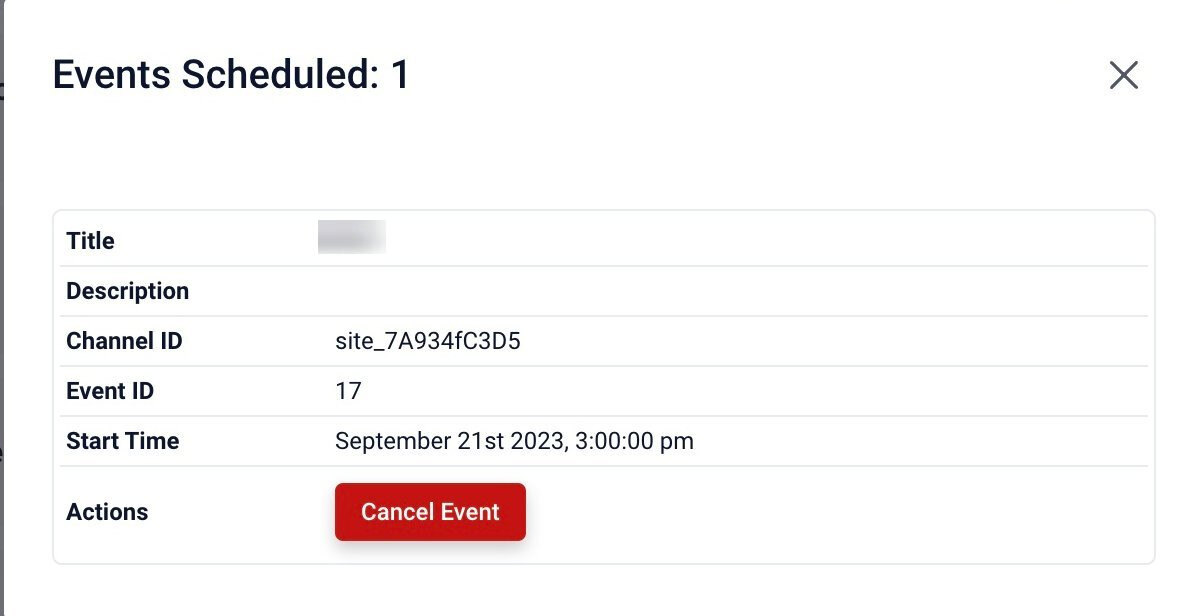
- Click Scheduled Events to open a modal showing the title and details for each upcoming scheduled event
Still Need Help?
If your event isn't appearing on YouTube as expected, please see our YouTube Troubleshooting guide or contact Sardius Support.