
Sardius AI Create
Updated
Sardius AI Create lets you have a conversation with your video and audio content within an asset — ask questions, generate study guides, create quizzes, pull key points, and more, all from inside the Sardius Control Panel.
Before you Begin:
A transcript is required to use AI Create. AI Create works by reading your asset's transcript — that's how it understands your content and answers your questions. If an asset doesn't have a completed transcript, the Custom tab will be unavailable. To get started, make sure transcription is enabled on the asset you want to use.
**Click here to learn more about Transcriptions.
**
**
What AI Create Can (and Can't) Do**
AI Create uses your asset's transcript as its knowledge base. Everything it produces is grounded in the content of the specific video or recording you're working with.
AI Create Can:
- Summarize key points from a sermon, teaching, or recording
- Generate Bible studies or discussion guides
- Create quiz questions with answer keys
- Produce downloadable markdown, text, or JSON files you can share or repurpose
- Answer follow-up questions within the same conversation
AI Create Cannot:
- Generate images, video clips, or any media files
- Answer questions unrelated to the current asset
- Carry context from one prompt into another
- Work on assets without a completed transcript
How to Access AI Create
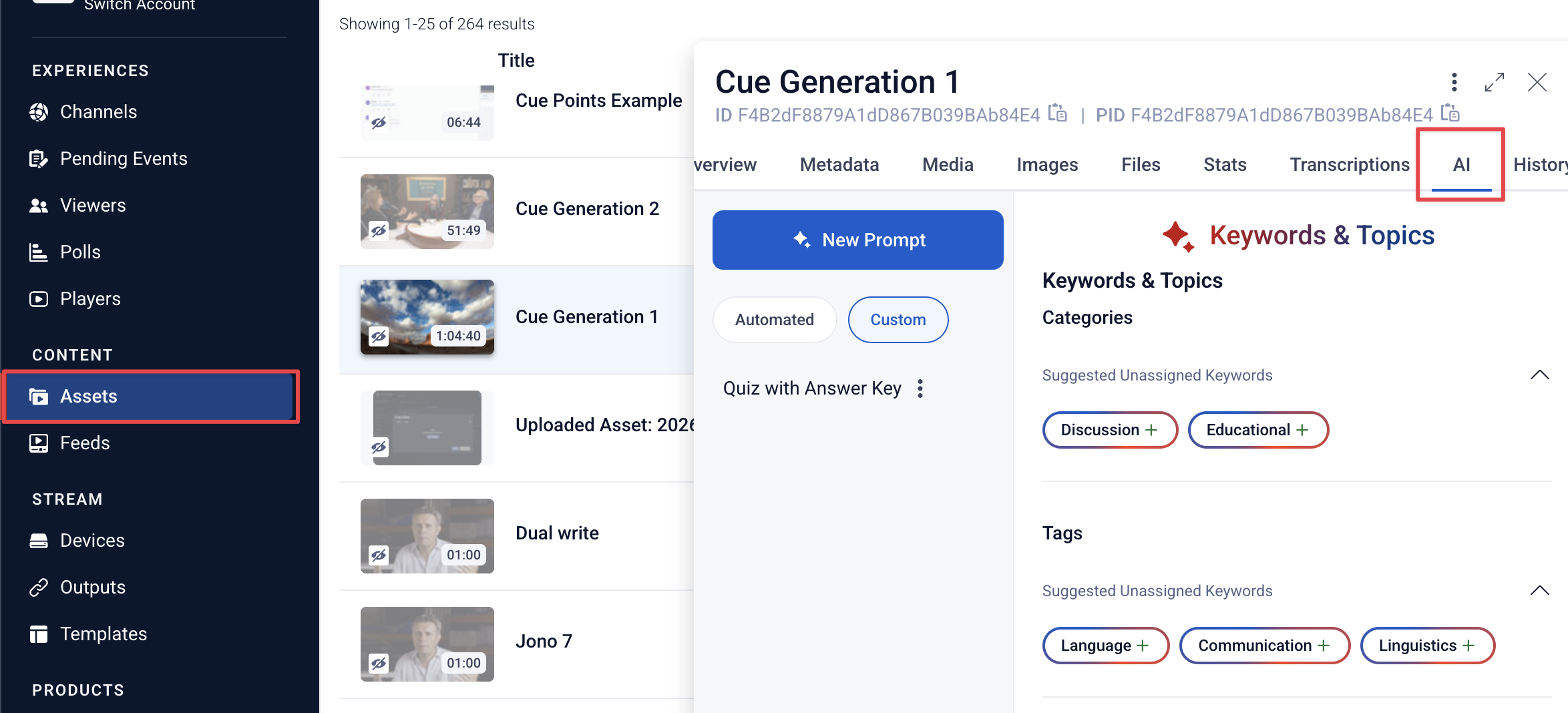
- Go to Assets in the Sardius Control Panel
- Open an asset that has a completed transcript
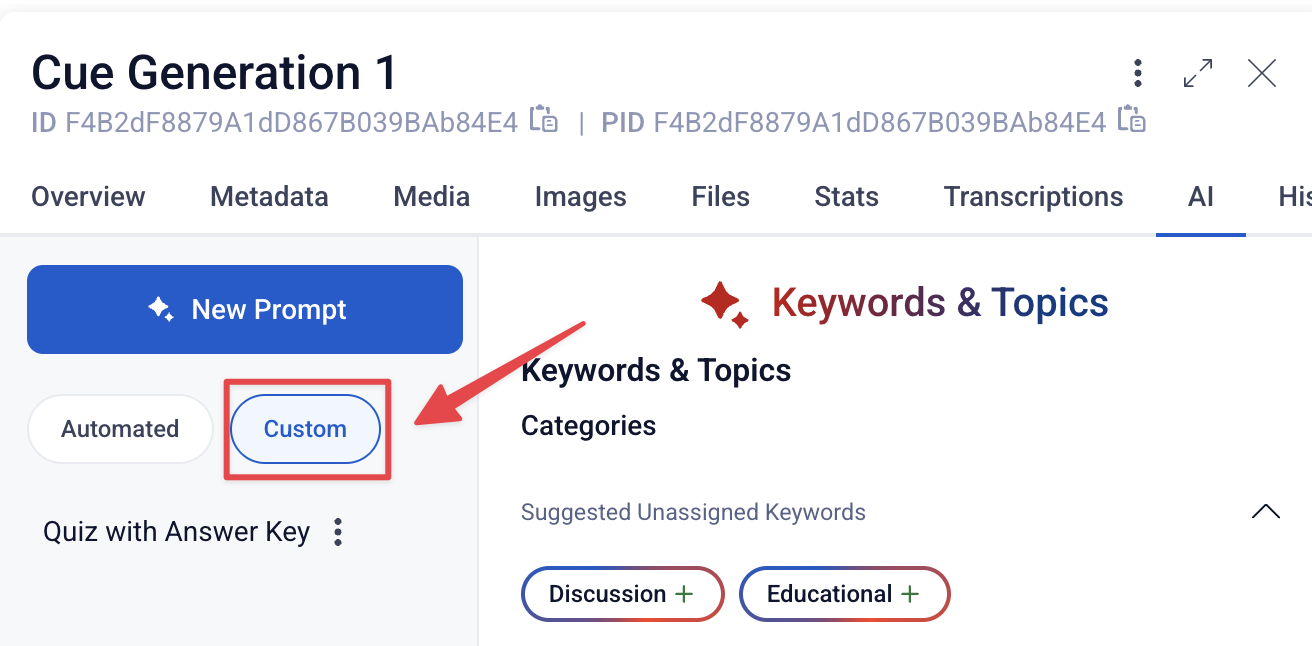
- Click the AI tab
- Select the Custom sub-tab
- Click New Prompt to start a conversation
Starting a Conversation
Each conversation starts fresh. When you click New Prompt, the AI knows only two things: the asset's transcript and what you type in the current conversation. It does not carry context from previous prompts or other conversations.
-
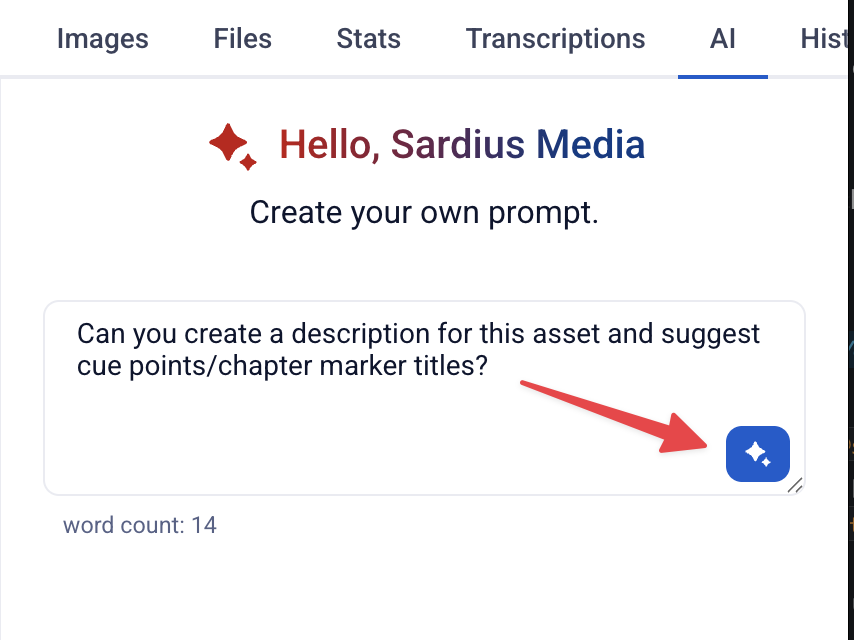
Press Enter or click the send button (the star icon) to submit your message
-
Use Shift+Enter to add a new line without sending
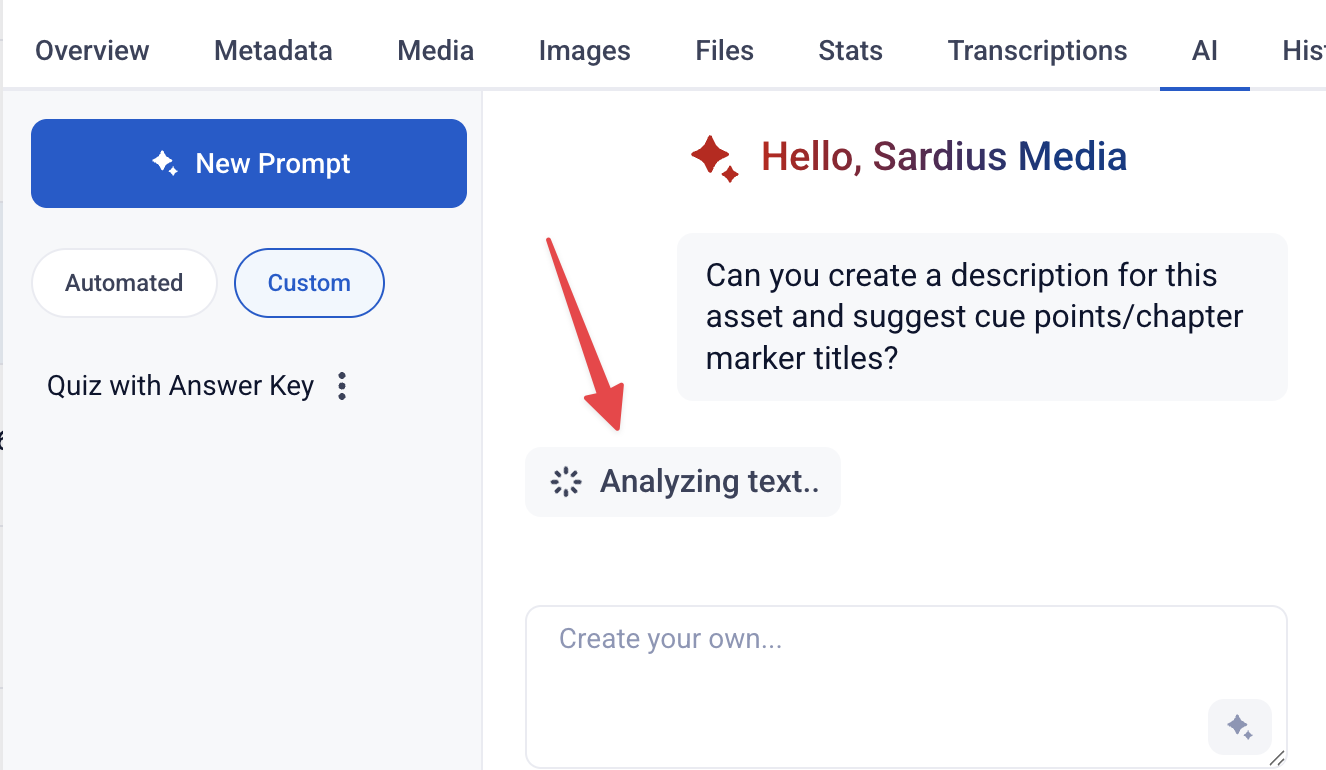
After submitting, you'll see "Analyzing Text..." briefly while the AI processes your question — then the response will stream in.
Follow-up questions: You can continue a conversation with follow-ups and the AI will remember what was said earlier in that same session. For example, if you asked for a quiz, you could follow up with: "Can you add 3 more questions about the second half?"
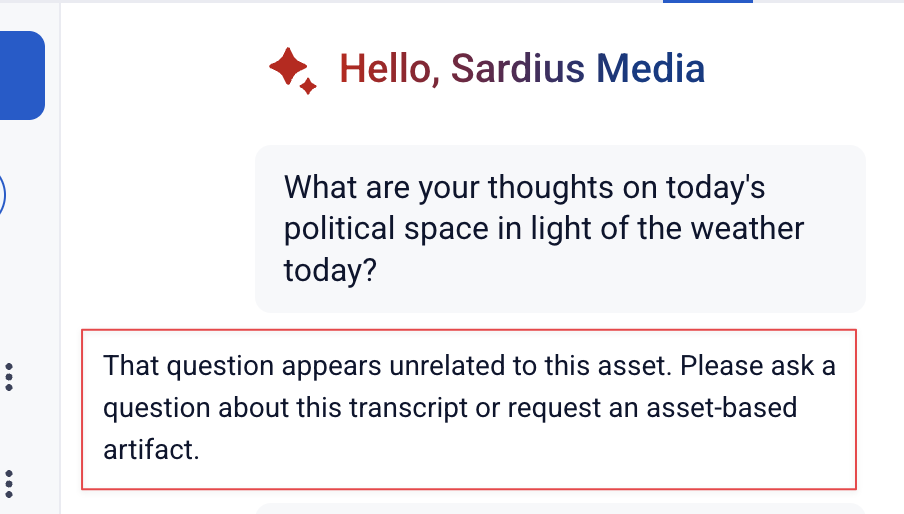
Off-topic questions: If your question isn't related to the asset, AI Create will redirect you rather than answer. It's designed to stay focused on the content of the video or recording you're viewing.
Managing Conversations
All saved conversations for an asset appear in the Custom sub-tab. Conversations are shared across your team — anyone with access to the asset and the AI permission can view, use, and add to existing conversations.
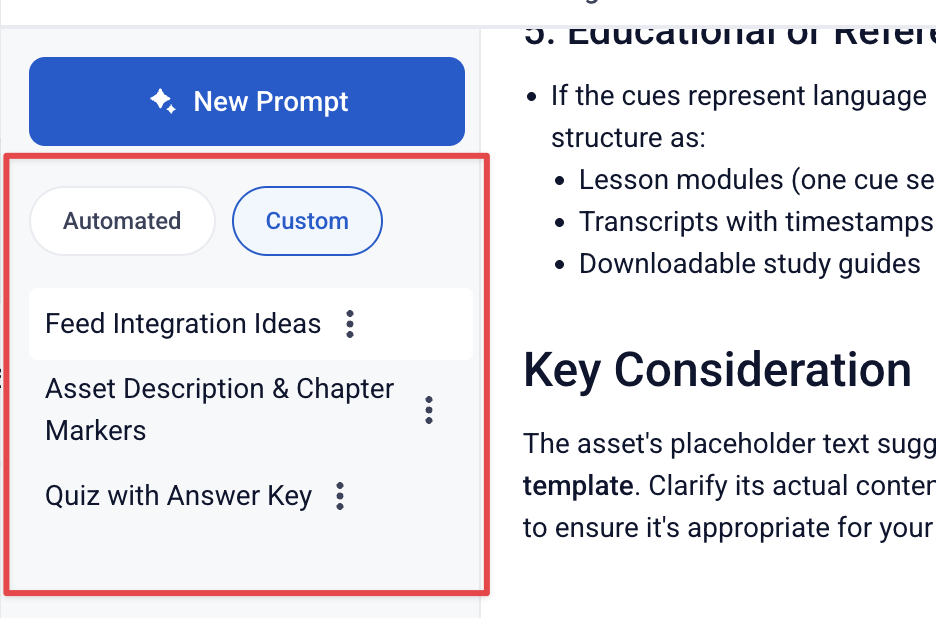
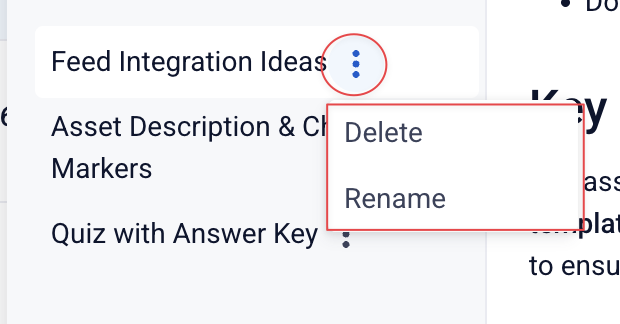
From the conversation list, you can:
- Open any conversation to view its messages and continue the chat
- Rename a conversation using its three-dot menu (⋮)
- Delete a conversation using its three-dot menu (⋮) — a confirmation prompt appears before anything is removed
Generated Files
You can ask AI Create to produce a downloadable file. For example:
"Export this as a markdown file."
"Give me a plain-text summary I can download."
When the AI generates a file, a download row will appear below the response showing the file name and a Download button.
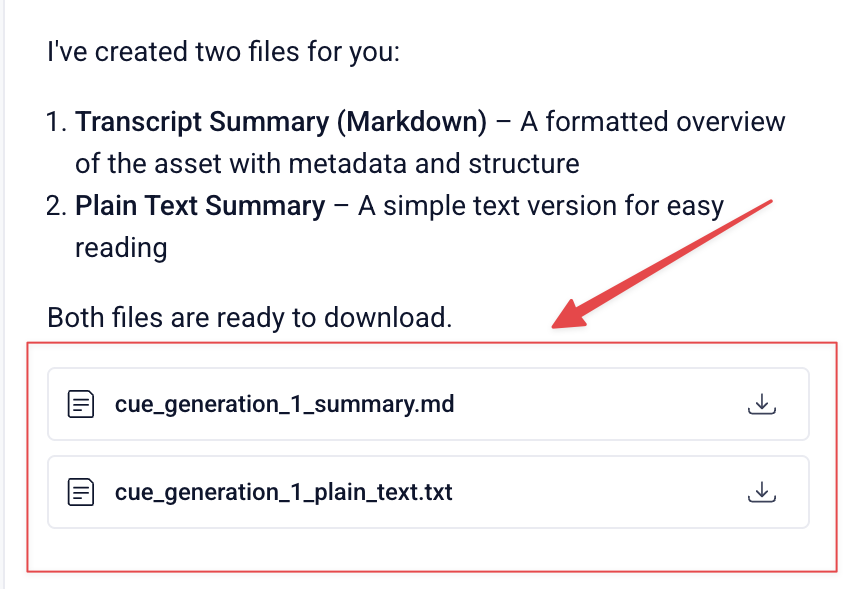
A few things to know about files:
- AI Create can generate up to 5 downloadable files per prompt
- Files are document types only: markdown (.md), plain text (.txt), or JSON — no images or media
- Files from one prompt are not accessible from a different prompt — if you need multiple separate outputs, plan your prompts accordingly
Token Usage
AI Create runs on a monthly token allowance set by your Sardius administrator. Every prompt you send uses tokens — the more complex the request, the more tokens it may consume.
Token usage banners:
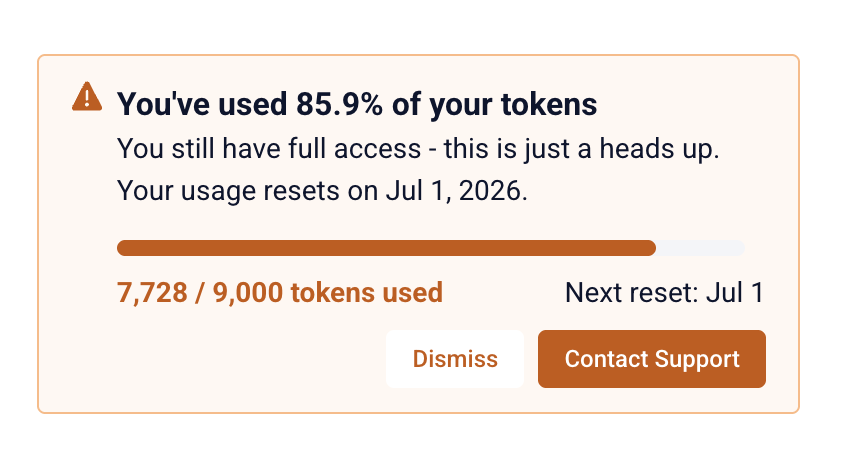
When your account's usage reaches certain thresholds, a banner will appear at the top of the Custom tab:
- Above 50% — A usage banner appears showing your percentage used, a progress bar, your current token count, and your reset date
- Above 80% — The banner changes to a warning style to alert you that you're approaching the limit
- At 100% — New prompts are blocked until your tokens reset the following month
Tokens reset monthly. If you reach the limit before the month ends, you can click Contact Support on the banner to request a limit increase, or wait for the reset.
You can also dismiss the banner and it won't reappear until the next billing period
Managing AI Create on Your Account
AI Create is a premium add-on provisioned by the Sardius team. It requires an existing AI Discover plan (Basic or Premium) and is added as a separate line item to your contract. This will include enabling the feature and setting your account's monthly token limit.
To add AI Create to your account or to request a token limit adjustment, contact your Sardius Representative.
Controlling who can use AI Create
Once AI Create is active, access is managed through your account's role permissions. Only Owner-level users can create or update roles.
To give a user access to AI Create, make sure their role includes the AI permission. You can configure this in Settings > Roles.
For step-by-step instructions, see How to Create, Edit, or Delete a Role.
Troubleshooting
"Why don't I see the AI tab?"
The AI tab requires an active AI Discover plan. The AI Create chat (Custom tab) requires AI Create to be enabled on top of that. If either is missing, contact your Sardius Client Success Manager to confirm what's active on your account.
"Why can't a user see the Custom tab or AI Create options, even though the account has AI Create enabled?"
Their role is likely missing Transcriptions access. The system checks for AI Create through the Transcriptions settings — if that permission is off, the check fails and AI Create won't appear regardless of whether the token permission is enabled. Make sure the role has both Transcriptions and Allow features requiring AI Tokens turned on. An Owner-level user can update this under Settings > Roles.