
Sardius AI Discover
Updated
Sardius AI Discover is a powerful new way to find content in your asset library. Instead of searching by title alone, you can now search by what's inside your video — spoken words, on-screen visuals, uploaded images, and more.
How to Access AI Discover
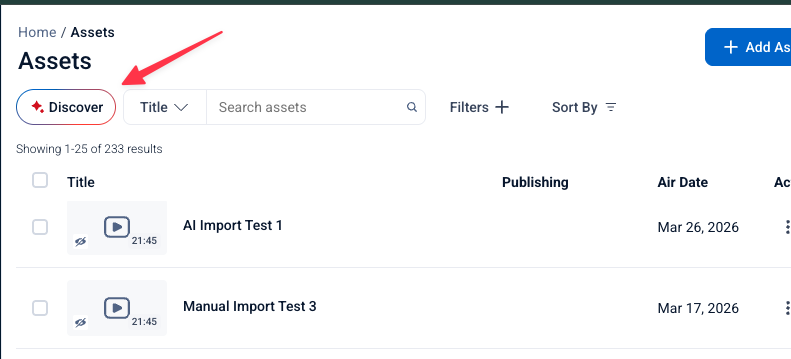
- Go to Assets in the Sardius Control Panel
- Click the Discover button next to the standard search bar
- The search interface will then expand to full screen
Search Modes
Once AI Discover is open, you can choose how you want to search:
-
Smart Search — Searches everything at once: text, visuals, and audio.
Smart search also automatically corrects typos, so "serms with Josh" will still find results for "sermons with Josh." This is the most powerful option.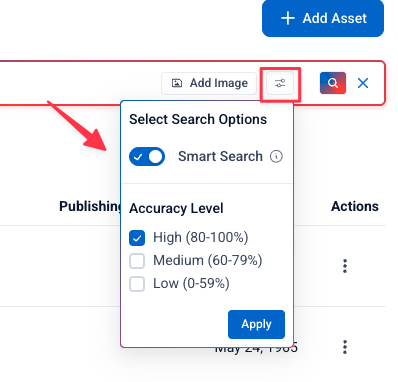
-
Text Only — Searches based on words found in the asset's transcript (i.e. find all assets where someone says "forgiveness")
-
Visual Content Only — Searches based on what appears on screen in the video (i.e. "man in blue shirt" or "baptism")
-
Audio Content Only — Searches based on audio characteristics. (i.e. music, crowd applause, acoustic guitar)
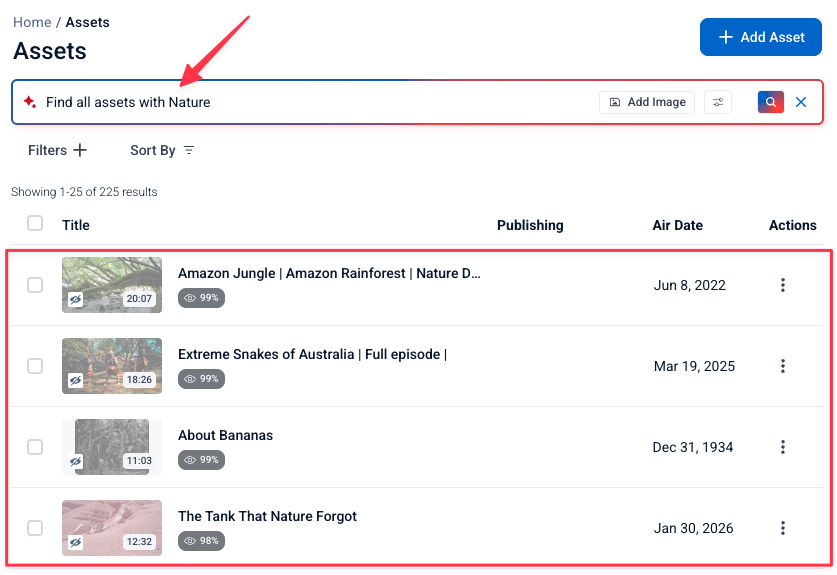 Adjusting Search Accuracy
You can control how strict or broad your results are using the accuracy setting:
- High (80-100%) — Returns only the closest matches to your search. Best when you know exactly what you're looking for and want precise results.
- Medium (60-79%) — Returns results with a reasonable degree of relevance. A good starting point for most searches.
- Low (0-59%) — Returns everything that could possibly be related. Best when you're not sure exactly what to search for, or want to cast a wider net.
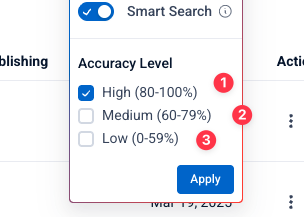
Select your preferred accuracy level and click Apply to run your search.
Visual Search — Tier 2 Only
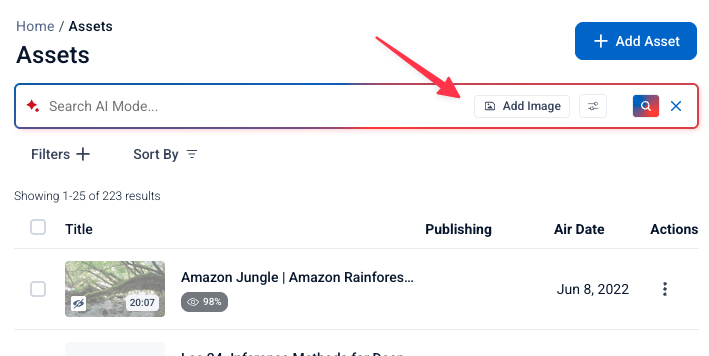
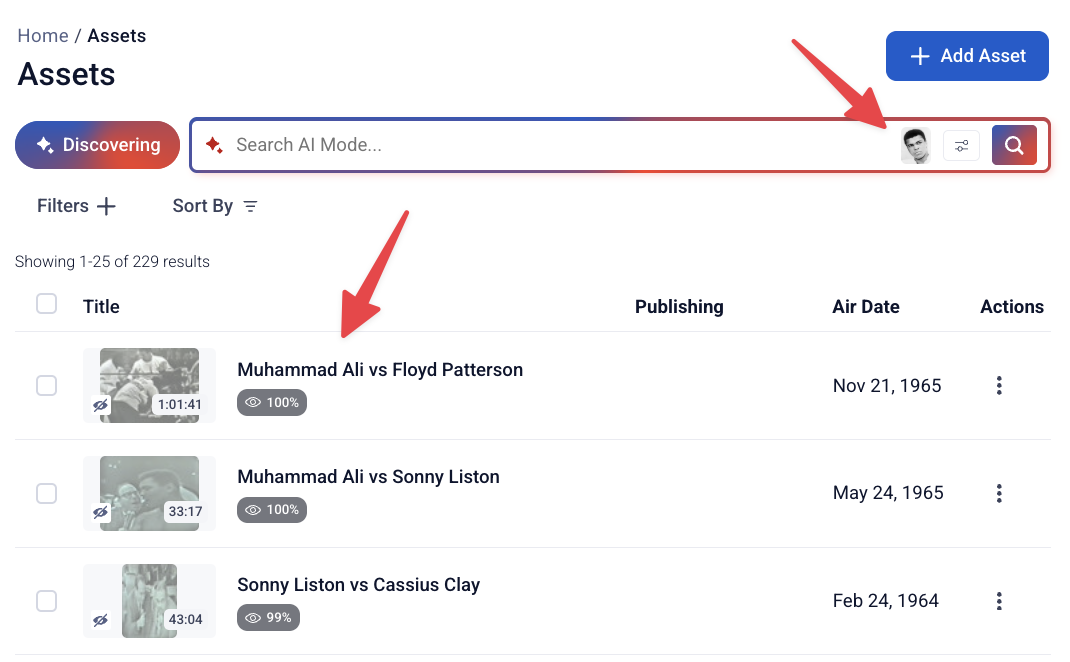
With Tier 2 AI, you can upload an image to search by visual content.
For example, upload a photo of someone wearing a blue jacket to find all clips featuring that look, or type a text prompt like "show me clips of someone at a podium."
Search Result Moments
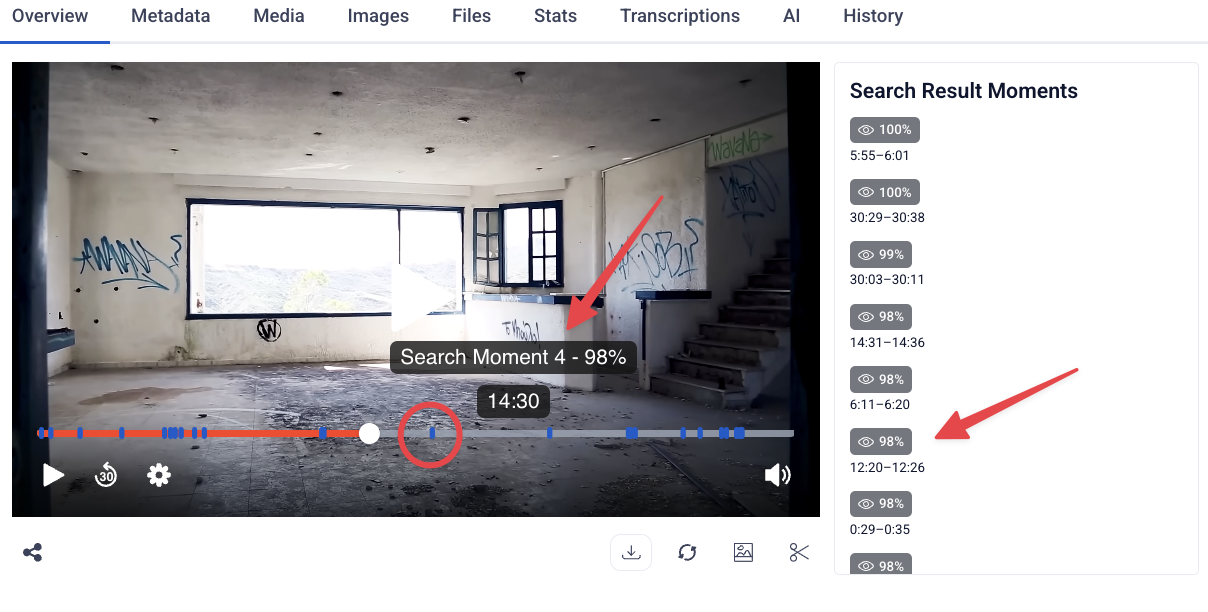
AI Discover doesn't just return matching assets — it also returns the specific moments within each video where the match occurs.
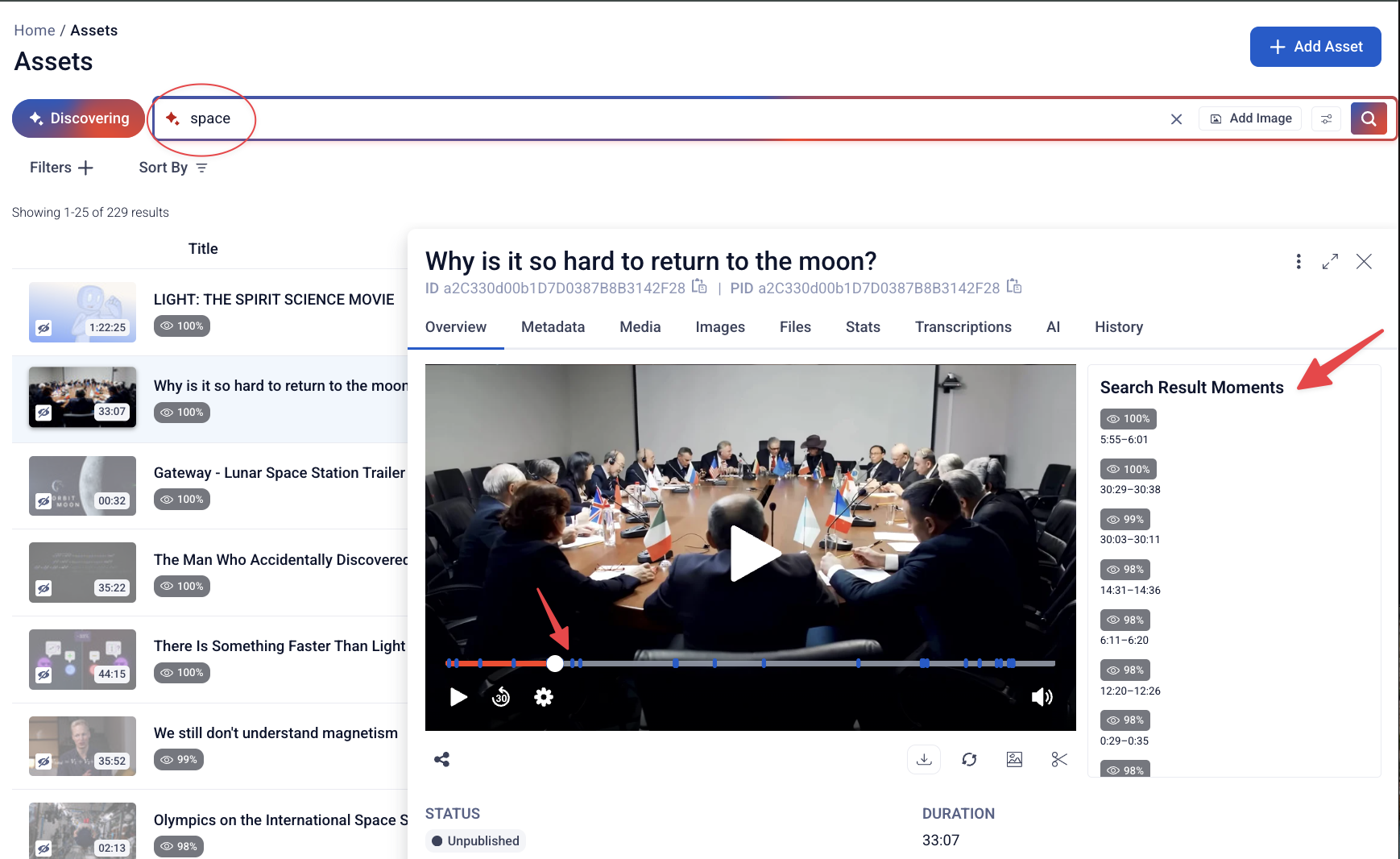
Click a result moment to jump directly to that timestamp in playback, so you don't have to scrub through long content to find what you're looking for.
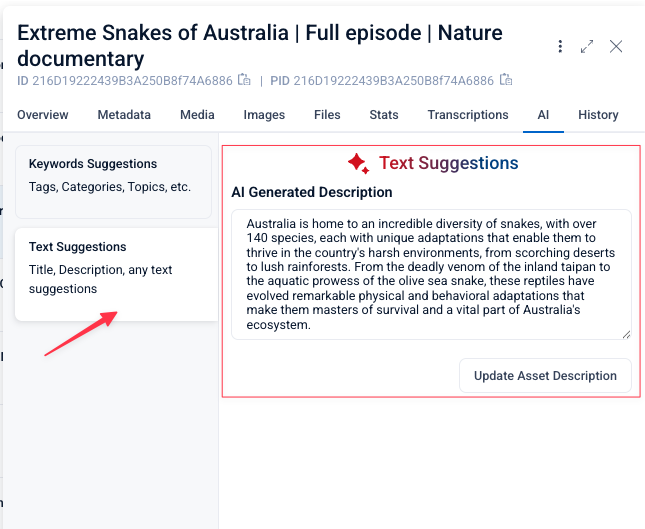
 AI-Generated Suggestions
When you open an asset, the AI tab displays a record of what Discover has generated for that asset based on its content.
-
Keywords Suggestions — Displays AI-generated keyword suggestions across three categories:
- Categories — Suggested category assignments for the asset
- Tags — Suggested tags for the asset
- Topics — Suggested topic assignments for the asset
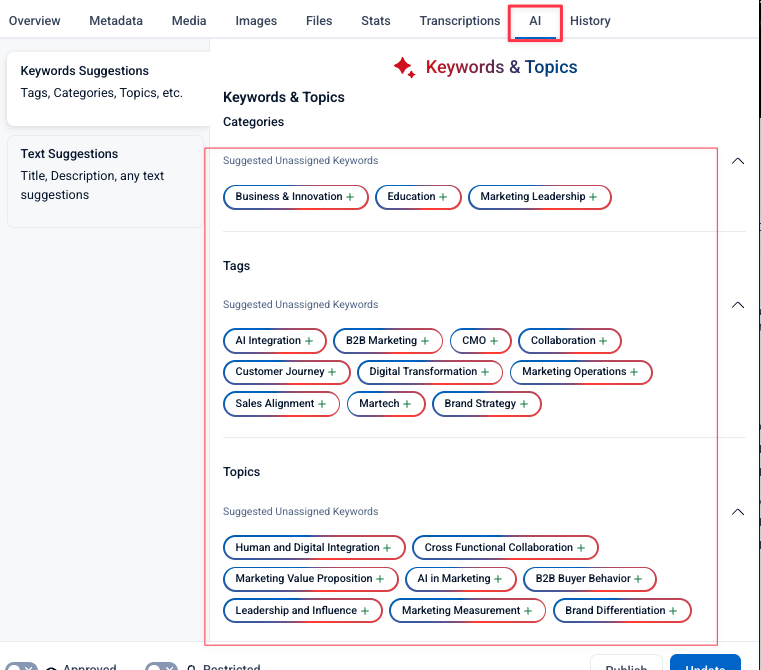
Each section displays Suggested Unassigned Keywords as clickable pills.
Click the + next to a suggestion to add it to the asset.
Keywords that have already been selected will appear applied and can be removed using the x button.
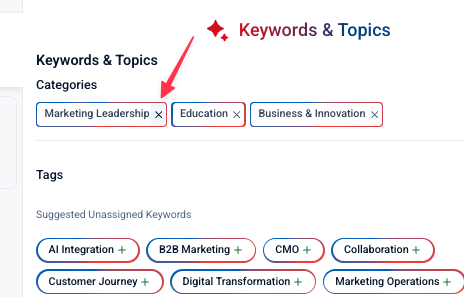
How adding and removing suggestions works:
- Before saving — Click + to move a suggestion into the accepted list. If you change your mind, click × to move it back to the suggested section. No changes are saved yet.
- To save your changes — Click Update at the bottom of the asset panel. Accepted suggestions will then appear under the asset's Metadata tab as well.
- To remove a suggestion after saving — Navigate to the Metadata tab and remove it from there. Once removed from the Metadata tab, it will return to the suggested section on the AI tab.
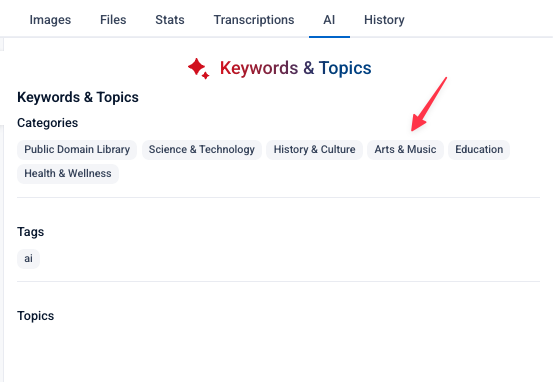
**
A grayed-out suggestion** is one that has already been accepted and saved to the asset.
Once accepted, it will also appear under the asset's Metadata tab.
Additional editing and interaction capabilities are planned for future releases
Setting AI Discover as Default
If you'd like AI Discover to be your default search method, you can enable it in User Preferences. When enabled, every search in your Assets library will automatically use AI Discover instead of the standard search.
Troubleshooting
-
Why is the AI Discover button is not visible? AI Discover must be enabled on your account. Contact your Sardius Client Success Manager to confirm your AI tier and activation status.
-
Search results seem off: Try lowering the accuracy setting to broaden results. Also keep in mind that newly uploaded assets may not be indexed immediately and therefore may not appear in AI Discover results right away.
-
Suggestions are grayed out: This means the suggestion has already been applied. No action is needed.
-
How do i remove a suggestion after saving? — Navigate to the Metadata tab and remove it from there. Once removed from the Metadata tab, it will return to the suggested section on the AI tab.