
Add Assets to Your Library
Updated
There are multiple ways to add assets to your library other than creating them automatically through the Event Auto-archive process. This page will demonstrate the multiple ways you can create assets through uploading, linking, or importing to the Control Panel.
You can upload, link, or import an asset by accessing the +Add Asset button in the upper right-hand corner:

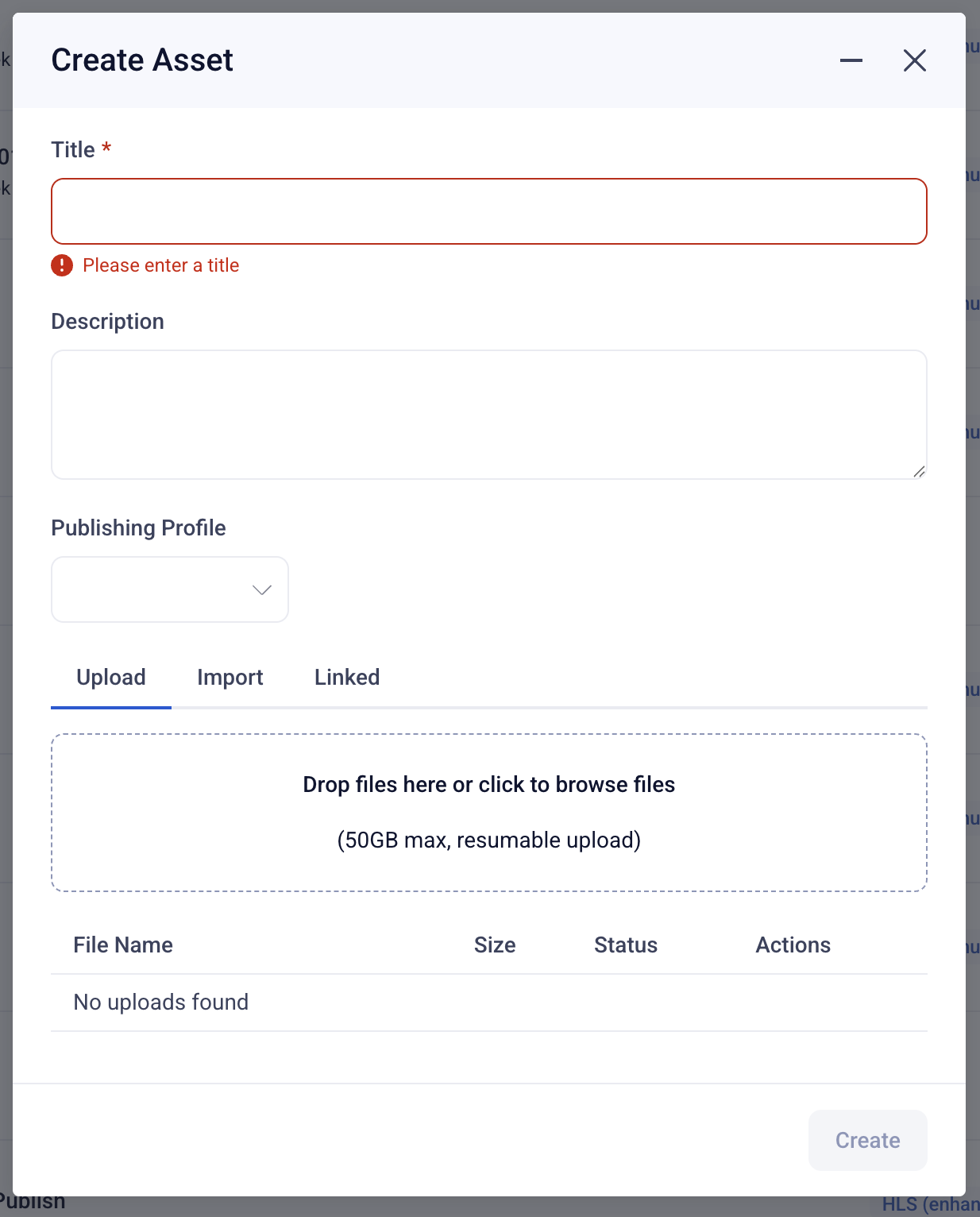
This opens a modal where you can provide some additional detail including the Title and Description of the asset.
Three upload options exist here: Upload or Import or Link an asset.
Upload
By default, the Create Asset modal will select the "Upload" tab.
You can drag your file(s) directly into the upload box or click in the upload box to navigate to where the file is stored on your device.
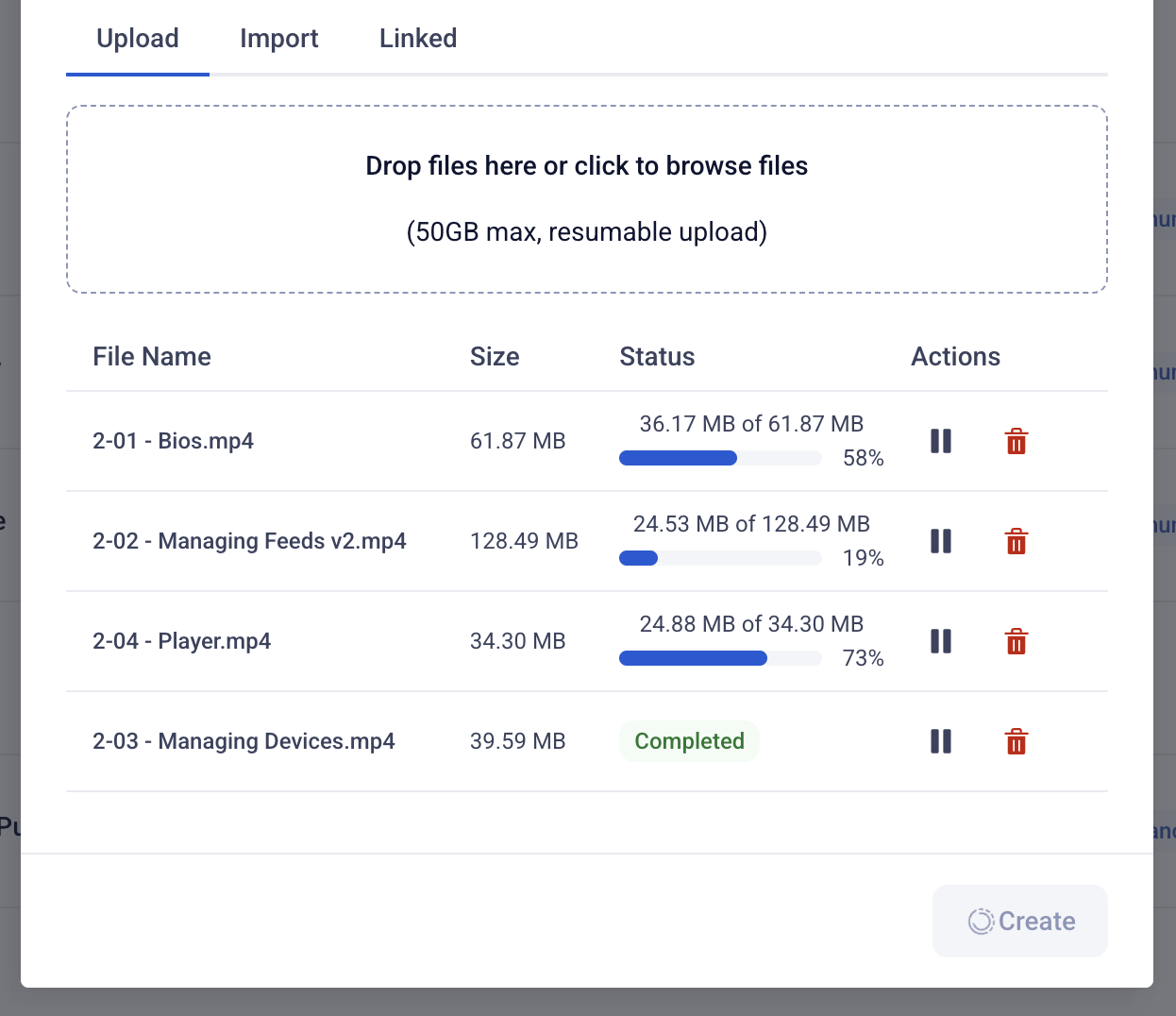
During the upload process, you will see your files in a list, a progress bar, including pause, retry and delete options.
If you are uploading multiple files, or a large file, you can minimize the uploader and continue work inside the Sardius Control Panel. Your uploads will continue to process as long as you don't refresh the page.
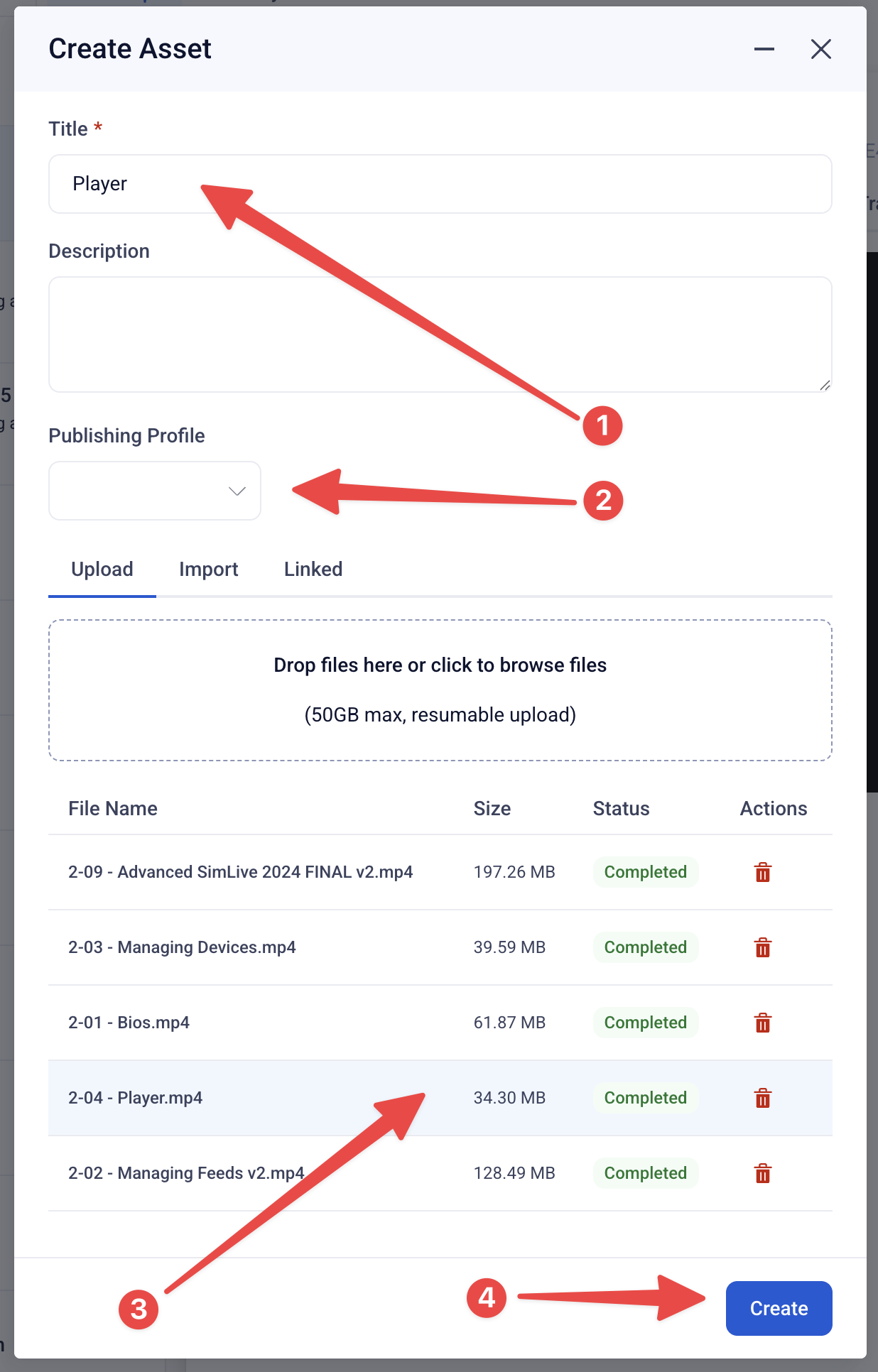
Once your upload is complete, select the (or one of the) uploaded files and enter a title. If you wish to transcode your asset (say MP4 to HLS), select a publishing profile. Then click "Create."
Our system will finish importing your new asset and you will be taken to the new record.
Import
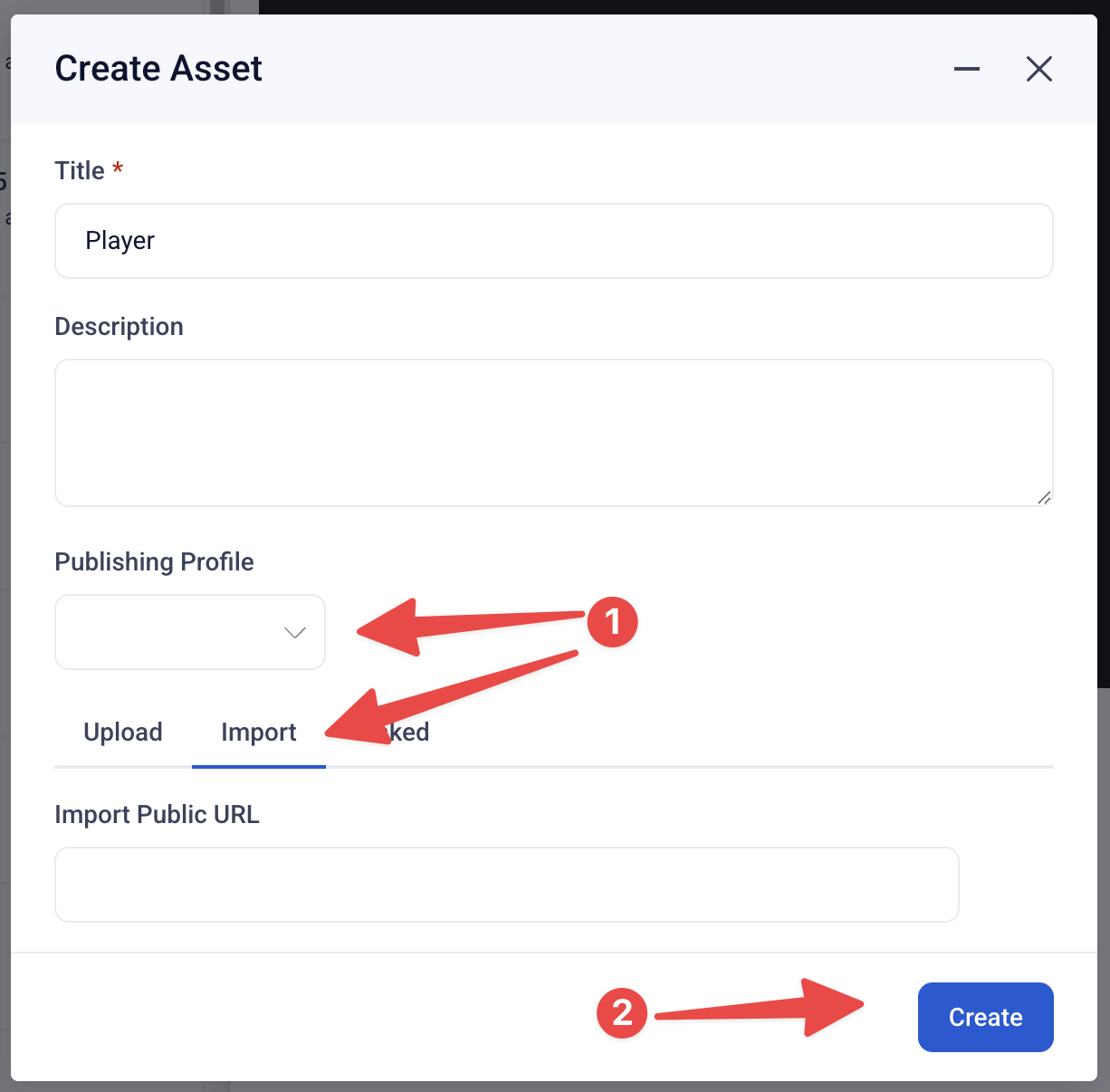
With our import function, you can import an MP4 or HLS m3u8 asset from an external hosting service. After inserting the URL, please select a publishing profile so that the Control Panel can prepare it for use throughout your account.
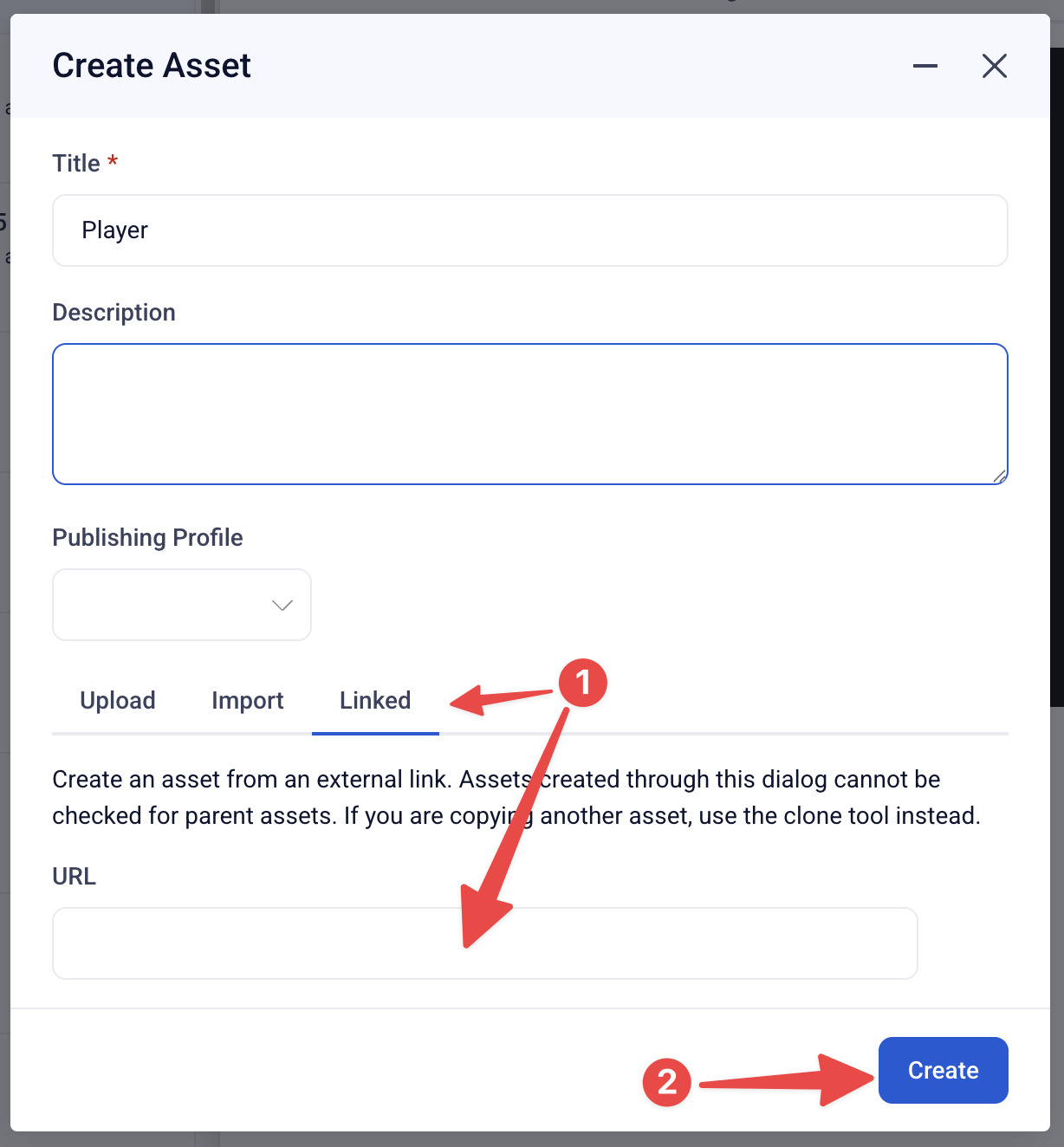
Linked
A Linked Asset is an asset that will be displayed in the Assets library but is physically housed in another location. This is often an external live stream, such as an Akamai public playback URL.
If you have your asset stored at a public-facing URL somewhere else, you can also Link your Asset by including the URL in the field here and clicking Create.
Once your asset has been uploaded, there are many fields available to add metadata for ease of searching. However, many of these fields may not need to be utilized and will depend upon the goals of your organization. For more information on metadata and other info that can be added to an Asset, see the article Managing an Asset - an Overview.