
How Pulse Locations Work
Updated
On Pulse, every location (or campus) on your site is made up of three pieces in the Control Panel. Knowing how they connect makes it easier to add, rename, or remove a location without leaving anything behind.
The Three Pieces of a Location
Series: what viewers see
Where it lives: Control Panel > Metadata > Series
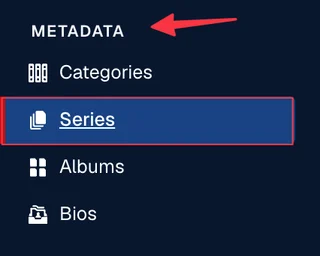
The Series is the location on your Pulse site. Each Series becomes a location tile on your location list, using its Cover image for the tile and its Banner image for the location's page. Every recording tagged with that Series shows up under that location.
Channel: where the stream comes in
Where it lives: Control Panel > Experiences > Channels
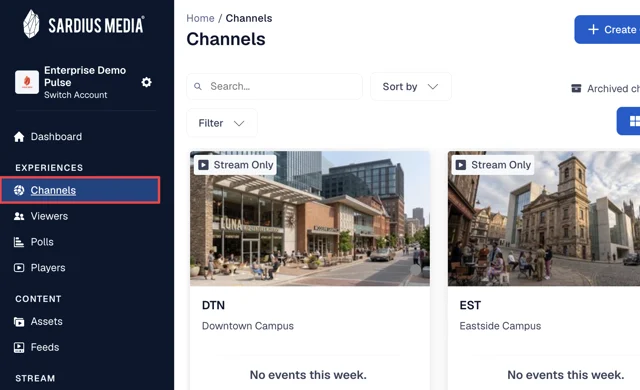
Each location has its own Stream Only Channel. This is where the location's encoder sends its stream, and where its events are scheduled.
The Channel's name is only used in the Control Panel. Renaming a Channel doesn't change what viewers see on Pulse. The location name on your site always comes from the Series.
Archive Settings: the connection between the two
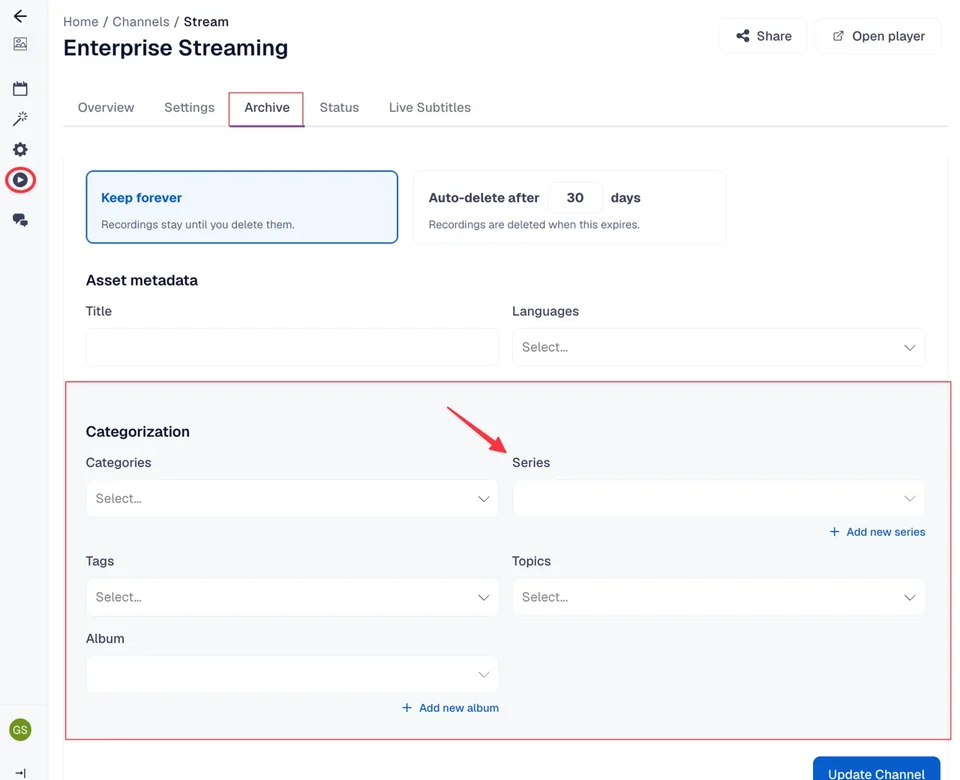
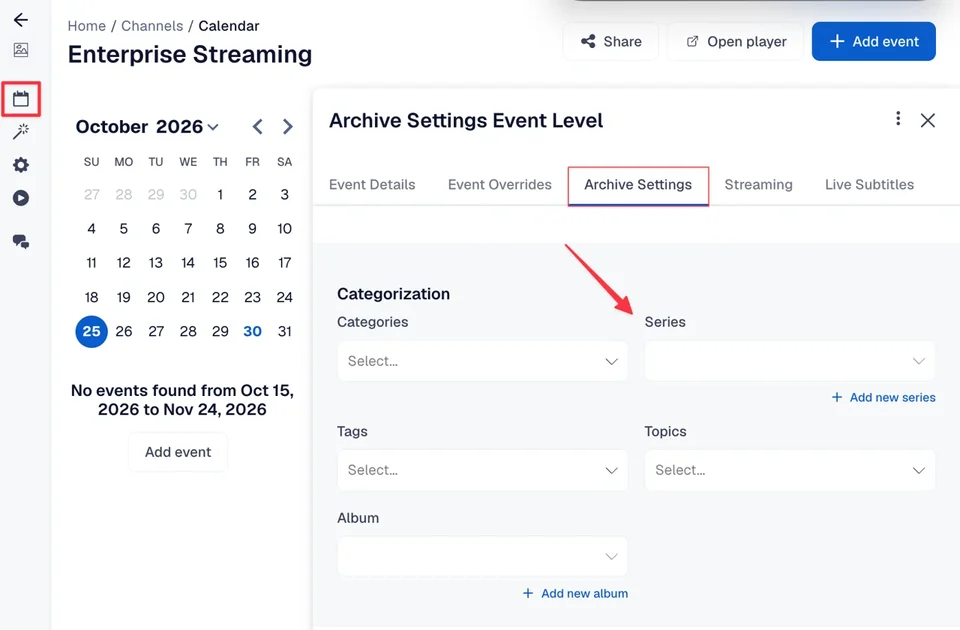
Archive Settings tag each recording with a Series as it's archived. This is how Pulse knows which location a recording belongs to. They live in two places:
- Default Archive Settings on the Channel (Channel > Stream > Archive)
- Archive Settings on each event (Channel > Event Calendar > [event] > Archive Settings)
How Recordings Get Onto Your Pulse Site
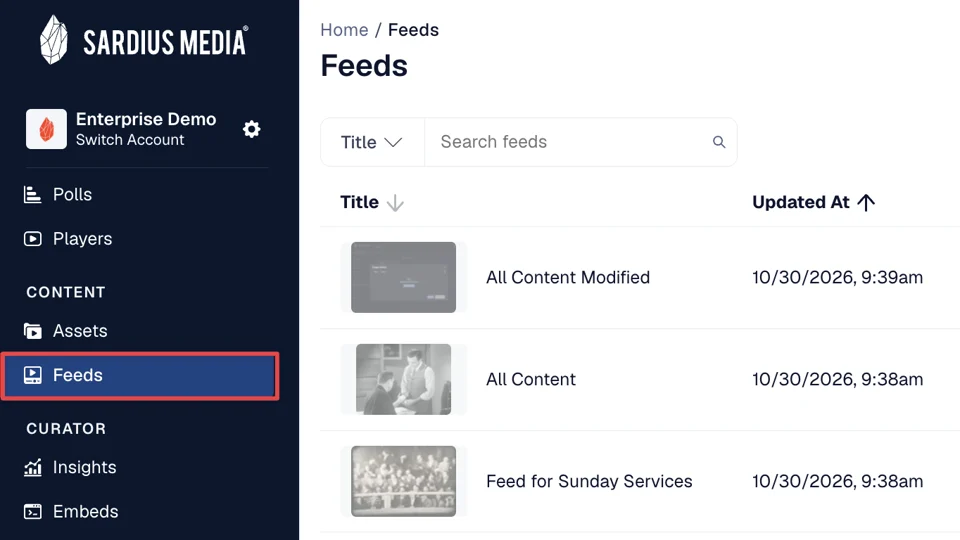
Your Pulse site is populated by a Feed (Control Panel > Content > Feeds).
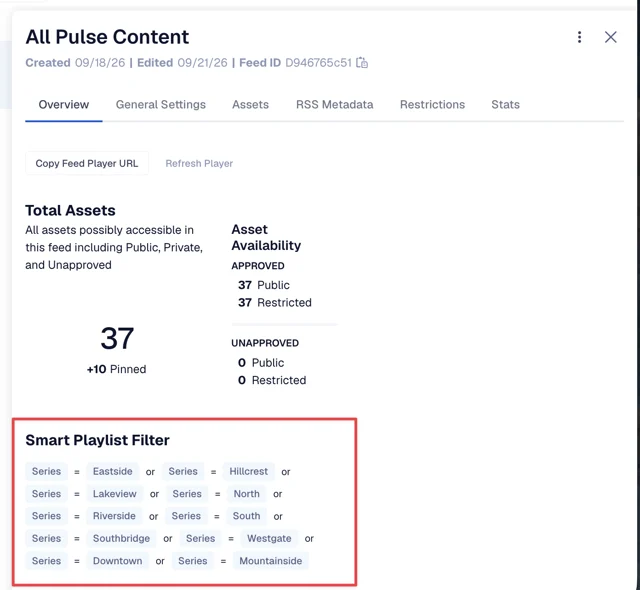
The Feed uses a Smart Playlist Filter to decide which recordings appear on your site. Most Pulse Feeds filter one of two ways:
- By Category: the filter lists your service or event types, like
Weekend Service|Youth Night. This is the most common setup. Adding, renaming, or removing a location doesn't affect this filter, because a recording's Category stays the same no matter which location it's from. - By Series: the filter lists your location names, like
North Campus|South Campus. If your Feed is set up this way, the filter needs to be updated whenever a location is added, renamed, or removed. Otherwise, that location's recordings won't appear on your site.
How to check which one your Feed uses
- Go to Content > Feeds and open your Pulse Feed
- On the Overview tab, scroll down to Smart Playlist Filter
- Look at the values listed:
- Service or event types (like Weekend Service) mean your Feed filters by Category
- Location names mean your Feed filters by Series
What Viewers See
- Each Series shows up as a tile on your Pulse location list
- A Series with no Cover image still shows up, as a blank tile with just its name
- A Series stays on your list as long as it exists, even if it's no longer in use
That last point is why a renamed or retired location can stick around on your site. If the old Series is still in Metadata > Series, it'll still show up.
Quick Reference: Where Location Info Lives
- Metadata > Series: the location name and its Cover and Banner images
- Channel > Stream > Archive: the Series new recordings are tagged with by default
- Channel > Event Calendar > [event] > Archive Settings: the Series for a specific event (overrides the default)
- Content > Assets: filter by Series to see every recording tagged with a location
- Content > Feeds: the filter that decides which recordings appear on Pulse
Related Articles
- Add a New Location to Pulse
- Rename a Pulse Location
- Remove a Pulse Location
- Recommended Image Sizes for Collections Layout
Need more help? Contact Sardius Support