
Rename a Pulse Location
Updated
Use this article when a location is staying the same and only its name is changing.
The location name on your Pulse site comes from its Series, not its Channel. To rename a location, rename the existing Series. All of its past recordings move with it, and you won't end up with the old name still showing on your list.
New to how locations are set up? See How Pulse Locations Work for how Series, Channels, and Archive Settings fit together.
Step 1: Rename the Series
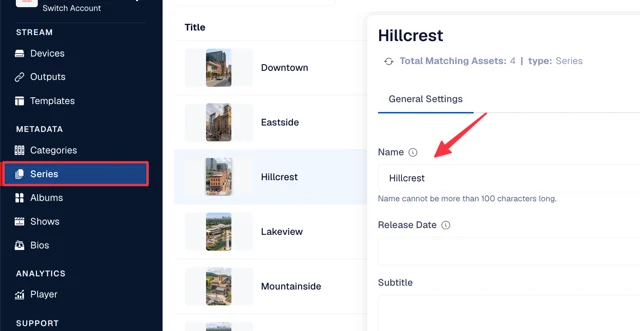
- In the Control Panel, go to Metadata > Series
- Click the Series for the location
- Change the Name to the new location name (use the full name, no abbreviations)
- Click Update to save your changes
Step 2: Update the Series Images (if needed)
If the Cover, Banner, or Background image shows the old name or building, replace it:
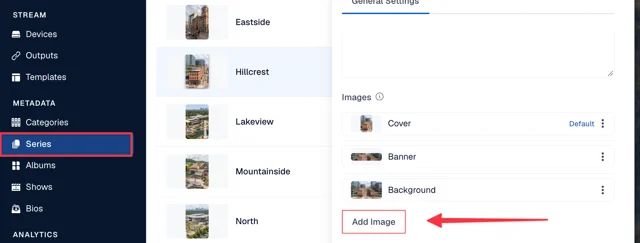
- Open the Series and scroll down to Images
- Click Add Image
- Set Image Type to Cover, Banner, or Background
- Select a new image from your library, or open the Upload tab to upload a new one
- Turn on Default so this image is the one shown on your Pulse site
- Click Save
- Optional: to remove the old image, click the ⋮ menu next to it and choose Delete
Step 3: Rename the Channel (optional)
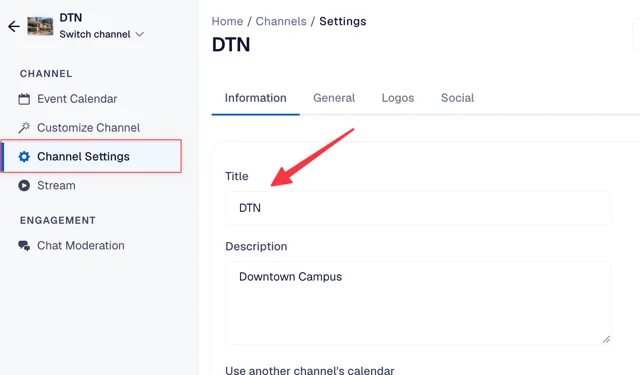
To keep the Control Panel consistent, you can also rename the location's Channel under Channel Settings. This doesn't change what viewers see on Pulse.
Step 4: Check Your Feed
If your Pulse Feed pulls content by Series, update the location name in the Feed's filter:
- Go to Content > Feeds and open your Pulse Feed
- Open the Assets tab and click Advanced Filter under Smart Playlist
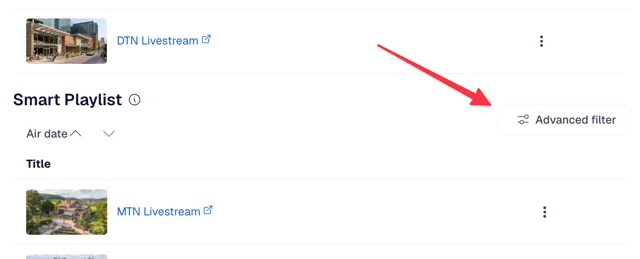
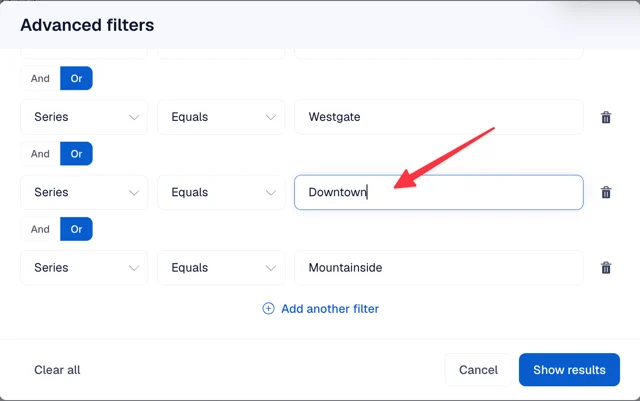
- Find the row for the location (Series | Equals | location name). Each location has its own row.
- Change the old location name to the new one (it must match exactly)
- Click Show results, then Update Feed
If your Feed pulls by Categories (your service or event types, like Weekend Service) or by approval status (Approved = true), you don't need to change anything. Renaming a location doesn't change a recording's Category or approval, so the Feed keeps pulling it in.
Step 5: Double-Check Archive Settings
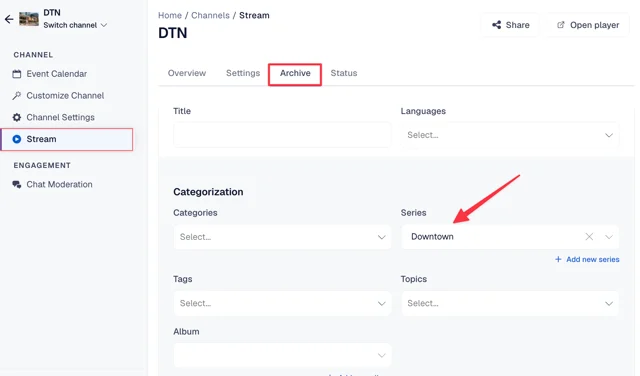
Open the location's Channel and confirm the Series field shows the new name in:
- Stream > Archive (Default Archive Settings)
- Event Calendar > [each recurring event] > Archive Settings
Verifying It Worked
- Open your Pulse site and hard-refresh (Cmd+Shift+R on Mac, Ctrl+Shift+R on Windows)
- Confirm the location shows its new name on your location list
- After the location's next event, check Content > Assets to confirm the new recording is tagged with the renamed Series
Troubleshooting
The old name is still showing next to the new one.
A new Series was likely created instead of renaming the existing one. Follow Remove a Pulse Location to move the old Series' recordings over and remove it.
New recordings aren't showing under the renamed location.
Check the Series field in the event's Archive Settings and in the Channel's Default Archive Settings. If your Feed pulls by Series, make sure the name in the Feed filter matches exactly.
Related Articles
- How Pulse Locations Work
- Remove a Pulse Location
- Add a New Location to Pulse
- Recommended Image Sizes for Collections Layout
Need more help? Contact Sardius Support