
Time Zone Setting for Events
Updated
When creating or editing a calendar event, you can set a specific time zone for that event. Once set, the time zone won't change automatically when a teammate in a different location edits the event — it only updates if someone manually changes the Time zone field.
Setting the Time Zone
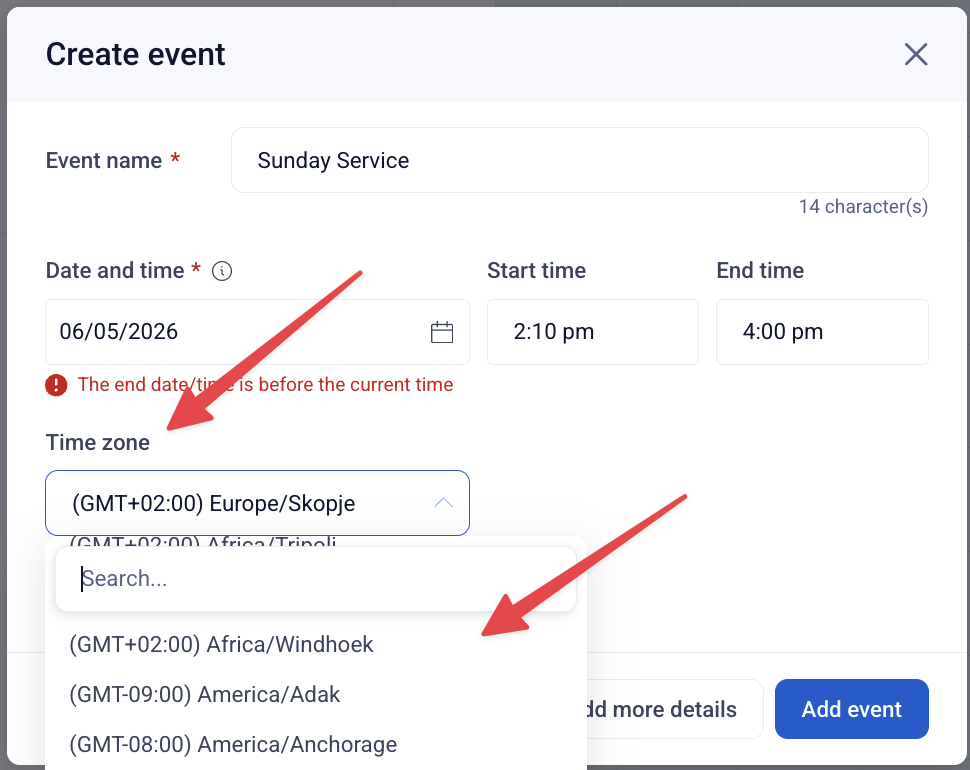
The Time zone field appears on both the quick-add form and the Event Details tab of the full event editor — directly below the date and time fields.
- When creating a new event, the field defaults to your local time zone. Change it before saving if the event is intended for a different region.
- When editing an existing event, the field will show the event's saved time zone, not yours. You can update it at any time by selecting a new value from the dropdown.
Each option in the dropdown includes the GMT offset and the region/city name (e.g., (GMT-05:00) America/Chicago).Use the search field inside the dropdown to quickly find a time zone by city or region name.
Editing an Event in a Different Time Zone
If the event's time zone doesn't match your local time zone, a warning banner will appear that says "Please note that the event's timezone is different than your own. Use caution when editing the event date and time"
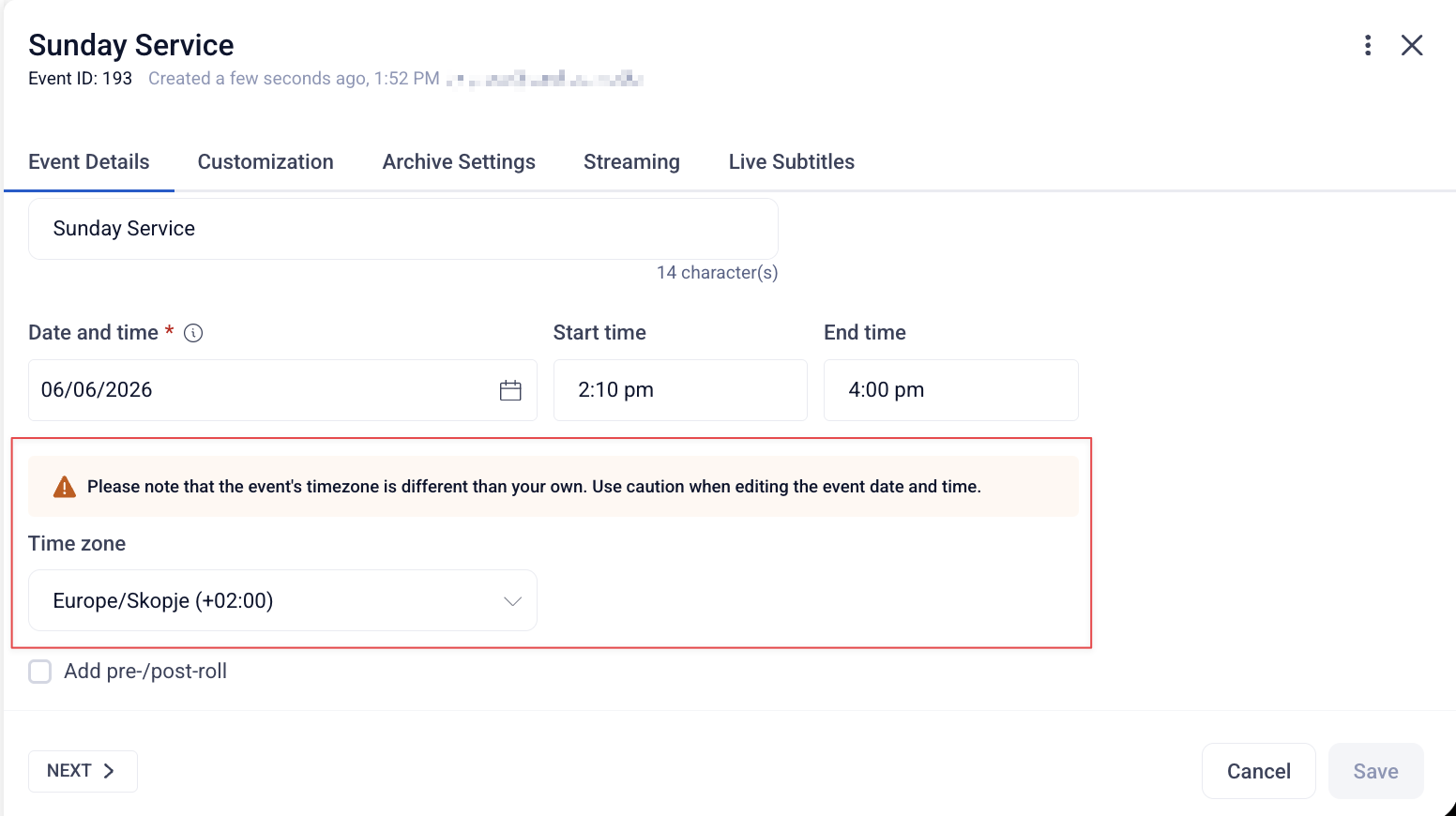
The times shown on the edit screen are in the event's time zone.
Any changes you make to the start or end time apply in that time zone — not your local one.