
How to adjust your Event Window
Updated
How to Adjust Your Channel's Event Window
What the event window is
Your channel's event window decides which scheduled events your channel can "see": how many past events and how many upcoming events it pulls from your calendar. If an event falls outside that window, your channel will not poll the posted event, even when it's on your calendar.
Why it matters
A window set too narrow is the most common reason a channel shows "Thanks for Watching" when viewers expected a countdown to an event or live stream. Your event is scheduled, but the channel doesn't see it coming up.
Custom VS. Rolling Date Range
Every time a viewer opens your channel, they are presented with a list of Calendar Events. The Event Window is the range in which those events are presented. There are two ways of constructing the rules that make up this range.
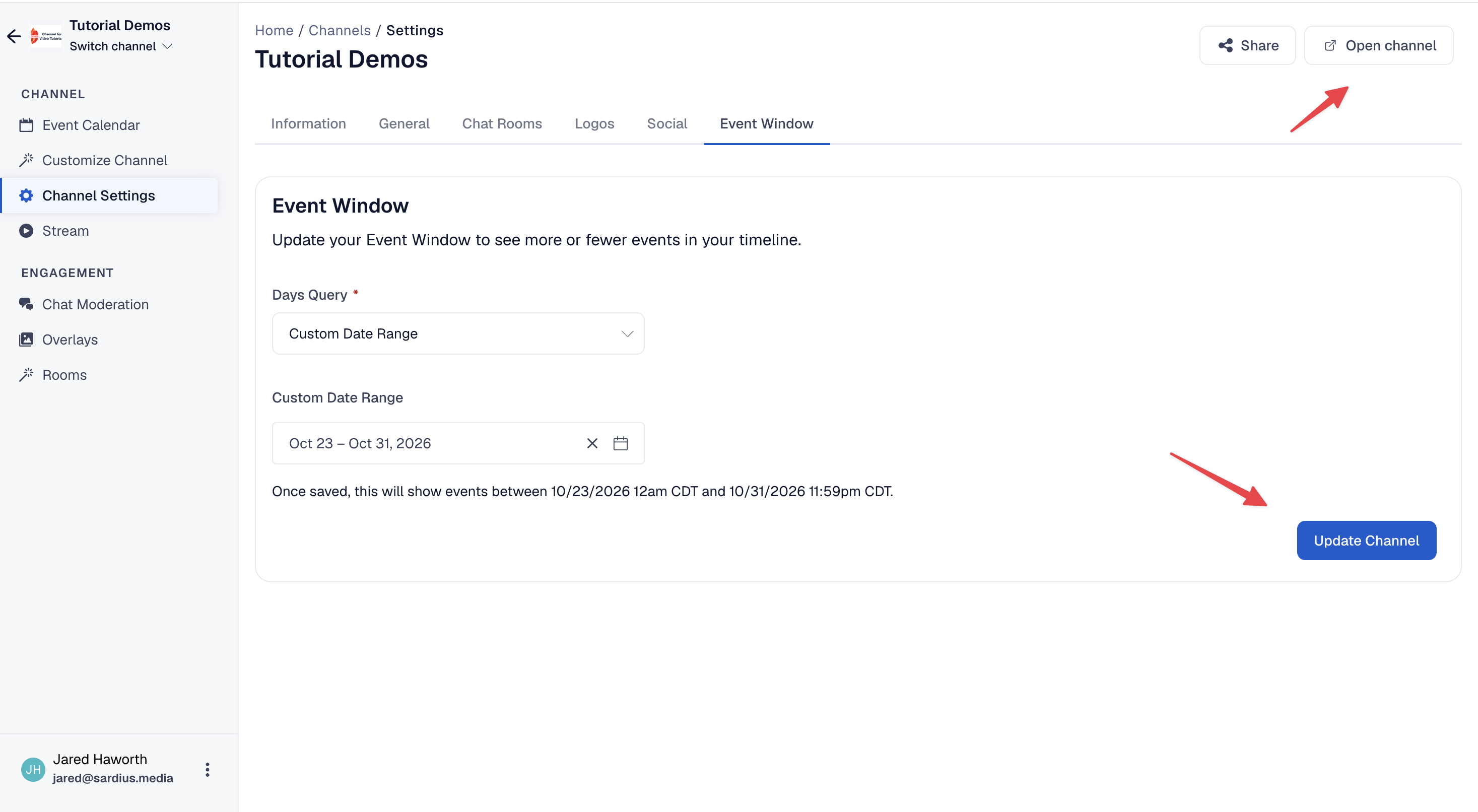
Custom Date Range (Single Event)
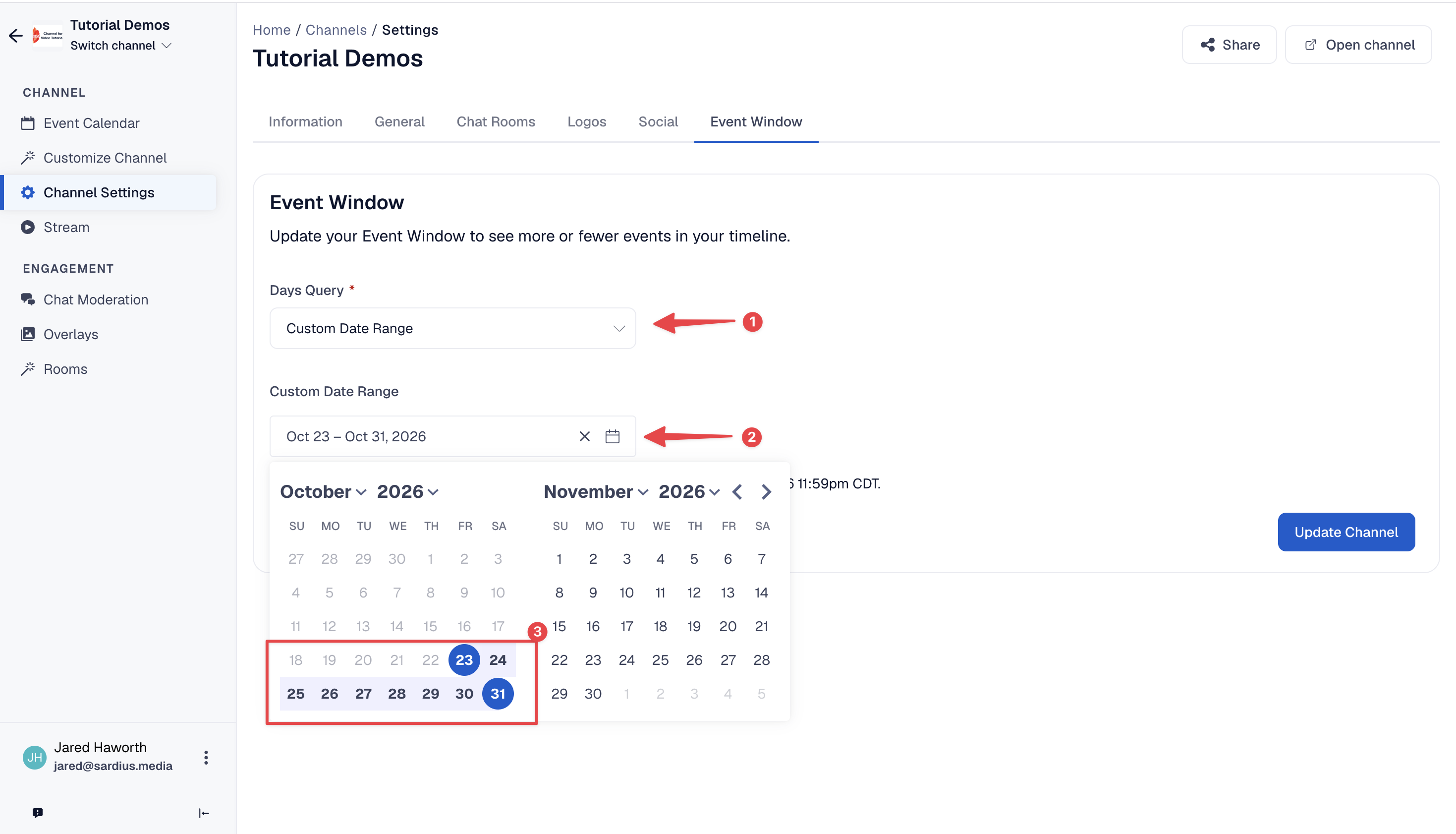
A Custom Date Range, also known as A Fixed Date Range, is intended to show only events between a certain Start and End date.
Conferences, one-time events or launch announcements benefit best from this type of Event Window.
- Start Date: the first day the channel will look for events. Set it on or before your first session.
- End Date: the last day the channel will look for events. It might be good to set this date after your last session, rather than on it. This allows a buffer for late-running or rescheduled sessions.
Rolling (Recurring Events)
This type of Event Window is best used for channels that have weekly services or regularly scheduled programming. Instead of fixed dates, the channel counts events forward and backward from right now. The window moves on its own every day, so you only need to set it once.
This range can be set using the default values located in the dropdown menu.
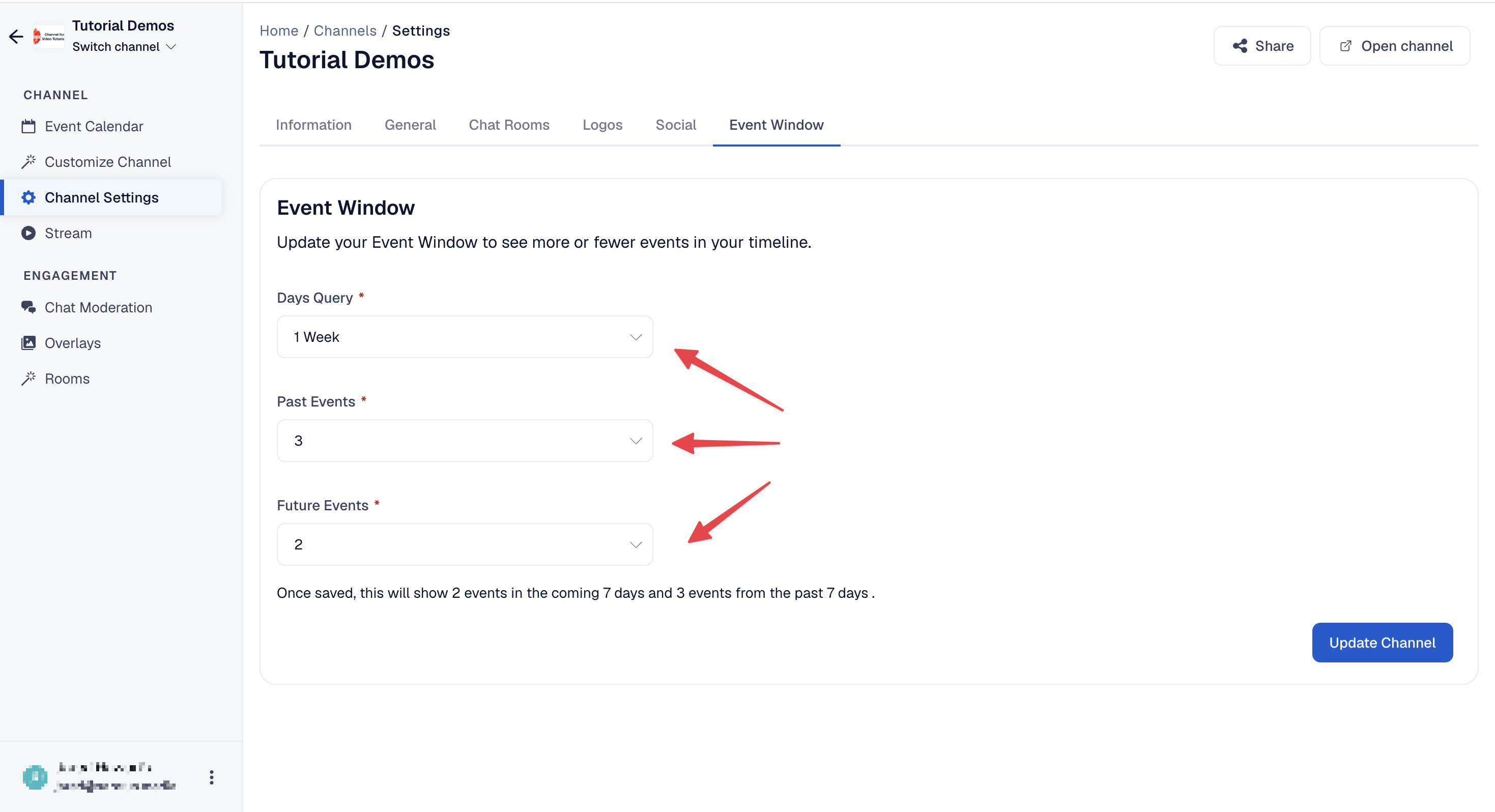
- Past Events: how many events that have already ended stay in the channel's timeline. Choose "Show no Past Events" to show none, or a number to keep recent streams visible.
- Future Events: how many upcoming events the channel looks ahead to. This must be at least 1, or the channel can't show a countdown or go live.
How to adjust your event window
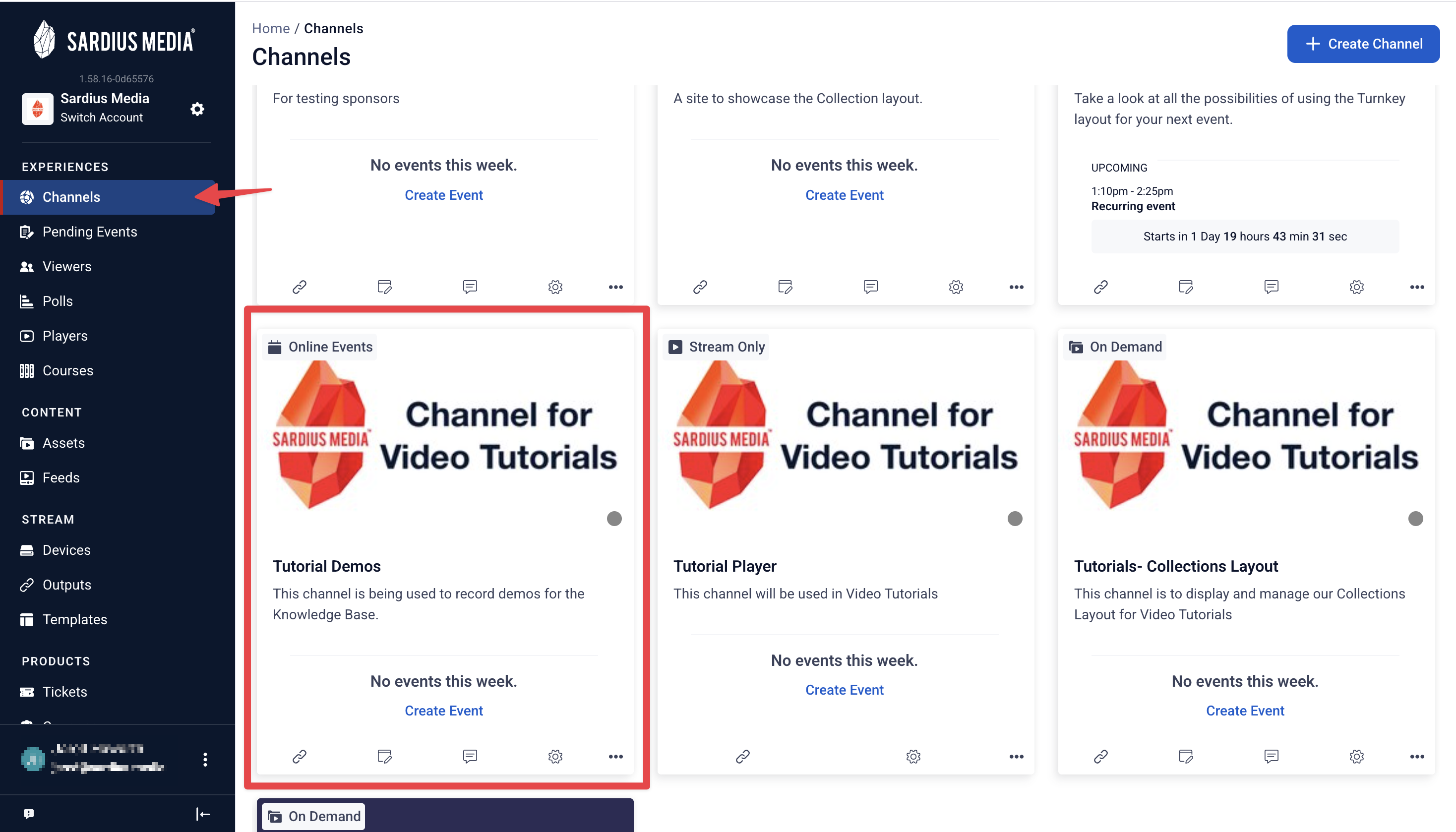
- On Your Sardius Control Panel, go to Channels.
- Open the channel you want to update.
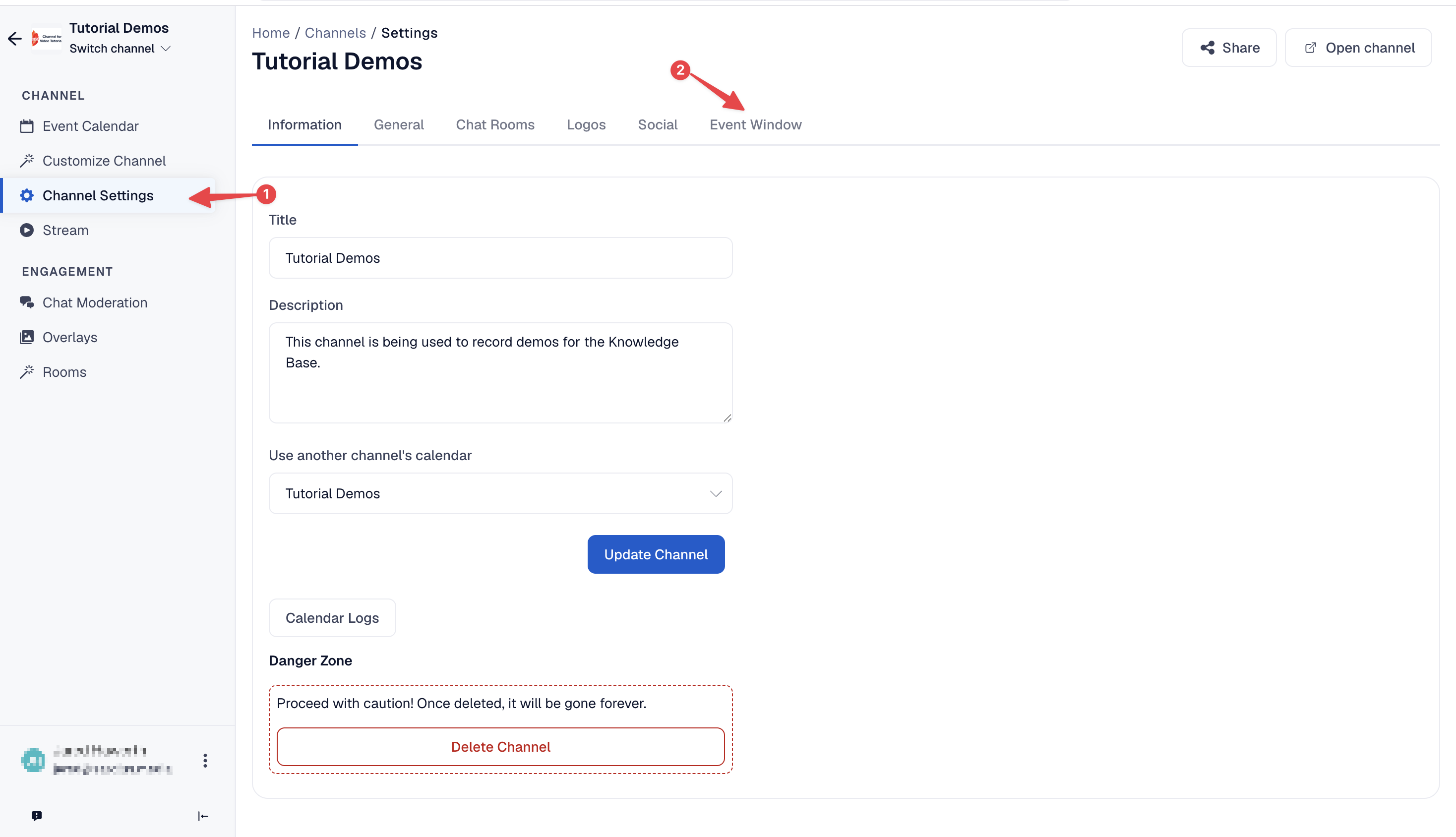
- Select the Channel Settings tab and find the Event Window section.
- Set your window:
- Rolling window: choose the range via the Days Query dropdown menu, how many Past Events and Future Events to show. It is best to set Future Events to at least 1.
- Custom date range: choose a start date and end date that include every event you plan to stream.
- Once You have your Event Window picked, click Update Channel
- Open your channel page to see the change.
Troubleshooting and FAQ
- My channel says "Thanks for Watching" but I have an event scheduled. Why?
Your next event is likely outside the window. Check that Future Events is 1 or more (Rolling), or that your event's date falls inside your start and end dates (Custom). - I changed the window, but my channel looks the same.
Refresh the page. A page that was open before you saved keeps showing the old state until it reloads. - My conference ended. How do I stop the channel from showing anything?
When using a Custom Date Range, after the end date, the channel will only display the layout’s POST State and will no longer allow livestreams to be seen. When using a Rolling Date Range, setting the Future Events value to "Show No Future Events" will keep the channel from polling events in the future.