
Updating Your Channel Type
Updated
Channel Types
Every channel you create starts with one simple choice: what kind of experience do you want your viewers to have? We offer three channel types, and each one is built for a different way of sharing your content.
- Online Events
- On-Demand Library Platform
- Stream Only
Read through the following sections below to see what might work best for you.
Online Events
Online Events channels are built for gatherings that happen at a specific time and deserve a dedicated home. Each event gets its own branded destination with a schedule, pre-event landing page, live player, and post-event replay.
The audience shows up for a moment, and the channel is designed to make that moment feel big. This type of channel can be set up to utilize event management features like registration, ticketing and gated access.
Two ways to schedule your events
- Custom Event Window - Choose this when your event has a clear start and end date, such as a two-day conference or a weekend summit. Everything about the event lives within that window, from the countdown to the final session.
- Recurring Events- Choose this when you go live on a regular schedule, such as Sunday services, weekly classes, or monthly meetings. Set your schedule once, and your channel is ready every time you go live.
This is a great fit if you:
- Want to use Slate or Chat during your live streams
- Go live on a regular schedule, such as Sunday services or weekly classes
- Are hosting a conference, summit, or other type of multi-day event
- Are planning a one-time celebration, such as a graduation, anniversary, or launch
- Have an event with viewers in different time zones or speaking different languages
What's included
- An event landing page with your branding, event details, and schedule, so viewers know exactly when and where to show up
- A countdown before you go live, which builds excitement and reduces "Is it starting yet?" questions
- Live streaming to multiple places at once (also called simulcasting), such as your website, app, and social channels
- Event Window or Recurring Events scheduling, so you can set up a single event or a regular weekly rhythm
- Replays after the event, so anyone who missed it, or wants to watch again, still can
- Support for larger productions, including multi-camera setups and multi-language delivery
What Can Viewers Expect?
Viewers visit your event page ahead of time and see what's planned. When the event starts, they join everyone else live. Afterward, they can come back to rewatch sessions at their own pace.
On-Demand Library Platform
The On-Demand Library Platform turns your archive into a destination. Every sermon, class, training, or broadcast lives in an organized, searchable library that viewers can browse on their web, mobile, or TV devices for rewatching.
This is a great fit if you
- Have a growing collection of recorded content you want people to find easily
- Want to offer series, classes, or training that viewers can work through at their own pace
- Want to stay connected with your audience between live broadcasts
- Plan to offer your content on branded TV or mobile apps
What Can Viewers Expect?
Viewers open your library, browse by series or topic, or simply search for what they're looking for. They can watch on any device and pick up right where they left off.
Stream Only
Stream Only channels do one thing really well: get your live broadcast to your viewers reliably and without fuss. There's no library or event page to manage, just a live player you can place on your website or in your app. It's our simplest setup and a favorite for teams who go live often and want to keep things easy.
This is a great fit if you
- Go live on a regular schedule, such as weekly services or recurring meetings
- Need a feed for overflow rooms, other campuses, or internal teams
- Run a 24/7 or always-on live feed
- Already have a website or video library and only need the live stream itself
What Can Viewers Expect?
Viewers go to your page and the stream is right there, ready to watch. No menus or searching, just press play.
Changing your channel type
Changed your mind, or have your needs grown since your first setup? No problem. You can switch a channel to a different type in just a few minutes.
Before you switch
- Pick a quiet moment. Avoid changing the type while you're live or right before a scheduled stream.
- Think about what your viewers see. Each type shows content differently.
- Check your links and embeds. If your channel lives on your website or app, take a quick look after the change to make sure everything still displays the way you expect.
Steps
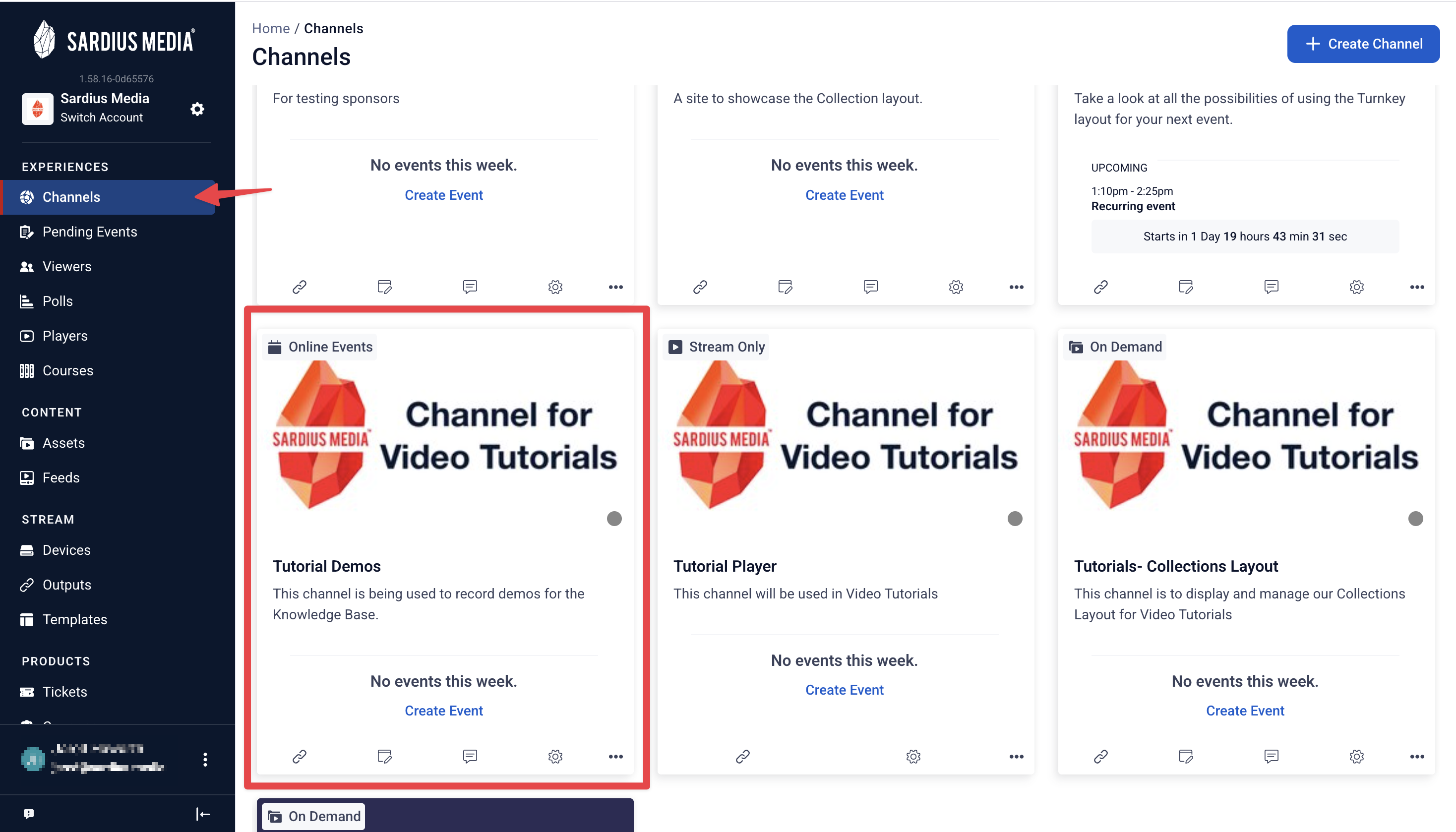
- Go to Channels and select the channel you'd like to change.
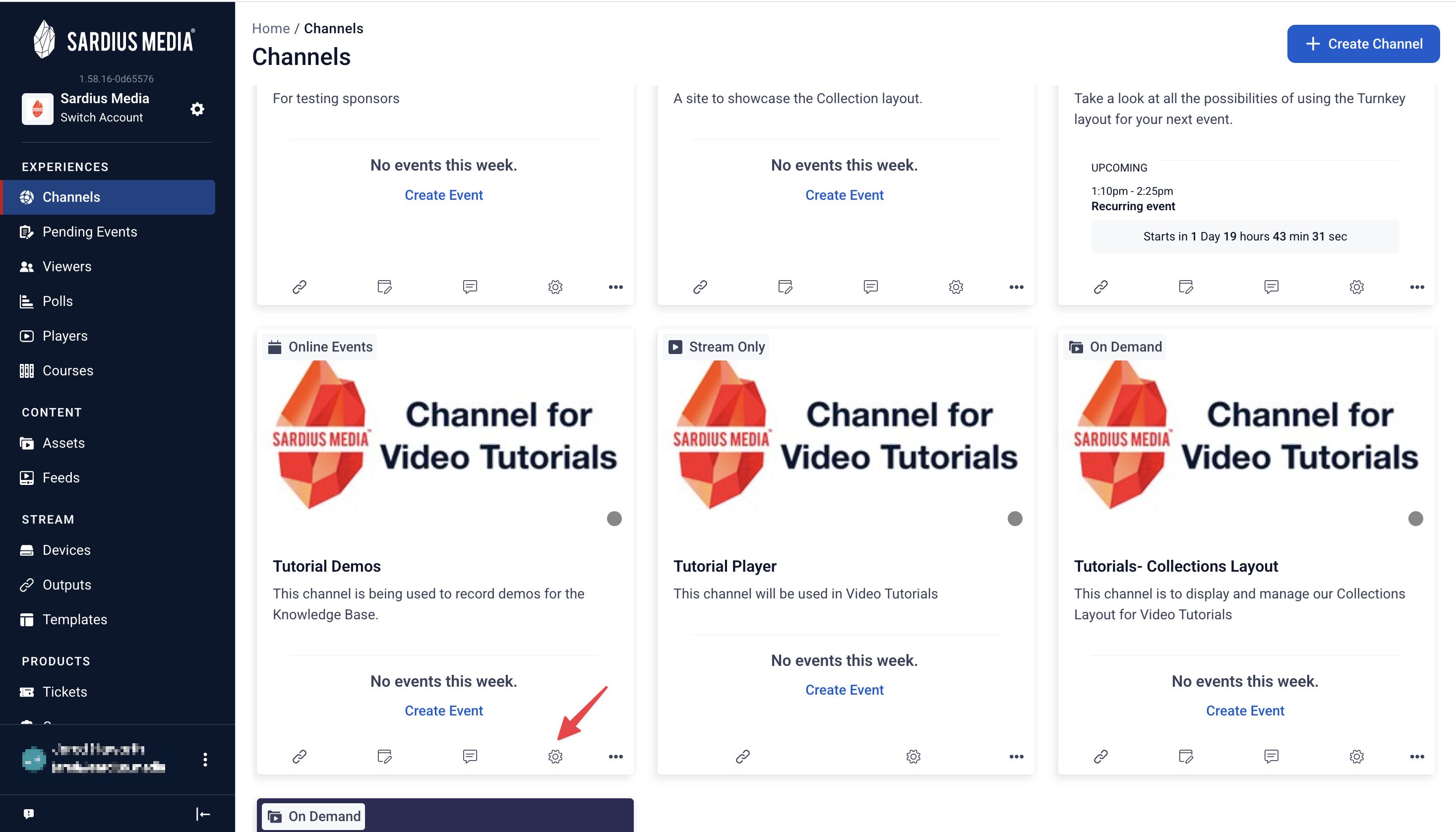
- Open the channel's Settings.
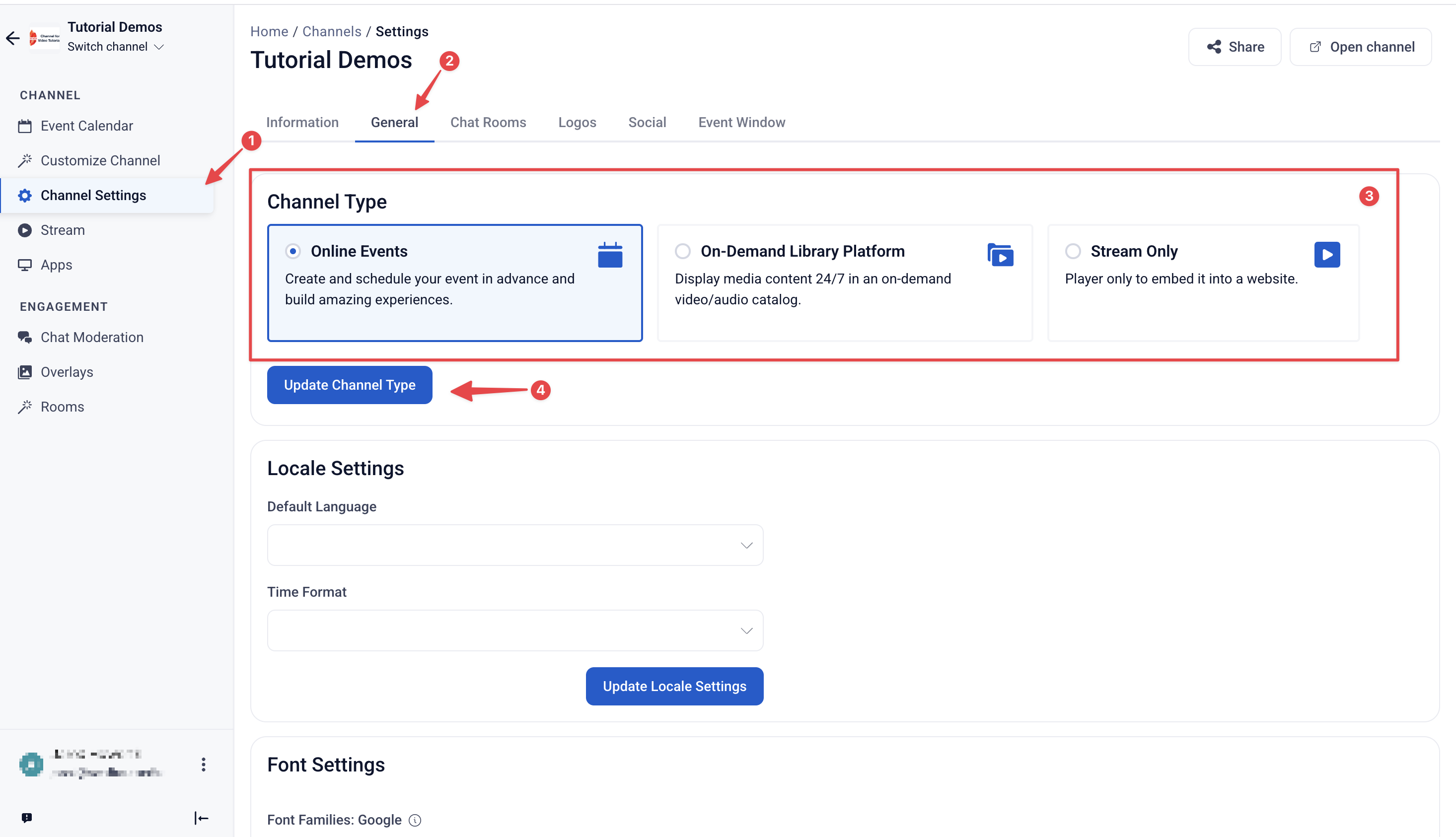
- Under the General tab locate Channel Type and select from the three options: Online Events, On-Demand Library Platform, or Stream Only.
- Review the summary of what will change, then select Update Channel Type.
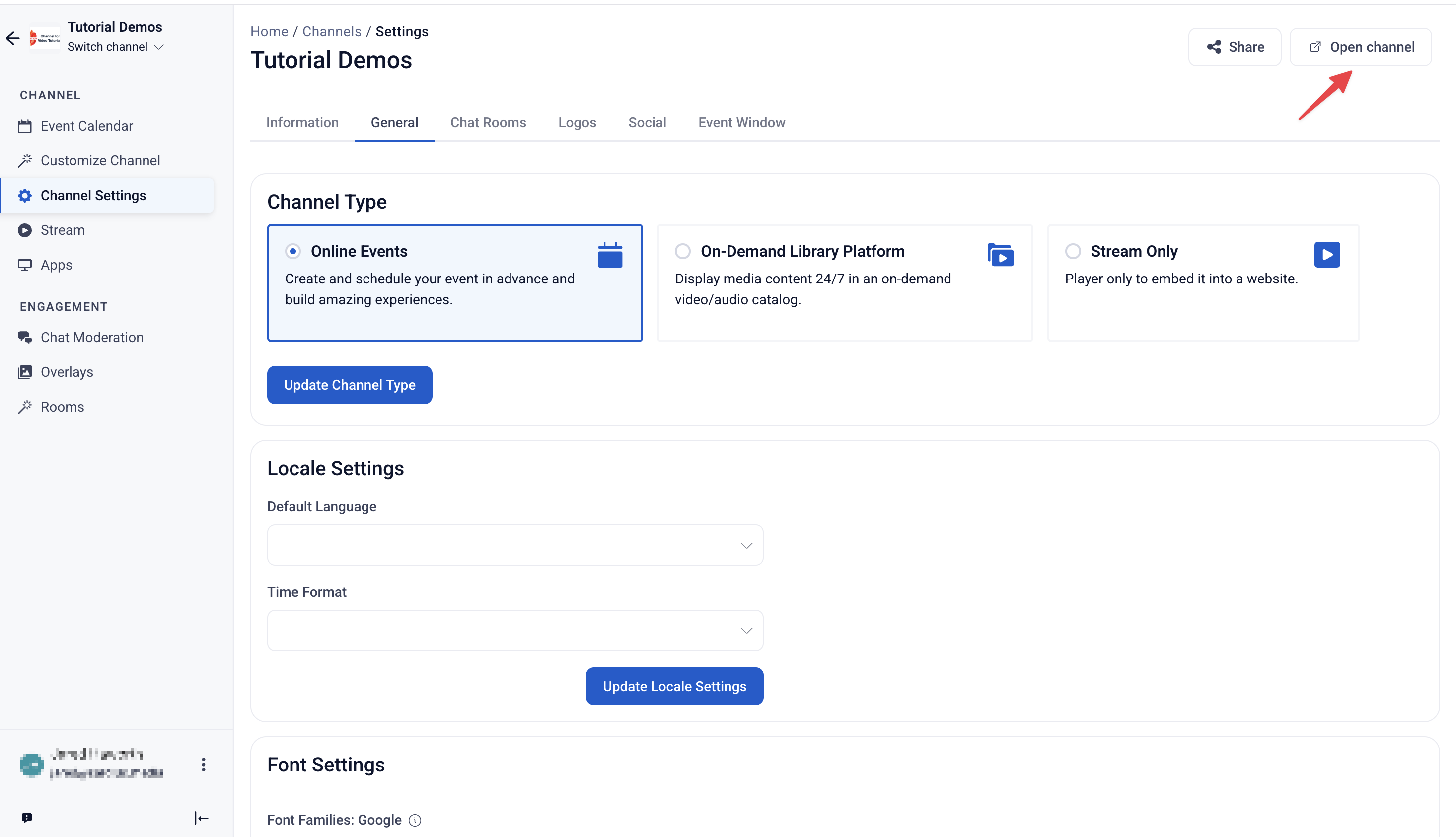
- Preview your channel on your channel page or website to confirm it looks just right.
Frequently asked questions
- Can I have more than one channel type?
Each, individual, channel can only have one Channel Type selected at a time. However, some clients choose to run more than one channel in tandem. Like a Live channel alongside an On-Demand Library, or add an Online Events channel for an annual conference.
For more information on Going Live on Multiple Channels Click Here
-
Can I change my channel type later?
Yes. Follow the steps in Changing your channel type above, or reach out to our support team and we'll walk you through it. -
I'm brand new to streaming. Where should I start?
If you have a specific event coming up, Online Events gives you a polished, focused experience. If you'll be going live every week or want a quick and easily digestible experience, Stream Only is the easiest place to begin.