
Remove a Pulse Location
Updated
Use this article when a location needs to come off your Pulse site. That might be a location that's closed, or an old location name that's still showing after a rename.
A location stays on your Pulse list as long as its Series exists. To remove it completely, you'll stop new recordings from using it, move or delete the recordings already tagged with it, and then delete the Series.
New to how locations are set up? See How Pulse Locations Work for how Series, Channels, and Archive Settings fit together.
Work through these steps in order. Stopping new recordings from using the old Series first keeps the location from coming back.
Step 1: Stop New Recordings From Using the Series
- Open the location's Channel
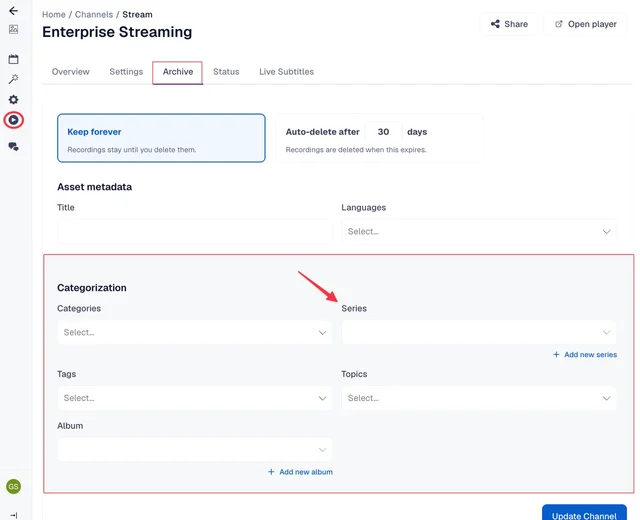
- Go to Stream > Archive and check the Series field in the Default Archive Settings. Change it to the correct location, or clear it if the Channel is no longer in use.
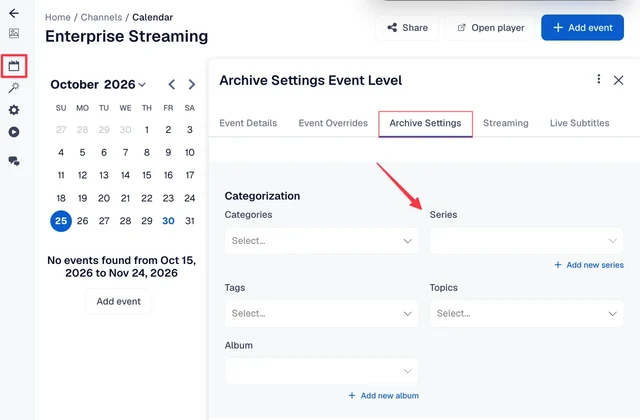
- Go to Event Calendar and open each recurring event. On the Archive Settings tab, check the Series field and update it if it still shows the location you're removing.
Step 2: Find Recordings Still Tagged With the Location
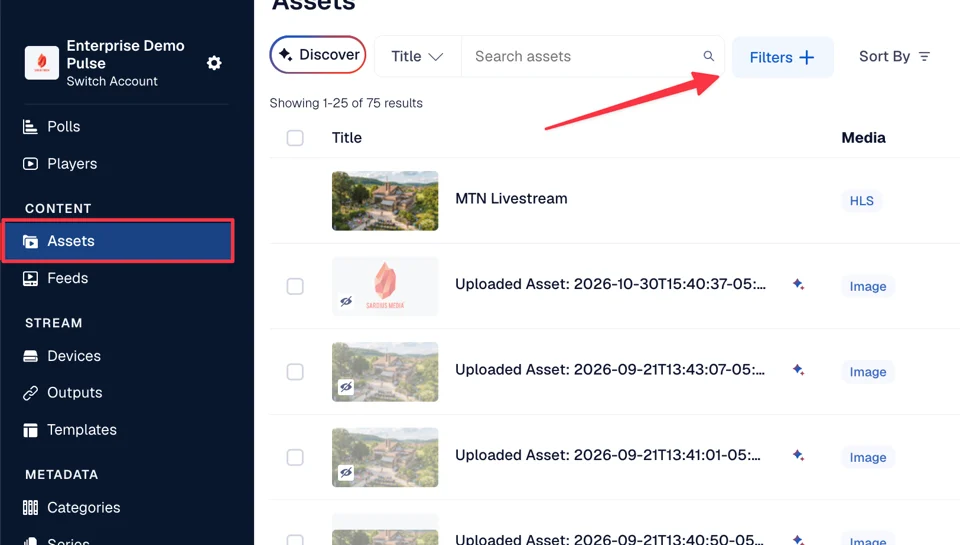
- Go to Content > Assets
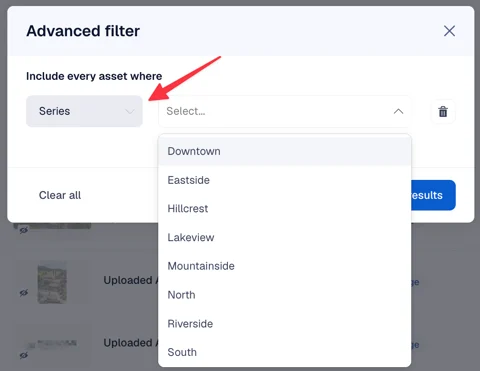
- Click the Series filter and select the location you're removing
- Review the recordings that appear
Step 3: Move or Delete Each Recording
For each recording, decide whether to keep it:
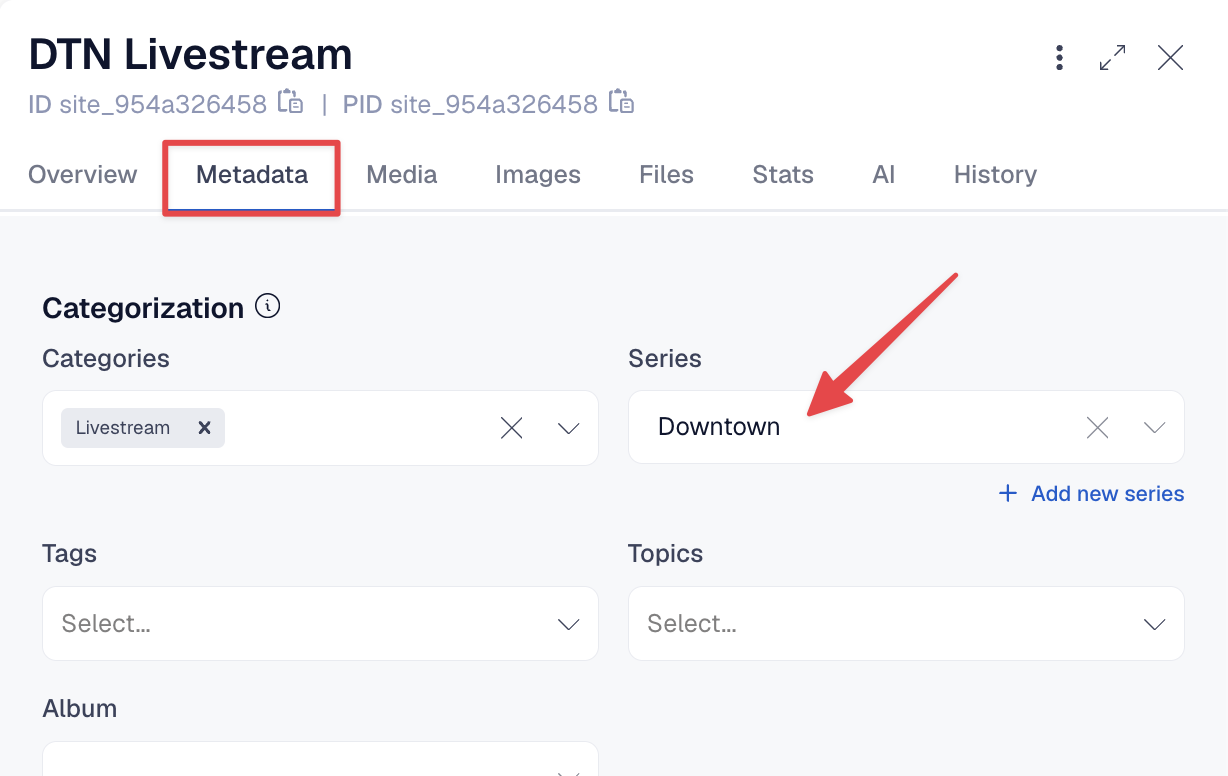
- To keep it, move it to another location: click on the asset, open the Metadata tab, scroll down and change Series to the correct location, and update.
- If you don't need it, delete it: click the ⋮ menu on the recording and choose Delete.
Step 4: Delete the Series
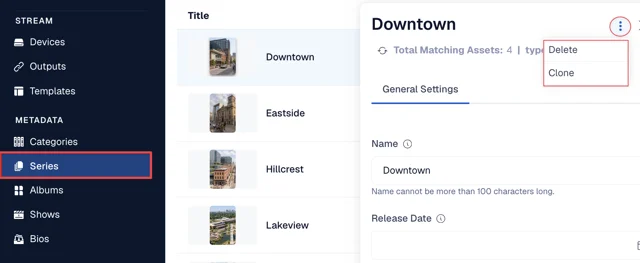
- Go to Metadata > Series and click the location
- At the top of the location panel, check that Total Matching Assets shows 0
- Click the ⋮ menu in the top right of the side panel and choose Delete
Step 5: Check Your Feed
If your Pulse Feed pulls content by Series, remove the location name from the Feed's filter:
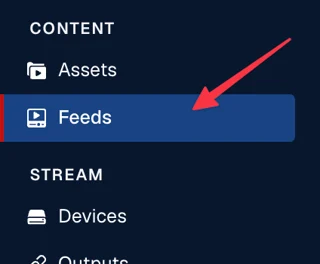
- Go to Content > Feeds and open the Pulse Feed you need to edit
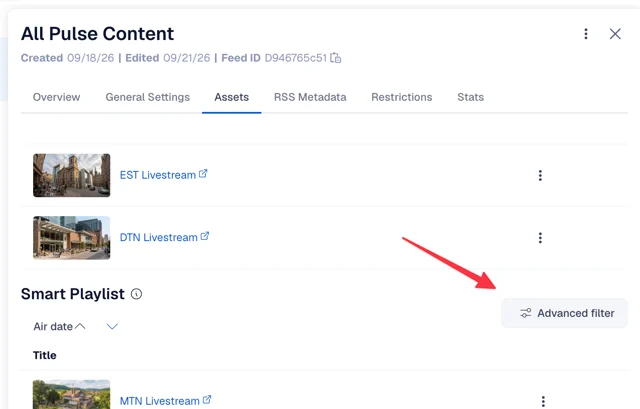
- Open the Assets tab and scroll down to Advanced Filter next to Smart Playlis
- Click the trashcan to remove the location name from the filter
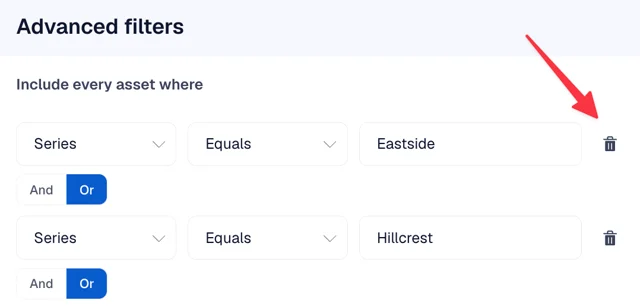
- Click Show results, then Update Feed
Verifying It Worked
- Open your Pulse site and hard-refresh (Cmd+Shift+R on Mac, Ctrl+Shift+R on Windows)
- Confirm the location is gone from your location list
Troubleshooting
The location is still showing after the Channel was renamed or deleted.
The Series still exists. Removing or renaming a Channel doesn't remove its Series. Follow the steps above to remove it.
The location came back after I removed it.
A recurring event is probably still tagging recordings with the old Series. Check each event's Archive Settings (Step 1).
A location tile shows only its name, with no image.
That Series doesn't have a Cover image. If the location is still in use, add a Cover under Metadata > Series. If it isn't, remove it using the steps above.
Related Articles
Need help? Contact Sardius Support and we'll walk through it with you.