
Add Playback URL to Patched Display Engine
Updated
We have arrived at the final step of the entire update process! It is now time to add the new playback URLs to your Patched Display Engine.
Settings Reference:
- Playback URL: https://connectdvr.storage.sardius.media/archives/_accountID_/_name_/playlist.m3u8
- accountID: Your unique Sardius Account ID
- name: Unique name for the DVR Stream you entered into your encoder
Adding the Playback URL
Using a computer on the same network as your DVR Display Engine, open a browser window and type in the Display Engine's IP address. Sign in.
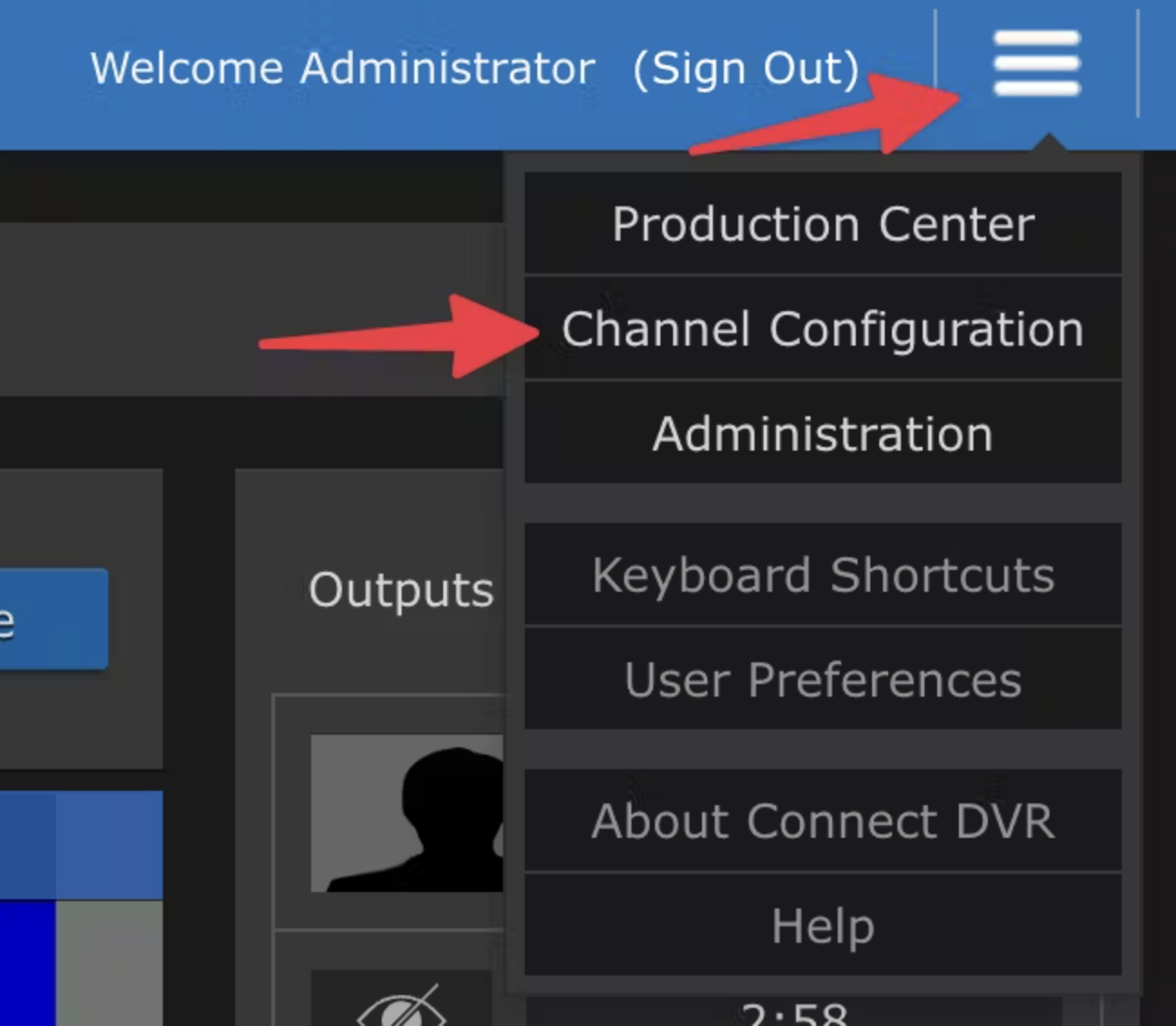
Click on the Hamburger Menu in the upper right corner and select "Channel Configuration"
Existing channels cannot be edited, so you will have to make a new one by adding a Name and Source URL.
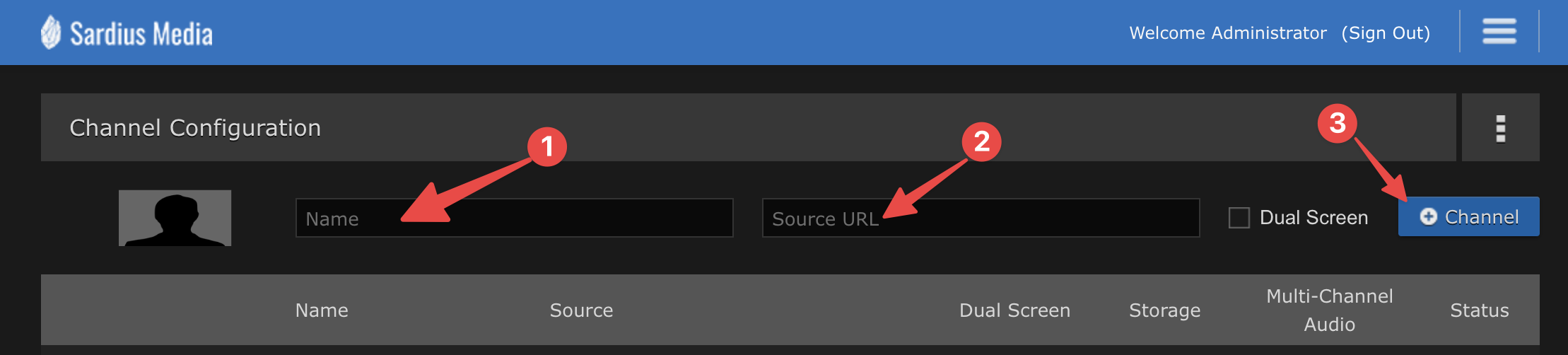
Enter a name for the Channel.
In the Source URL field, enter the playback URL according to the following formula:
- TEMPLATE: https://connectdvr.storage.sardius.media/archives/accountID/name/playlist.m3u8
- accountID: Your unique Sardius Account ID
- name: Unique name for the DVR Stream you entered into your encoder
- FINAL RESULT (example): https://connectdvr.storage.sardius.media/archives/1a2D3f4g/9amService/playlist.m3u8
Click + Channel to complete the process.
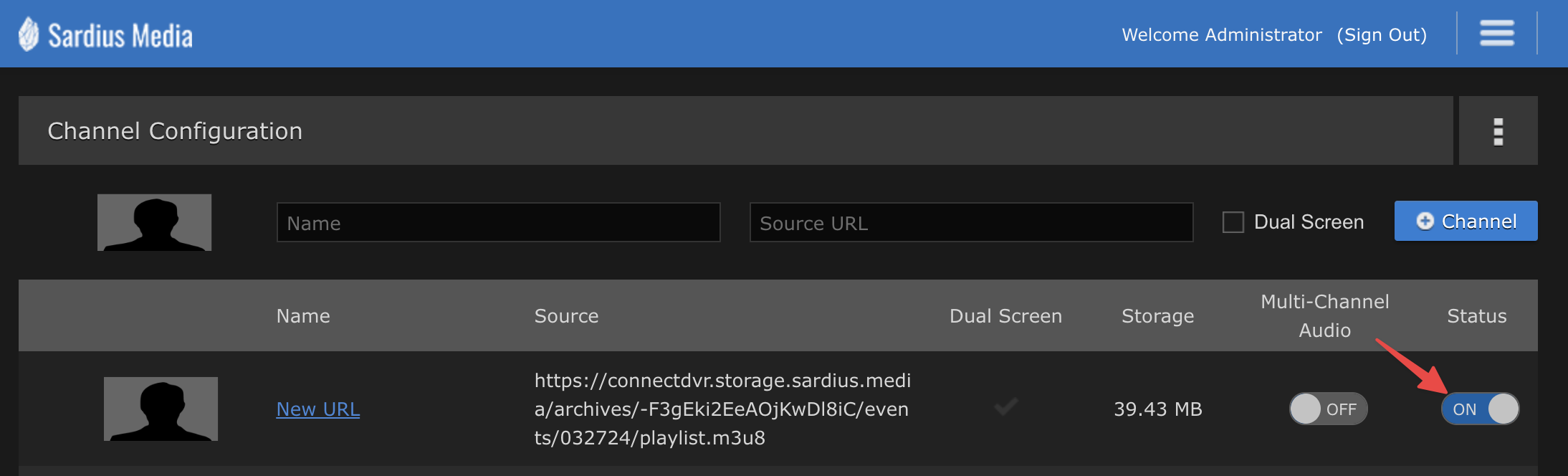
The new channel will appear in the channel list with the toggle switch for Status turned ON.
With Status ON, the Patched Display Engine will continue to search for new material to be added to the feed.
If this Display Engine is supposed to receive audio across multiple channels, be sure to toggle "Mult-Channel Audio" to ON. Otherwise, leave off.
Congratulations! You have successfully updated your DVR workflow for your campuses.
If at any time you require assistance, please reach out to Sardius Support.