
Add a Device
Updated
Sardius Devices allow you to pair supported encoders to the Sardius Control Panel. Paired encoders can be easily managed through your account in multiple locations throughout the Control Panel, including the Live Event Manager and the Devices section.
For a list of Encoders that you can pair, please see the Supported Encoders section below.
Add a Device (Encoder)
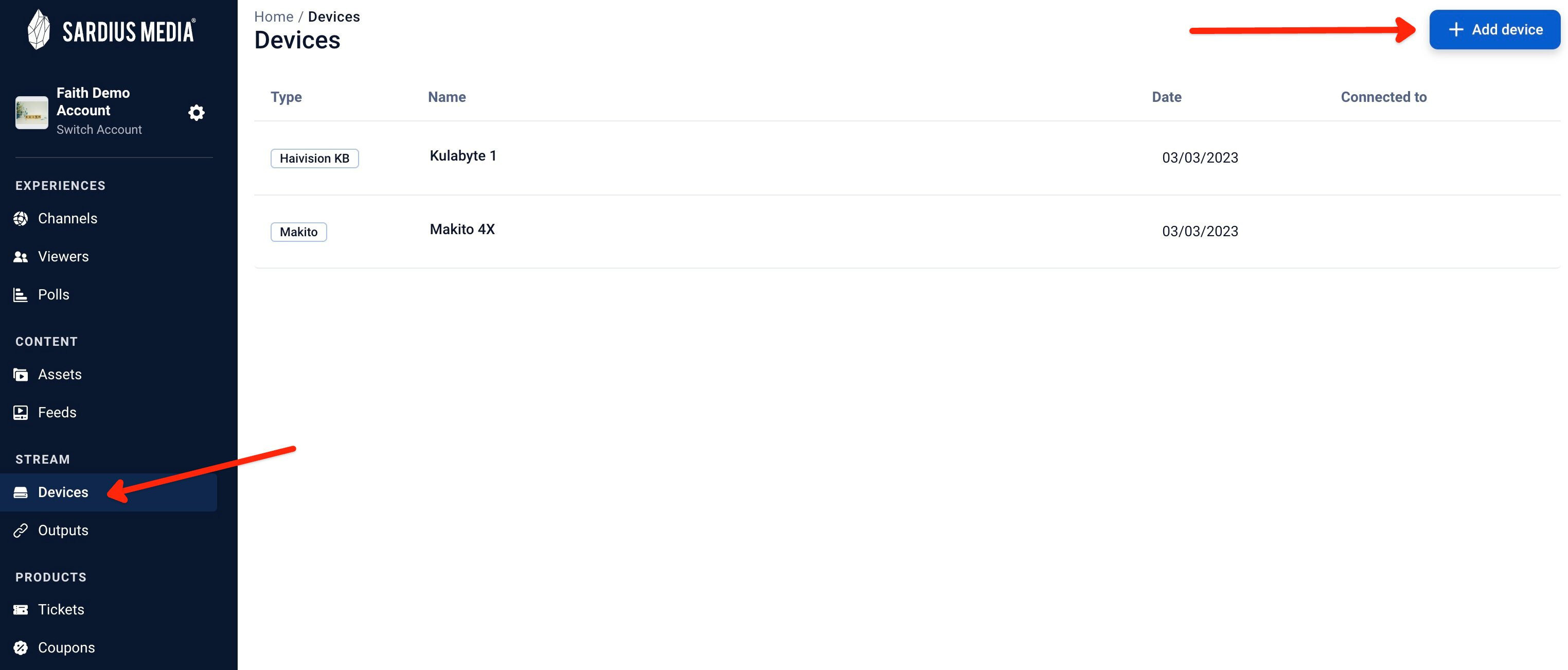
Access the Devices section by clicking on “Devices” on the sidebar. To add your device (encoder), simply click on the “Add device” button in the top right corner.
You will be prompted with a modal that will walk you through the process of pairing a device.
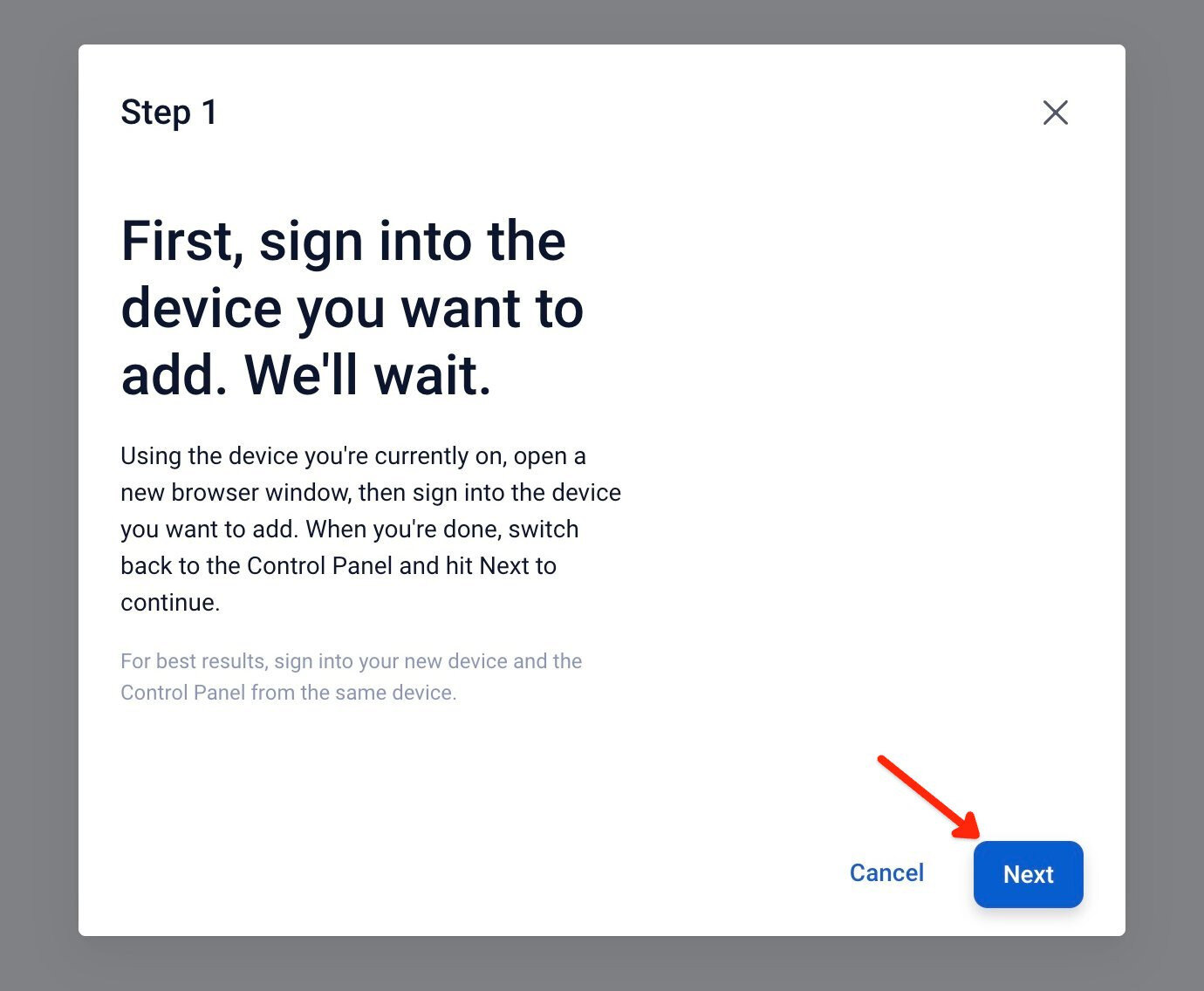
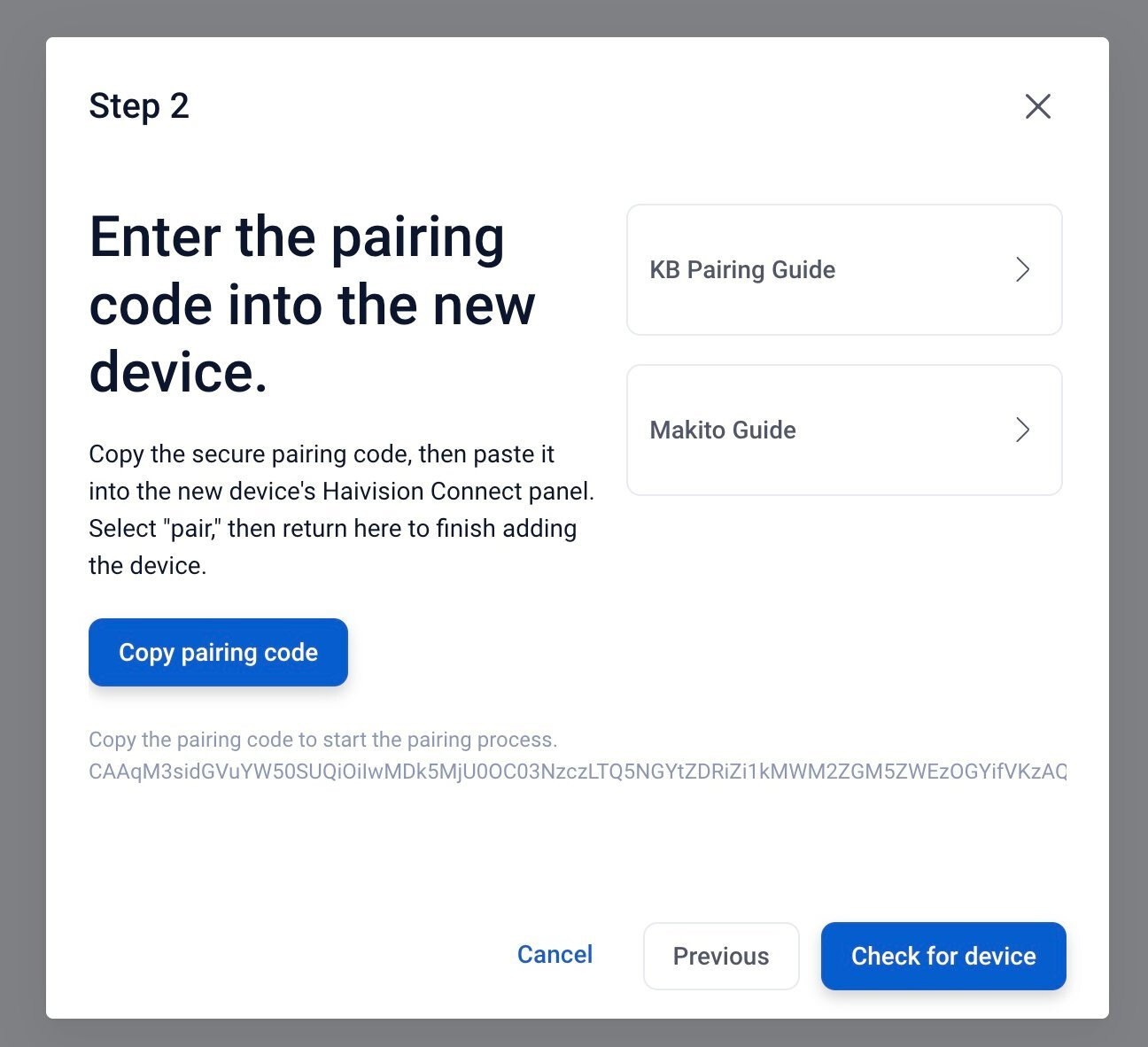
After you have followed the steps for your specific device/encoder, you can click the “Check for device” button and the pairing of your device will begin. It can take up to a couple minutes for the process to complete.
When the syncing is complete, your device will appear in the Sardius Devices interface.
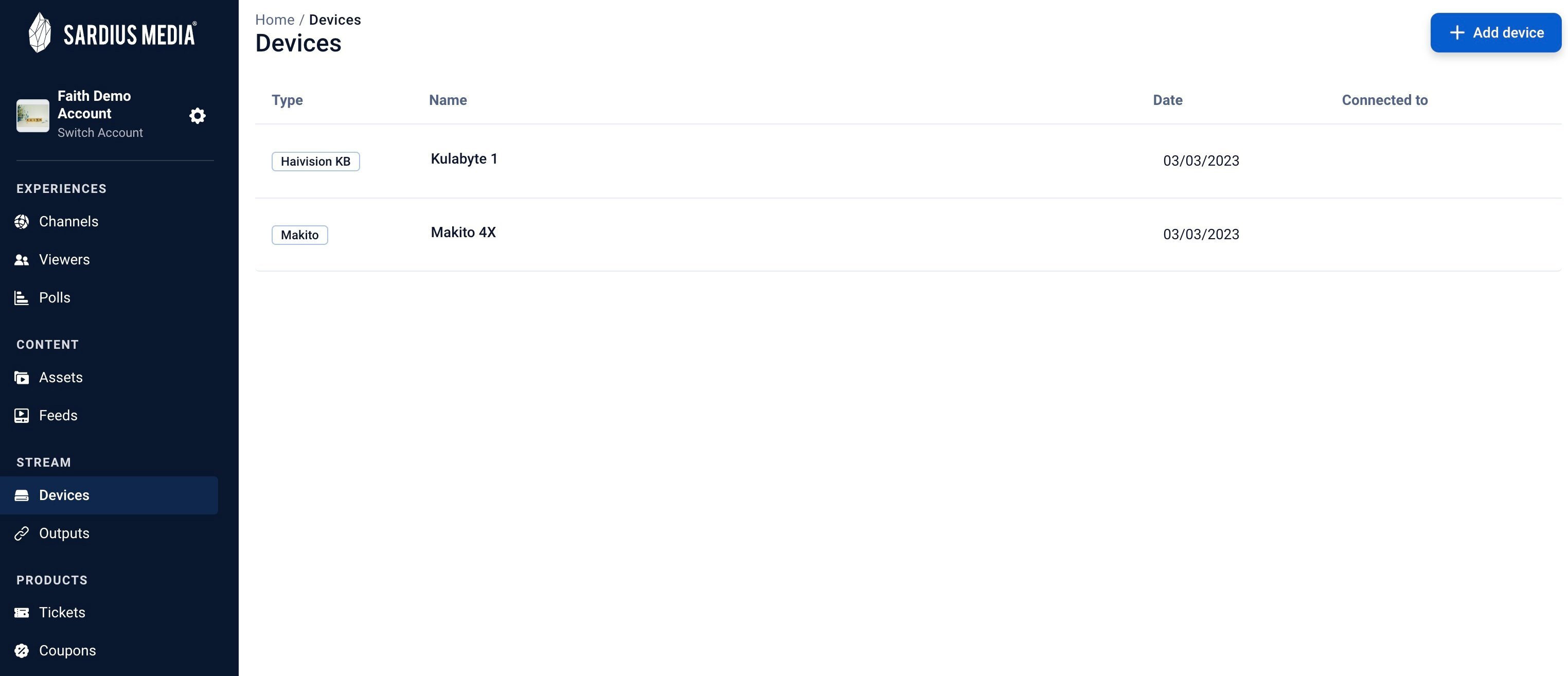
Once your device has been successfully paired with Sardius Control Panel, you will be able to select your device from the devices list to see information about your paired device.
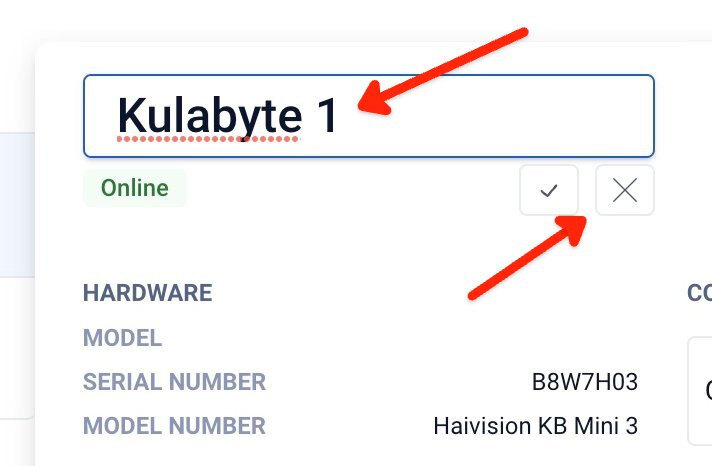
From the information panel, you can click on the name of your device and rename it. Once you have entered the name you wish to use, click on the checkmark under the field to save the change.