
Restoring a Deleted Asset
More in AssetsYou’re on: Restoring a Deleted Asset
If an asset has been deleted from your library, it can be restored within 7 days of deletion. Restoring brings the file back into your active Assets list so it can be reused, republished, or reassigned to an event or channel.
Accessing Deleted Assets
-
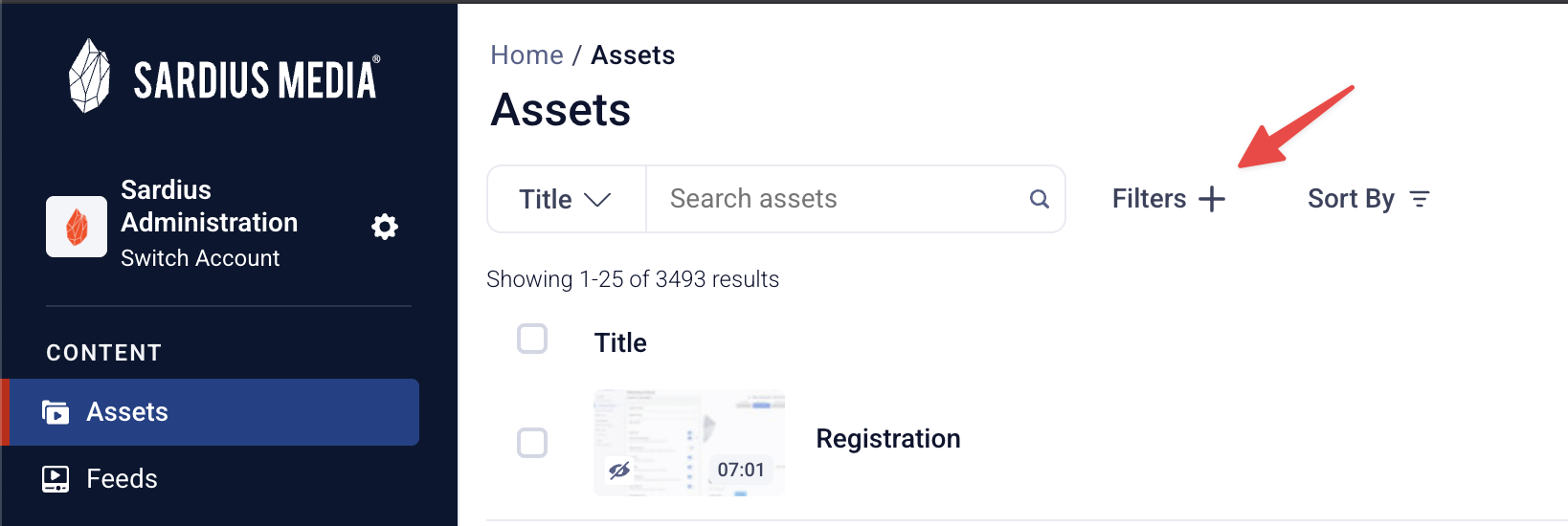
Go to Content → Assets in your Control Panel.
-
Click the Filters button next to the search bar.
-
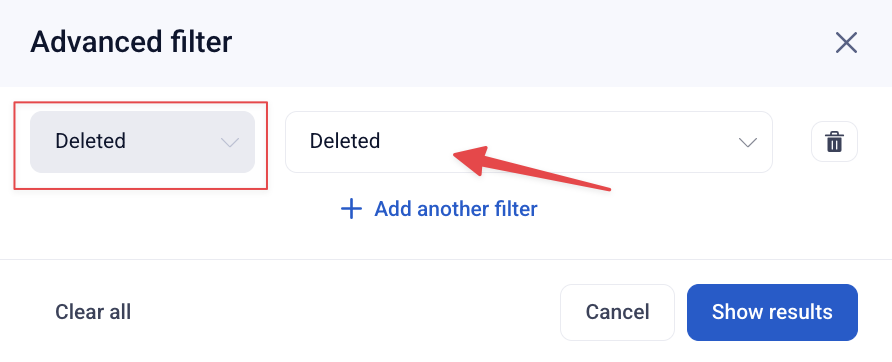
In the filter window, set both dropdowns to Deleted.
-
Click Show Results to view all assets currently marked as deleted.
Restoring an Asset
Once you’ve filtered your assets to show deleted items:
-
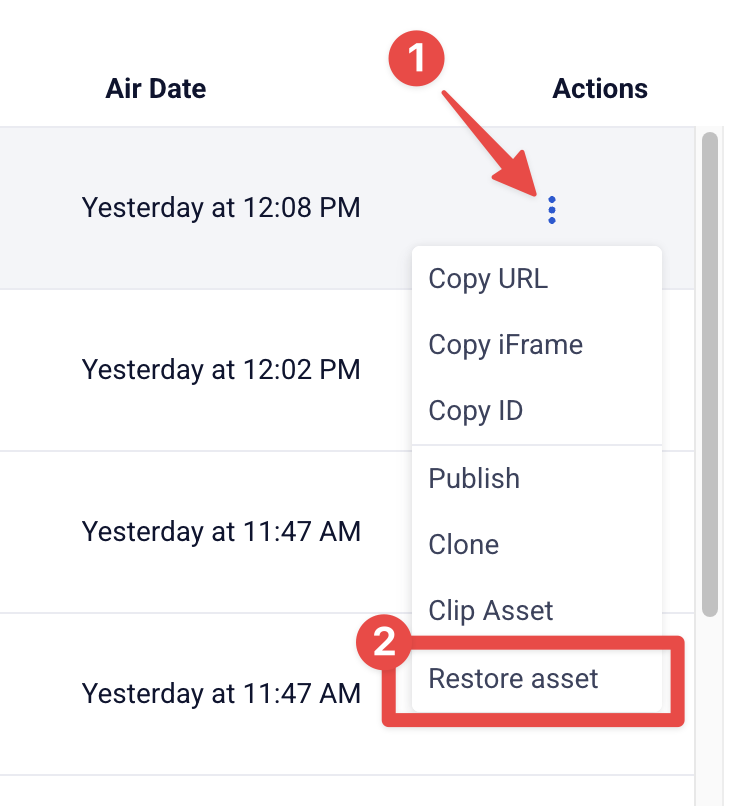
Locate the asset you want to restore.
-
Open the Actions Menu (⋮) on the right-hand side.
-
Select Restore Asset.
-
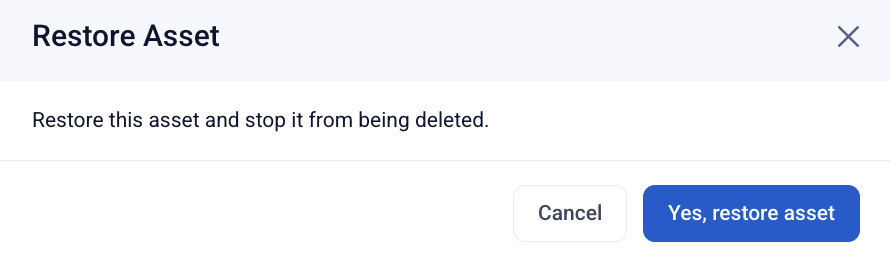
A confirmation window will appear stating:
“Restore this asset and stop it from being deleted.”
-
Click Yes, restore asset to confirm.
The asset will be reinstated to your main Assets list and can be edited, transcoded, or linked again.
Did this answer your question?
One click tells us which pages to fix first.