
Use an Elemental with Sardius Entrypoint (Paired)
Updated
These are the following steps to use a Paired Elemental with Sardius HLS Entrypoint:
- Pair the Elemental with the Sardius Control Panel
- Add Outputs such as YouTube, Facebook, or other RTMP/SRT destinations.
- Setup your Default Stream Settings
- Schedule an Event on your Channel
This article will guide you through setting up your channel's Default Stream Settings for Sardius Entrypoint using the Elemental.
Creating Your Default Settings
Enable Streaming for Your Channel
To create default stream settings, you must first enable streaming on your Sardius Channel. To do this, select "Stream" from the Channel sidebar navigation and click the "Enable streaming" button.
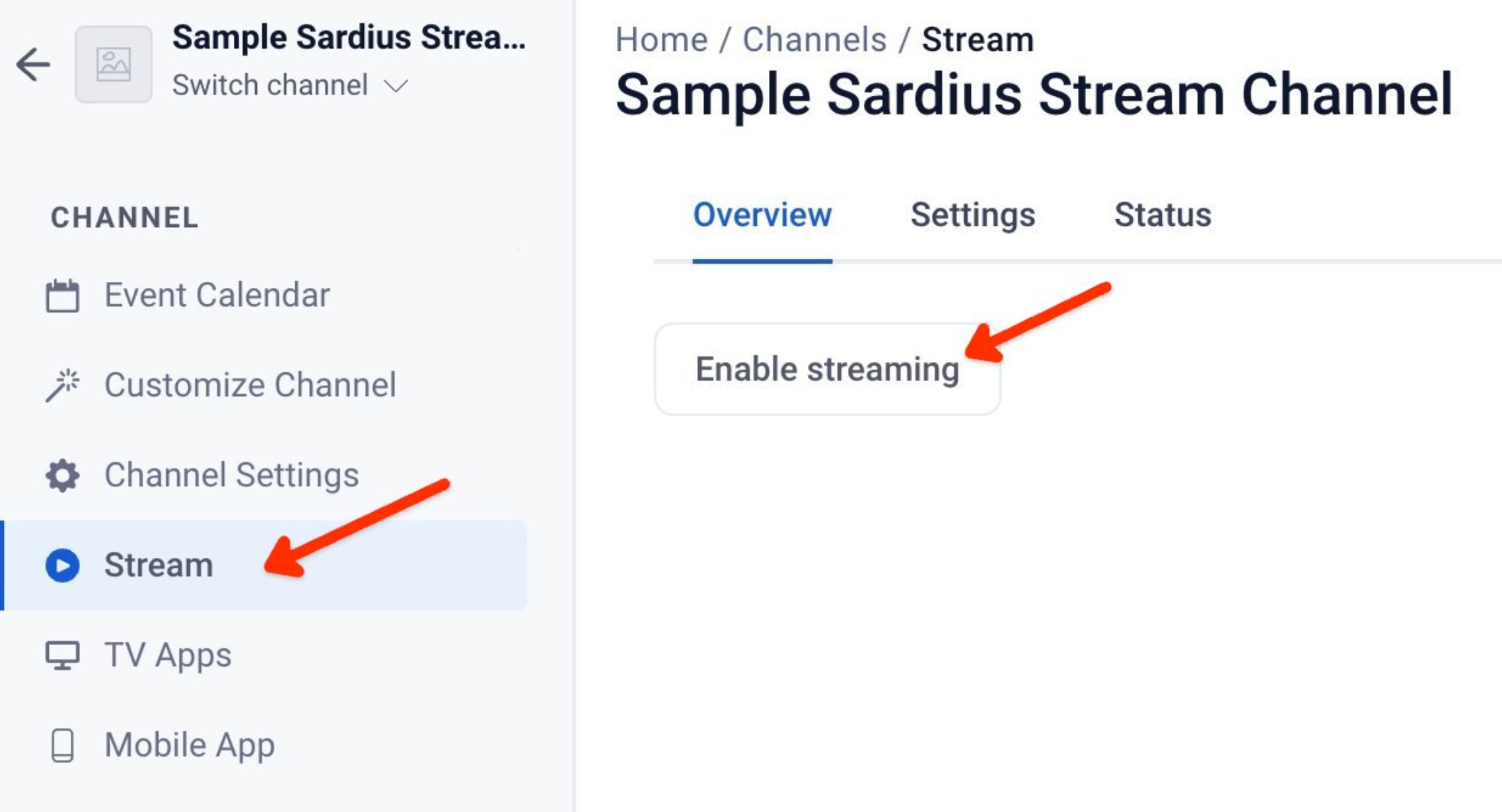
Your Sardius Channel will be updated in the background and prepared for streaming. This process takes only a couple of seconds, so do not leave or refresh the page. Once it is ready, you will be prompted to define your default settings.
Establish Streaming Defaults
Click on "Set defaults" to continue setting up your Elemental with this channel.
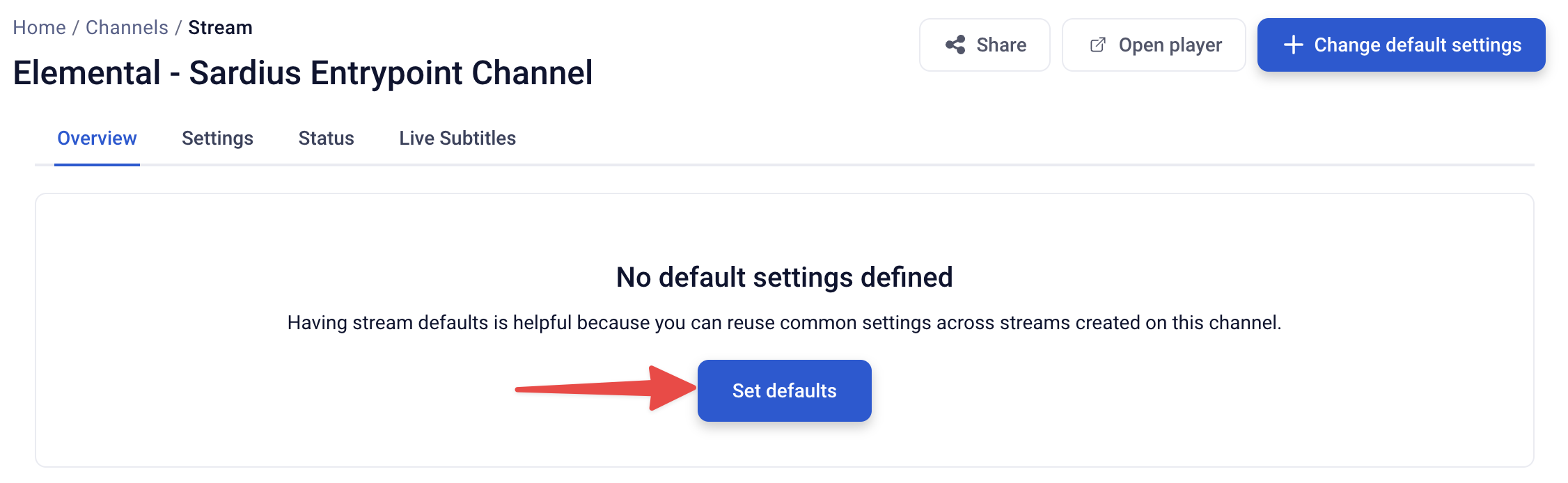
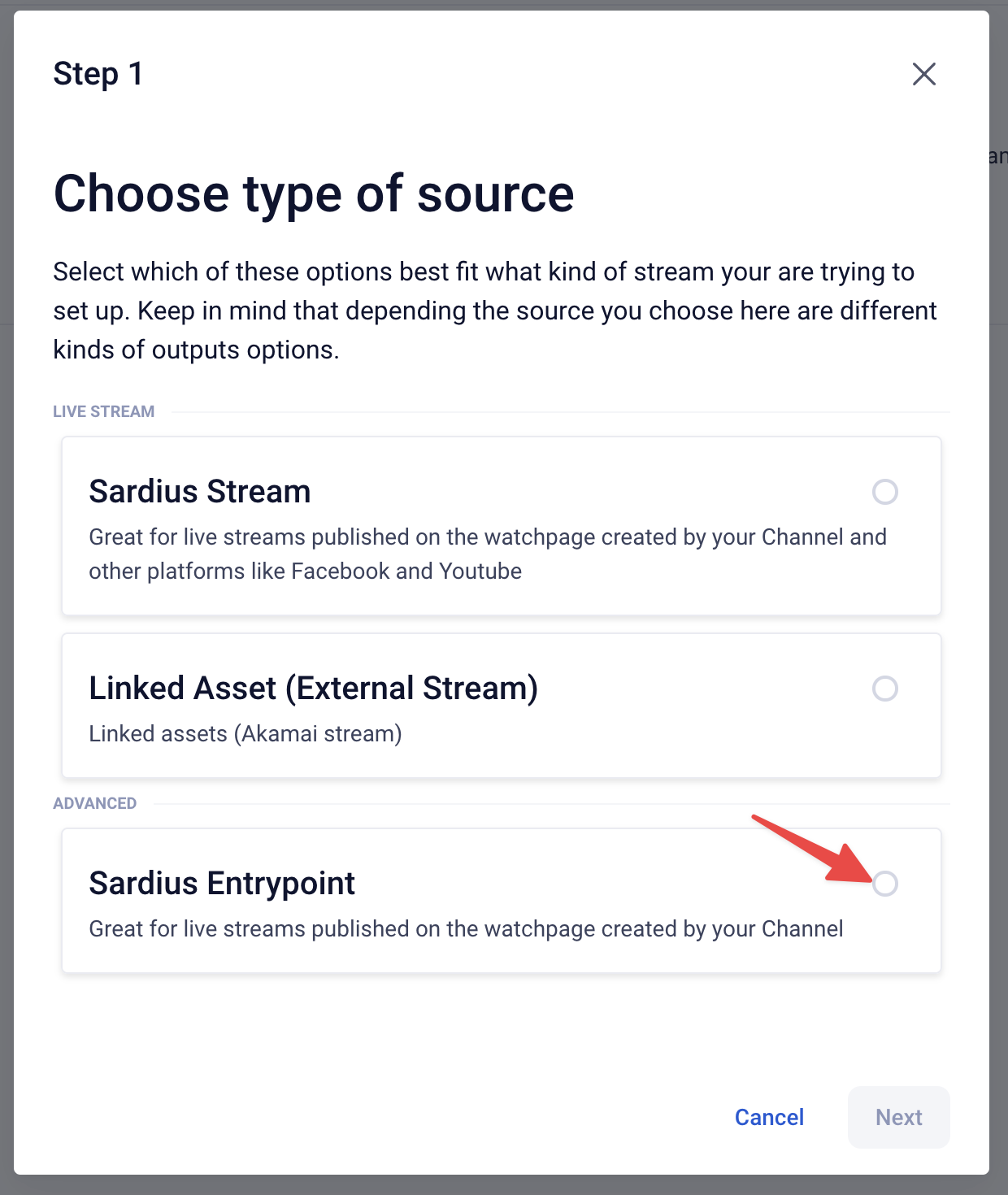
A modal will appear in the center of the screen. Step 1 of this setup will prompt you to select the source of the live stream. Select "Sardius Entrypoint" and you will be taken to the next step.
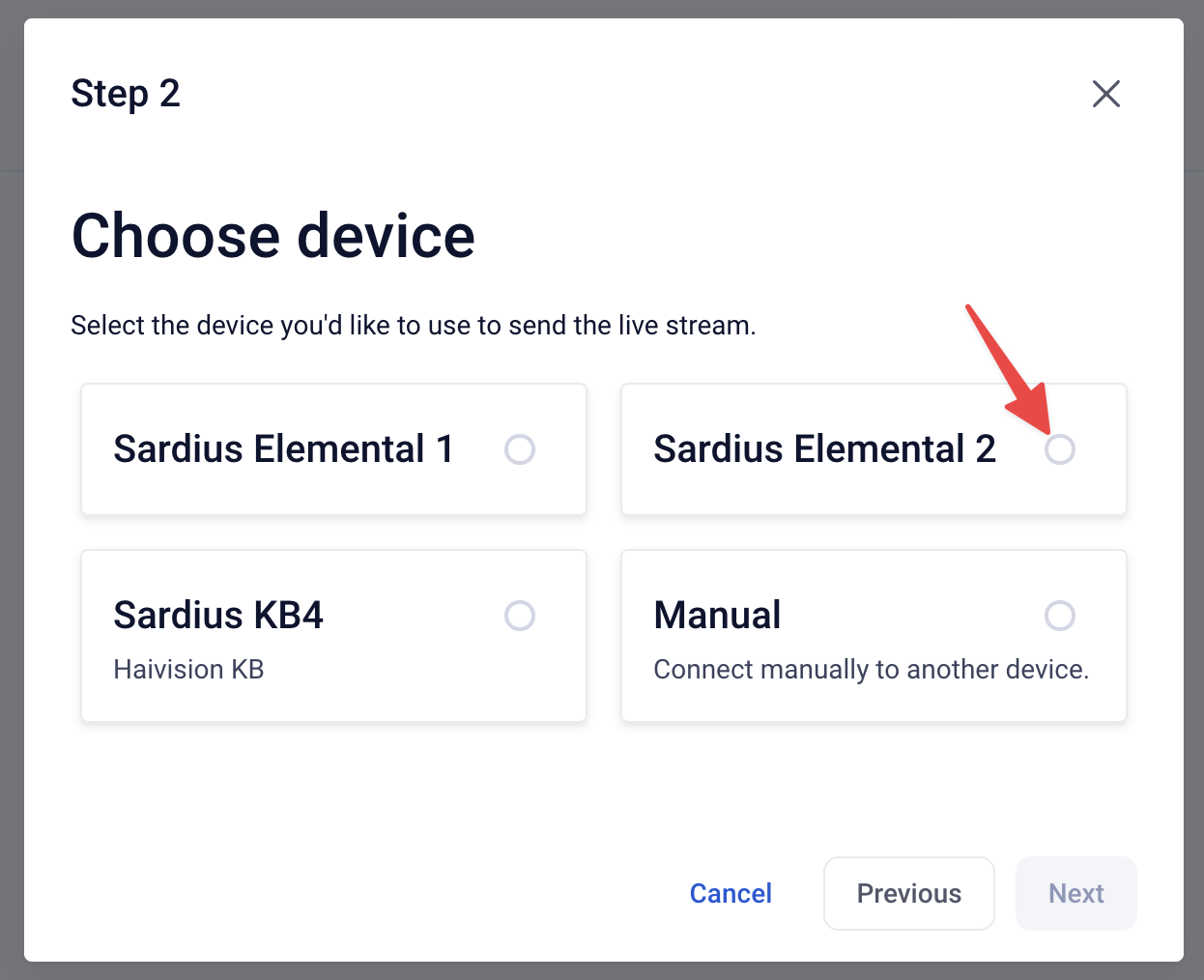
Step 2 of this setup will prompt you to add a device which you will be using to send your live stream from. Select your Elemental from the list below.
Once selected, you will be taken to Step 3. Here you will review your encoder's default settings and you will have an opportunity to make changes.
Click here to review our recommended encoder settings.
When checking your device's settings, it is recommended that you take a close look at the following:
- Frame rate: this should match your camera/switcher settings.
- Bitrate: we recommend 4 Mbps - 6 Mbps
- Segment Duration: we recommend 4s - 6s.
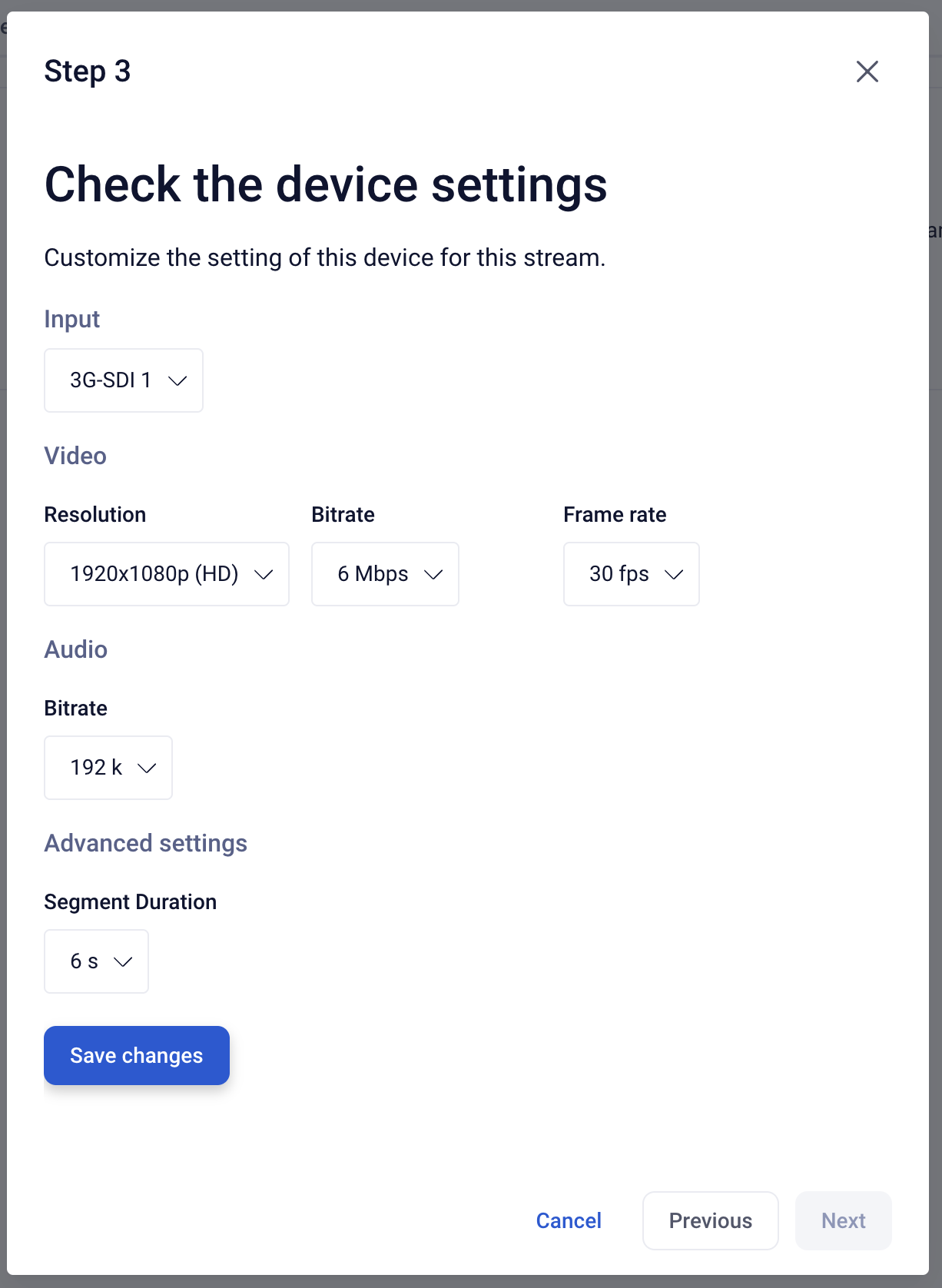
Save your settings and click Next to advance to Step 4.
At Step 4, you will select any desired outputs for your live stream. By default, the Channel Stream is selected. This is the Sardius Channel's default asset that will play out at the Channel's URL or any external site your Channel's player is embedded in.
In addition, you can choose other pre-configured outputs that you would like to publish your stream to, such as an RTMP output, YouTube, etc. Once you have selected all of your outputs, click "Next"
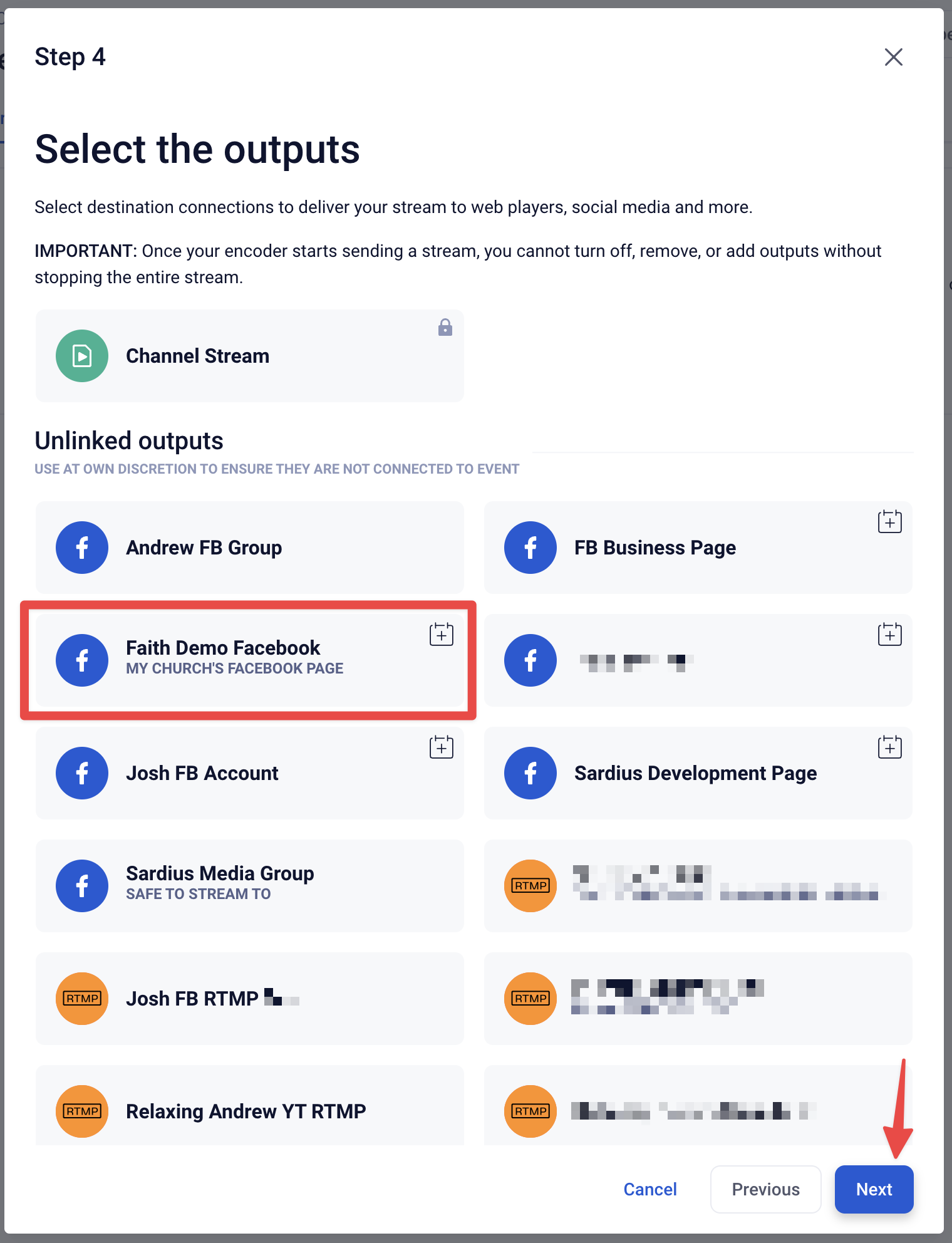
The modal's final step will allow you to review your settings to make sure everything looks good. Make sure that your Elemental is showing in the Source and that all of the Outputs you selected are correctly appearing. If everything looks correct, click "Finish."
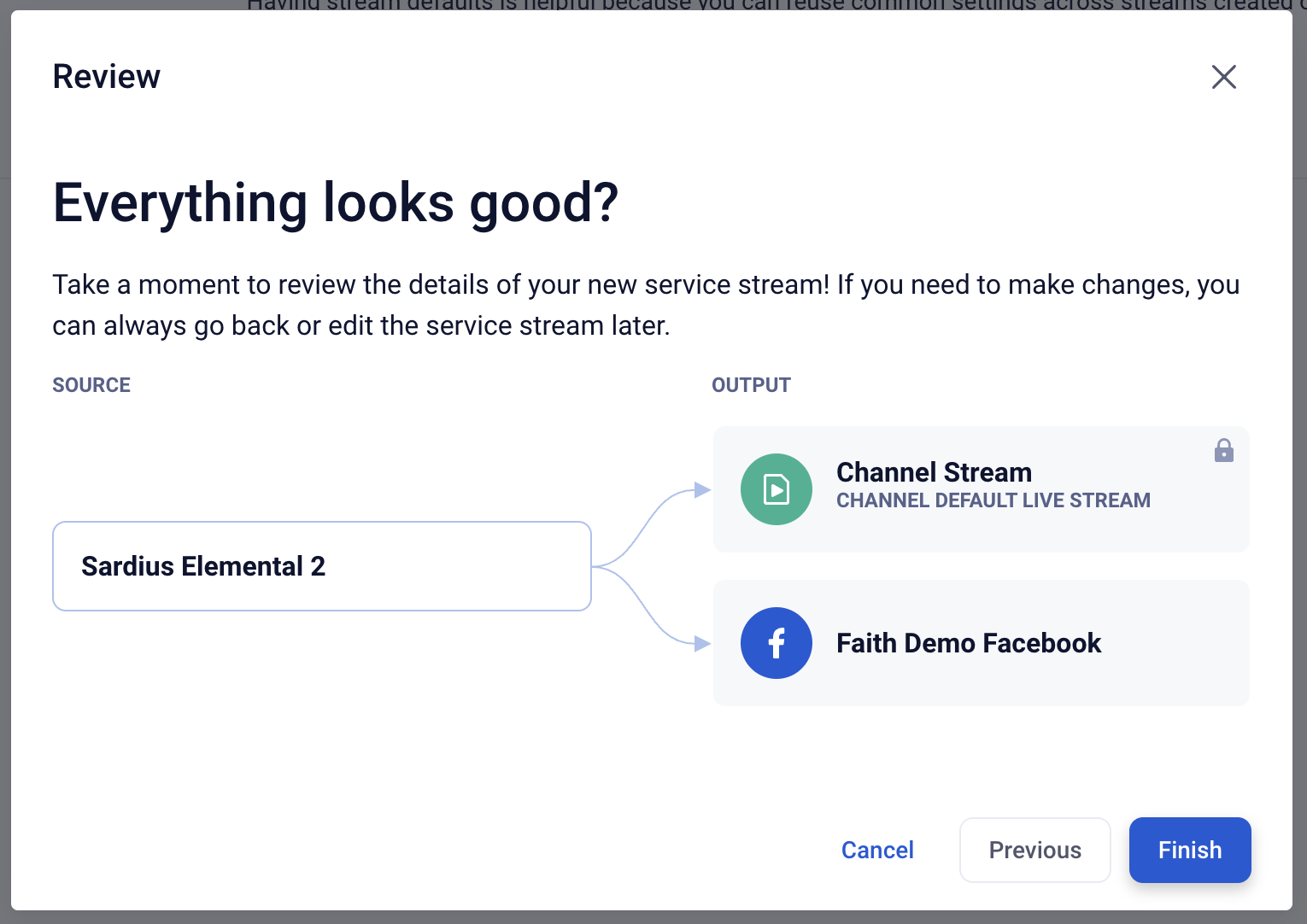
That's it! You have successfully set up your Elemental to stream to your Sardius Channel using Sardius Entrypoint! You can now schedule an event on your calendar and live stream!