
If you need the access credentials for your FTP Watch Folder, please reach out to your Sardius Account Manager or the Support Team, and we will be happy to provide those to you.
You can upload assets directly in the Sardius Control Panel browser uploader for most use cases.
Simply follow the guide available here
For larger workflows or automated uploads, the FTP Watch Folder is a powerful alternative that unlocks additional capabilities like automatic metadata tagging, image and caption upload, and custom media profiles.
The biggest advantage of the Watch Folder over the browser uploader in the Control Panel is the ability to automatically tag your asset with metadata and pre-approve it for viewing upon upload— without any manual steps in the Control Panel.
Uploading Via FTP
The first step to uploading is to open your program of choice for FTP uploads. If you don't already have a favorite, we recommend CyberDuck.
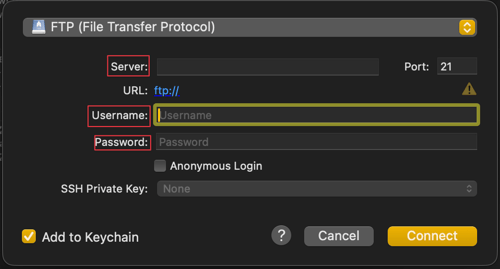
Fill out the Server, Username & password, and you're in. That information will be provisioned by Sardius and provided to you. Once provisioned, a pdf with the login instructions will be saved to your Assets within the Sardius Control Panel.
When Will My Asset Appear?
After uploading your file to the Watch Folder, the Sardius system checks for new uploads every 15 minutes — at :00, :15, :30, and :45 past the hour.
For example, if you upload a file at 7:10 AM, it will be picked up and begin processing at 7:15 AM.
Once detected, your asset will appear in the Control Panel with a status of Processing, then Encoding while it transcodes. When complete, it will be marked Transcoded.
Note: There is no way to trigger an immediate import — the 15-minute cycle is fixed.
Accepted File Types
Now, what can you upload?
In order to upload properly, the file must be in one of the following file types:
- MP4
- MOV
- MP3
- MXF
This it what the Watch Folder transcodes and creates an asset from.
Note: Images, PDFs, Documents, and similar file types will not be imported on their own. They must always accompany one of the video or audio file types shown above.
Default Media Profiles
Regardless of the file type you upload, how you upload it will determine the way it imports into the Sardius Control Panel.
Once connected via CyberDuck (or the uploader of your choice), you will see a list of folders named for various media profiles.
The Control Panel has a few media profiles that come standard, and uploading to the correct folder will automatically convert your file into the coordinating profile/file type.
Simply drag and drop the file into the folder of the desired profile and our cloud transcoder will convert the file as it imports.
The title of the asset will be the file name inside the Control Panel, unless otherwise indicated.
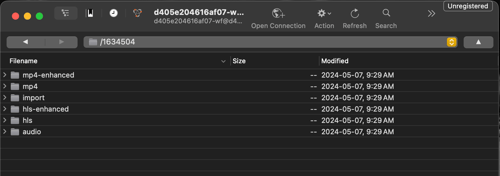
Default Media Profiles:
The below profiles are listed below as they would be found as folder names within the FTP uploading program, along with a description to help you choose which file type is right for your needs.
-
hls: HTTP Live Streaming, or HLS, is a live streaming protocol that is the industry standard. This file type is for streaming only.
-
hls-enhanced: The same use and quality as above, but the enhanced version takes a little less time to process.
-
mp4: The industry standard for downloadable videos. If you plan to share the asset in the future, consider this file type. Also used for certain streaming, like Advanced SimLive to social media.
-
mp4-enhanced: The same use and quality as above, but the enhanced version takes a little less time to process.
-
import: This imports the file as-is, with no transcoding.
-
audio: Files transcoded through the audio folder will import as an MP3 file.
Helpful Tip: If uploading an MP4 file into an HLS folder, the MP4 version will not be stored with the processed asset in the Control Panel. Only an HLS will be available within the system. Transcoding from HLS to MP4 is possible once the asset has been loaded into the Control Panel.
Per-File JSON Metadata
Auto-Assigning Metadata on Upload
You can automatically assign metadata to an asset at upload time by including a JSON file alongside your media file in the Watch Folder.
The JSON file must have the same base filename as your video or audio file.
Example: Upload sunday-message.mp4 and sunday-message.json to the same folder.
The JSON file can include any of the following fields:
{
  "title": "Sunday Morning Message",
  "description": "Week 4 of our current series.",
  "series": "Walking in Faith",
  "categories": ["Weekend Messages",],
  "tags": ["faith", "series",],
  "airDate": "2024-06-02T00:00:00Z",
  "approved": true
}
Tip: Upload the JSON file before the video file to make sure the metadata is in place before processing begins.
For full details on all supported metadata fields, see:
Import Metadata with an Asset in an FTP Watch Folder
Subfiles — Captions, Thumbnails & Documents
The Watch Folder supports uploading subfiles — such as caption files, thumbnail images, and PDFs — at the same time as your video. The subfiles must share the same base filename as the video and be present in the folder before the video is processed.
Supported subfile types:
- Captions:
.vttor.srt(SRT files are automatically converted to VTT) - Images:
.png,.jpg,.jpeg(used as thumbnails or other image types) - Documents:
.pdf,.doc,.docx(uploaded as asset files with optional tags)
Example: Upload these files together in the same folder:
sermon.mp4— your videosermon.vtt— caption file (assigned as English by default)sermon.png— thumbnail image
For full naming conventions and configuration options, see:
Add Subfiles with Your Asset in an FTP Watch Folder
Account-Specific Custom Media Profiles
Per request, additional media profiles and custom folders can be added to your account to streamline your workflow. For example, a combined HLS & MP4 profile can be set up so both file types are created from a single upload.
To have a custom profile added to your account, or for help setting up a custom folder, reach out to your Sardius Account Manager or the Support Team.
For full configuration details, see:
Import Metadata with an Asset in an FTP Watch Folder
Retrying a Failed Upload
When a file is processed by the Watch Folder, the system automatically creates a .txt file next to it with the same base filename. This file contains the asset ID that was created, or an error message if something went wrong.
If you need to reprocess a file, delete the matching .txt file from the Watch Folder.
The file will be picked up again on the next 15-minute cycle.
If a file still fails to process and you're unsure why, contact the Support Team and we can investigate on our end.
For a complete guide to troubleshooting, see:
Watch Folder Troubleshooting
IMPORTANT: The original file will only stay within the watch folder for seven days before being deleted.