Updating Your Channel Logo (Thumbnail)
Updated
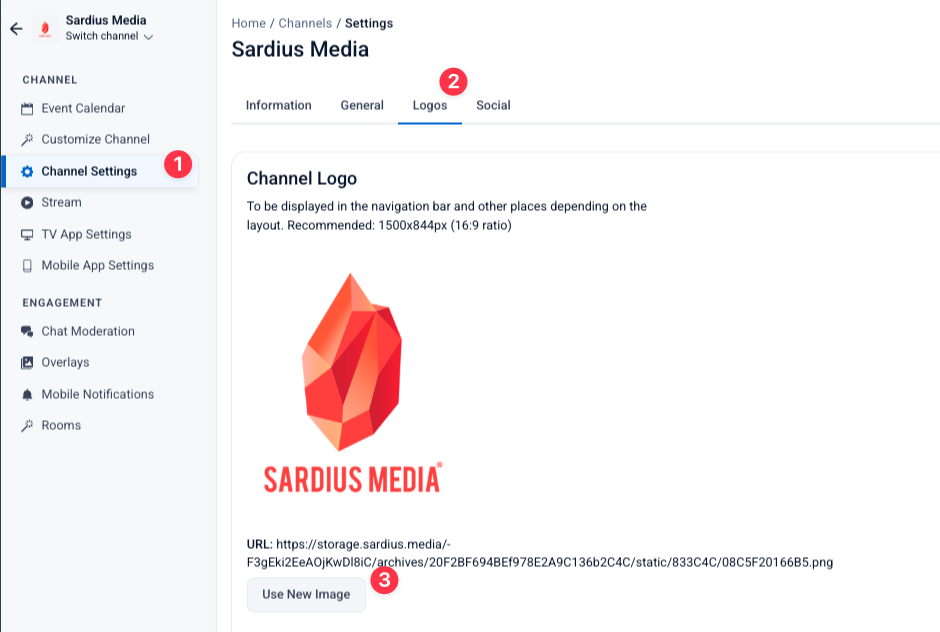
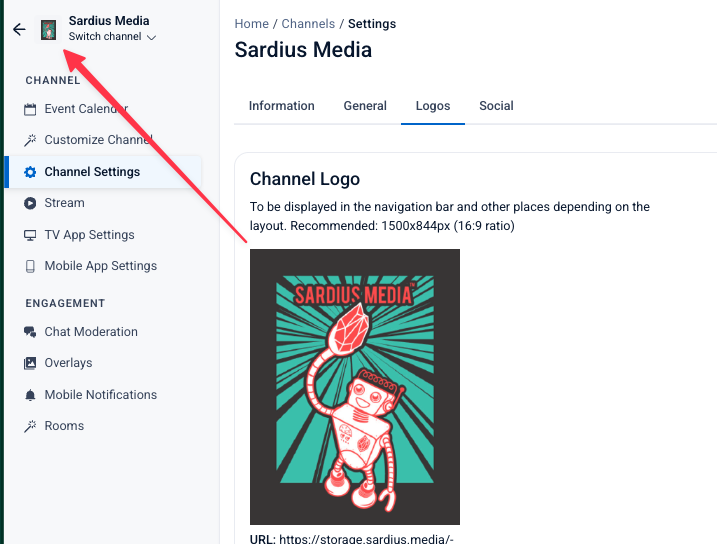
Your Channel Logo appears in your channel's navigation bar and other spots depending on your layout — it's what most people mean by the channel's "thumbnail." This is separate from the Social image, which only affects link previews when your channel is shared externally. Here's how to update it.
Where to find it:
Control Panel → Channel Settings → Logos tab
 Logos vs. Social — What's the Difference?
If you're trying to update the image associated with your channel and it doesn't seem to be changing, you may be updating the wrong tab — this is a common mix-up with the Social tab, which serves a different purpose.
| Tab | What It Controls |
|---|---|
| Logos | The Channel Logo — displayed in the navigation bar and other places depending on your layout. This is what most people mean by "channel thumbnail." |
| Social | The preview image shown when your channel's public URL is shared externally (e.g., in a text message or social post). It does not affect the Channel Logo. |
Steps to Update Your Channel Logo:
- Find your desired channel
- Go to Channel Settings in the left-hand navigation.
- Click the Logos tab.
- Under Channel Logo, click Use New Image.
- Upload your new image.
- Recommended size: 1500 × 844px (16:9 ratio)
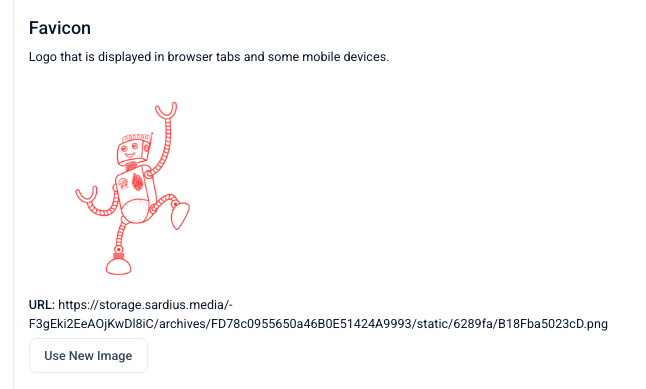
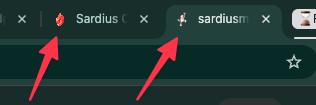
Bonus — Favicons:
While you're in the Logos tab, you'll also see a Favicon field. This is a separate image that appears in browser tabs and on some mobile devices. It's uploaded independently via the Upload Image button and does not need to match your Channel Logo.