
Update Your User Preferences
Updated
User Preferences lets you customize how the Sardius Control Panel looks and behaves for your individual account.
How to Get There
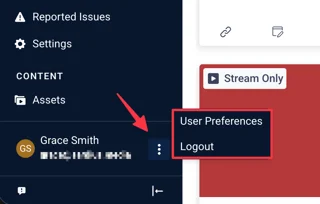
In the Control Panel, locate your name at the bottom of the left sidebar. Click the three-dot kebab menu (⋮) to the right of your name, then select User Preferences.
User Preferences is organized into three tabs: Appearance, Calendar, and Assets.
Appearance
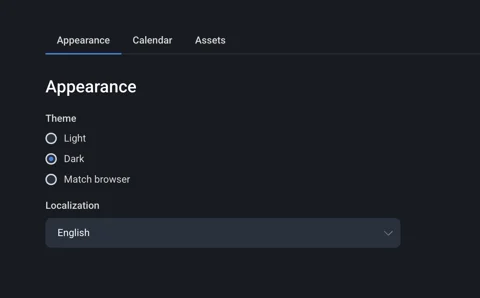
Adjust the visual theme or display style of the Control Panel interface.
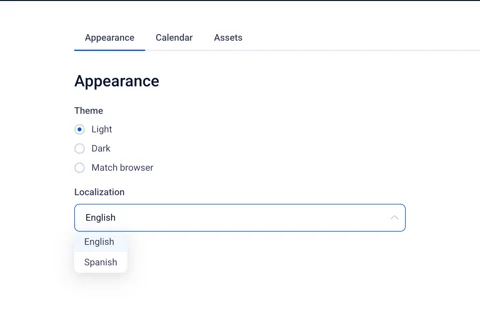
Localization
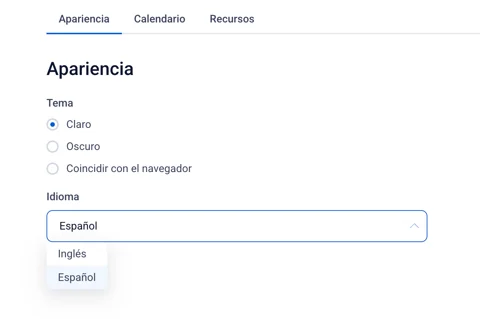
Choose between English and Spanish for the Control Panel interface.
Calendar
Calendar Settings control how the calendar displays across every session.
These settings will only be applied to your user profile.
- Start Week On— Choose which day your calendar week begins. The default is Sunday. Teams that observe weekend services may prefer starting on Monday so Sunday falls at the end of the week rather than the beginning.
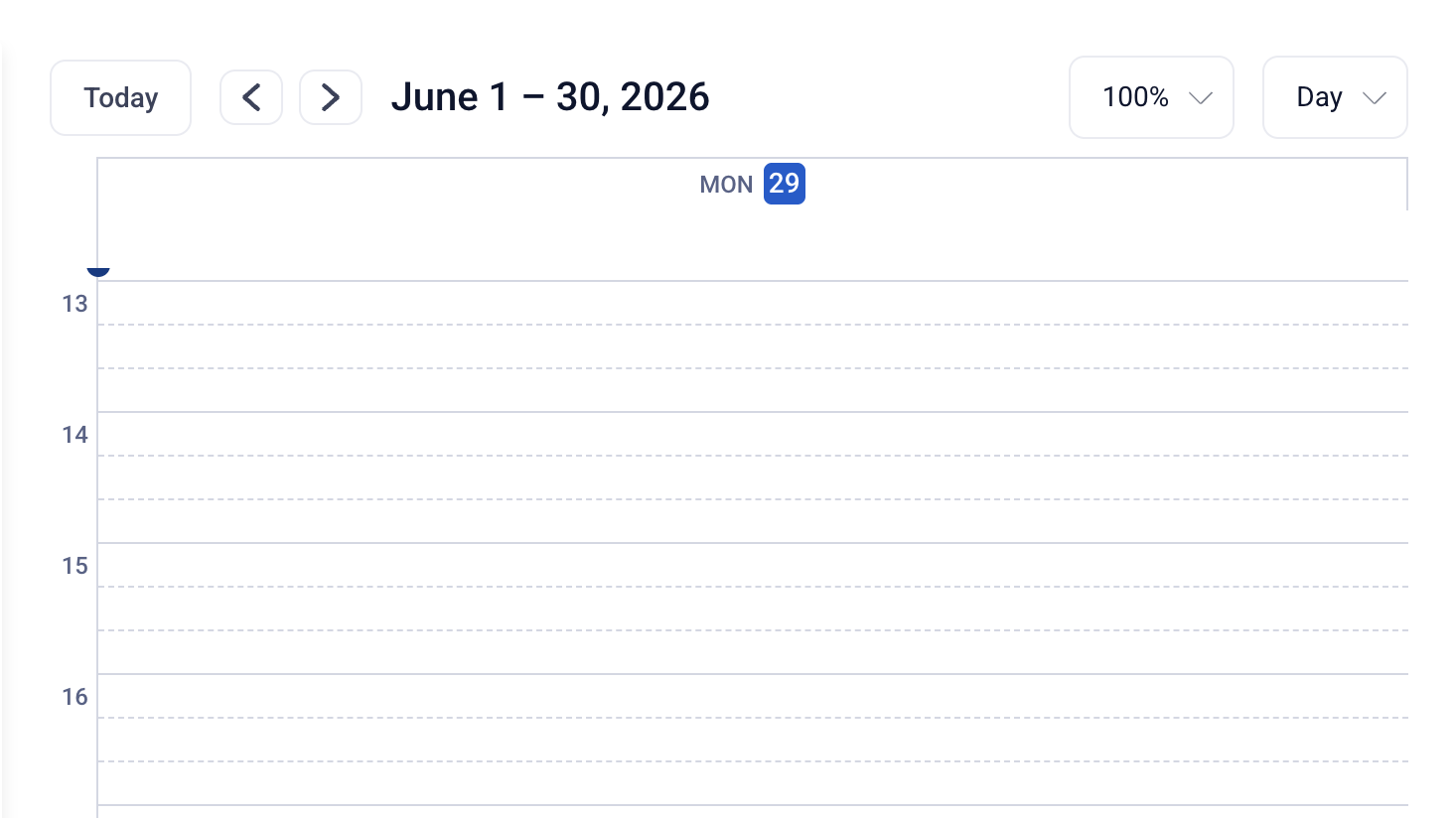
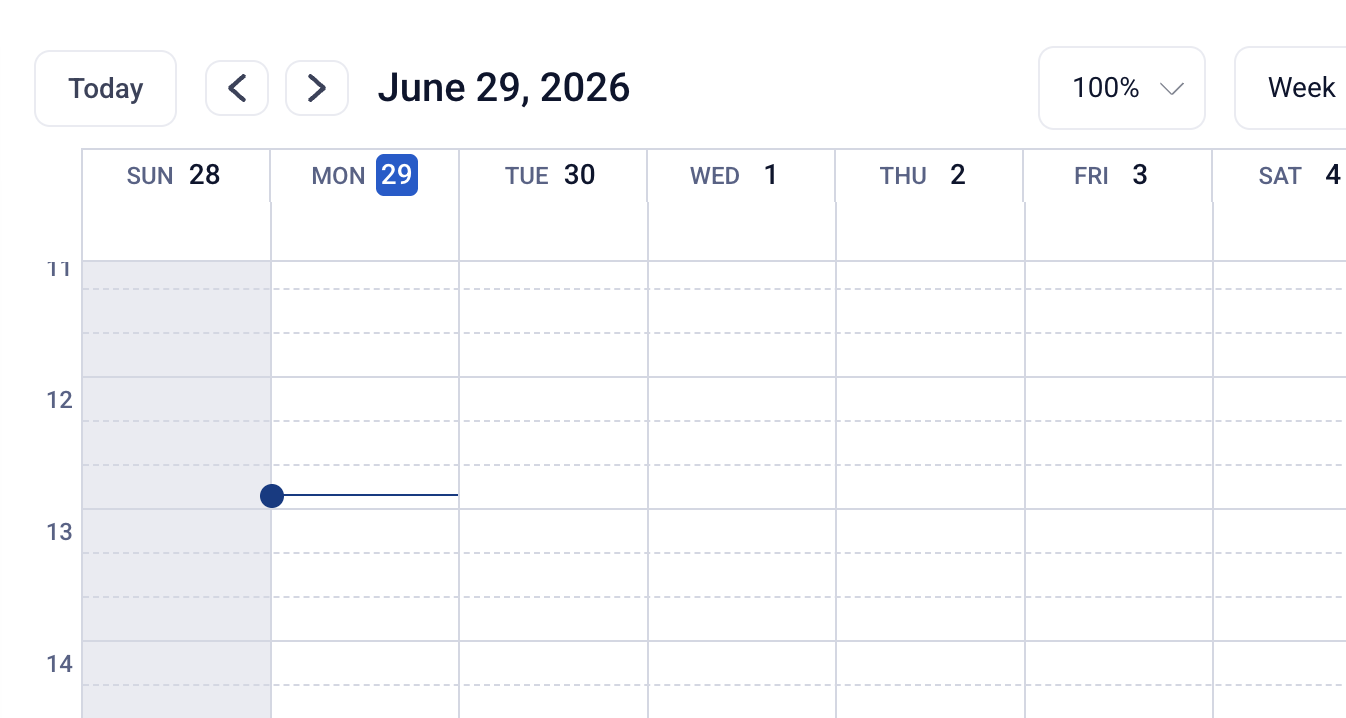
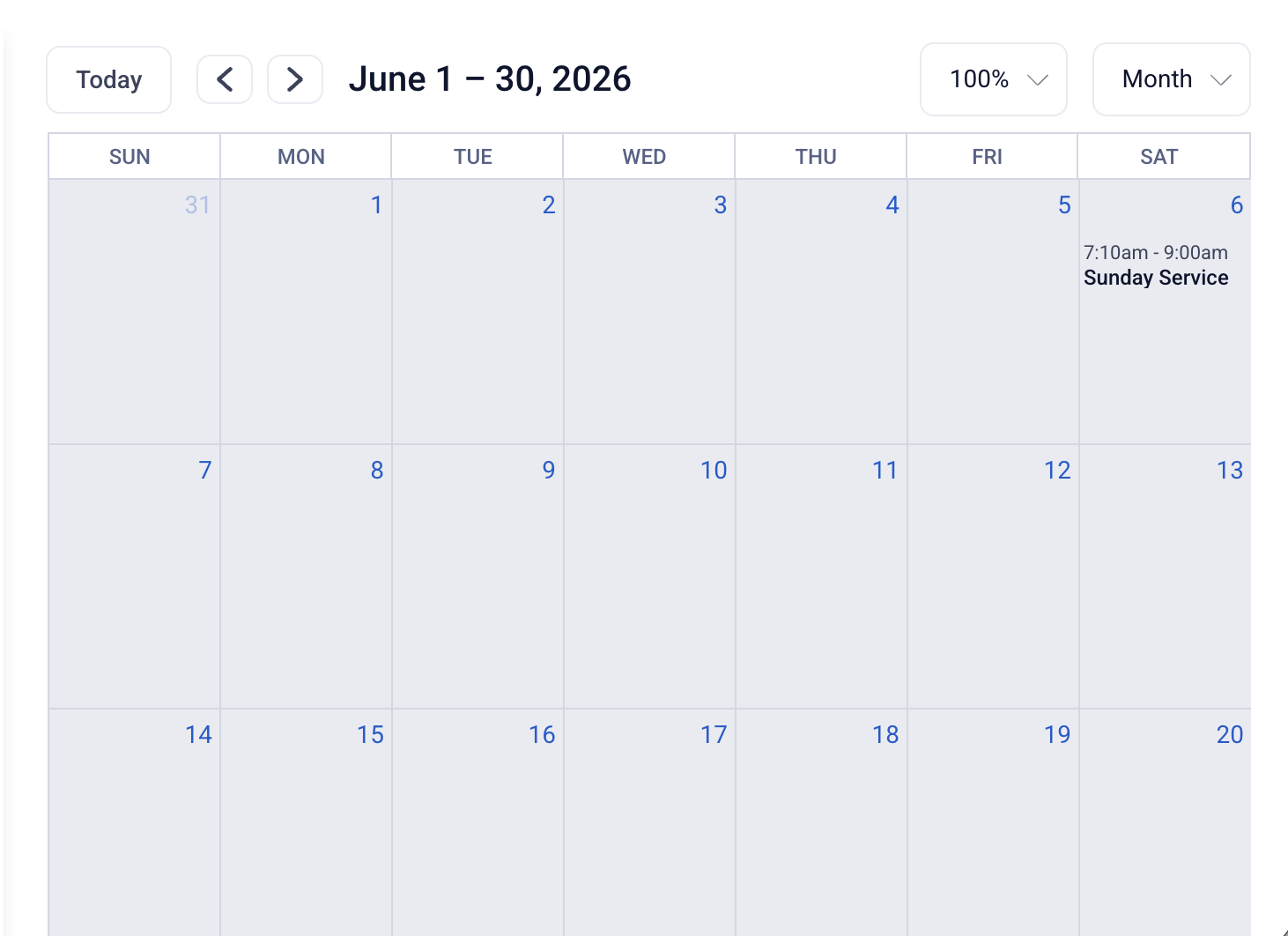
- Set Custom View — Set your default calendar view to Day, Week, or Month
(Differences shown below)
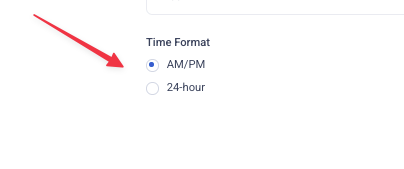
- Time Format — Choose your preferred format for displaying times.
-
AM/PM — 12-hour format (e.g., 2:00[] PM)
-
24-hour — Military time format (e.g., 14:00[])
-
Assets
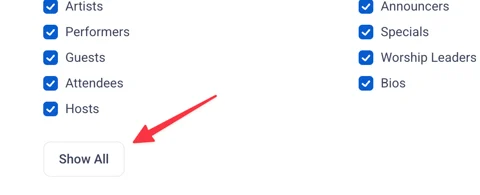
Assets Settings control which metadata fields appear in your asset metadata pane. If your team doesn't use certain fields, hiding them keeps your workspace focused and reduces visual clutter.
These settings will only be applied to your user profile.
By default, fields such as Hosts, Attendees, Worship Leaders, Guests, Related Links, Languages, and Episodes are visible. Toggle any of these off, and they'll no longer appear in the metadata pane when you're working with assets.
Note: Custom fields will always appear in the metadata pane regardless of these settings.
At the bottom of the Assets Settings page, click Show All to re-enable all metadata fields at once and restore the full default view.
Saving Your Changes
After adjusting any settings, click Save. Your preferences will take effect the next time you load or reload the relevant page or pane.