Set Up a Makito X Manually for Sardius Stream Using RTMP
Updated
This guide walks you through sending a stream from a Haivision Makito X encoder to Sardius Stream using RTMP, without pairing the encoder to your account. You'll create an event in the Sardius Control Panel, copy the RTMP stream credentials, and then enter them into a new output on your Makito X. Use it as a quick backup for your channel, or when your workflow needs to send the same source to multiple outputs.
Prefer SRT? See Set Up a Makito Manually for Sardius Stream Using SRT.
Part 1: Configure Your Sardius Event
Step 1: Create an Event
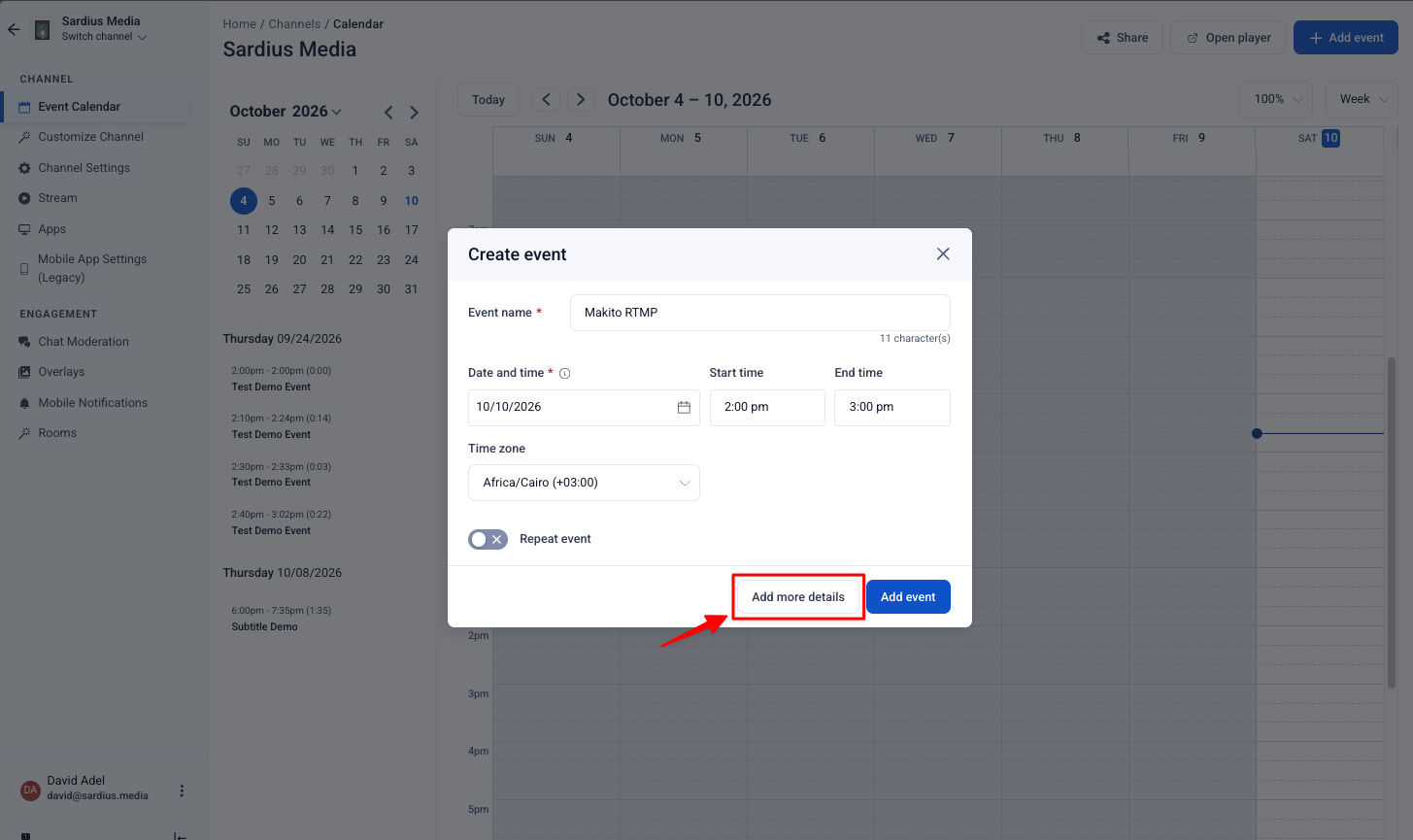
In the Sardius Control Panel, open your channel and go to Event Calendar. Click Add event, then enter your event name, date, start time, end time, and time zone. Click Add more details.
Tip: For best results, schedule your event to start after your Makito X begins sending to Sardius.
You can also edit an existing event and continue with the steps below.
Step 2: Open the Stream Editor
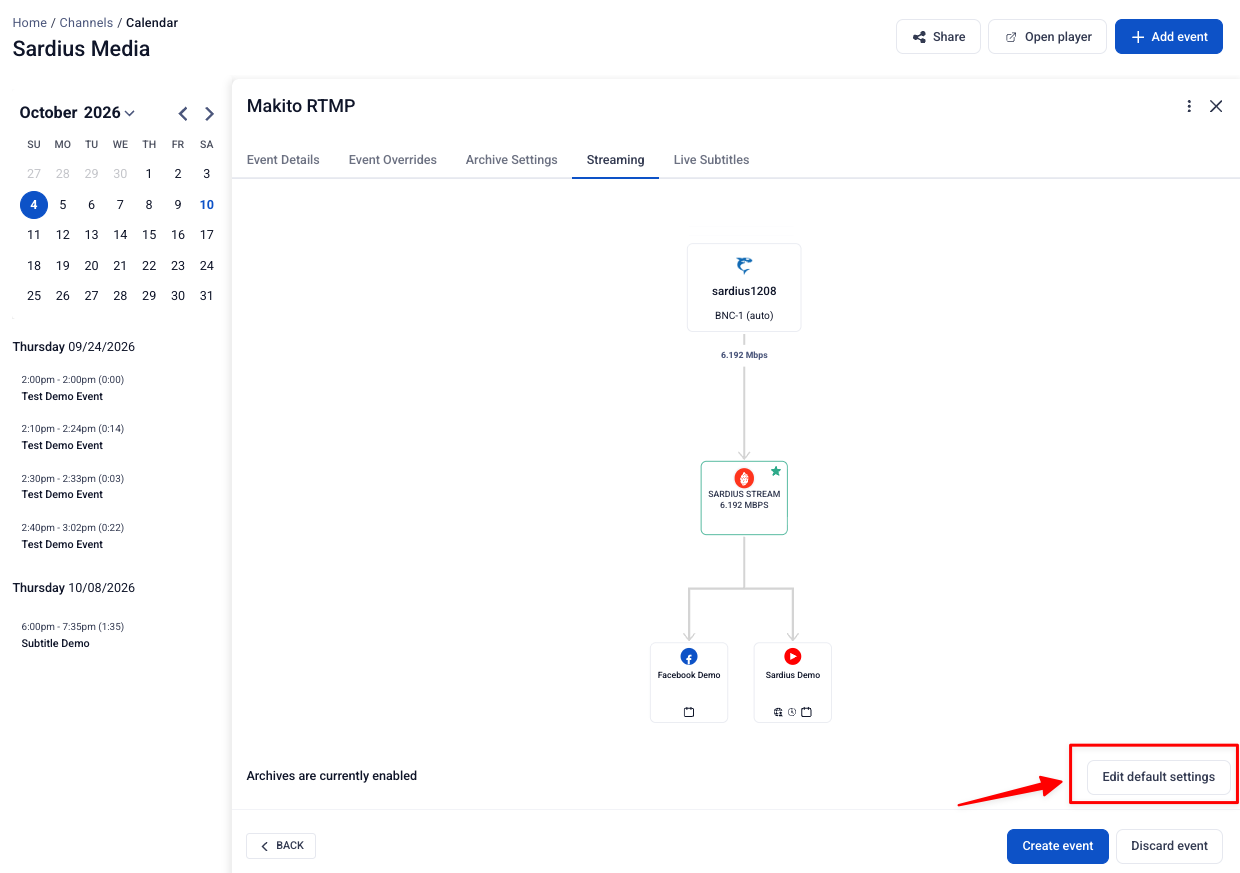
The event opens on the Event Details tab. Select the Streaming tab to see your event's current source and outputs, then click Edit default settings in the bottom-right corner to open the stream editor.
Step 3: Edit the Current Source
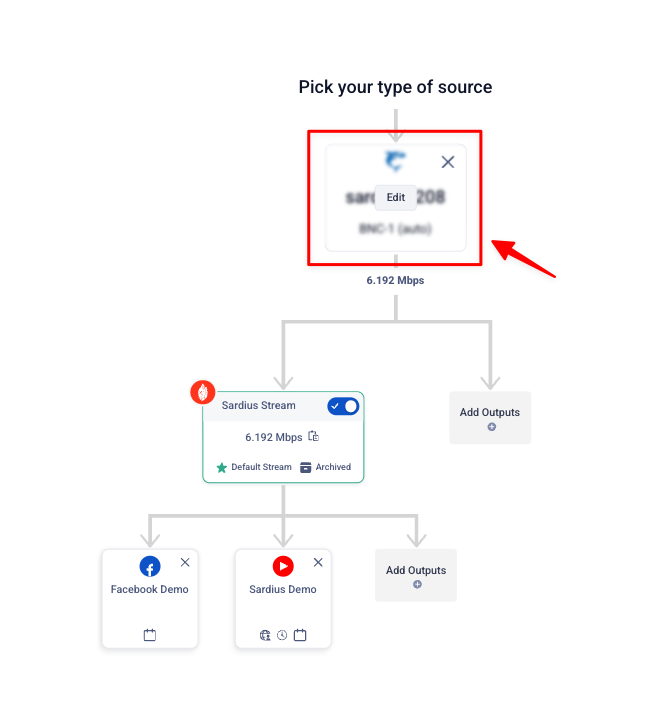
In the stream editor, hover over the current source card (such as a paired encoder) and click Edit.
Step 4: Choose a Manual Source
The setup window opens.
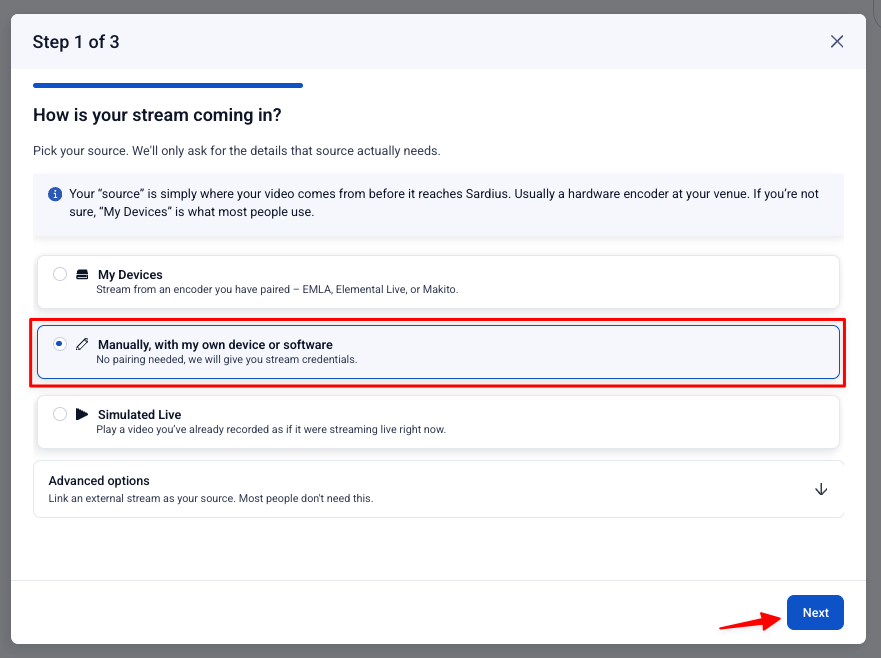
- In Step 1 of 3, select Manually, with my own device or software, then click Next.
- In Step 2 of 3, select Manually, with my own device or software RTMP, then click Next.
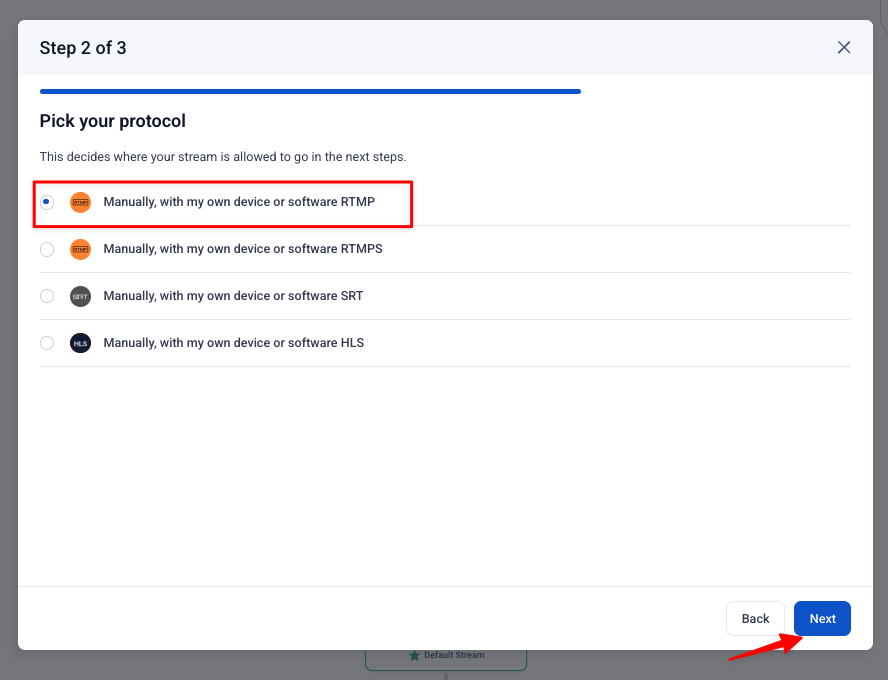
- Complete Step 3 of 3 to finish the setup.
Step 5: Copy Your RTMP Credentials
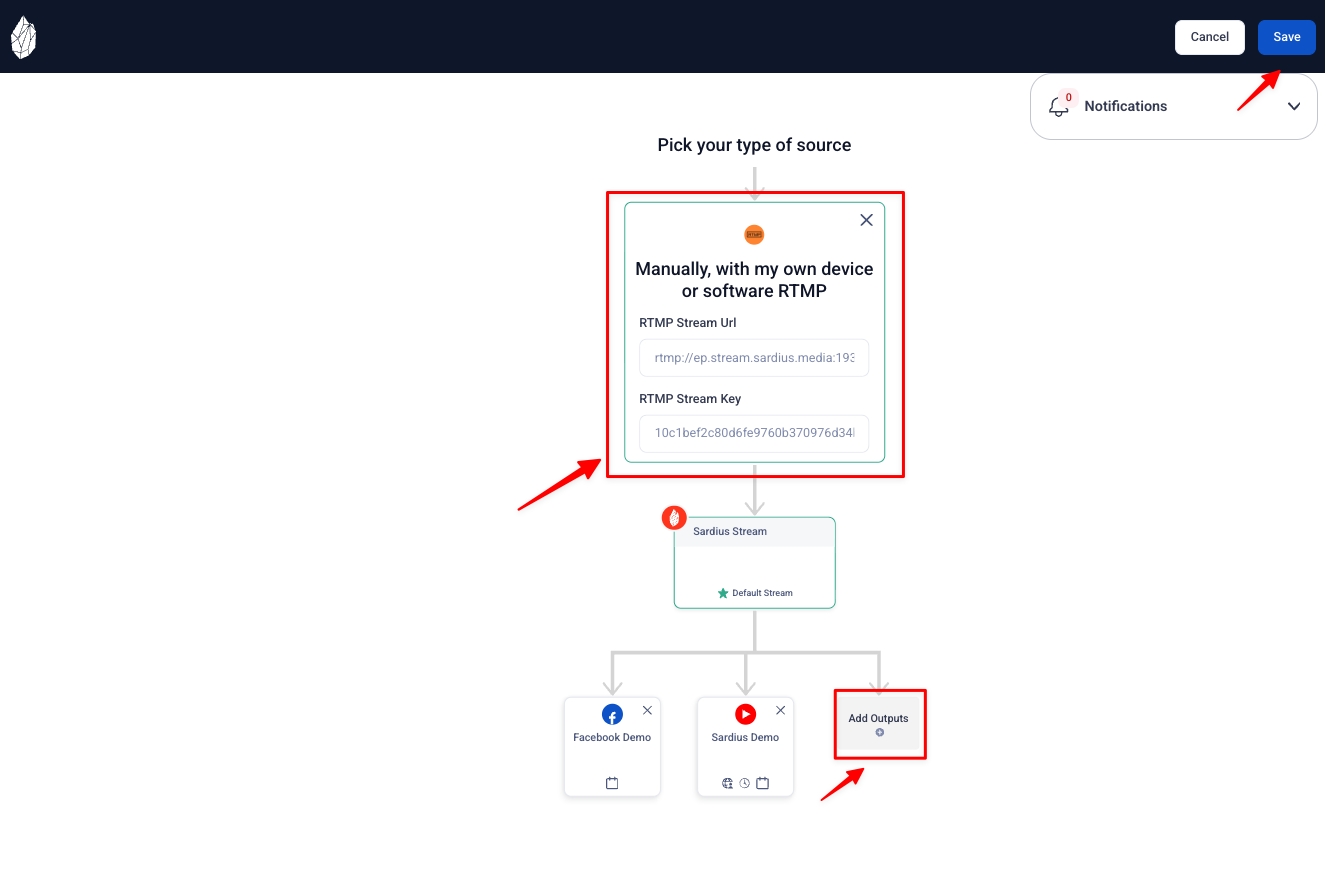
Your source card now shows two fields:
- RTMP Stream Url
- RTMP Stream Key
Copy both and keep them somewhere handy, such as a text editor. You'll enter them into the Makito X in Part 2.
To send your stream to additional destinations, click Add Outputs (optional). When you're done, click Save in the top-right corner.
Note: Treat your stream key like a password. Anyone with it can send video to your channel.
Step 6: Create the Event
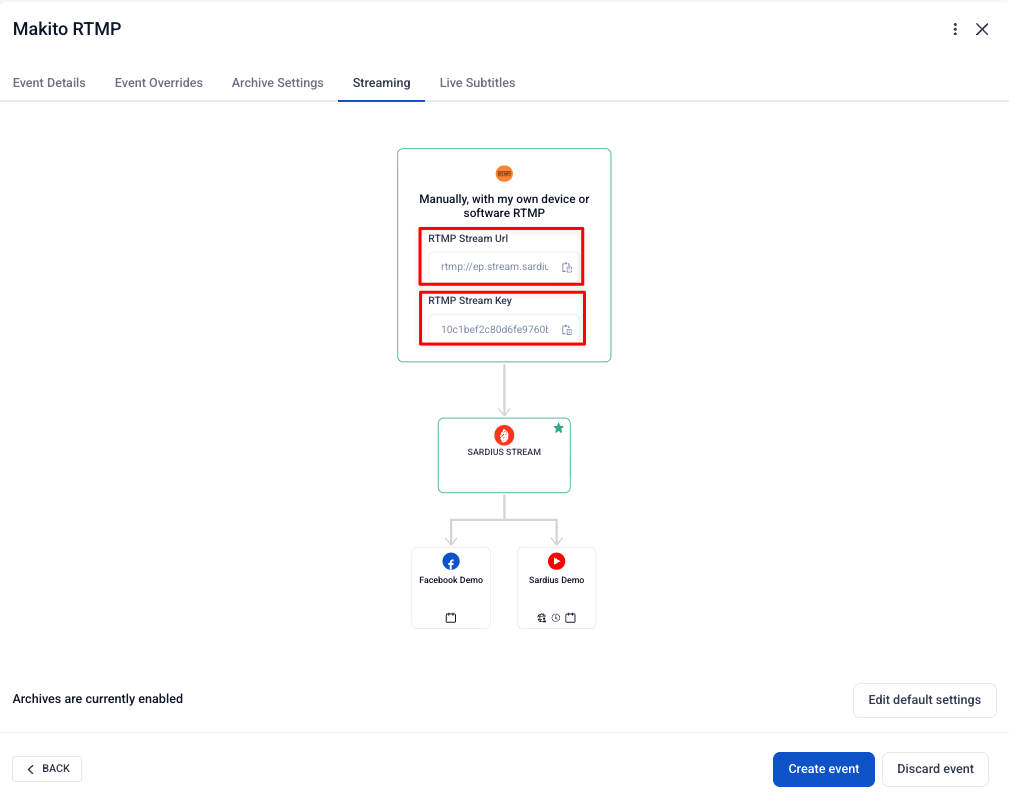
Back on the Streaming tab, confirm the source shows Manually, with my own device or software RTMP feeding Sardius Stream. Click Create event (or Save if you're editing an existing event).
You can copy the URL and key from this screen at any time using the copy icons.
Part 2: Configure Your Makito X
You'll configure three things on your Makito X before you can stream:
- One free Video Encoder
- One free Audio Encoder
- A new Output
Step 7: Configure a Video Encoder
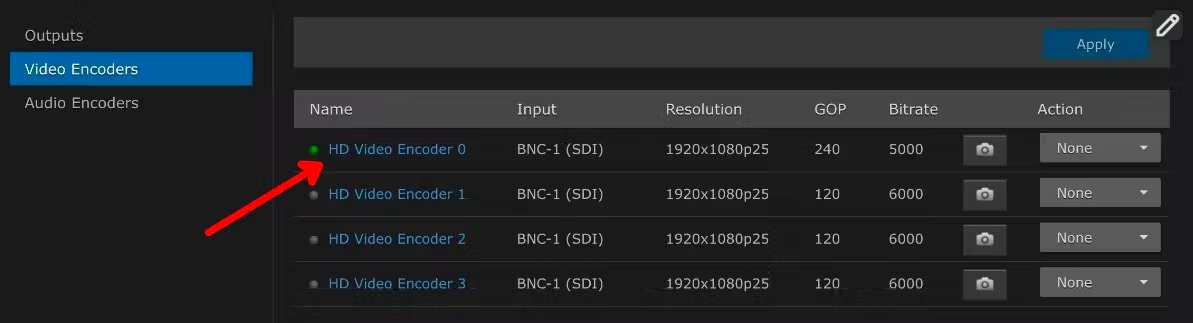
Log in to the Makito X web interface and select Video Encoders. You need at least one free video encoder for your output. Click the blue name of an encoder to open it. A green light means the encoder is already in use.
In this example, we use HD Video Encoder 0.
- Select the appropriate input.
- Enter the Basic Parameters:
- Bitrate (Kbps): enter a number from 4000 to 6000
- Resolution: leave as Automatic
- Frame Rate: leave as Automatic
- Framing: leave as IP
- GOP Size: this sets your segment duration. Calculate it from your frame rate and desired duration:
- 25 fps / 4 seconds: 100
- 30 fps / 4 seconds: 120
- 60 fps / 4 seconds: 240
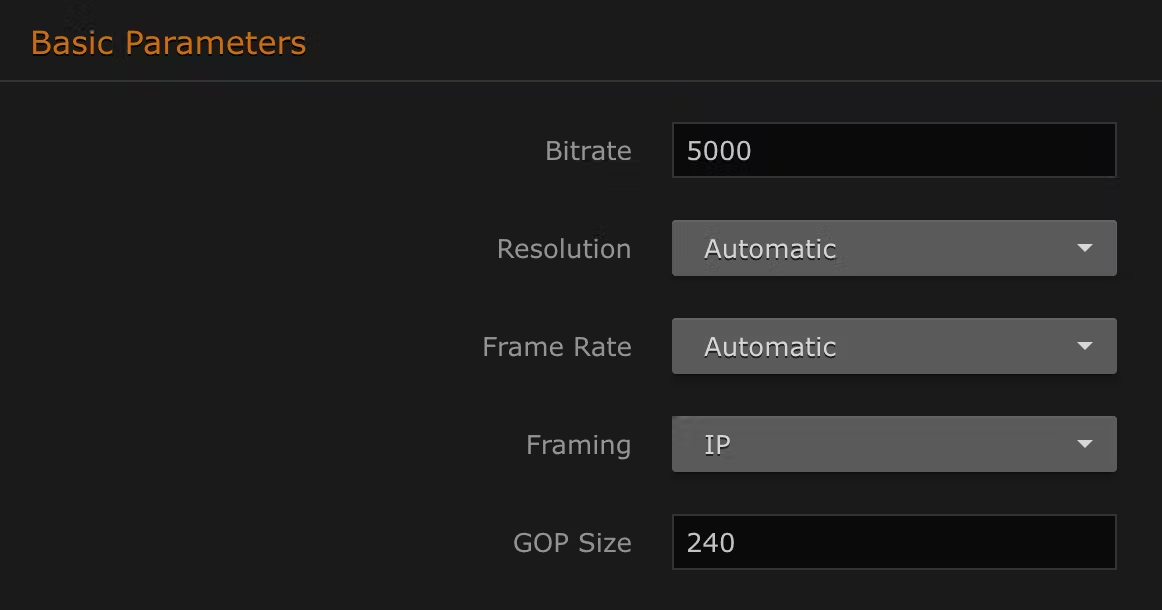
Note: These bitrate and GOP settings allow Facebook and YouTube to accept the stream quality.
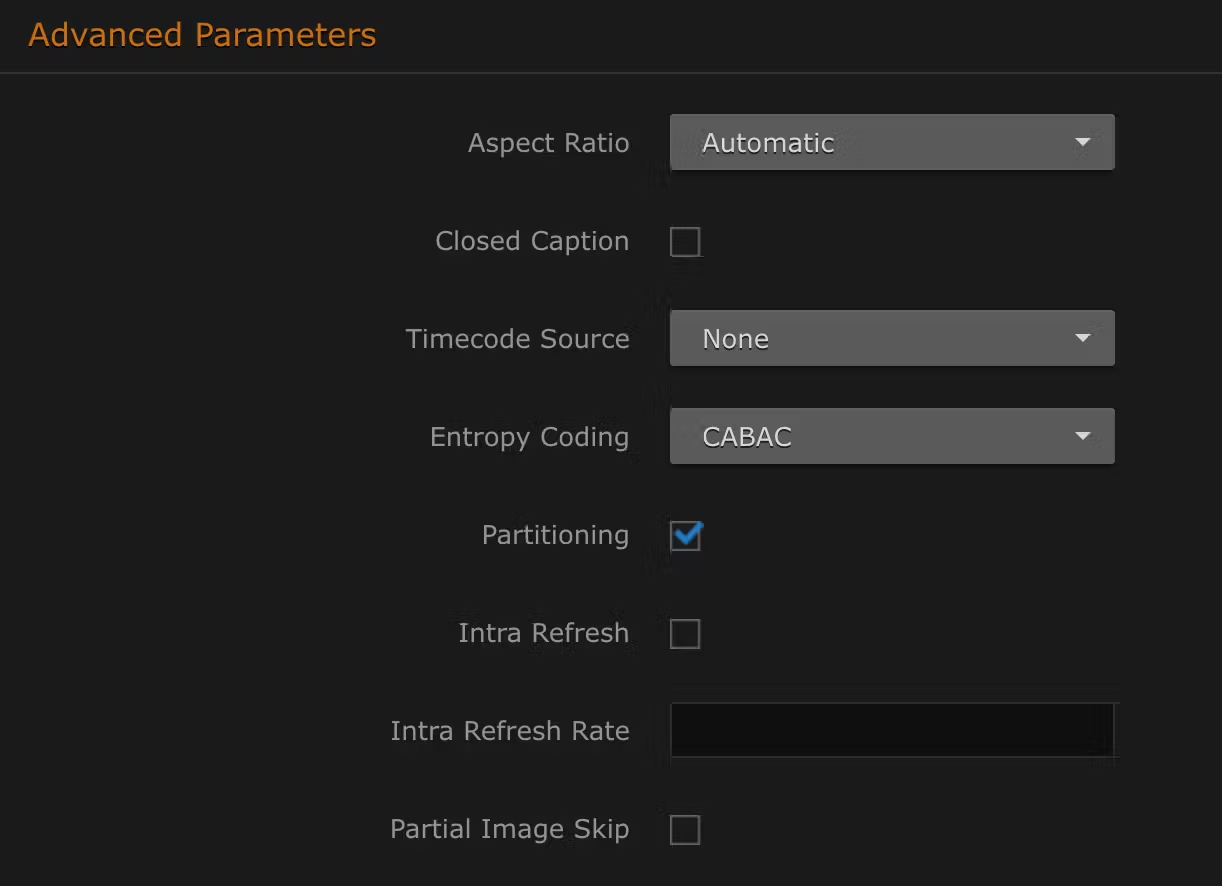
- We recommend leaving the Advanced Parameters as they are. If you'd like to adjust them, we recommend the following:
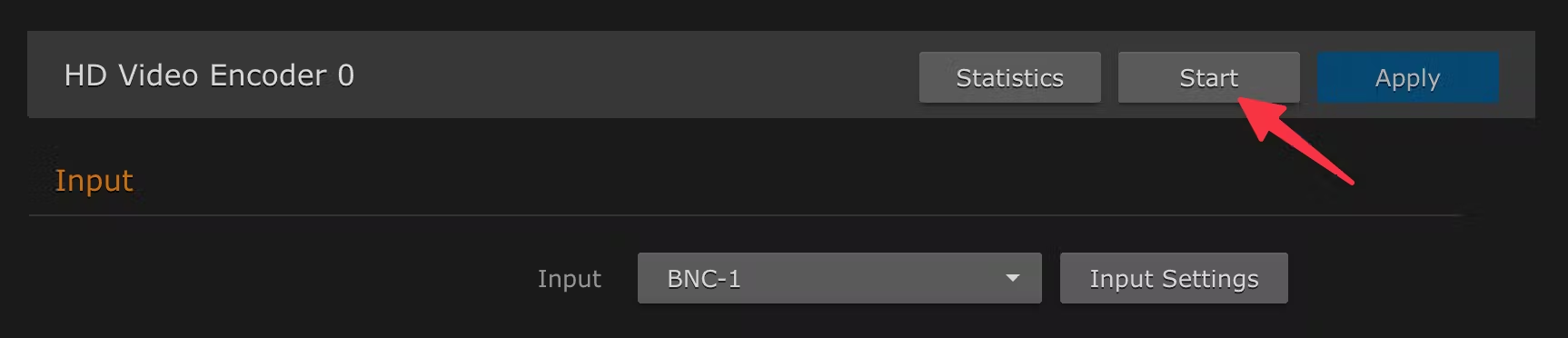
- Scroll to the top of the page and click Apply, then click Start to start the encoder.
Step 8: Configure an Audio Encoder
Select Audio Encoders. Click the blue name of an encoder to configure it. A green light means the encoder is already in use.
In this example, we use Audio Encoder 0.
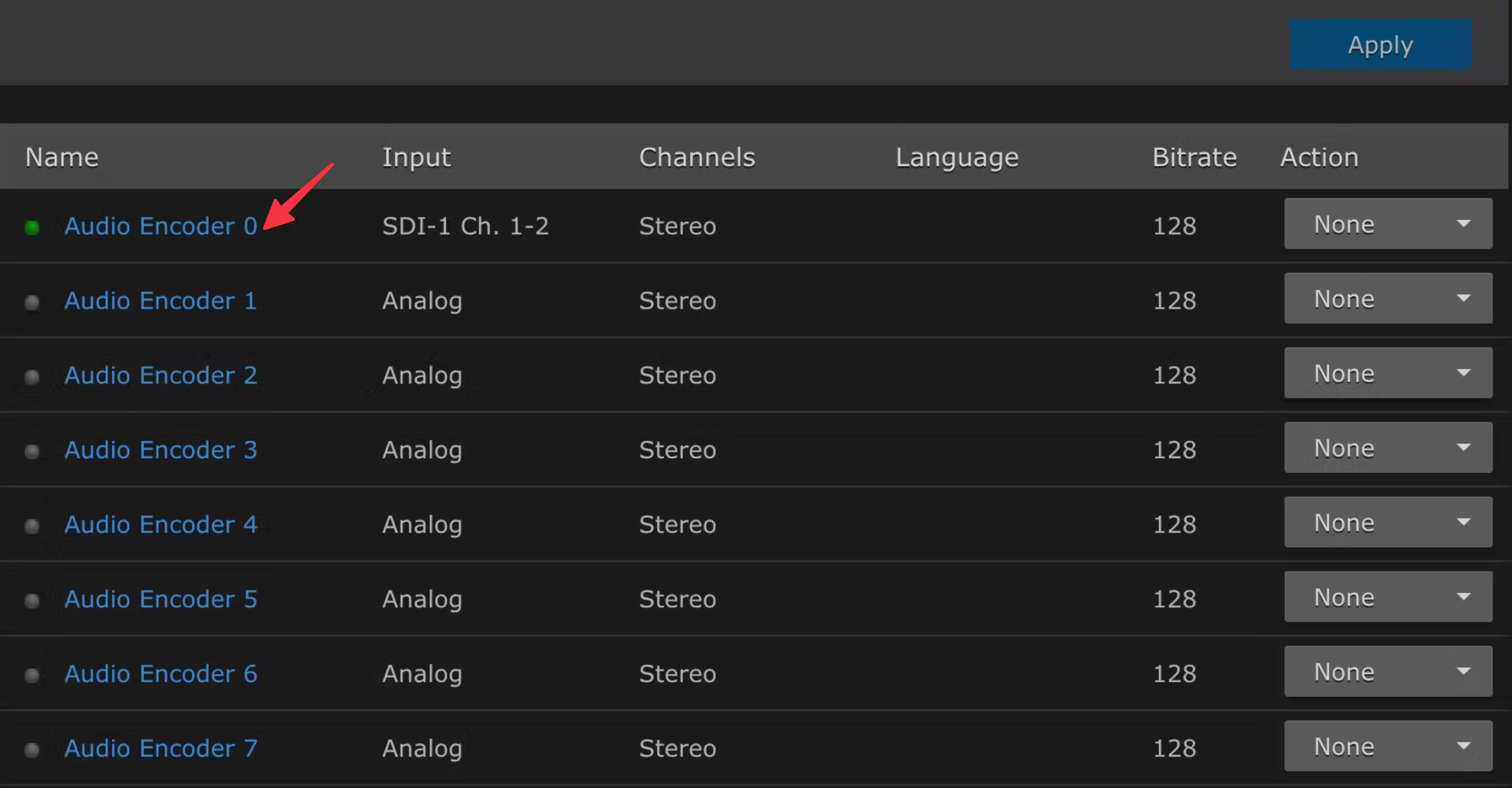
- Select the appropriate input. Often, this will be SDI channels 1 and 2.
- Adjust the Basic Parameters:
- Channel Mode: Stereo
- Bitrate: 192
- Sample Rate: leave as 48
- AAC-LC Algorithm: leave as MPEG-2 ADTS
- Language: leave blank
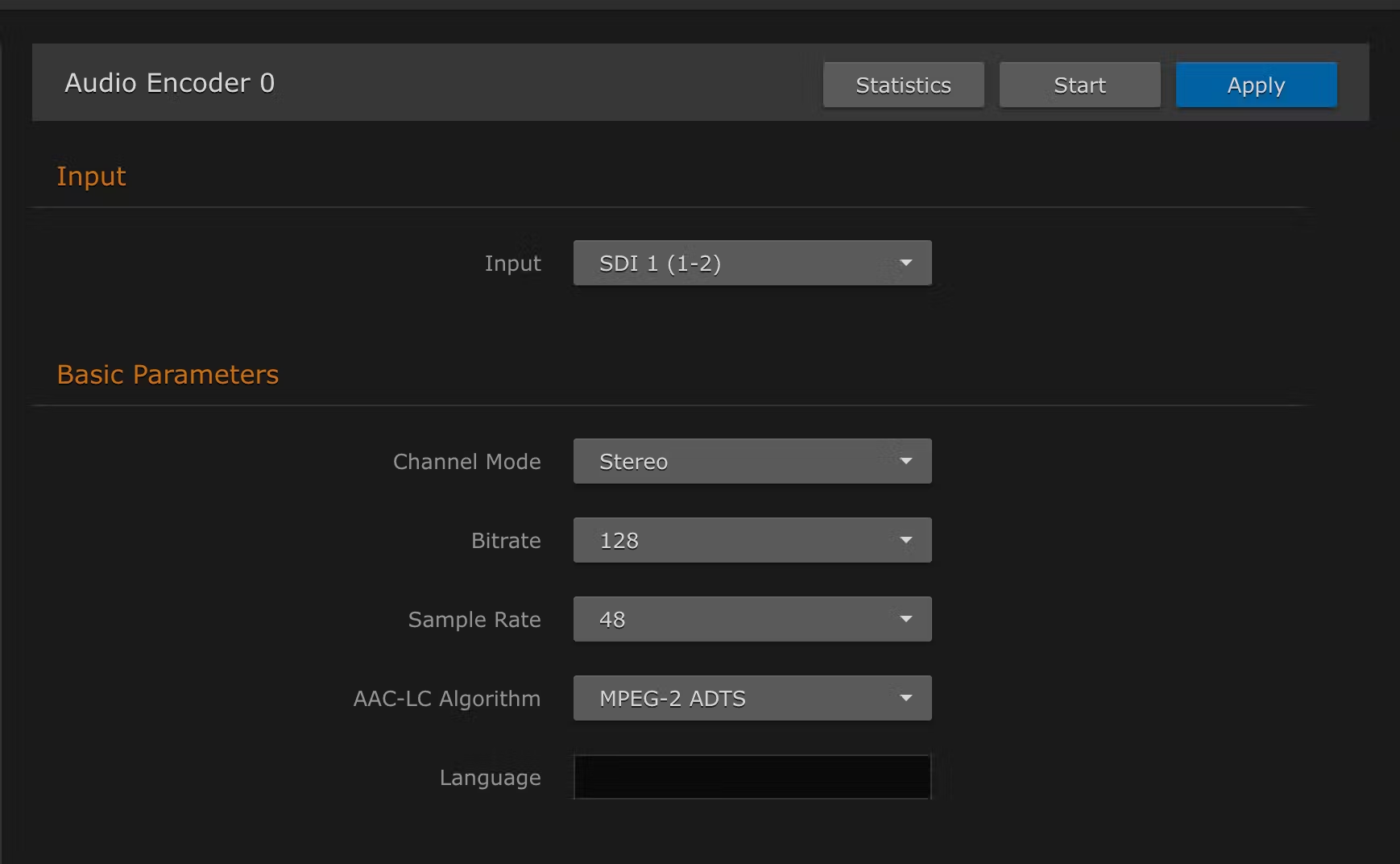
- Scroll to the top of the page and click Apply, then click Start.
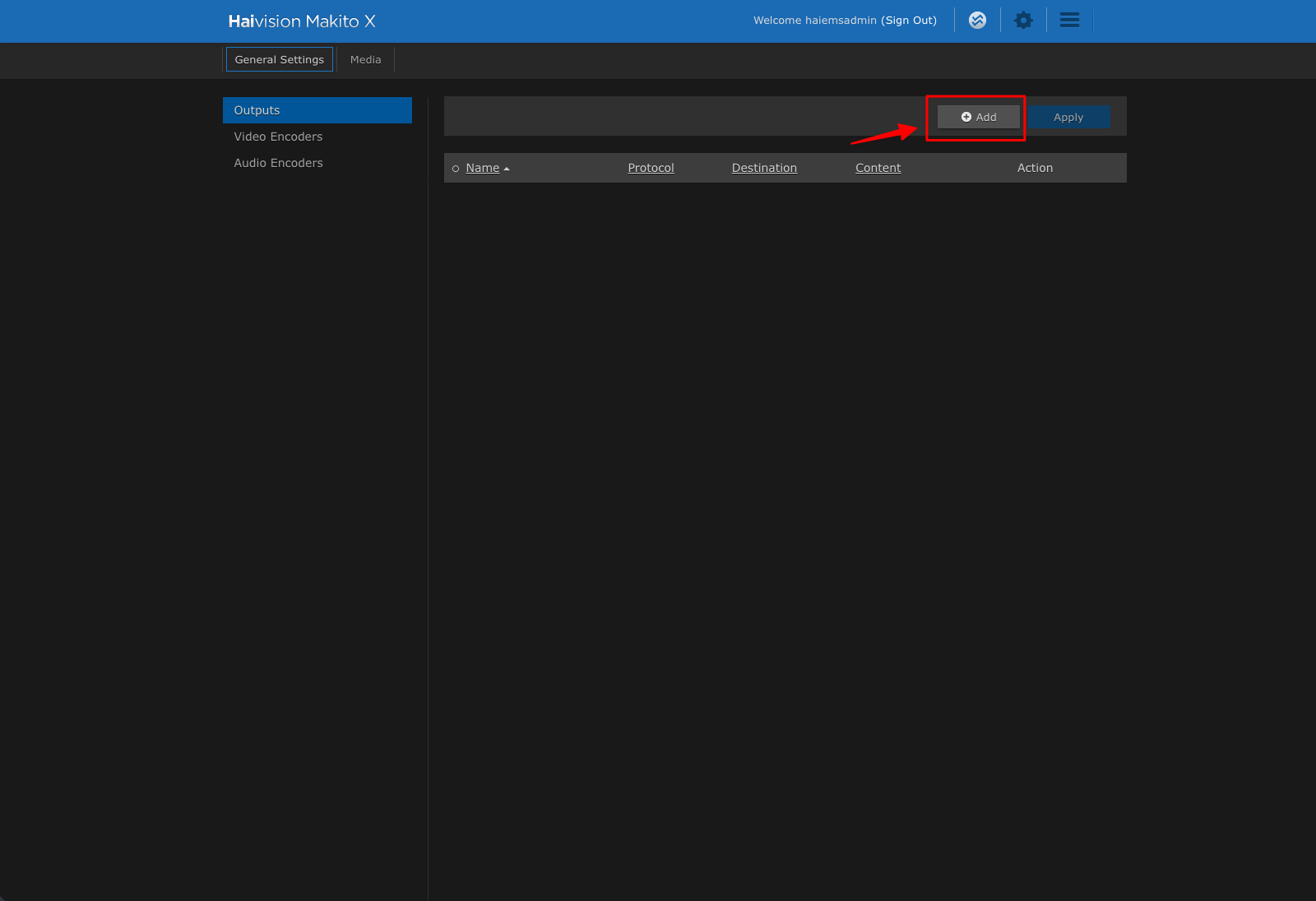
Step 9: Add a New Output
Under General Settings, select Outputs, then click Add.
Step 10: Enter the Output Settings
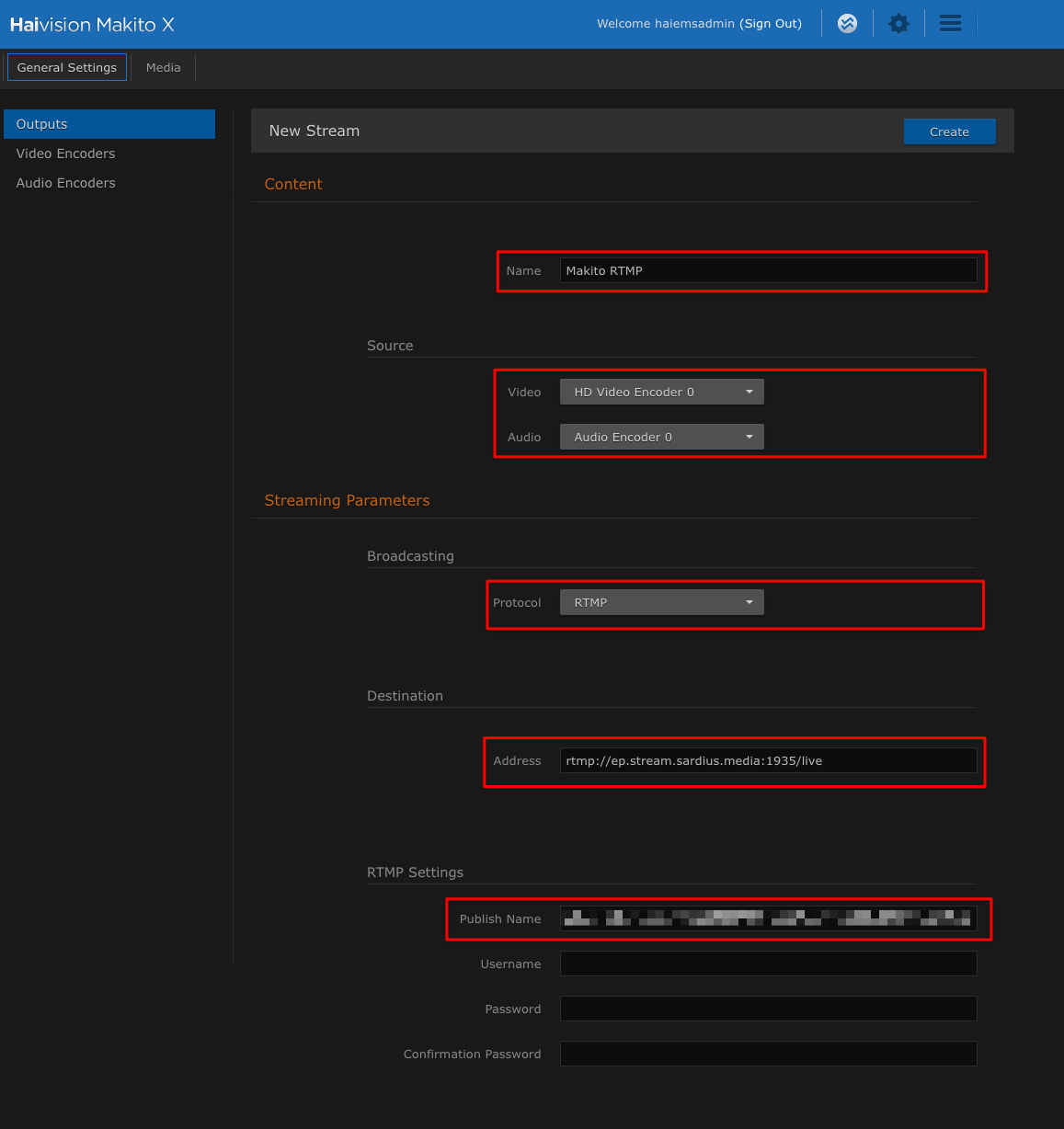
Fill in the New Stream form:
Content
- Name: enter a name for the output (for example,
Makito RTMP)
Source
- Video: select the video encoder you configured (for example, HD Video Encoder 0)
- Audio: select the audio encoder you configured (for example, Audio Encoder 0)
Streaming Parameters
- Protocol: RTMP
- Address: paste the RTMP Stream Url from Sardius (for example,
rtmp://ep.stream.sardius.media:1935/live)
RTMP Settings
- Publish Name: paste the RTMP Stream Key from Sardius
- Username, Password, Confirmation Password: leave blank
Click Create at the top of the form. The output starts automatically.
Step 11: Confirm the Output Is Connected
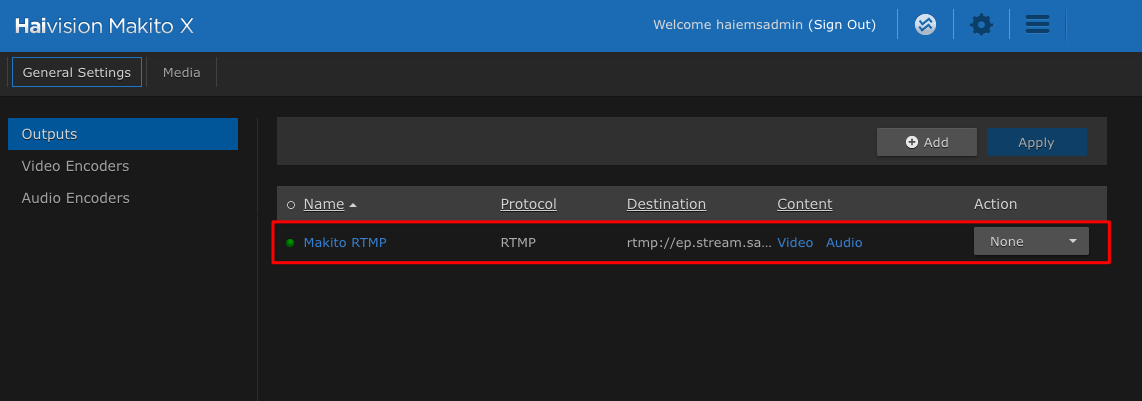
Return to the Outputs screen. A green dot next to your output means the Makito X has connected to Sardius Stream and is transmitting.
Part 3: Verify the Connection
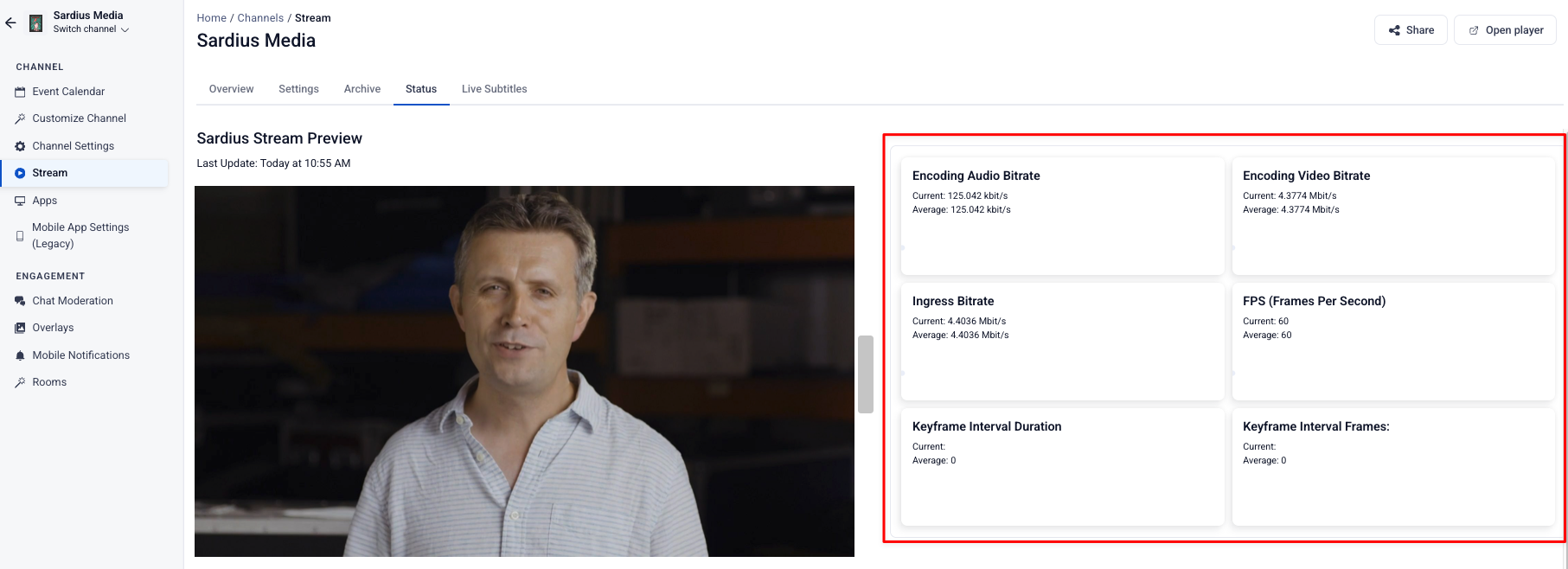
In the Sardius Control Panel, go to Stream and select the Status tab. Under Sardius Stream Live Stats, you should see a preview of your video along with live readings for audio bitrate, video bitrate, ingress bitrate, frames per second, and keyframe interval.
If these stats are updating, your Makito X is successfully connected to your Sardius channel.