Replace an Existing Asset
Updated
Need to replace an existing asset with a revised version? Here's how it's done.
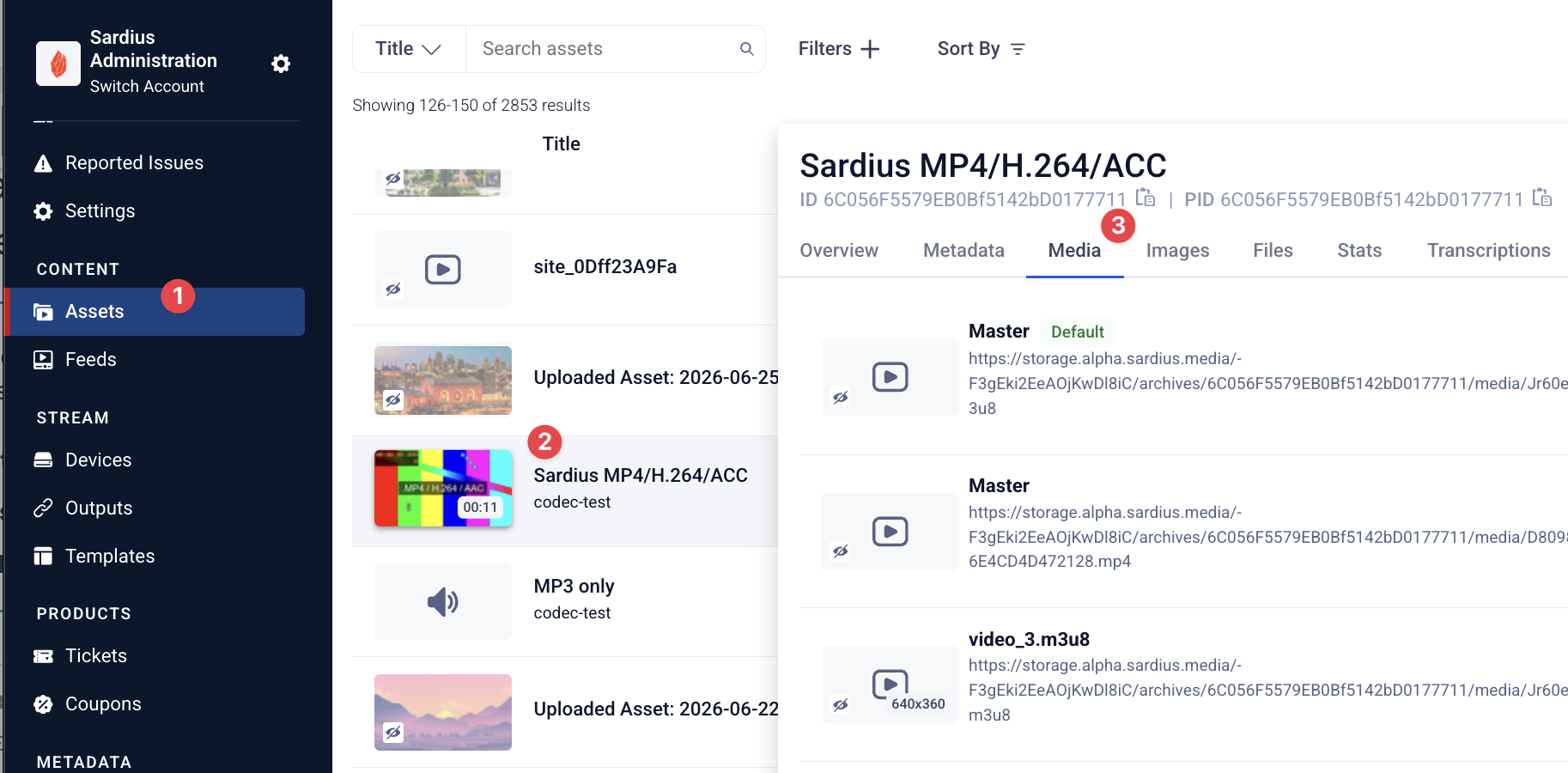
To replace or update the media for an existing asset, you will need to start with the original asset's metadata tab.
- Locate Assets on the sidebar
- Locate the asset you wish to update.
- Click on the Media tab.
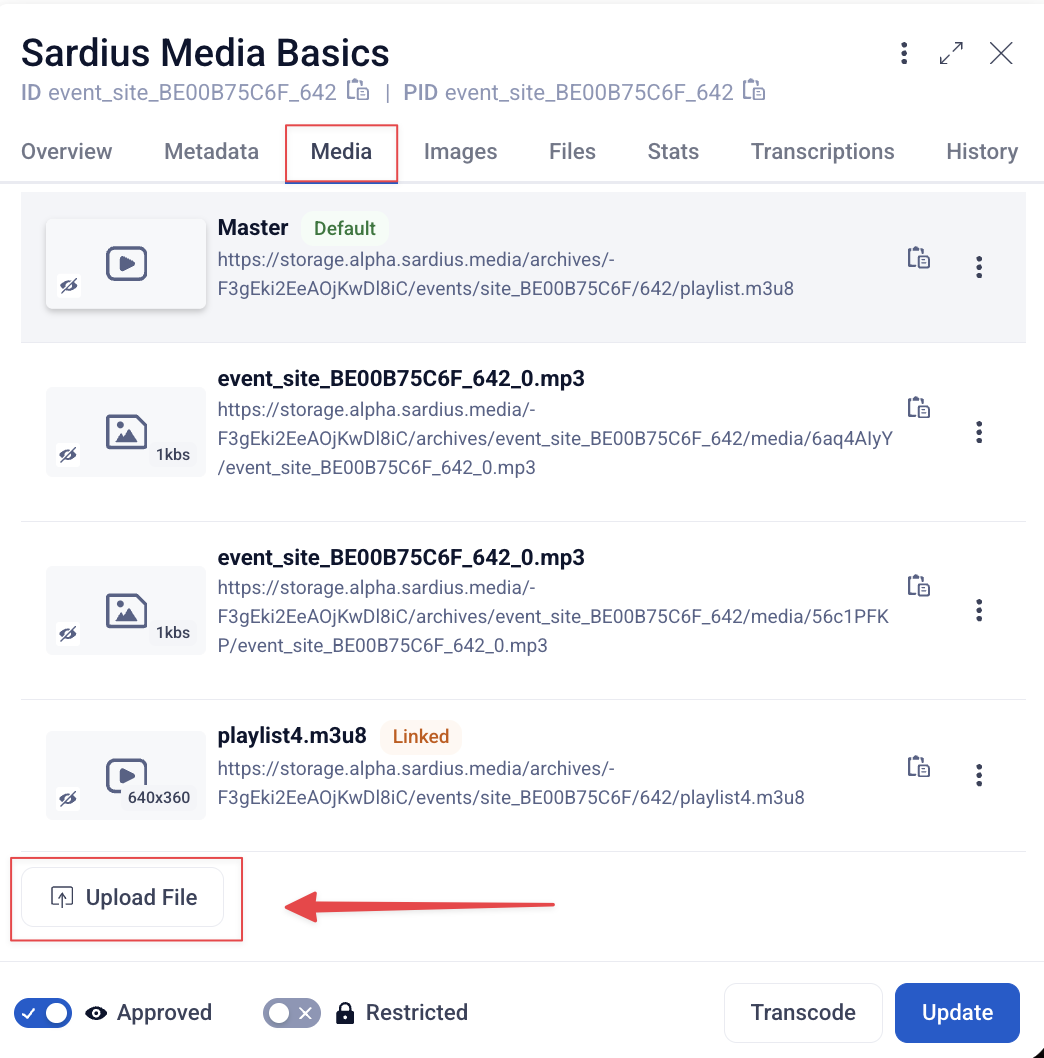
Add the Replacement Media File
You can add your replacement Media File (mp4 or mp3) to an existing asset by clicking the Upload File button at the bottom of the Media window.
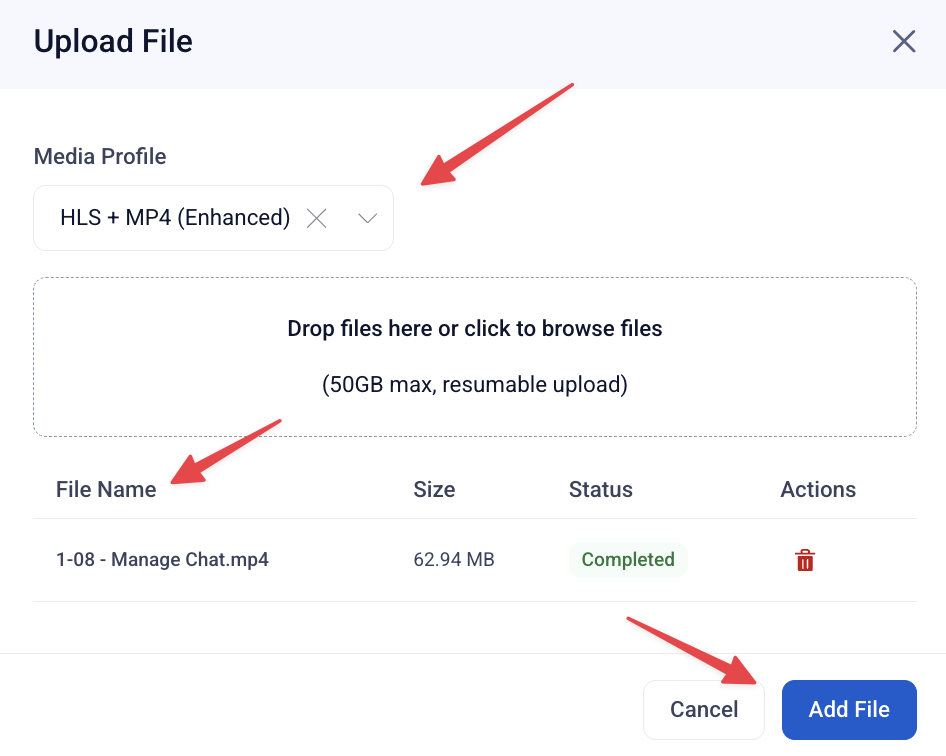
In the modal that appears, you can drag and drop (or click to locate) a file to upload from your computer. Once the upload is complete, you can select your new file, add a media profile, and click Add File.
Our system will import and publish the new file. Once complete, the updated media will be set as the default playback media.
You can also choose NOT to transcode when adding the new file. If you choose to go this route, you will need to set the new media to be the default file before transcoding.
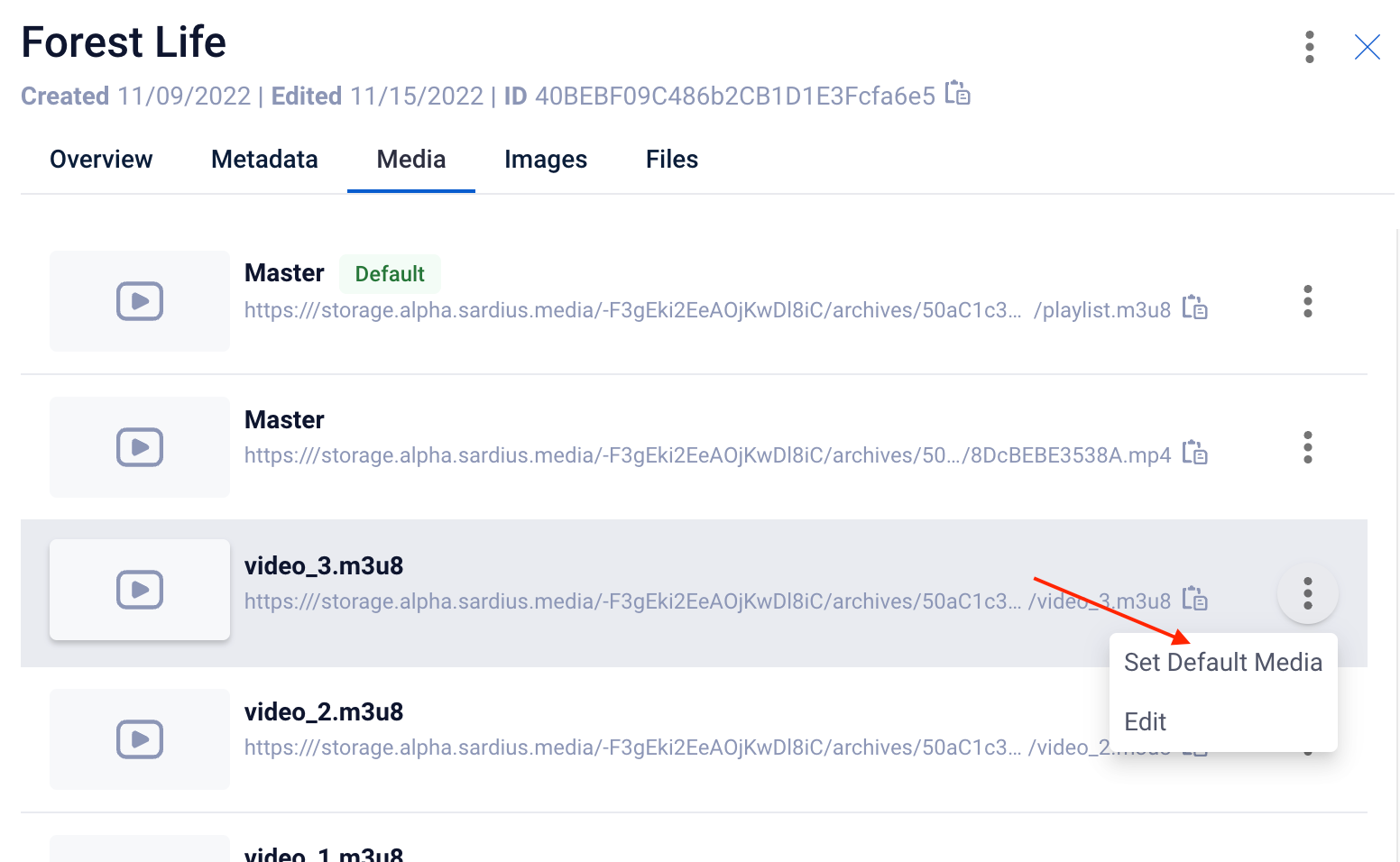
Changing the Default File
If you need to change the Default file from the original media to the replacement file, you can do this by clicking on the hamburger menu of the file that you want the default to be and selecting Set Default Media.