Export a CSV of your Viewers
Updated
Detailed Registration Information is collected in the Sardius Control Panel, which the person on your team managing Registration will be given access to. Please notify Sardius Media if others on your event team may need permissions added to their account to also see this information.
Registration Report
A CSV report can be downloaded to show all Registration information collected on a Sardius Registration/Event Channel.
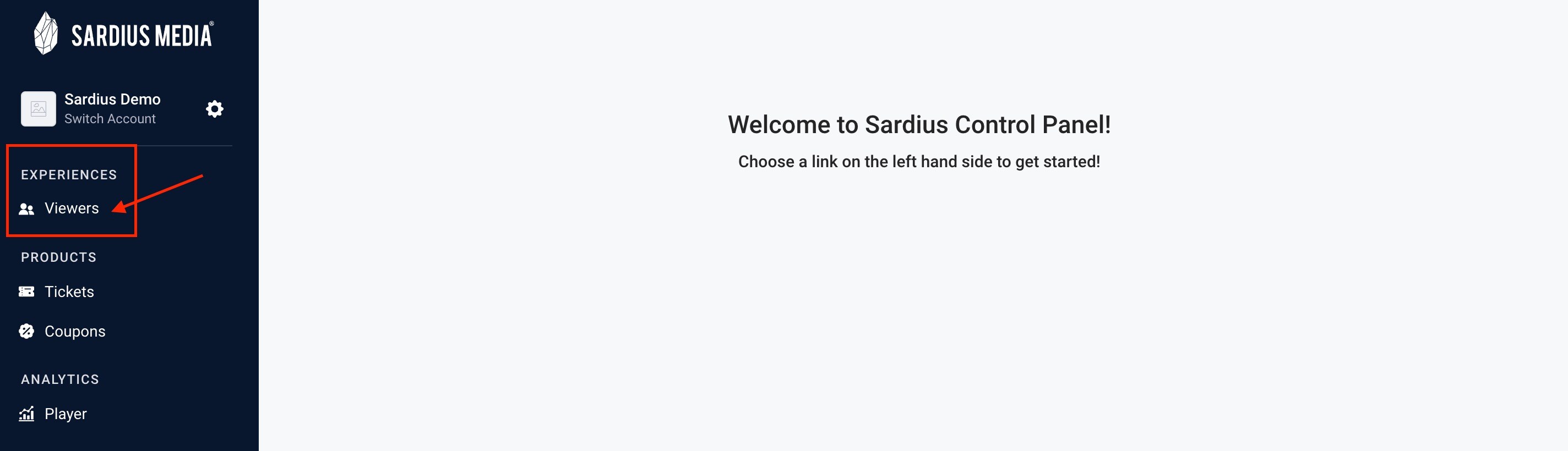
Go to Experiences section in the Sidebar and click on Viewers.
From within the Viewers area, select your Viewer Segment (usually your event name) from the options listed and click on Download CSV.

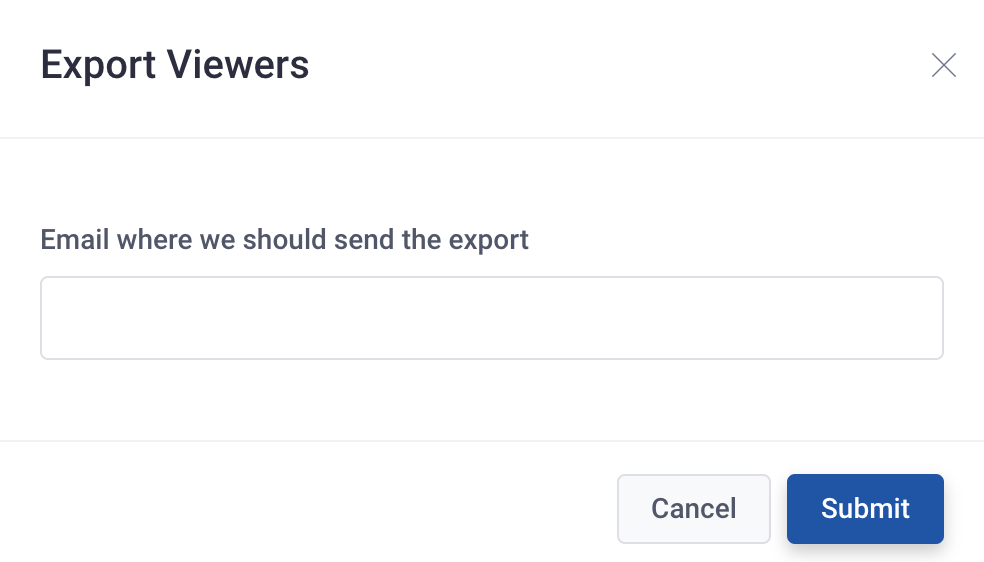
A window will appear prompting you to submit the email you would like the report sent to.
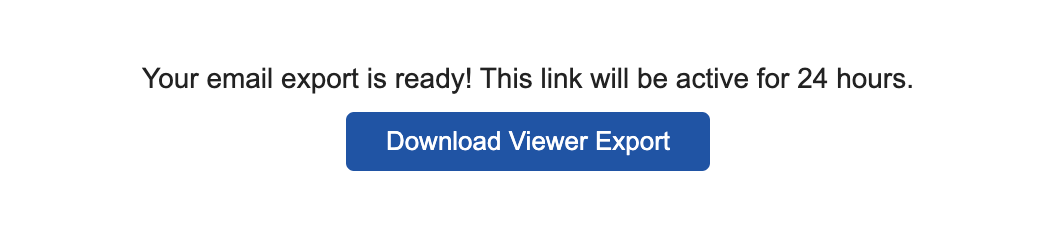
Check your email for the download link, which will be active for 24 hours.
This report includes information on the following:
- Users who have created an Account on your Registration Site
- Users who have started the Registration process (but have not yet completed the process)
- Users who have completed the Registration Process
Most reports include three main categories of information:
- Account Creation Info
- Custom Registration Fields (the information you collect from Viewers during the Registration process)
- Transaction Info
Determine if a Viewer has Completed Registration
You can easily see that a User has the appropriate access to your event if the event Viewer Segment (normally your event name) is showing in any of the “User Access” columns.
If you see “Authenticated Access”, it just means that our system has begun collecting information about this Viewer. Every entry in the export will show this, so be sure to look for your event name in this column to verify a user has completed Registration.
“Default” in the Name Field
If you see Default in the First Name or Last Name fields, it means the user generated an account on your Registration site (by using their email and creating a password), but have not yet completed the Registration process.
Our system will remember these users for 30 days so that they can easily return to complete the registration process. If, after 30 days that user returns to complete Registration, they will be prompted to Login using the Account information they previously created.
Once a user begins part of the Registration process, we will start capturing the new information, at which time those fields showing “Default” will update the Name information provided by the Viewer.
If you have a lot of users showing “Default Default” in the name fields, we recommend considering emailing these users to remind them that they have not yet completed Registration as you get closer to your event.
Report Showing Info From a Previous Event
This means you are retaining Viewership and people who attended a previous event have returned for your current one.
The CSV report will download the Viewer’s complete transaction history, which means you may see information from a previous event for that returning Viewer. If it isn’t relevant for your use case, you can hide or filter out these extra fields after downloading the report.
Viewers
Individual Registrant Information
The best way to find detailed information for a specific Registrant in the Sardius Control Panel is:
1. Log in to the Sardius Control Panel.
2. Go to the Viewers area in the left tool bar:
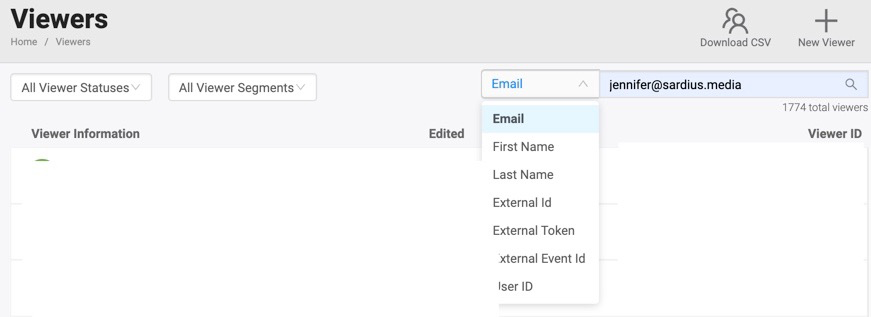
3. Search for a Viewer by using their email, Name or User ID
4. In the Viewers area, you can find the following information for each User Account:
- Profile: Information collected during Registration, including Contact Info and other customized fields you provided.
- Email History: Shows Sardius email communication with Viewer (ie. Purchase confirmation email)
- Media History: Shows how Viewer engaged with specific media content on the Registration Site/Watch Page (this data is mostly populated during the live event)
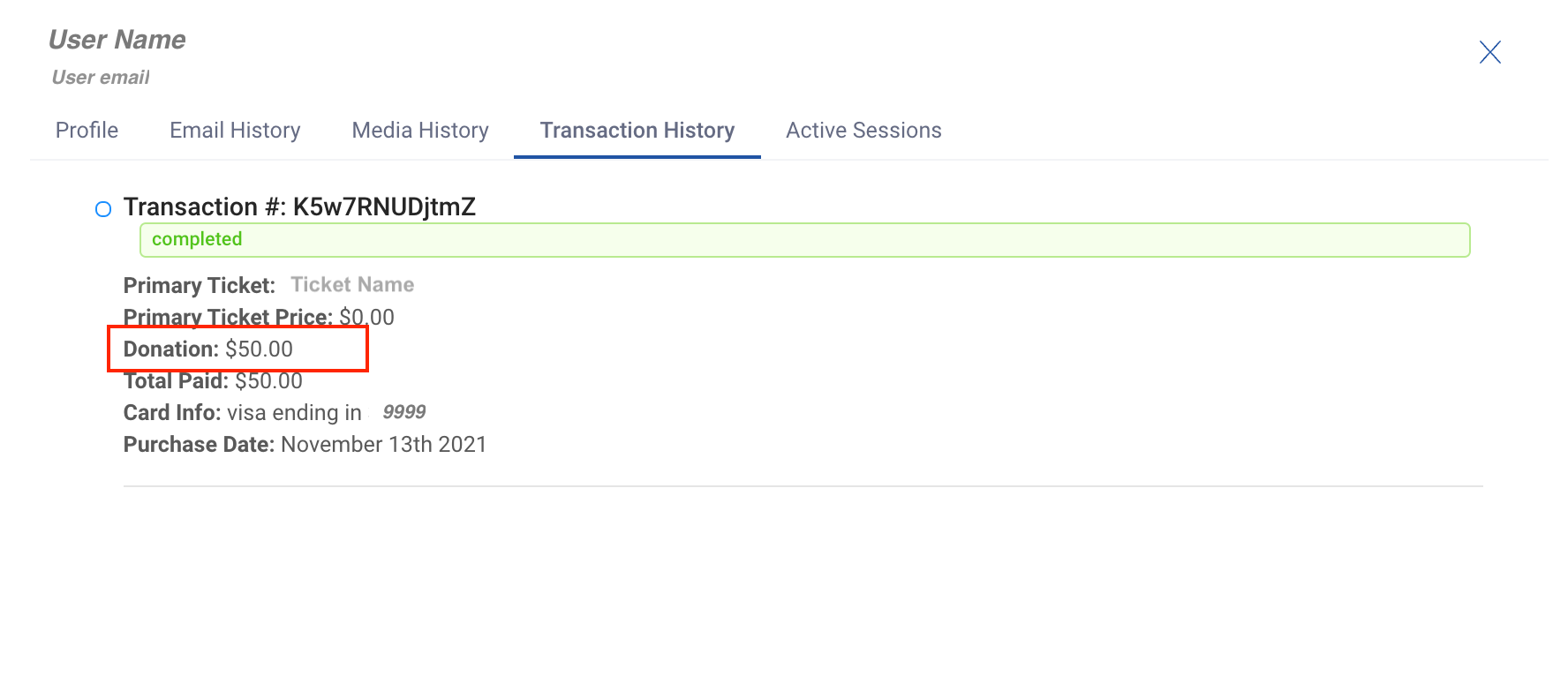
- Transaction History: Shows completed, incomplete, and pending transactions initiated by the Viewer
- Active Sessions: Shows Viewer history of how they accessed media content on the site (ie. Device info)
The example below shows Transaction History information collected for a specific Viewer.
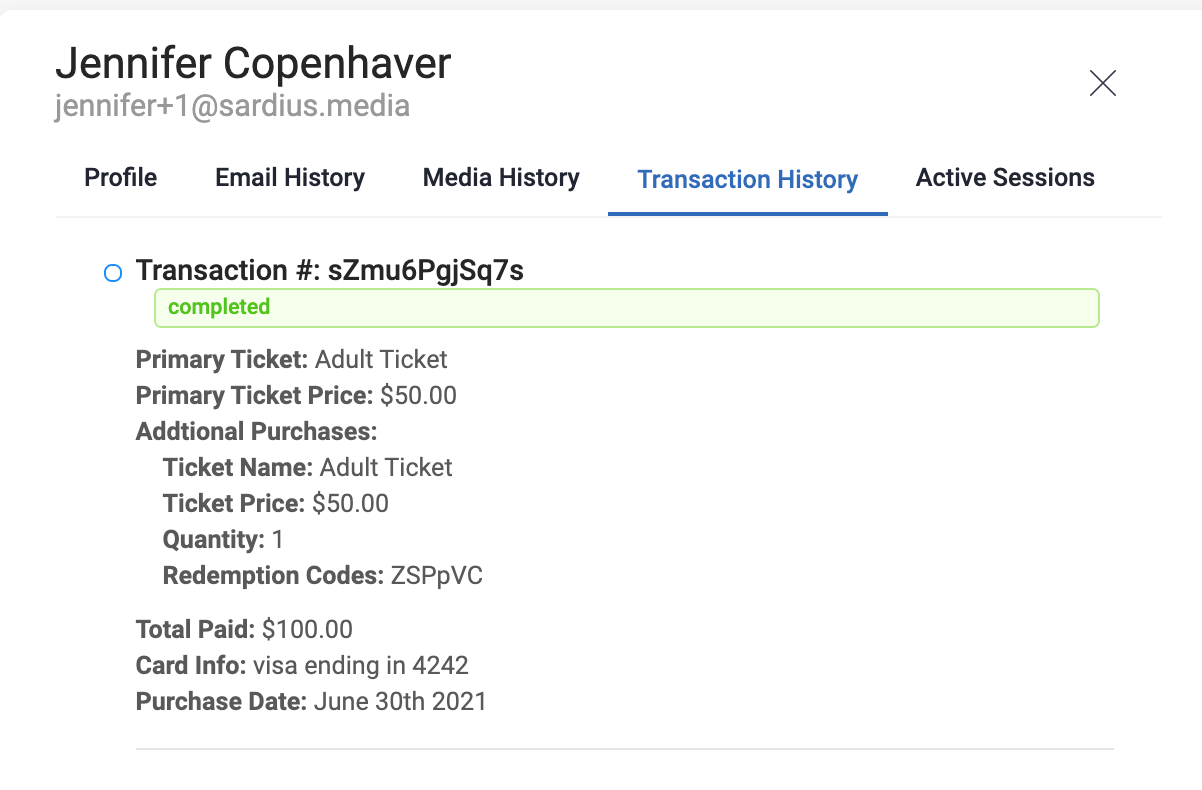
If any DONATIONS were included in the transaction, they will also appear as a separate line item in the Transaction History: