
Player (Collection 2.0)
Updated
The Player settings control how videos and media files behave within the Collection 2.0 layout. These options let you decide whether playback starts automatically, how the player behaves as users navigate the site, and whether additional files or media can be downloaded.
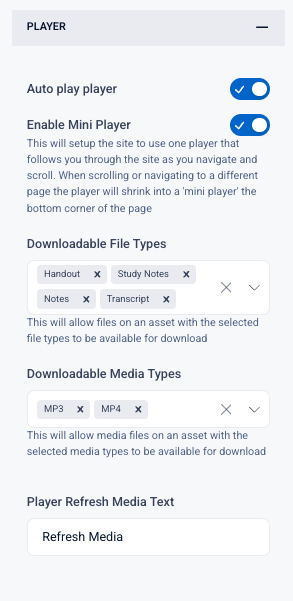 Setting Specifics
-
Auto Play Player:
When enabled, videos begin playing automatically as soon as a viewer opens them. By default, this is turned off. -
Enable Mini Player:
Activates a floating mini player that follows the viewer as they scroll or navigate to other pages. The main player shrinks into the corner of the screen, allowing continuous playback while the user explores other content.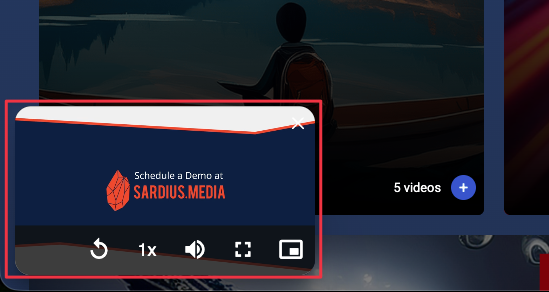
About Asset Downloads
The next two settings — Downloadable File Types and Downloadable Media Types — let your viewers download files and media directly from the Details tab of an asset.
When set up, download links and buttons appear alongside the asset's title, description, and other information, so viewers can grab what they need without leaving the page.
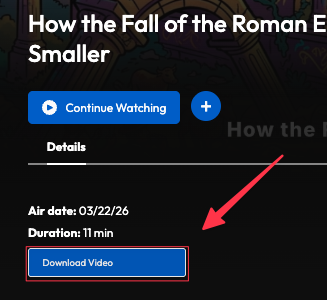
This is the simplest way to offer downloads. It works well for sites that just need to share things like sermon notes, audio versions, or a few key files.
-
Details Tab Downloads
The Details tab on a Single Asset page can display inline download options for files and media attached to the asset. This behavior is controlled by two Player settings. -
**Downloadable File Types:
**Lets you list the kinds of files you want to make downloadable — like handouts, study notes, or transcripts. The values you add here are matched against the tags on each file in your Asset library. So for a file to appear as a download, it needs to be tagged on the asset with one of the values you've listed here. Example: If you add Handout to this setting, any file tagged "Handout" on the asset will become available to download on the Details tab. -
**Downloadable Media Types:
**Lets you choose which media formats viewers can download — typically MP3 for audio or MP4 for video. These options only appear if the selected formats are actually available on the asset.
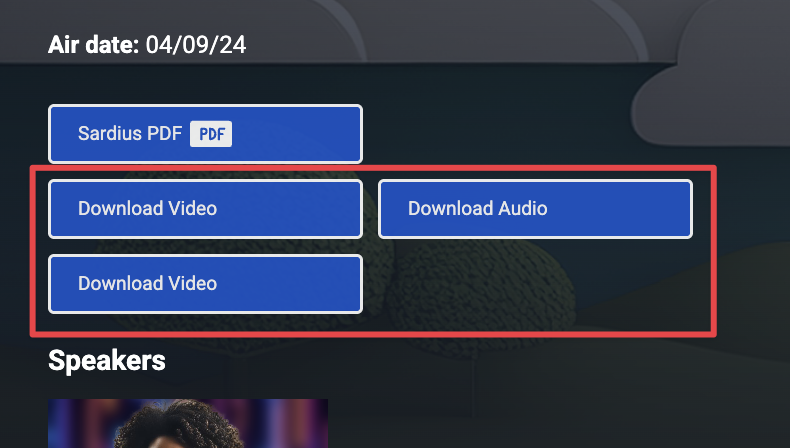
Looking for something more robust?
If you'd like a fuller download experience — with separate sections for Media, Graphics, and Files, plus thumbnails and previews — you can use the Download Tab instead. The Download Tab gives you a dedicated space for downloads on each asset page, organized by category.
-
Player Refresh Media Text:
Customizes the wording shown when the player refreshes or reloads media. This text can be adjusted to better match your brand’s tone or provide clearer instructions to users.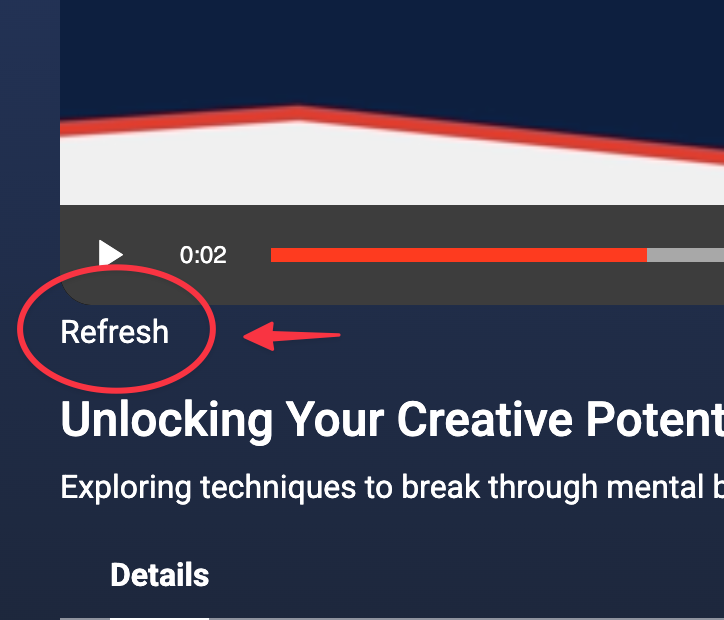
By default, only the core video player is enabled. Adding mini player functionality and download options creates a more flexible experience for viewers, while customizing the text keeps the messaging consistent with your organization’s style.
Collection 2.0 Layout Overview
- Next Article: Single Asset View: customize the layout and experience for individual content items, including playback and metadata
- Previous Article: Footer: customize the bottom bar with a logo, links, social icons, and background color.