Setting Specifics:
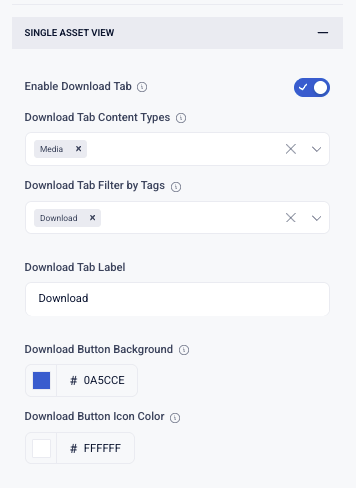
Enable Download Tab
Turns the Download tab on or off in the Single Asset View.
-
When enabled, a Download tab will appear on the asset page (if content is available)
-
When disabled, the Download tab will not be shown
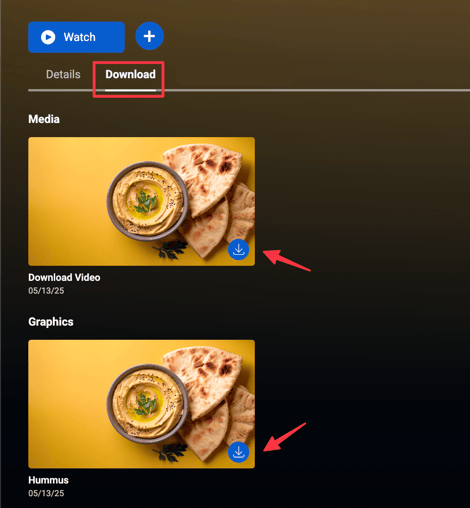
Download Tab Content Types
This setting Determines where the Download tab looks for, and grabs content from, within an asset.
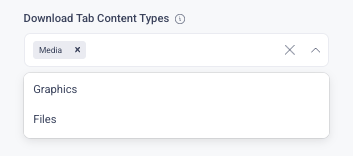
Available options include:
-
Media – Video or audio files associated with the asset
-
Graphics – Image-based assets
-
Files – Additional uploaded files (e.g., PDFs, documents)
Only selected content types will be considered for display.
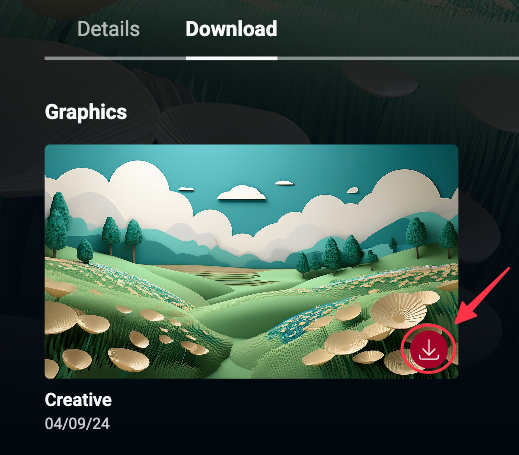
Setting Downloads & Tags in the Control Panel
-
Go your Assets library
-
Click on the correct tab type
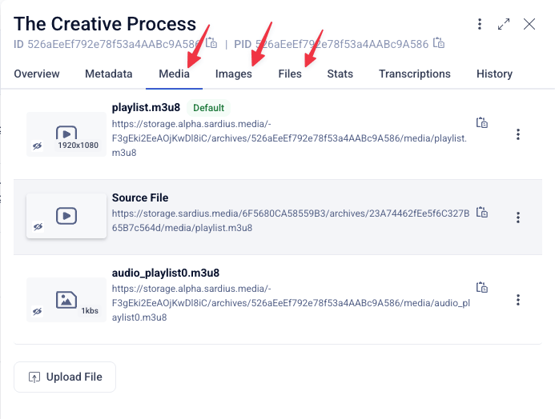
-
After clicking on the menu button (three dots), click Edit (in this case I want to make an image available for download)
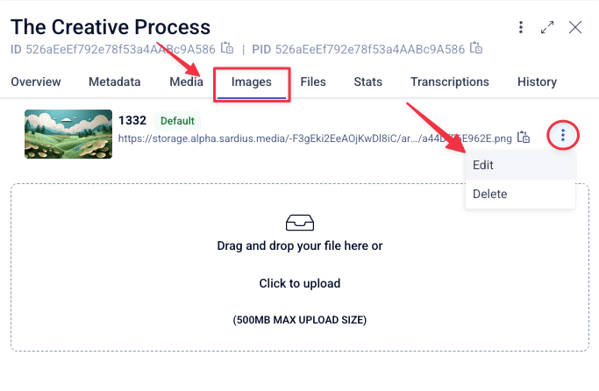
-
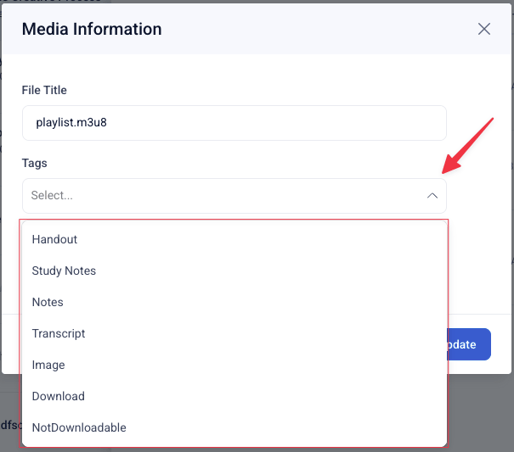
Under tags, choose the appropriate download tag
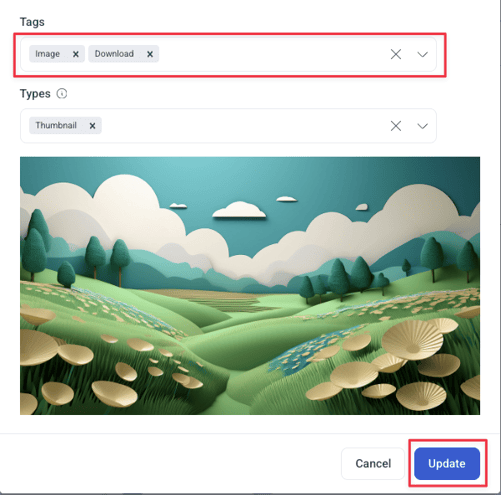
-
Now I will see the desired image in the downloads tab, under Graphics
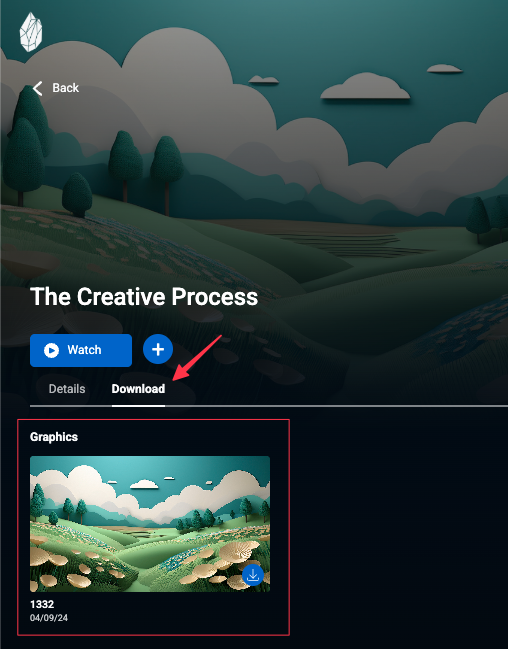
Note: If content is not tagged correctly, it will not appear in the Download tab—even if a content type is selected.
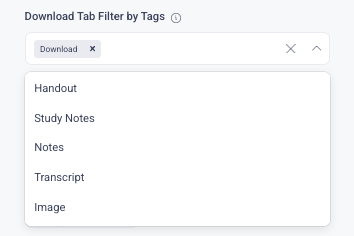
Download Tab Filter by Tags
Filters downloadable content based on assigned tags.
-
Only items that match the selected tag(s) will appear
-
Tags must be applied to the asset’s associated content (e.g., files or media)
Example:
If “handout” is selected, content tagged with handout in the control panel will be shown in the Download tab.
How Content Types + Tags Work Together
Both settings work together to determine what appears in the Download tab:
-
Content Types define where to look (Media, Graphics, Files)
-
Tags define what to include within those selections
Content must match both the selected type and tag to display
Why This Is Important
Without tags:
-
EVERYTHING from that content type would show
With tags:
-
You can control exactly what is downloadable
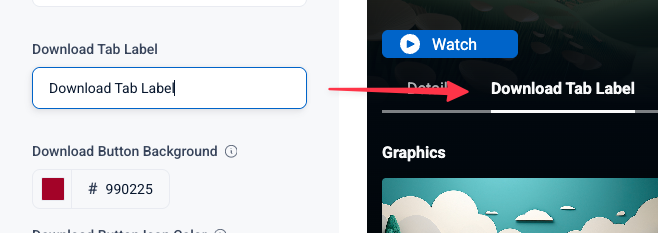
Download Tag Label
Controls the text displayed for the Download tab.
-
Example: Download, Resources, Files
-
This label appears on the asset page navigation
Download Button Background
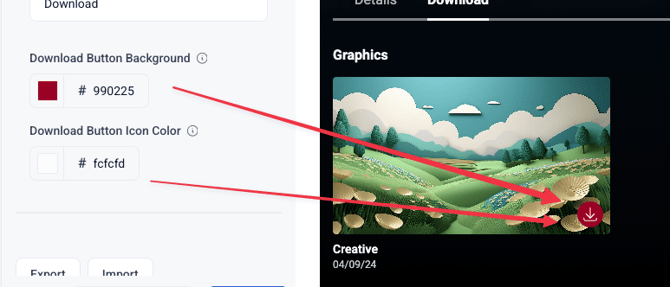
Sets the background color of download buttons within the Download tab.
-
Accepts a hex color value
-
Used to align with your brand styling
Download Button Icon Color
Sets the color of the icon displayed within download buttons.
-
Accepts a hex color value
-
Should provide sufficient contrast with the background color