
Adding Google Analytics to your Channel
Updated
Overview
You can connect Google Analytics to your Sardius channel in one of two ways. Which one works for you depends on whether your channel supports a cookie banner, so start by checking that in Step 1.
| Method | Where you add it | Cookie banner needed? | Best for |
|---|---|---|---|
| Google Analytics GA4 ID field | Channel Settings > Social > Google Analytics GA4 ID | Yes | Channels with cookie banner settings, especially those serving viewers in GDPR regions |
| Custom script | Channel Settings > Social > Custom Head Content | No | Channels with custom layouts without cookie banner settings |
Important: Use only one method per channel. Using both can block tracking or count visits twice.
Before You Begin
Make sure you have the following ready:
- Access to the Sardius Control Panel at cp.sardius.media with permission to edit your channel's settings.
- Your Google Analytics 4 Measurement ID (the ID that tells Google which property to send data to). It starts with
G-, for exampleG-XXXXXXXXXX. You can find it in Google Analytics under Admin > Data Streams > select your web stream. - For Option 2 only: the full Google tag (gtag.js) script from that same Data Stream page, under View tag instructions > Install manually.
Step 1: Check Whether Your Channel Supports a Cookie Banner
Cookie banner support decides which option will work for your channel, so check this first.
-
Log into cp.sardius.media, go to Channels, and select your channel.
-
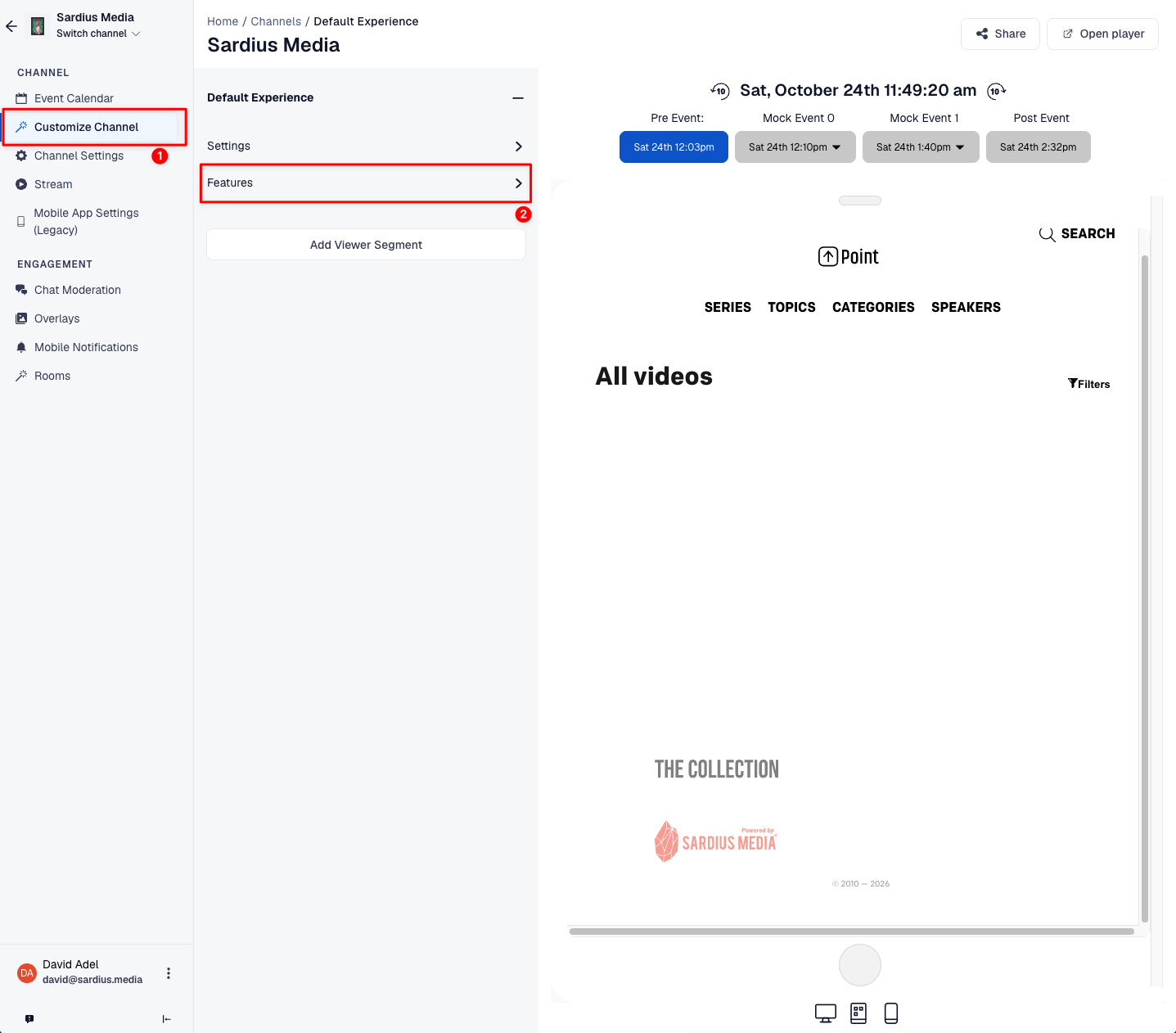
In the left menu, click Customize Channel.
-
Under your layout, click Features.
-
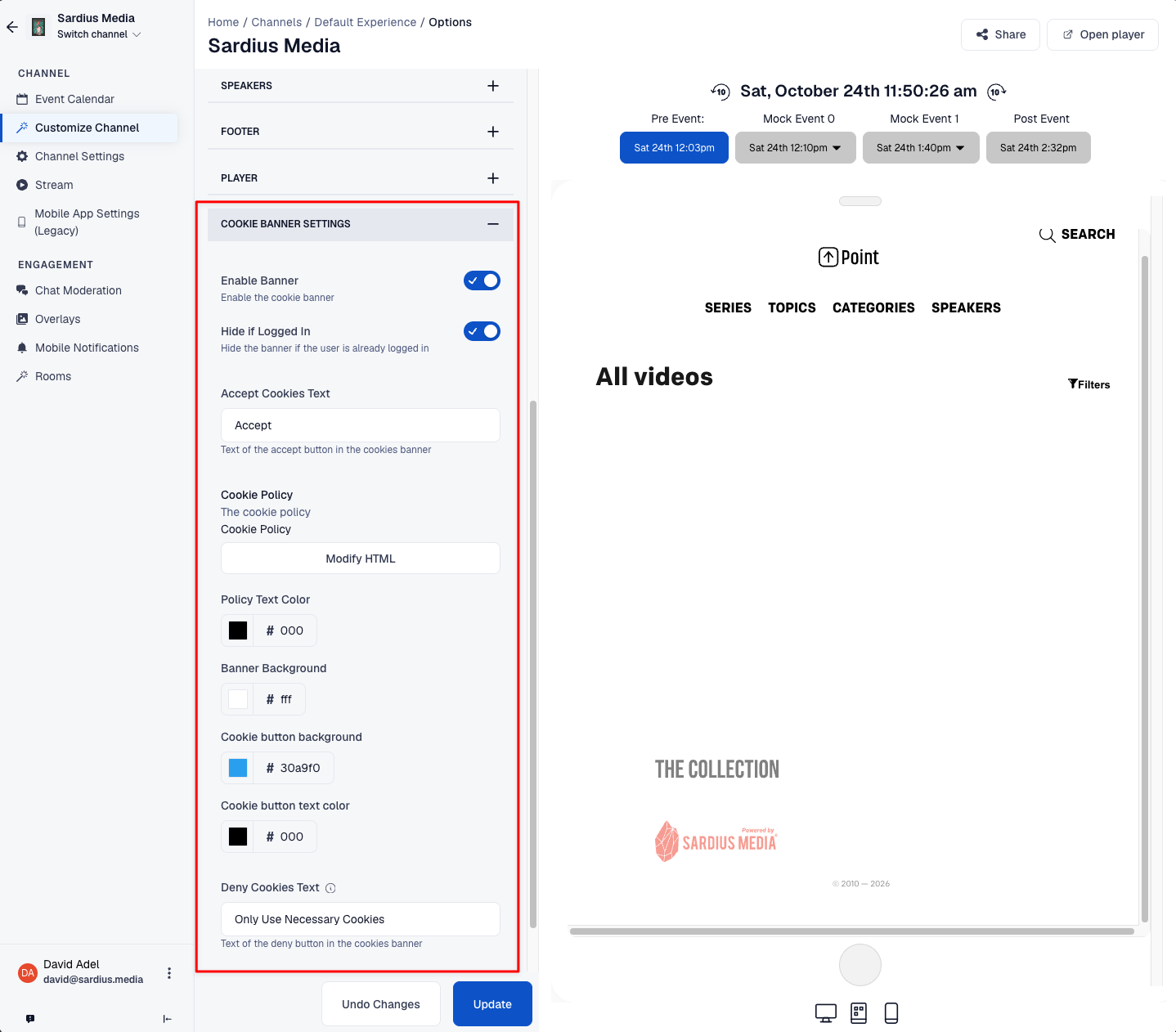
Look for Cookie Banner Settings in the list.
| What you see | What it means | Next step |
|---|---|---|
| Cookie Banner Settings is in the list | Your channel supports a cookie banner | Switch on Enable Banner, click Update, then go to Option 1 |
| No Cookie Banner Settings | Your channel's layout doesn't support a cookie banner | Skip to Option 2 |
Tip: While you're in Cookie Banner Settings, you can also change the button text (for example Accept and Only Use Necessary Cookies) and colors to match your brand. If your channel supports a banner but you'd rather not show one, you can still use Option 2.
Option 1: Add Your Google Analytics ID (Channels With a Cookie Banner)
With this method, Sardius handles Google Analytics for you. To respect viewer privacy (GDPR), Google Analytics only starts tracking after a viewer accepts the cookie banner on your channel.
-
Log into cp.sardius.media.
-
Go to Channels and select the channel you want to track.
-
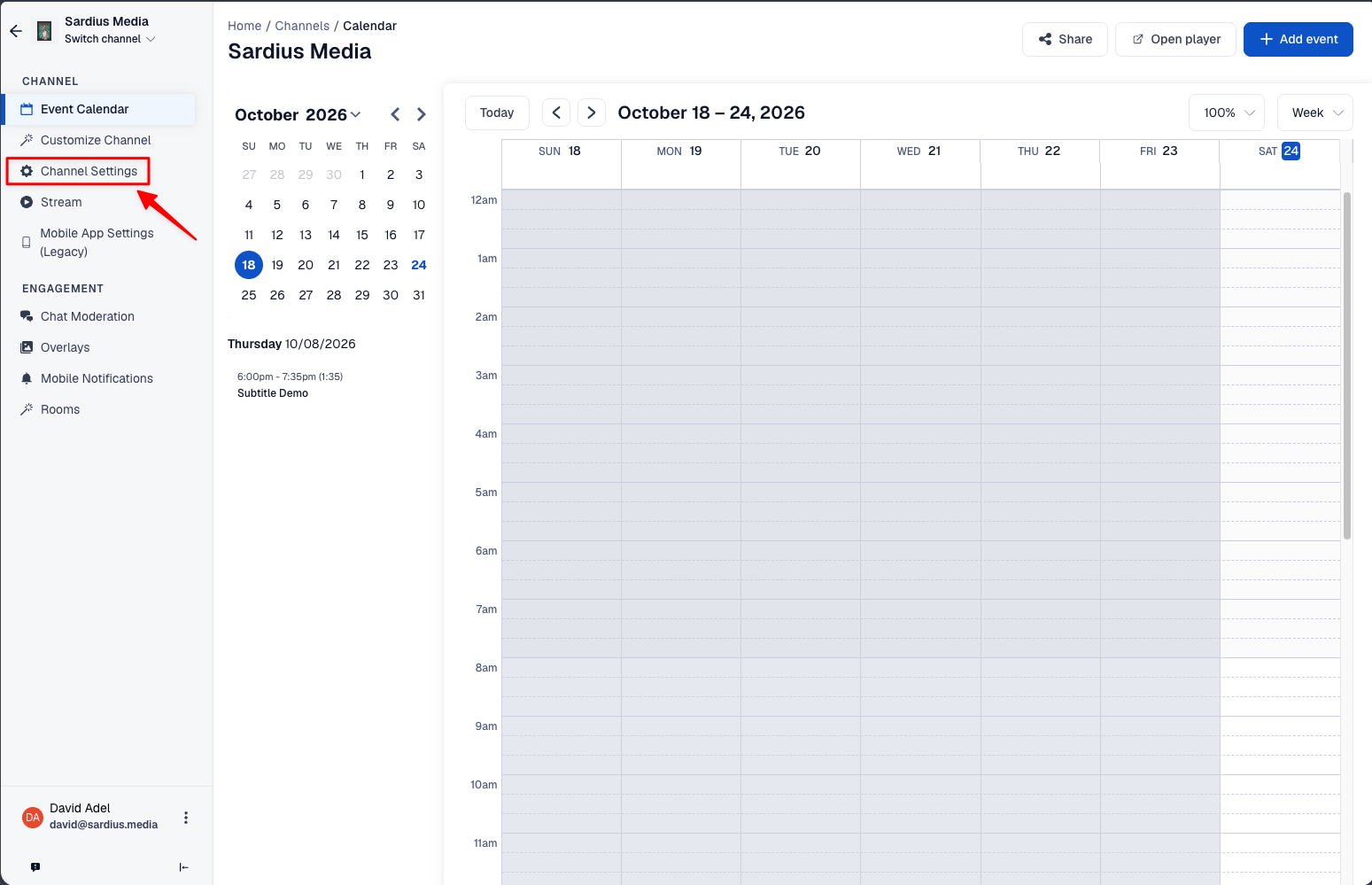
In the left menu, click Channel Settings, then select the Social tab.
-
Paste your Measurement ID (for example
G-XXXXXXXXXX) into the Google Analytics GA4 ID field.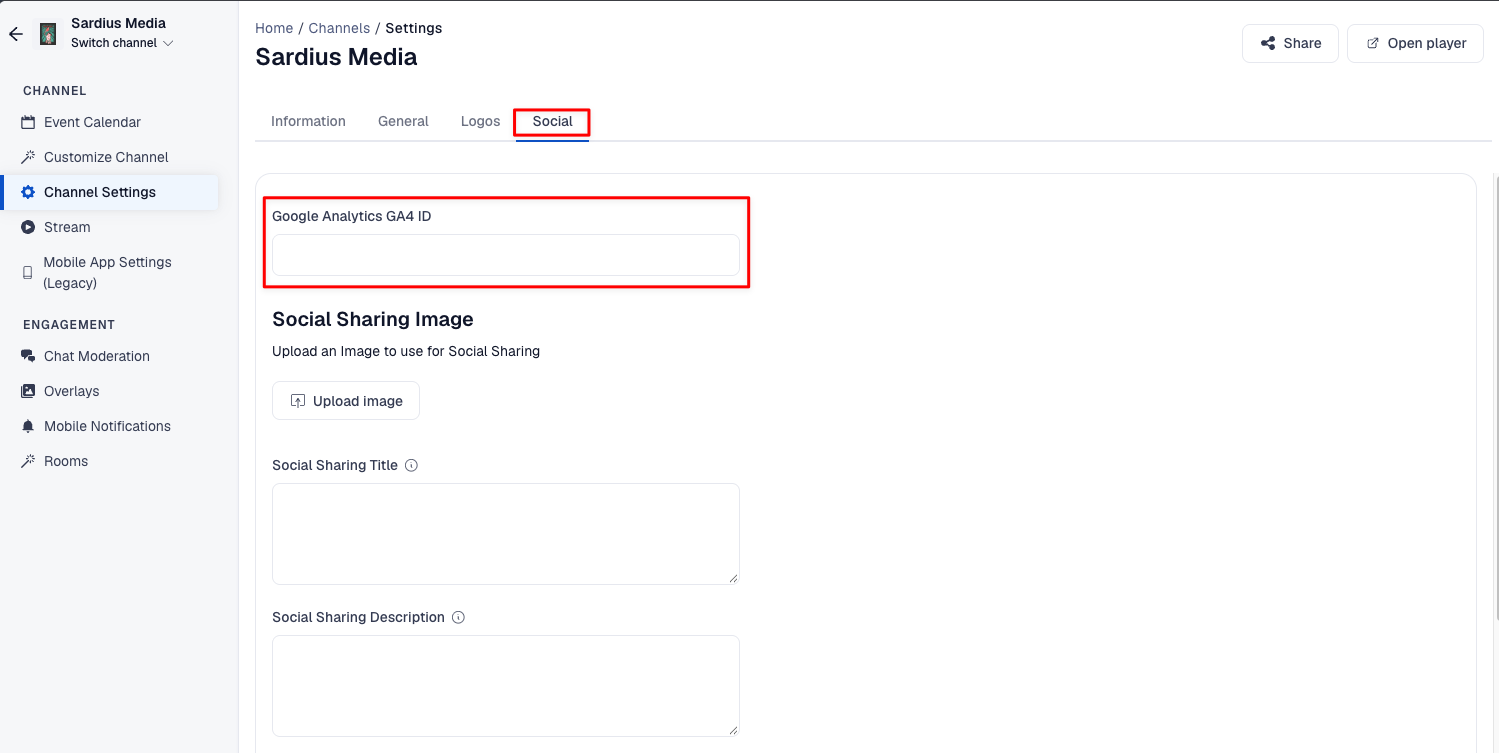
-
Make sure the Custom Head Content box further down the same tab does not also contain a Google Analytics script. If it does, remove it.
-
Scroll to the bottom of the page and click Update Channel.
Note: Make sure Enable Banner is switched on (see Step 1). Google Analytics only starts tracking after a viewer accepts the banner.
Option 2: Add a Custom Google Analytics Script (Channels Without a Cookie Banner)
With this method, you manage the Google tag yourself. Tracking starts as soon as the page loads, with no cookie banner required. This is the right choice for custom layouts that don't include cookie banner settings.
-
Log into cp.sardius.media.
-
Go to Channels and select the channel you want to track.
-
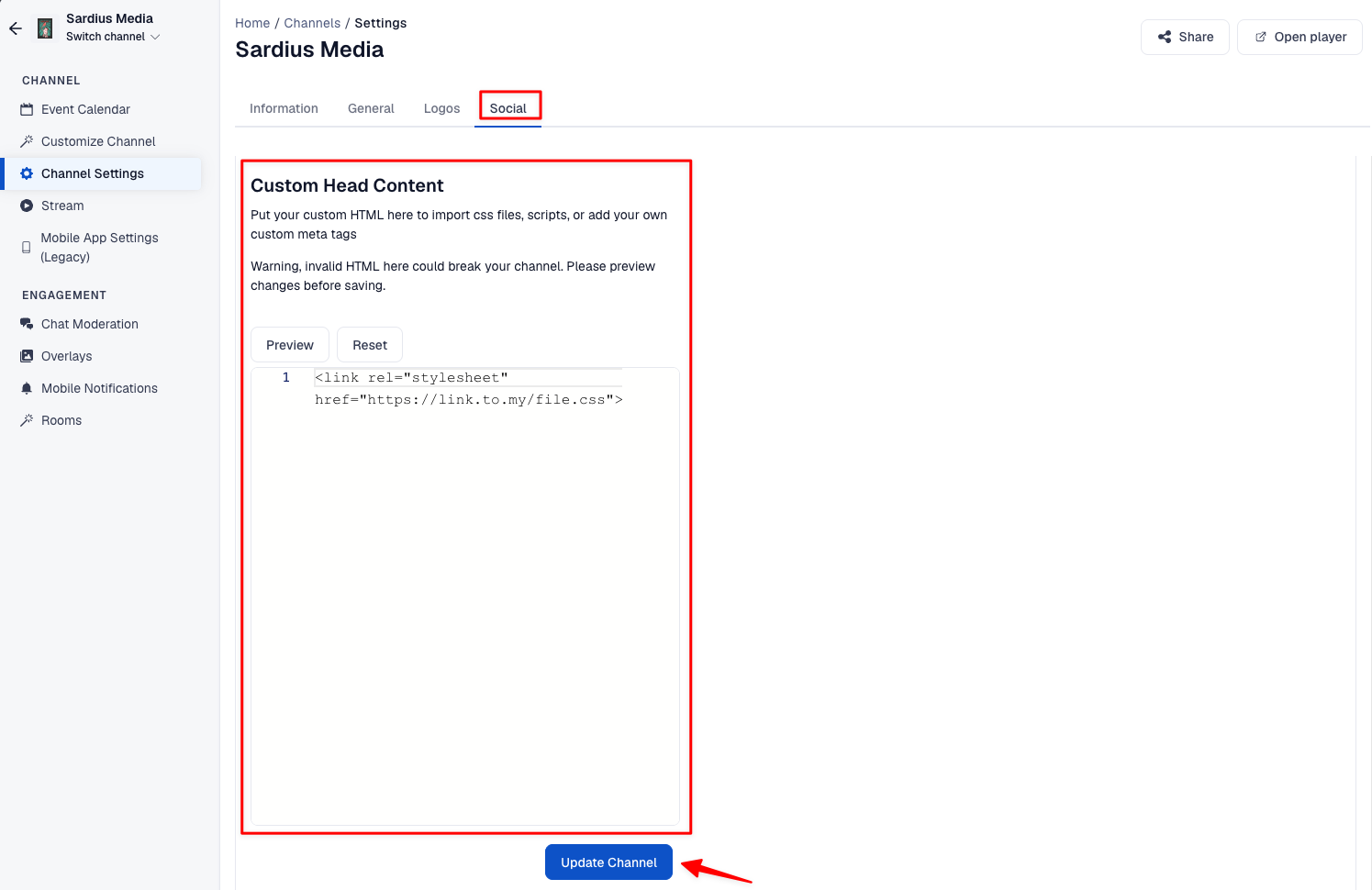
In the left menu, click Channel Settings, then select the Social tab.
-
Clear the Google Analytics GA4 ID field at the top of the tab. Leave it completely empty. If an ID is in this field, Sardius will hold tracking until cookies are accepted, which blocks your script too.
-
Scroll down to Custom Head Content and paste your Google tag into the box. It should look like this, with your own Measurement ID in both places. The first line is long, so copy the whole block:
<script async src="https://www.googletagmanager.com/gtag/js?id=G-XXXXXXXXXX"></script> <script> window.dataLayer = window.dataLayer || []; function gtag(){dataLayer.push(arguments);} gtag('js', new Date()); gtag('config', 'G-XXXXXXXXXX'); </script> -
Click Preview to check that your channel still looks right. Invalid HTML in this box can break your channel.
-
Click Update Channel below the box.
Note: You are responsible for your channel's privacy and cookie consent requirements when using this method. If you serve viewers in regions covered by GDPR, check with your legal or compliance team first.
Verify Tracking Is Working
- Open your channel in a new browser window. If you used Option 1, accept the cookie banner.
- In Google Analytics, go to Reports > Realtime.
- Within a minute or two, you should see at least one active user. That's you.
Tip: Changes can take some time to appear while your channel's cache clears. If nothing shows up right away, wait a little and try again in a private or incognito window.
Troubleshooting
| What you see | Likely cause | What to do |
|---|---|---|
No data in Google Analytics, and your page source shows ga-disable-G-... | An ID is in the Google Analytics GA4 ID field, but no viewer has accepted a cookie banner (or the channel has none) | Use Option 2: clear the Google Analytics GA4 ID field and add the script to Custom Head Content |
| Visits look doubled | Both methods are active at the same time | Keep only one: either the ID field or the custom script |
| Still no data after clicking Update Channel | Channel cache hasn't cleared yet | Wait, then check again in a private window |
| Data still missing after all of the above | Something else is blocking the tag | Contact Sardius Support with your channel name and Measurement ID |