
Taking a System Snapshot on a Makito X Encoder
Updated
A System Snapshot is a full health report of your Haivision Makito X encoder, captured in a single text file. If you're working with Sardius Support to troubleshoot a stream, this file gives our team a complete picture of how your encoder is configured and how it's performing, so we can get you back on air faster.
Using a Makito X4? The steps are slightly different. See How to Take a System Snapshot on a Makito X4 Encoder.
What's Included in a Snapshot
The snapshot captures everything our support team typically needs, including:
- Firmware and component versions
- Network settings
- Configured streams and their current status
- Video and audio encoder settings and status checks
- Startup configuration, global settings, and debug logging settings
- Loaded modules, running processes, and system traces
- Last software update log and OS statistics
Generating a snapshot is read-only. It does not change your settings or interrupt a live stream.
Before You Begin
You'll need:
- Access to the Makito X web interface (open the encoder's IP address in your browser)
- An admin login for the encoder
- A few minutes for the snapshot to finish generating
Step 1: Open the Settings Page
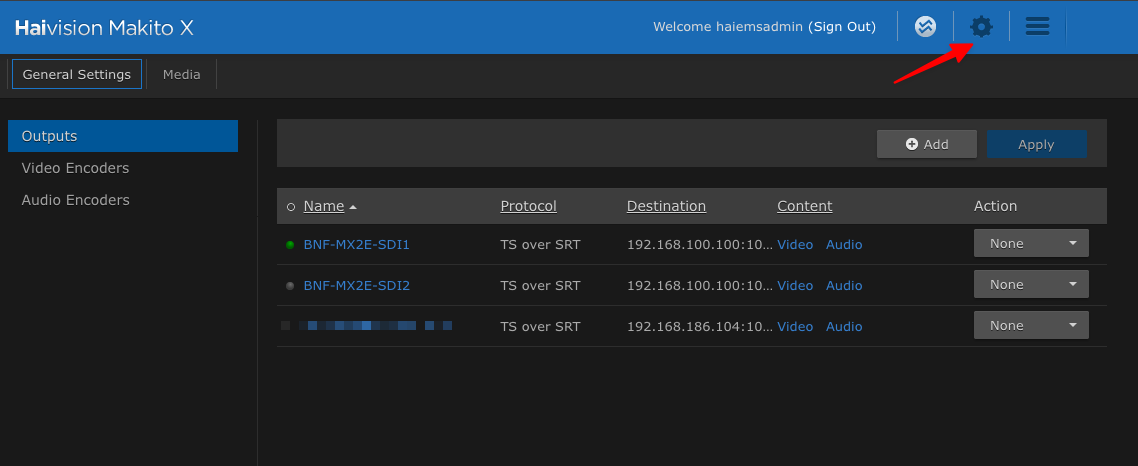
Log in to the Makito X web interface. From the top navigation bar, click the gear icon (Settings).
Step 2: Click System Snapshot
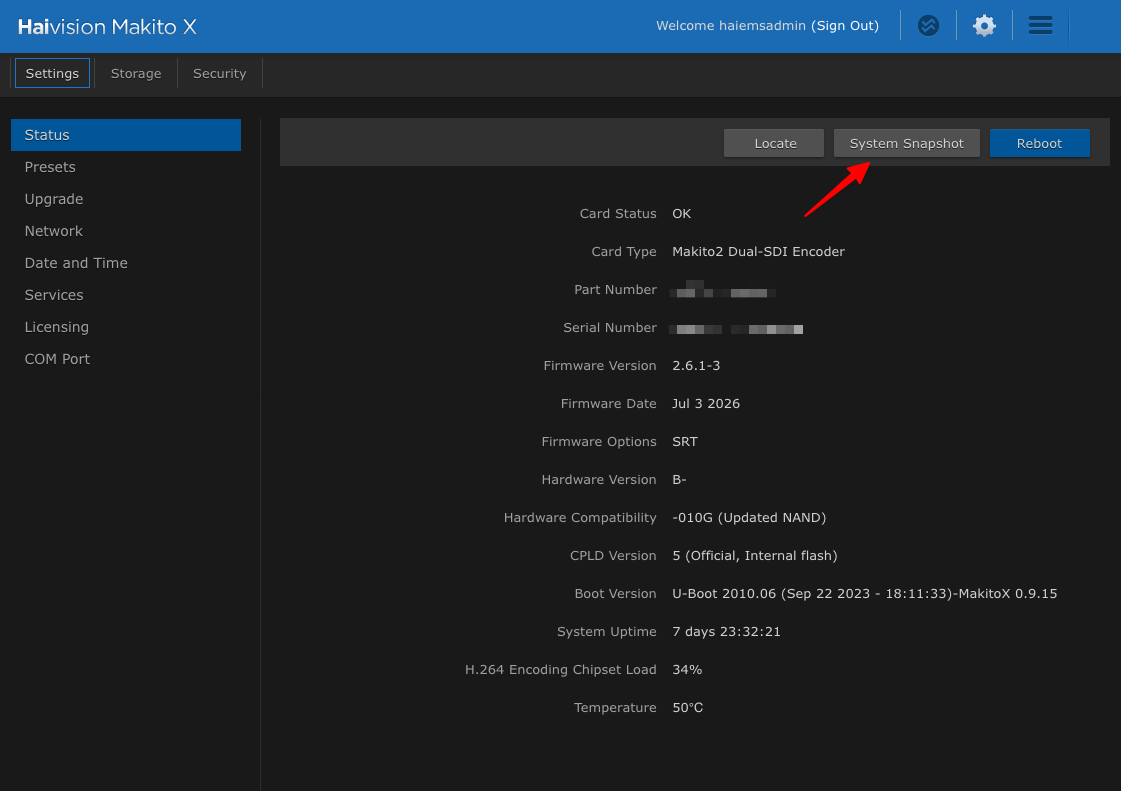
The Settings tab opens on the Status page by default. Here you'll see your encoder's card type, firmware version, uptime, and temperature.
In the top-right toolbar, click System Snapshot.
Step 3: Wait for the Snapshot to Generate
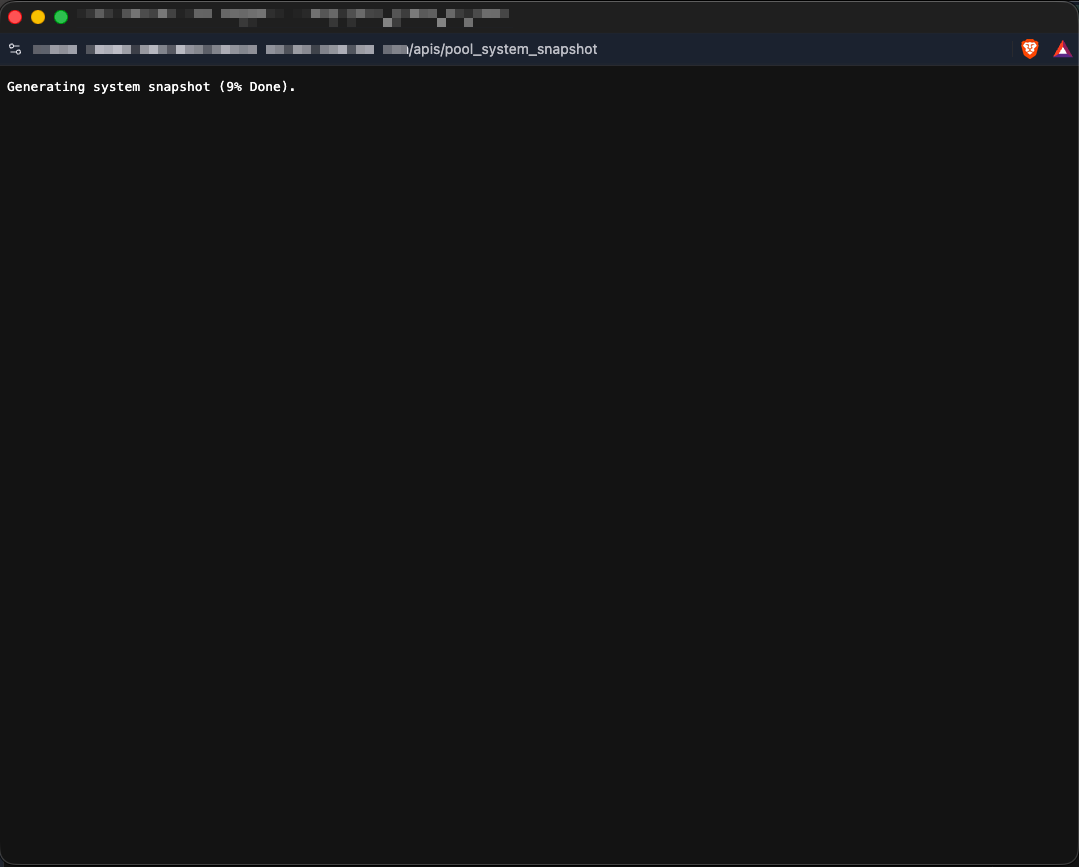
A new browser window or tab opens and displays the progress, for example: Generating system snapshot (9% Done).
Leave this window open until it reaches 100%. This usually takes under a minute but can take longer on a busy encoder.
Tip: If nothing opens, check whether your browser blocked a pop-up and allow pop-ups for the encoder's address.
Step 4: Review the Snapshot
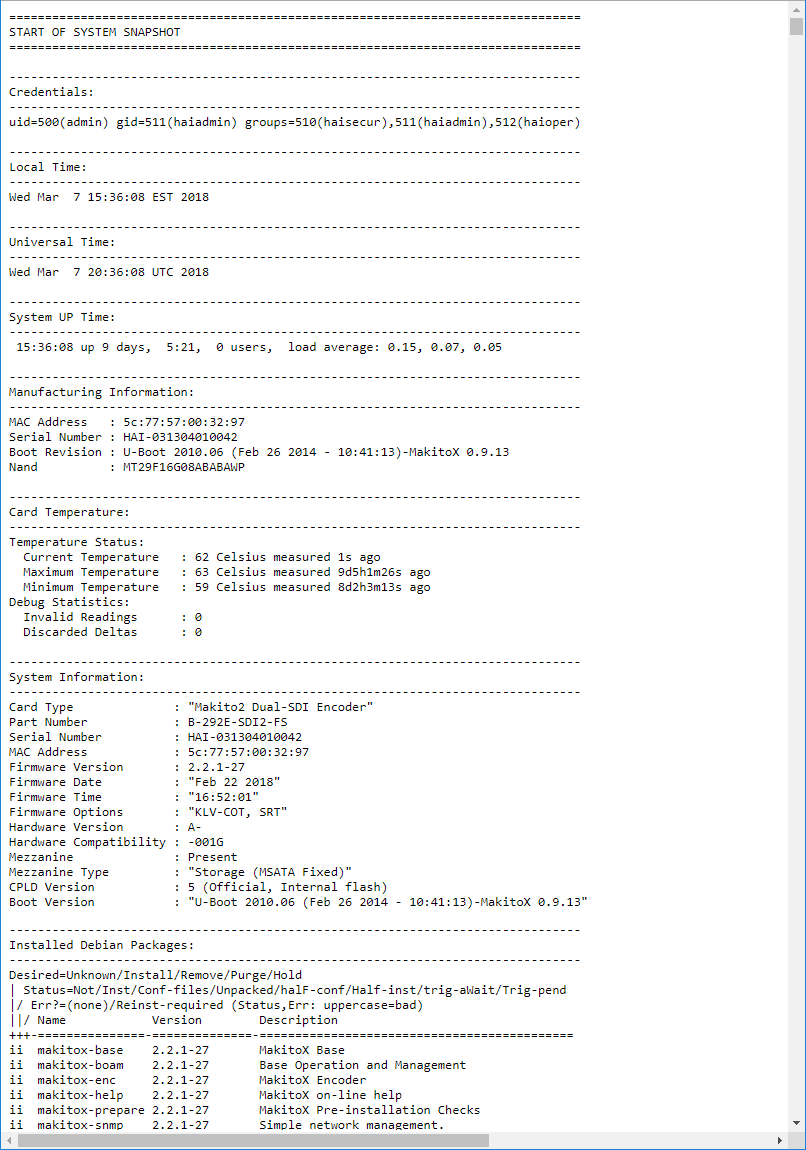
When complete, the window displays the full report, beginning with START OF SYSTEM SNAPSHOT, followed by sections such as Credentials, Local Time, System Up Time, Manufacturing Information, Card Temperature, and System Information.
Step 5: Save the File
Save the snapshot from your browser:
- Mac: press Cmd + S
- Windows: press Ctrl + S
Save it as a .txt file with a clear name that includes the encoder and date, for example: MakitoX-SDI-Snapshot-2026-10-03.txt.
Note: The snapshot contains details about your network and device configuration. Only share it with Sardius Support through your support ticket or the official support email.