
Pair a Makito X4 Encoder
Updated
Before powering up the Makito for the first time, please do the following:
- Unbox the Makito and place it in your production rack (or location where it will be used)
- Connect an SDI video signal to the Makito
- Connect a Network cable into the "Network" port
- Verify that the unit is at room temperature
- DO THIS LAST! Plug in the power cable. The Makito will automatically begin to power up.
To configure the Makito, you will need:
- A computer that is on the same network and subnet as the Makito in order to access the Makito UI.
- A separate window/tab on that same computer that is logged into the Sardius Control Panel.
Information on how to access the Makito's UI and other startup recommendations are available by clicking here: https://doc.haivision.com/MakitoX4Enc1.6.1/makito-x4-encoder-quick-start-guide/access-the-web-interface
Walkthrough
1. Log into your Sardius Control Panel
2. To pair an encoder, click the category titled Devices. This can be found just below the halfway point on the black, left sidebar.
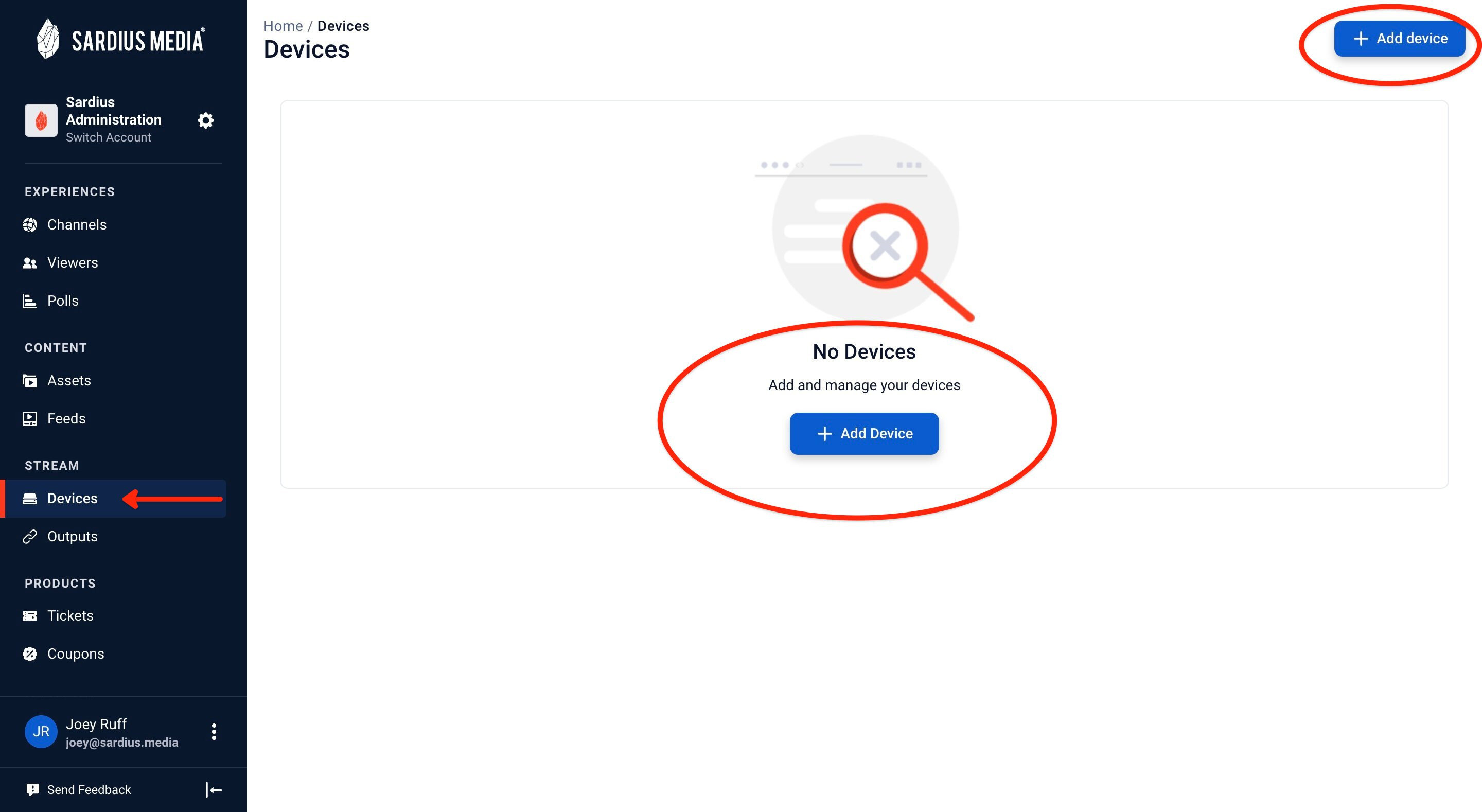
3. To pair a device, click the blue button that says + Add Device. This is found in the top right corner of the window at all times. If no device is currently paired (as in the photo above), the center of the screen will also have this button prominently displayed.
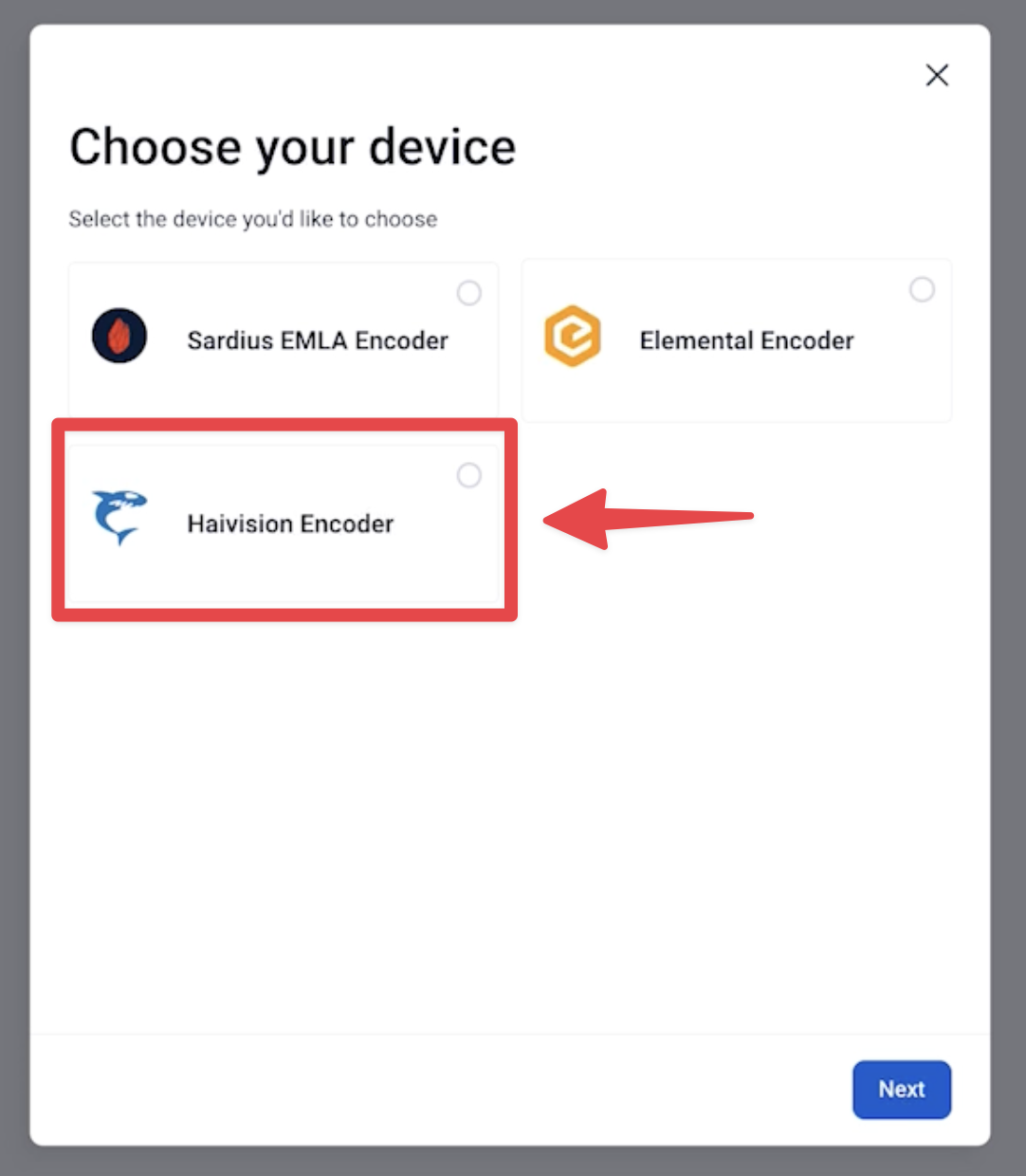
4. Select Haivision as the Encoder type.
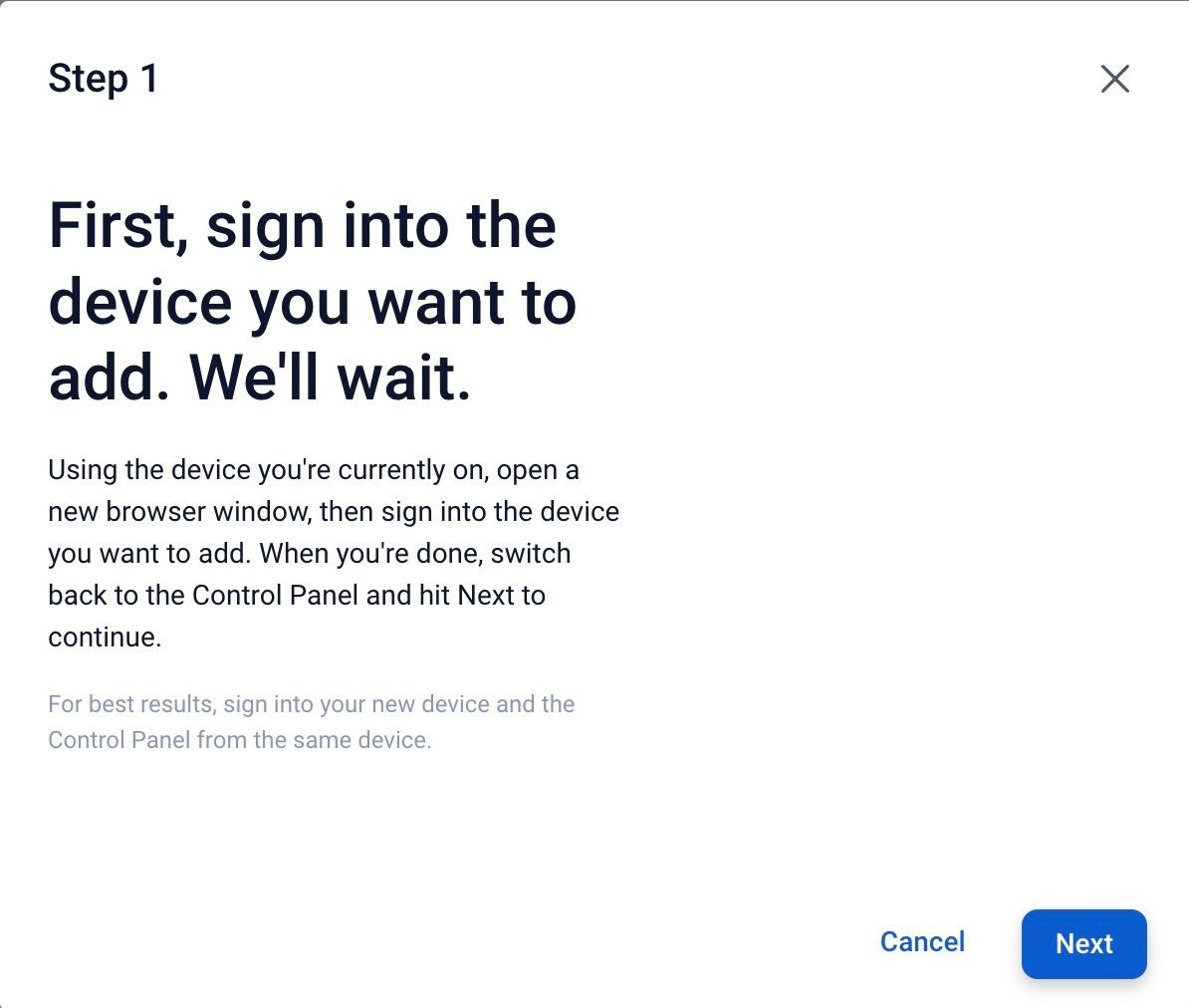
5. Sign into your Haivision Makito encoder.
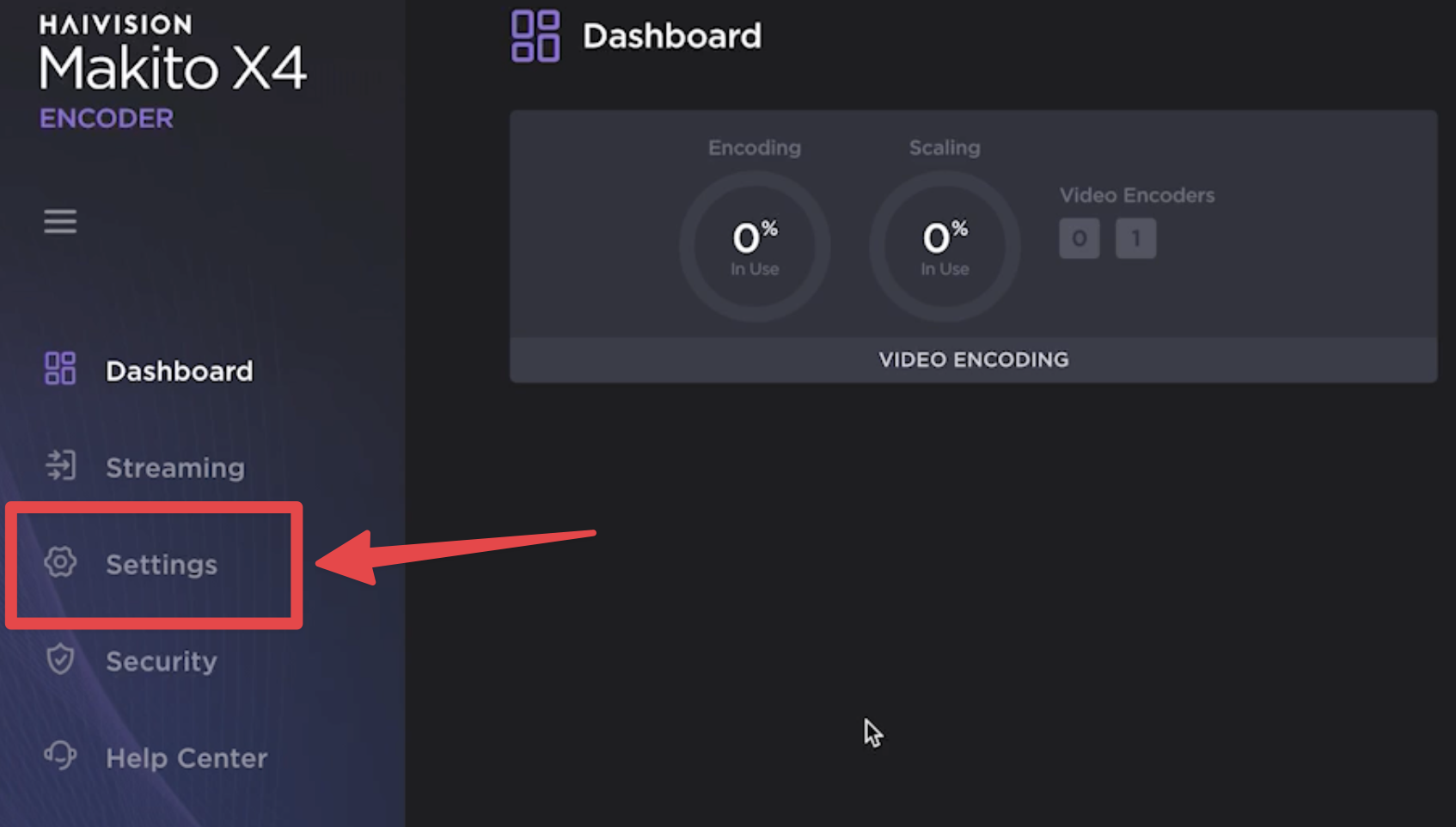
6. Once inside your Makito X4 device, click Settings on the sidebar to access the inner workings (see picture below).
7. Return to the Sardius Control Panel. Within the Device setup modal, click the button that says Copy pairing code
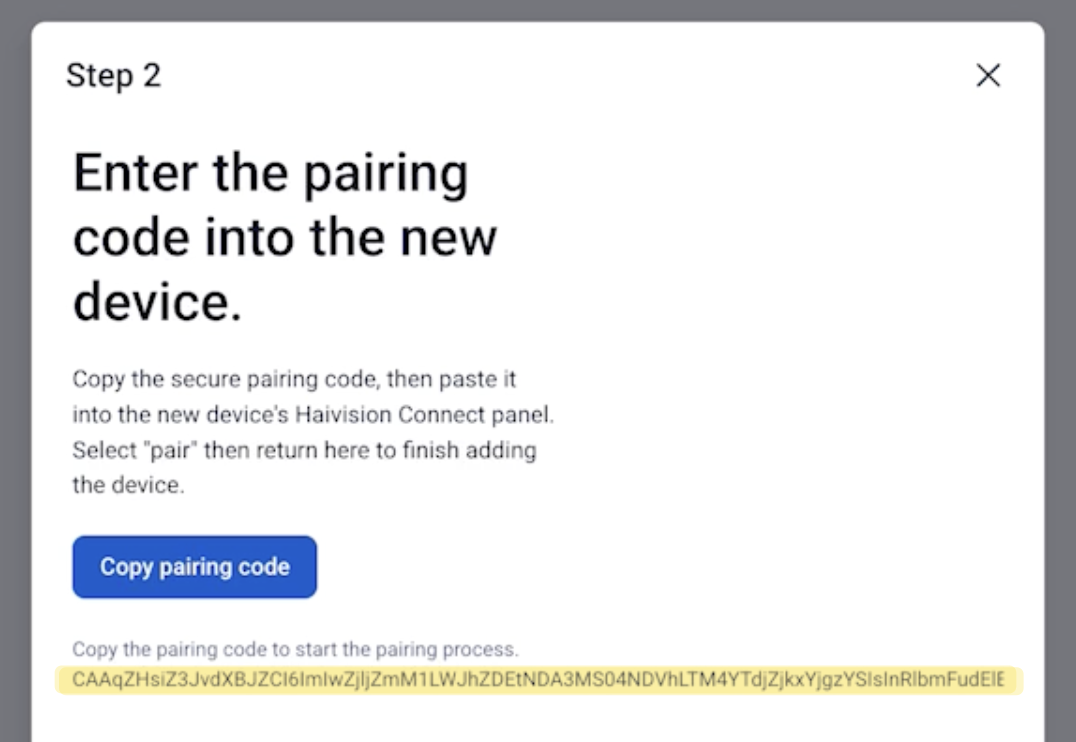
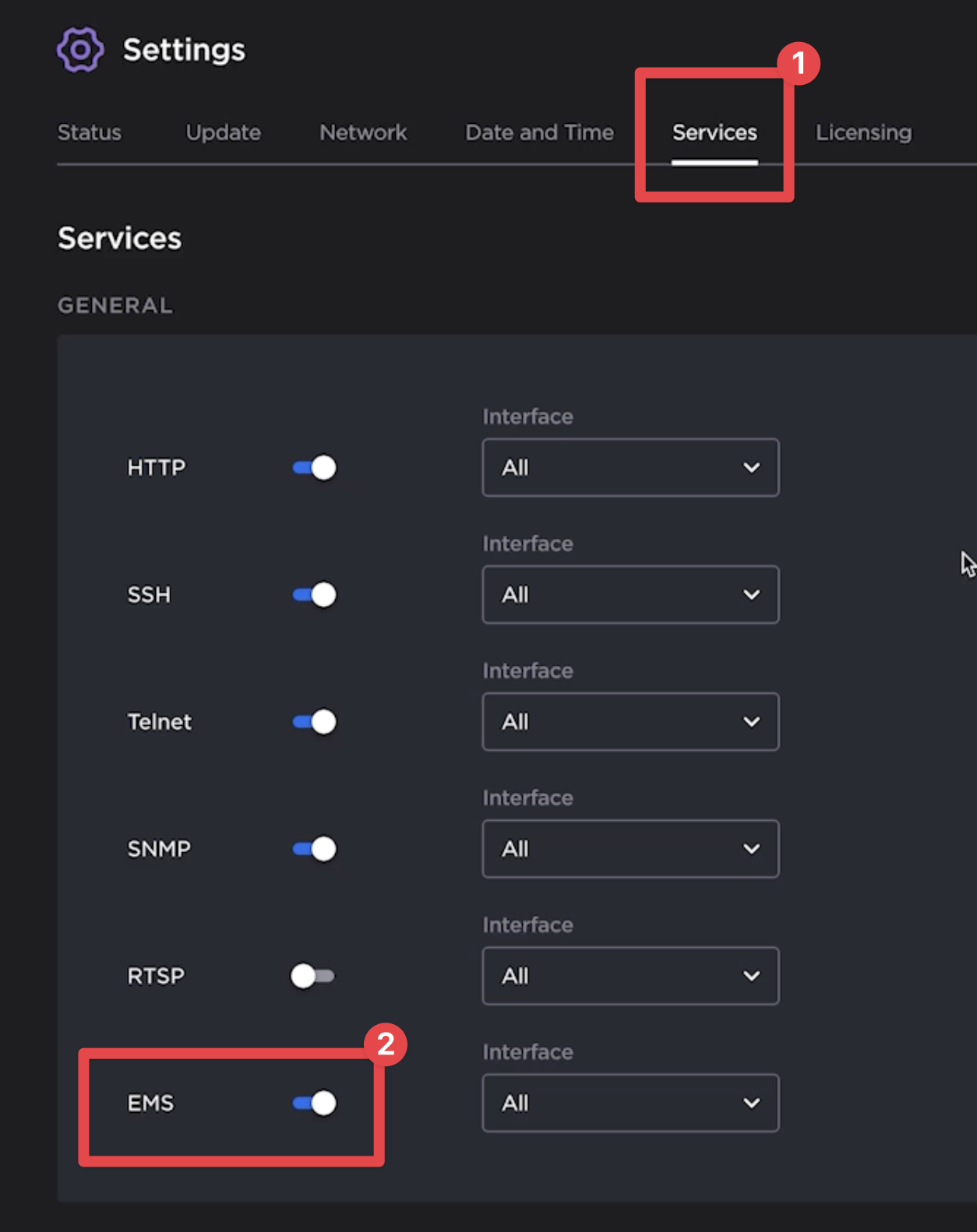
8. Back in the Makito Administration screen, click Services from the top menu, then locate the toggle for EMS. Make sure it is selected, then scroll down the EMS section.
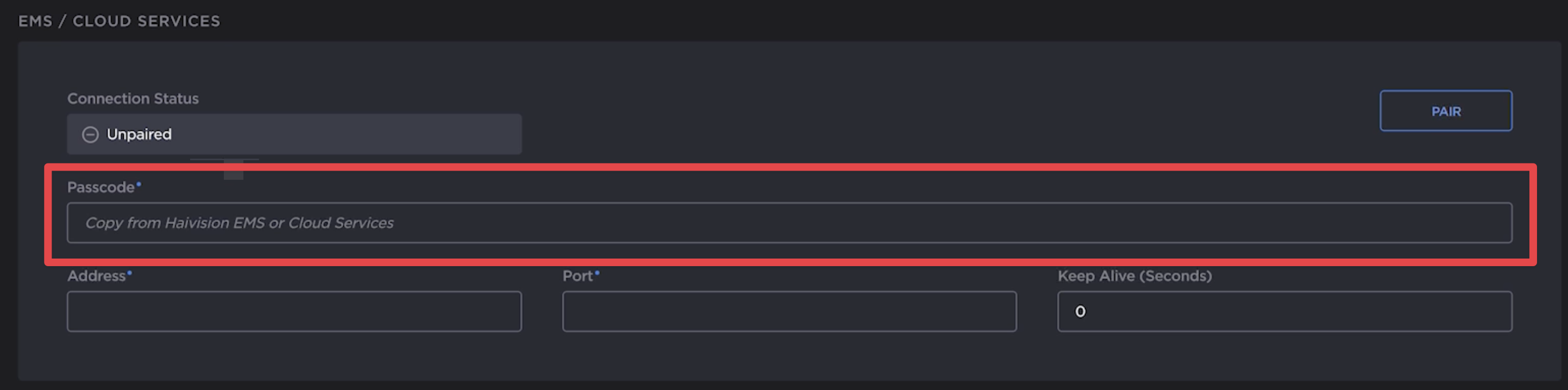
9. Paste the pairing code into the box labeled "Passcode" then click "Pair."
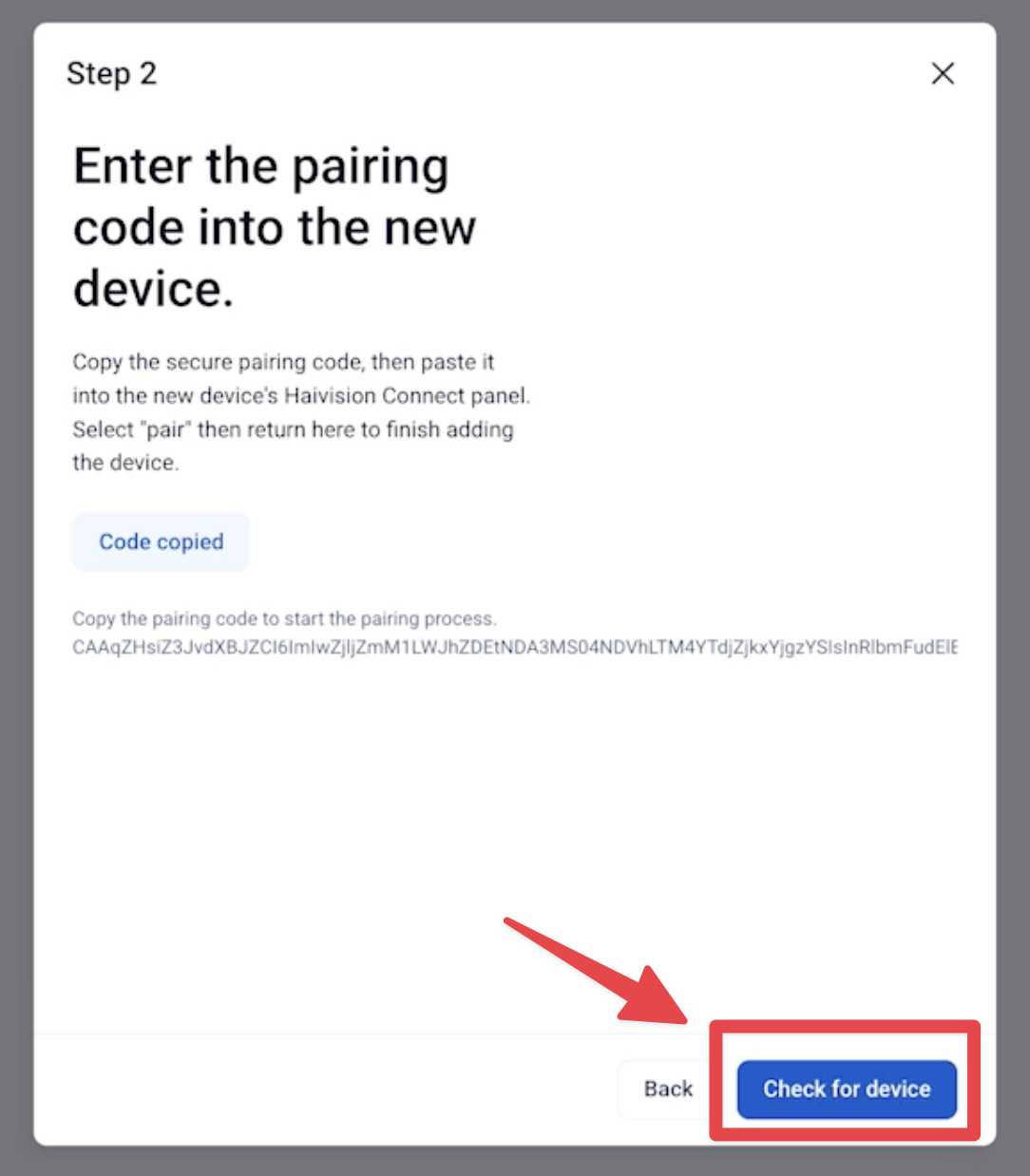
10. In the Sardius Control Panel, finish the pairing by clicking the button in the bottom right of the modal: Check for Device
Congratulations! Your Makito has been successfully paired to your account.