
How to Enable and Use the Scheduler on Your Kulabyte (KB) Encoder for Sardius Manual Streams
Updated
The scheduler allows your encoder to automatically start and stop streaming at set times, restoring automation for recurring services (e.g., weekly services).
Setting Up a Scheduled Event on the Kulabyte Encoder
1. Log in to your Kulabyte encoder's interface. Then, locate the channel you created to send an RTMP stream to the Sardius Control Panel.
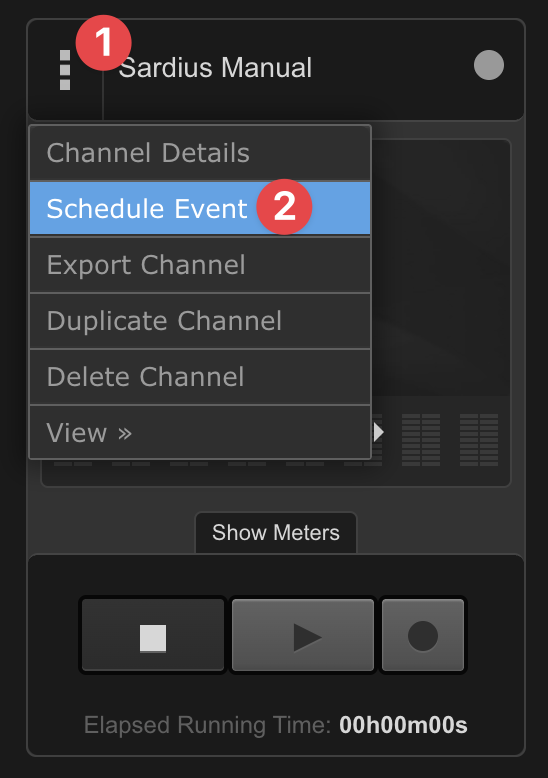
2. Click the menu/options icon next to your channel. Select "Event Schedule."
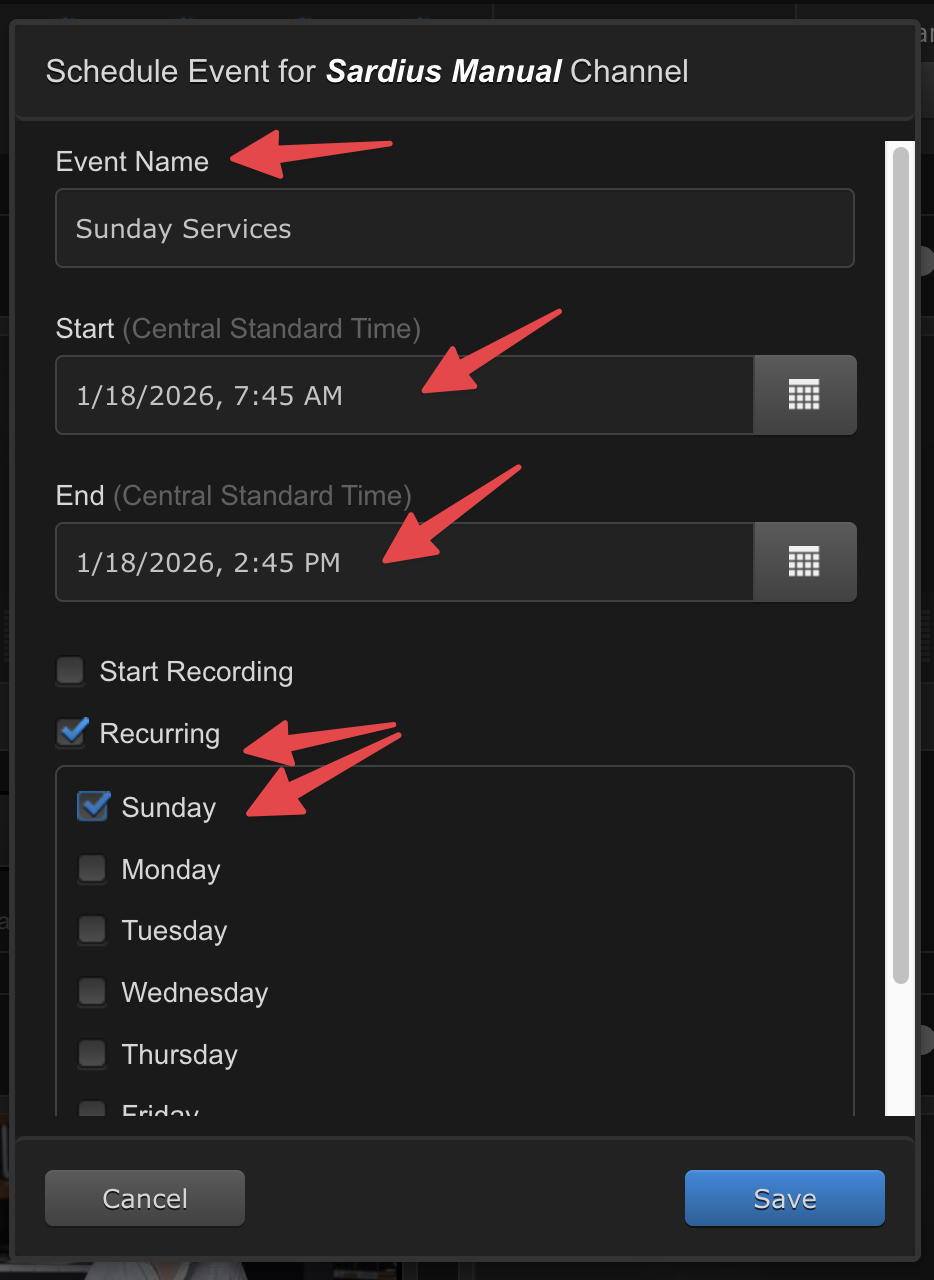
3. Configure the event details.
-
Event Name: Give it a descriptive name (e.g., "Sunday Services").
-
Start Time: Set the date and time when the channel should automatically start streaming (e.g., Sunday at 7:45 AM).
-
End Time: Set the time when it should stop (e.g., 2:45 PM for a 6-hour block covering multiple services).
-
Recurring: Enable recurrence if needed (e.g., repeat every Sunday). Select the frequency (weekly) and any specific days. This ensures the schedule runs automatically on future dates (e.g., January 18th, 25th, etc.).
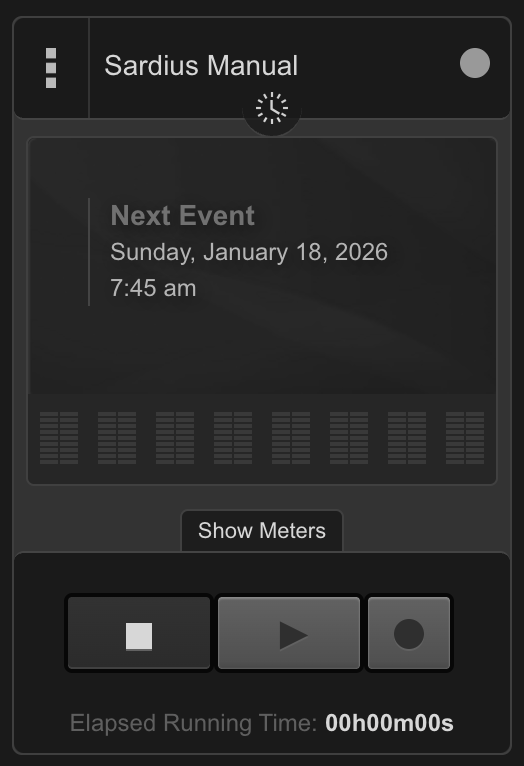
4. Click Save. A small scheduled service icon will appear on your channel, showing the upcoming dates/events. The channel status will update to show the "Next event" time.
In the Sardius control panel, you can now schedule your corresponding events in the Event Calendar. Be sure to have your Event start 5 minutes after your encoder starts, and then end five minutes before your encoder ends.
When the encoder starts, a preview will appear in your channel's Stream Status page, and the channel will go live (with YouTube/Facebook connecting automatically if added to the Event).
Additional Tips
-
You can create multiple scheduled events on the same or different channels (e.g., one for main services, one for youth services, one for memorials/funerals).
-
The scheduler runs independently on the encoder. Sardius will detect the incoming stream and handle distribution to your web player, YouTube, Facebook, etc.
-
If you need to combine multiple Sardius channels into one Kulabyte input or create advanced configurations, contact Sardius support.
-
Always test a new schedule with a short event to confirm start/stop timing and stream stability.
If you encounter issues or need help with your specific setup, reach out to the Sardius support team. We're happy to guide you or assist with custom configurations.