
How to Set Up Password-Only Access for a Channel
More in ChannelsYou’re on: How to Set Up Password-Only Access for a Channel
Password-only access lets viewers into a channel with one shared password: no account, no email, no registration.
How it works
When a viewer enters the correct password, the channel opens the viewer segment you choose. Viewers are never signed in to an account. Each person is treated as a separate guest.
What your viewers see
- They open the channel link.
- A screen asks for a password only.
- They enter the password you shared with them.
- The channel opens with the layout you built for that viewer segment.
Common uses: staff-only or leadership streams, conference or event attendees, and private ministry or partner broadcasts.
What to know before you start
- Chat works normally. Each viewer picks their own display name and is treated like a guest.
- Refreshing the page asks for the password again. Viewers aren't signed in, so if they refresh or reopen the page, they'll need to re-enter the password.
- Analytics count viewers as guests. Viewing activity is tracked the same way as visitors who aren't signed in, under the viewer segment you choose. Because there are no viewer accounts, you won't see data for individual people.
- Account-based features aren't available. Profiles, watch history, Resume Watching, the account menu on Collection layouts, and active session limits all require a viewer account. If you need these, use a standard login where each viewer signs in with their own email and password.
You'll need:
- A channel that already exists in the Control Panel
- The password you want viewers to use
How to set up password-only access
When you're done, your channel will have two experiences:
- Default Experience: the password screen everyone sees first
- Viewer segment experience: the channel content viewers see after entering the password
Complete the steps in order. Building what viewers see first means they never land on an empty page after entering the password.
Step 1: Create a viewer segment
A viewer segment is a group of viewers who see a specific version of your channel. With password-only access, this segment is what opens after viewers enter the password.
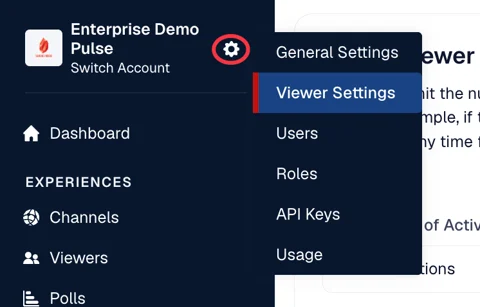
- In the Control Panel, click the gear icon next to your account name and select Viewer Settings.
- In the Viewer Segments section on the right side of the page, type a clear name in the Add a new access level field, such as Leadership Conference or Staff Stream.
- Click Add.
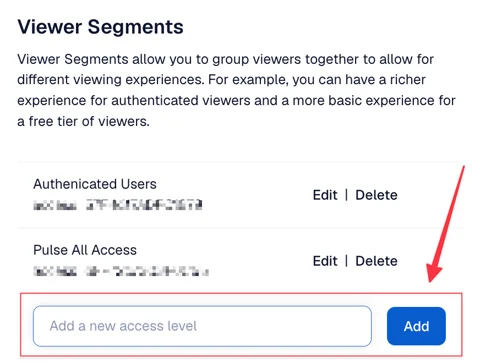
Your new segment appears in the list and is ready to use in Steps 2 and 3 below.
Step 2: Build what viewers see after the password
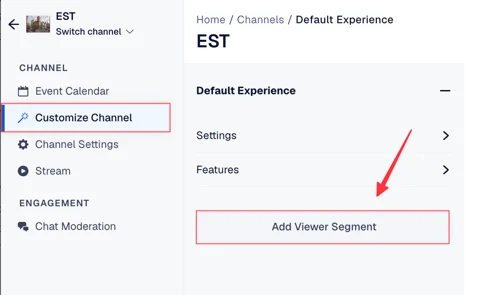
- Open your channel and go to Customize Channel.
- Under Default Experience, click Add Viewer Segment and select the viewer segment from Step 1.
- Build the layout your viewers should see after they enter the password.
- Click Update.
Each viewer segment has its own layout and settings, so this step doesn't change your Default Experience.
Step 3: Turn the Default Experience into the password screen
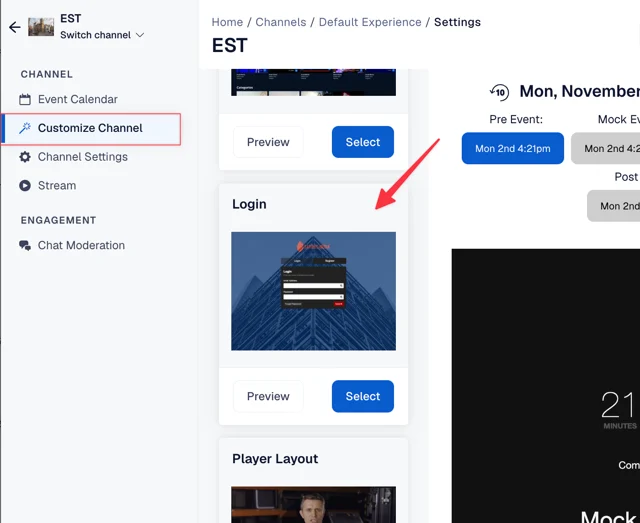
- In Customize Channel, under Default Experience, click Settings, then Layouts.
- Under Login, click Select. (This replaces the Default Experience's current layout. See the note at the top of this section.) The preview will show an email and password form for now. That changes once password-only login is turned on.
- Return to Customize Channel, and under Default Experience, click Features.
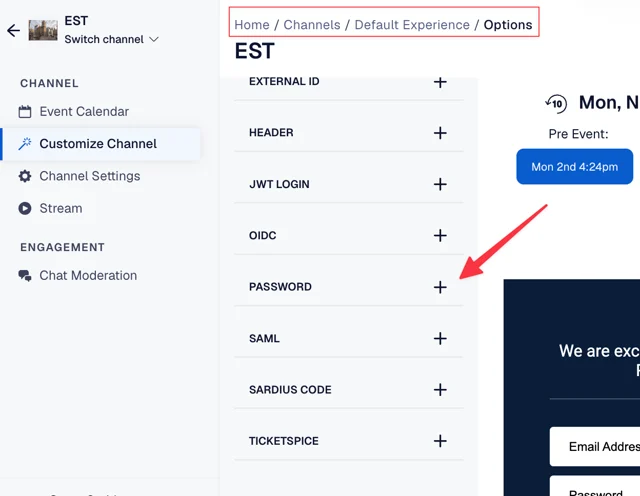
- Turn on Enable password only login.
- In Password needed to get into the page, enter the password you'll share with viewers.
- In Viewer Segment to Load, select the viewer segment from Step 1. This must be the same segment you added in Step 2.
- (Optional) Customize the password screen:
- Title on form: the heading viewers see above the password field
- Description on form: the message below the title. By default, it tells viewers to use the provided password and to contact support if they don't have it. Update it to tell viewers who to contact.
- Click Update.
Viewers now see the password screen first, then the experience from Step 2 after they enter the password.
Using Event Overrides on a live event? On the calendar event's Event Overrides tab, set the override for the viewer segment from Step 1, not Default, so password viewers see it.
Step 4: Test it
- Open the channel link in a private or incognito browser window.
- Confirm you see a password prompt, not an email and password form.
- Enter an incorrect password and confirm it's rejected.
- Enter the correct password and confirm your layout loads.
- If chat is on, open a second private window, enter the password, and join chat with a different name. Confirm each window keeps its own name.
Once it works, share the link and password with your viewers.
Troubleshooting
What you see: a "not configured" message after entering the password
Likely cause: Viewer Segment to Load is empty
Fix: go to Features → Password, select the channel's viewer segment in Viewer Segment to Load, and click Update.
What you see: the wrong layout loads after the password
Likely cause: the segment in Viewer Segment to Load doesn't match the viewer segment experience you built
Fix: make sure the segment selected in Features → Password is the same segment you added in Step 2.
What you see: an email and password form instead of a password-only prompt
Likely cause: Enable password only login isn't turned on under Features → Password, or the Default Experience isn't set to the Login layout
Fix: repeat Step 3 and click Update.
What you see: viewers are asked for the password again after refreshing
Likely cause: this is expected. Password-only access doesn't sign viewers in.
Fix: none needed. If viewers need to stay signed in, use a standard login with individual viewer accounts.
What you see: your channel's content or settings disappeared
Likely cause: the Default Experience's layout was changed, which erases that experience's previous settings
Fix: contact Sardius Support. If your settings were exported before the change, our team can restore them. Otherwise, the layout will need to be rebuilt.
Why aren't my title, description or password changes showing on the live page?
Changes can take up to 15 minutes to appear on the live channel. Wait a few minutes, then refresh the page. To check right away, open the channel link in a private or incognito window.
Who will viewers contact if they don't have the password?
By default, the password screen tells viewers to "contact support," which they may read as Sardius Support. To send them to the right place, go to Features → Password and update Description on form with your team's contact info, such as an email address or help desk link.
Need more help? Contact Sardius Support and include the channel name and the viewer segment you're using.
Related articles
Did this answer your question?
One click tells us which pages to fix first.