
Header Settings (Turnkey)
More in Layouts (Turnkey)You’re on: Header Settings (Turnkey)
Enabling the header (located at the top of your Site) will allow you to customize the area with your logo, the navigation button and links, etc.
- Headers typically include:
- Left side: Event Logo
- Right side: Other Hyperlinks or Buttons (ie. Tech Support doc, Giving button, FAQ, etc.)

Header Section : To set the background image, update colors, etc., select Edit
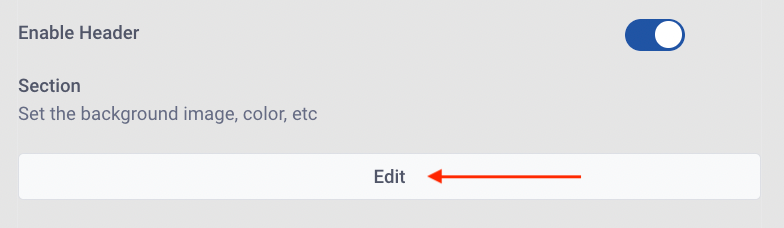
Once Enabled, you can make changes to the Color, Background Image, and Button Text and Background Color
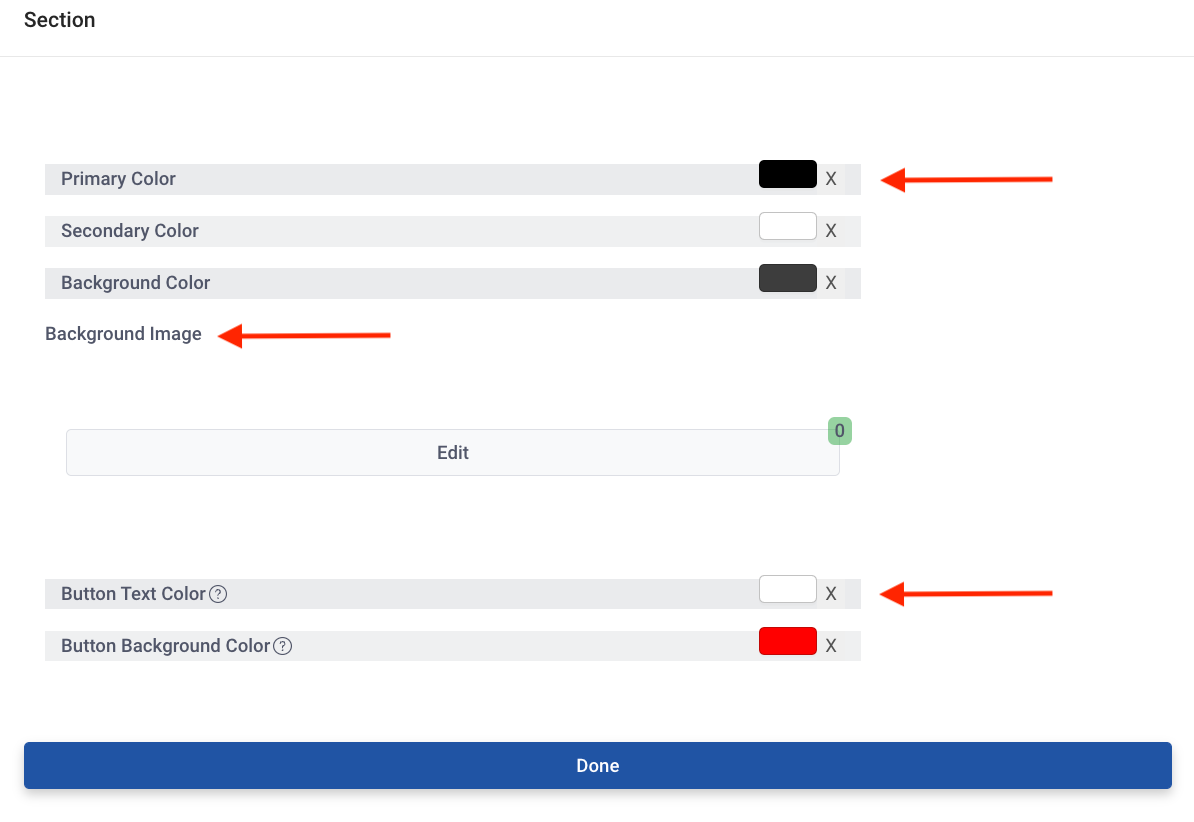
- Click on the color box to update the color. You can select the new color or add you Hex#
- Once you have made the updates, select Done to continue
To update your Background Image, click Edit to add an image
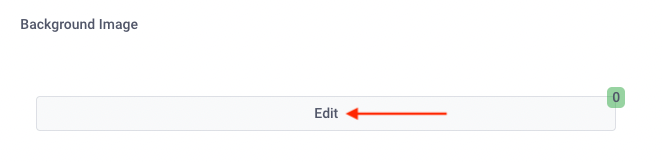
A new pane will open, click Add Row

Click on the Image icon to choose from your library or to upload a new image

Select Done when complete

Header Logo Image and Link

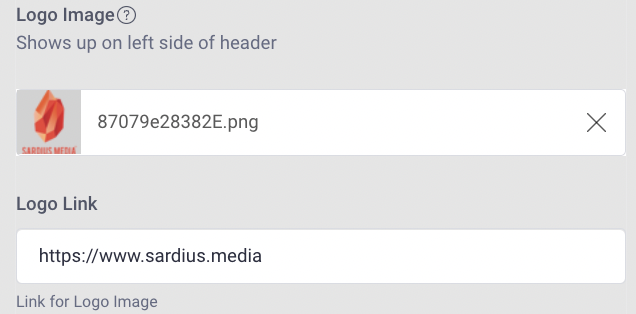
To add a Logo Image, insert an image in the field
- If you do not want to display a logo, leave this field blank
- Next, include the Link (URL) for the Logo Image
Navigation Links + Buttons (on Header)

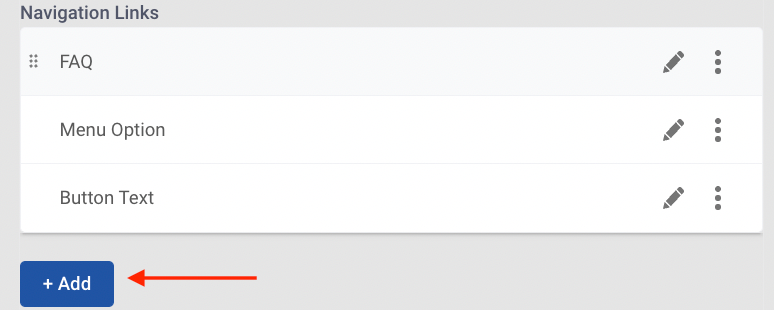
The Navigation Links are connected to the buttons on the headers (FAQ, Menu Option, Button Text) and are editable
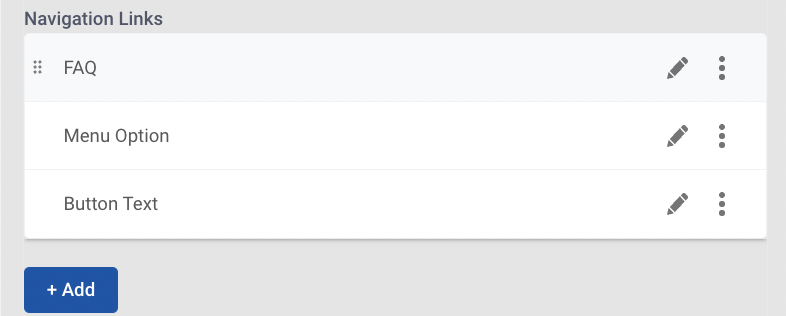
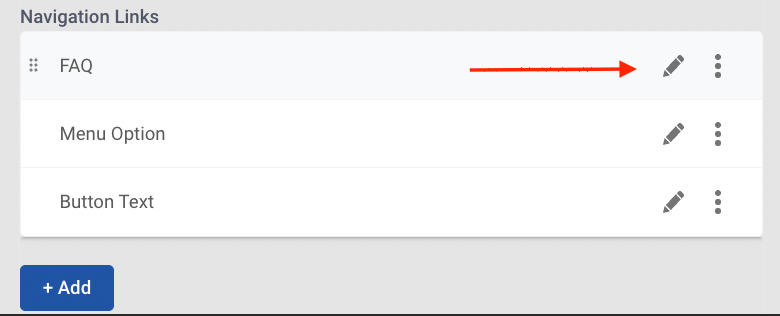
To Update, select the pencil icon on the right of the page
Now, you will have the option to update the link text, type (URL or Modal), and content
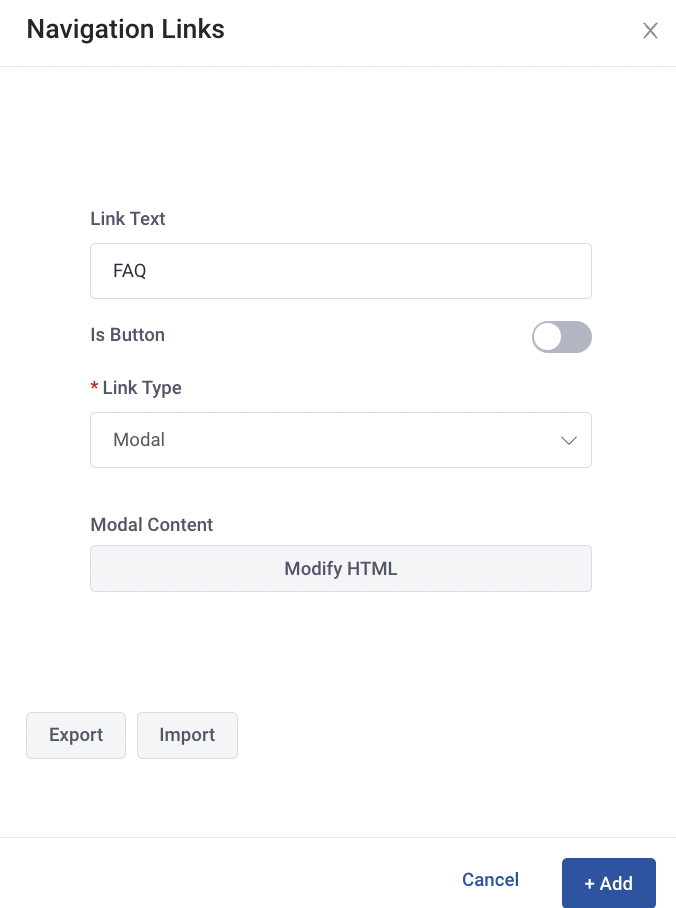
Link Text: insert text to customize the navigation link text (FAQ, Learn More, etc.)
Is Button: determine if the navigation information will be a Button or a Link
If the Button feature is NOT enabled, you can create text in a modal by modifying the HTML text with your content
If the Button feature IS enabled, simply add your URL
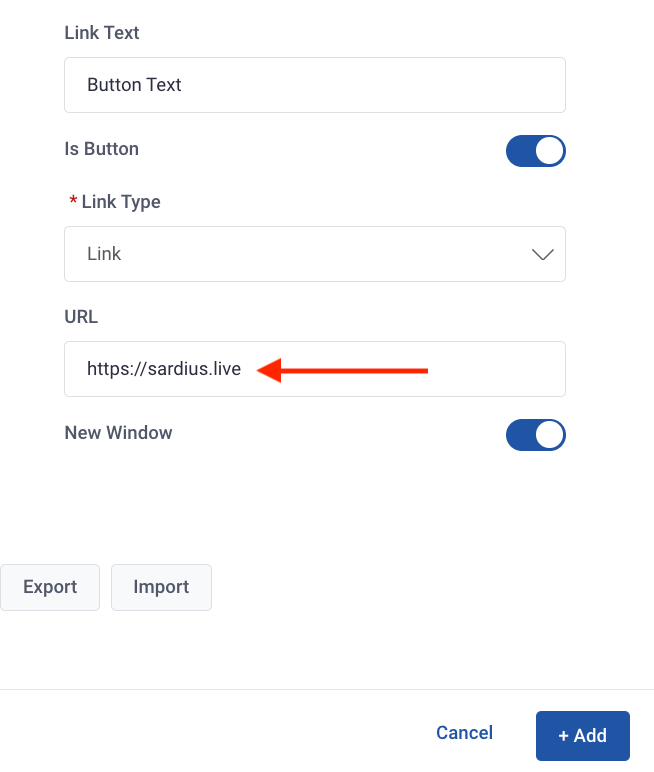
To save your changes, click +Add
You are able to add additional Navigation Links to the Header by clicking the +Add button
Lastly, customize your experience with the option of adding Logout Text
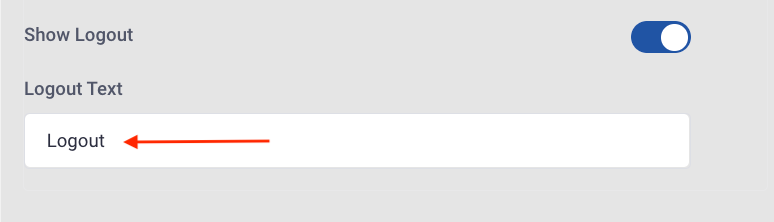
- Show Logout: enable to add custom text
- Logout Text: enter your text in the field
Did this answer your question?
One click tells us which pages to fix first.