
What is a Viewer Segment?
A Viewer Segment is a group of viewers you can target with a specific experience on your Sardius channel. They let you serve different layouts to different audiences on the same channel — for example, a public homepage for everyone, plus a logged-in members experience for your registered audience.
Every channel has a built-in Default Experience — the fallback layout that loads for anyone who doesn't match a custom segment. The Default Experience doesn't use a Viewer Segment.
Custom Experiences (the ones you target to a specific audience) do.
You can also create custom segments for specific audiences, like:
- A satellite or campus location (e.g., Anchorpoint Main Campus, Anchorpoint North)
- An event-specific audience (e.g., Easter 2026 Conference)
- A paid or registered membership tier (e.g. Members)
- A staff or admin preview group
Once a segment exists in your account, you can attach it to any layout on any channel.
Why Viewer Segments Matter
Viewer Segments solve two problems:
1. They control who sees what.
If you want logged-in members to see a different homepage than public visitors, each audience needs its own layout, and each layout needs its own Viewer Segment.
2. They let you build separate experiences on the same channel.
A single channel can serve multiple Viewer Segments — for example, your main public layout for everyone, plus a "Members Only" layout for your registered audience, all on the same channel URL.
Important for channel layout setup: You'll want your Viewer Segment to exist before you start building your layout. If you build the layout on the Default Experience first and try to gate it later, the migration is destructive — your customizations don't transfer between layouts. Setting up the segment first saves you a painful rebuild.
Where to Find Viewer Segments
Viewer Segments live in your account-level Viewer Settings:
- In the Control Panel, click the cog/gear icon to the right of your account name at the top of the screen
- Click Viewer Settings in the dropdown
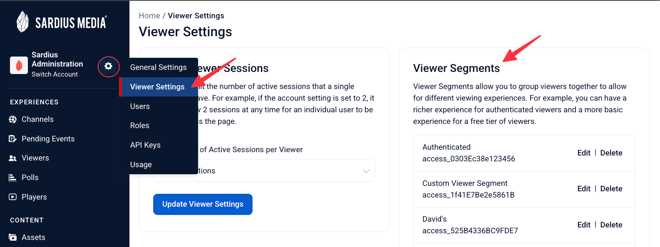
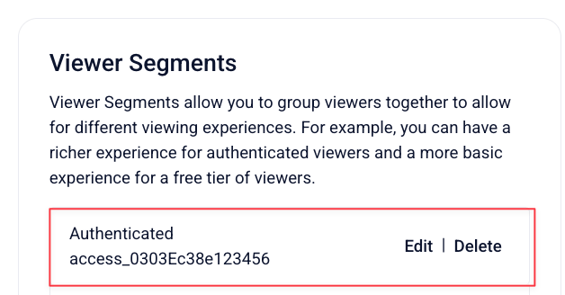
You'll see any existing segments listed here, each with its access ID (e.g.,
access_785F363B047A83f). The default Authenticated Users segment is always present.
Creating a Viewer Segment

- In the Add a new access level field - type a clear, descriptive name (e.g.,
Anchorpoint Members,Easter Conference, etc.) - Click Add
- Your new segment will appear in the list with a generated access ID
That's it — segments take about 30 seconds to create. The work happens when you attach them to a layout.
Naming best practices
- Use names that match what the segment represents — campus, event, or audience type
- Avoid generic names like Segment 1 or New Group — you'll forget what they're for
- Keep names short enough to scan in a list
Attaching a Viewer Segment to a Layout
Creating a segment is only half the work — you also need to attach it to the layout(s) where it should be active.
- Open the Channel where you want the segment to apply
- Click Customize Channel
- In the Experiences area, select the layout you want this segment to use
- In Layout Features → Common Settings, ensure your Viewer Segment is enabled for this layout
Note: A single layout can have multiple Viewer Segments attached, depending on how you're structuring your customized experience.
Editing or Deleting a Viewer Segment
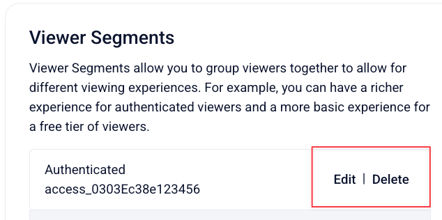
Next to each segment in the Viewer Settings panel, you'll see Edit and Delete options:
- Edit — rename the segment (does not change its access ID)
- Delete — remove the segment entirely
⚠️ Deleting affects access immediately. If you delete a Viewer Segment that viewers currently have access to, they will lose access to any layout that segment was attached to. Confirm no active layouts depend on the segment before deleting
Common Scenarios
Scenario 1: Public homepage + members-only experience on the same channel
- Default Experience is what public visitors see — it's the channel's fallback layout and doesn't have a Viewer Segment attached
- Collection 2.0 layout is attached to a custom Members segment — logged-in members see Resume Watching, Watch List, and exclusive content
Scenario 2: Multi-campus church with shared content
- Each campus has its own Viewer Segment (
Campus North,Campus South,Campus Online) - Each campus's layout is attached to its own segment, so each campus can have a slightly different homepage while pulling from the same Master Feed
Scenario 3: Time-bound event audience
- Create a Viewer Segment for the event (e.g.,
Easter 2026 Conference) - Attach it to an event-specific layout
- Once the event ends, you can either delete the segment (revokes access) or leave it in place for archival viewing
Click here for information on Adding Viewers to Viewers Segments