
| Method | Best for | Who handles setup |
|---|---|---|
| Manual assignment | Small numbers of viewers; granular control | You (your Sardius admin) |
| Automatic assignment | Auto-assigning everyone who registers on a channel | You (in channel settings) |
| External ticketing and authentication | Ticketed events with paid or registered attendees (Brushfire, Eventbrite, etc.) | Sardius + your team |
| SAML / SSO integration | Organizations with existing identity providers (Google Workspace, Auth0, etc.) | Sardius + your IT team |
Method 1: Manual assignment
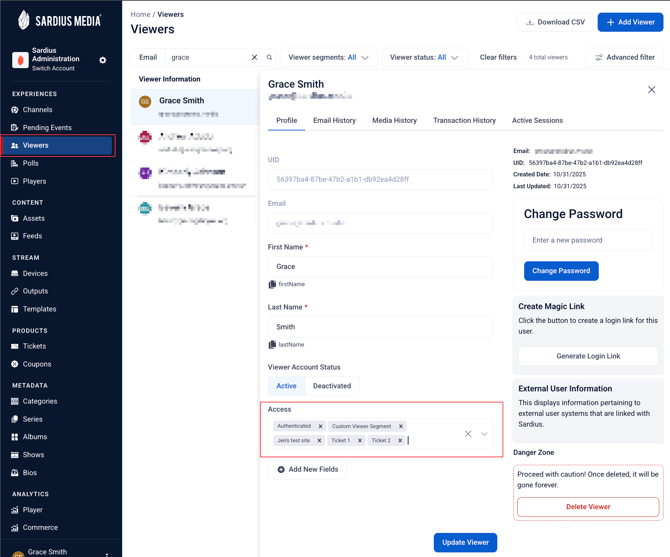
The simplest, most common method. A team member with Control Panel access opens an individual viewer's record and adds the appropriate Viewer Segment(s) to their profile.
When to use it
- A small group of named individuals (staff, leaders, VIP guests)
- One-off access grants
- Testing a new Viewer Segment before automating assignment
- Situations where access is determined manually rather than by a system trigger
How to do it
- In the Control Panel sidebar, navigate to Viewers
- Find and select the viewer you want to add to a segment
- In the viewer's details, locate the Access Section field
- Add the relevant Viewer Segment from the dropdown
- Save changes
The viewer will have access to any layout attached to that segment the next time they log in.
Method 2: Automatic Assignment
A channel-level setting that automatically assigns a specific Viewer Segment to any new viewer who registers on that channel. Useful for granting baseline access without manual touch.
When to use it
- You want every new registrant on a channel to automatically receive a particular segment
- You're running a public-facing channel where authenticated viewers should all see the same content
Note: "Default Viewer Segment" and "Default Experience" are different things.
- Default Viewer Segment = the segment automatically assigned to registered viewers on a channel
- Default Experience = the layout that loads when a viewer doesn't match any segment
They sound similar but solve different problems. Default Viewer Segment is about who's in the segment; Default Experience is about which layout loads
How to set it up
Default Experinence to use Login Layout ->
Gated experience created using Viewer Segment ->
Viewer then registers and gets self-assigned to Viewer Segment
Limitations:
Default Viewer Segment behavior may differ depending on your channel's layout. For example, certain layouts (like Turnkey) do not support a Default Viewer Segment field on the registration flow. If you're not sure whether your channel supports this, reach out to your Account Manager.
Method 3: Ticketing Platform Integrations
For ticketed events, Sardius integrates with external ticketing platforms so that registration data flows automatically into your Sardius account. When someone purchases or registers for a ticket on the platform, the corresponding Viewer Segment is automatically assigned to that viewer in Sardius based on the event they registered for.
Supported platforms include, but not limited to:
- Brushfire
- Eventbrite
- Sardius Registration (Sardius's own first-party registration product)
- Custom client systems (if your team has an internal ticketing platform, a custom integration can typically be built)
When to use it
- Conferences, paid events, ticketed livestreams
- Multi-tier access (e.g., volunteers, general attendees, VIPs each in their own segment)
- Time-bound access (Brushfire tickets can have date ranges)
What's involved
This integration is set up by Sardius. To configure it, your Sardius team typically needs:
- API key or credentials for the ticketing platform
- Event ID(s) for each event the integration should pull from
- Viewer Segment ID to assign for each event or ticket type
The authentication method varies by platform — most commonly:
- Ticket ID-based (viewers log in with the unique ID from their ticket)
- Email-only (viewers log in with their email; their ticketing system registration is matched to the segment)
Once set up, viewer assignment is automatic:
Ticket purchase or registration on the external platform → registration data syncs into Sardius → viewer gets segment in Sardius → access granted.
How to expand or revoke access
- Adding a new ticket tier to a segment: Configure a new Brushfire event tied to the existing Viewer Segment (no new segment needed if access scope is the same)
- Revoking access after an event: Remove the Viewer Segment from the channel's experience, OR remove the segment from individual viewers' profiles
- Bulk removal: Talk to Sardius Support — there are tools to remove multiple viewers from a segment at once
Contact your Account Manager to set up a ticketed integration.
Method 4: SAML / SSO integration
For organizations with their own identity provider (Google Workspace, Auth0, generic SAML), Sardius can authenticate viewers via your existing login system AND automatically assign Viewer Segments based on the user's identity provider groups.
When to use it
- Your organization already uses Google Workspace, Auth0, or another SAML/SSO provider
- You want viewers to log in with their existing organizational credentials (not a separate Sardius account)
- You want different groups within your organization to see different content (e.g., staff sees one experience, volunteers see another)
Two levels of automation
- Blanket assignment — Every viewer who logs in via SAML gets a baseline Viewer Segment (e.g., a generic "SAML Login" segment)
- Group-based assignment — Specific IdP groups map to specific Viewer Segments (e.g., the
Staffgroup gets the "Staff" segment; theVolunteersgroup gets the "Volunteers" segment)
A single viewer can receive both — the blanket segment AND any group-specific segments they're a member of.
What's involved
To set up SAML/SSO with Viewer Segment mapping, your Sardius team may need items from your IT team like the following:
- IdP Certificate
- SSO URL (login URL)
- Field keys (mapping IdP fields to Sardius viewer fields)
- Viewer Segment ID to apply to all SAML-authenticated viewers
- Group Names + matching Viewer Segment IDs (for group-specific mapping)
Supported providers
Sardius supports Google Workspace, Auth0, and generic SAML 2.0 identity providers.
Contact your Account Manager to set up SAML/SSO.
Which method should you use?
A few common scenarios:
Small church with a members-only experience
- Recommended: Default Viewer Segment + manual assignment for outliers
- Set the default segment so every new registration auto-gets access to the members layout; manually adjust for staff or admins who need additional segments
Conference or ticketed event
- Recommended: Brushfire (or other supported platform) authentication tickets
- Tie each ticket type (general, VIP, volunteer) to its own Viewer Segment for tiered experiences
Large organization with existing SSO
- Recommended: SAML / SSO with group-based mapping
- Avoids creating duplicate accounts; uses existing organizational groups for access control
Closed beta or staff-only preview
- Recommended: Manual assignment to a small list of named viewers
- Highest control; lowest setup overhead