
This article will walk you through the process of creating an Asset using Auto-archive.
Note: It is recommended to review the default archive settings for your channel(s) before proceeding. To do this, please review the article linked here.
Enable Auto-Archive for an Event
Whenever you create an event within the Control Panel, the Auto-archive settings for the event will be copied from the default settings established for the channel at the time the event was created.
New in Release 1.53: You can now set default metadata and categorization at the channel level — including Series, Categories, Tags, Topics, and Album — so these fields are pre-filled automatically on every new event. See Creating a Channel's Autoarchive Settings for details.
In the Event Calendar, you will be able to customize your settings if your event needs to follow a unique or specific workflow.
-
Access your channel’s Event Calendar and locate the upcoming live event you wish to archive.
-
Click on the event, and select “Edit.”
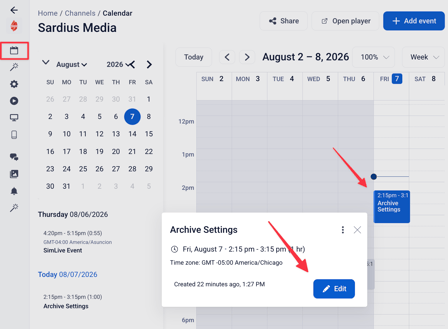
- Click on the Archive Settings tab.
Be sure that the “Create an archive of this event” switch is toggled. If this is not toggled, your event will not be saved.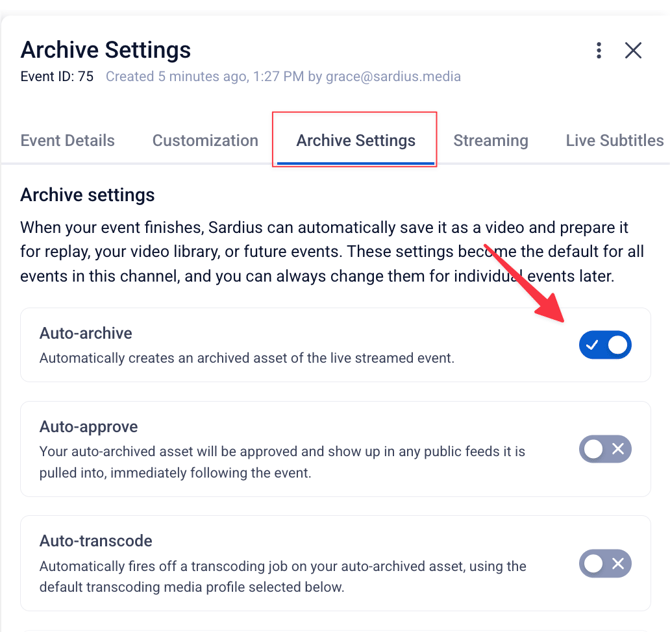
Note: If you are streaming using Linked Asset (External Stream), the auto-archive process is not available at this time.
Archive Setting Specifics:
- Auto-archive: The master toggle for auto-archive.
-
Auto-approve: Enable this if your event is part of an automated VOD or SimLive workflow
-
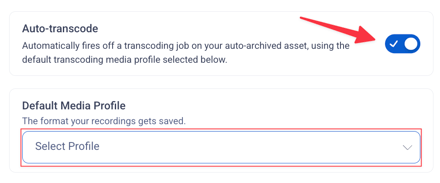
Auto-transcode: Enable this if you need to transcode the asset using alternate profiles such as MP4, MP3, et cetera.
- Auto-Delete: schedules an archived asset to be automatically deleted a set number of days after the event ends. Select keep forever if you do not want it to delete.
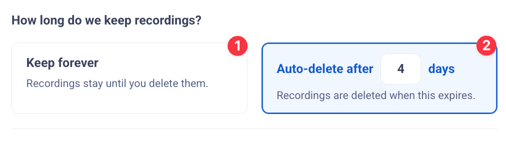
This can be set at two levels:
- Channel default — via Channel → Stream → Archive tab → Archive Auto-Delete in Days (applies to newly created events on that channel)
- Per event — via the event's Archive Settings → Archive Auto-Delete in Days (applies to that specific archived asset)
-
Default Media Profile: A media profile tells Sardius how to transcode your archived asset after the event ends — for example, creating an MP4 or MP3 version in addition to the default HLS recording.
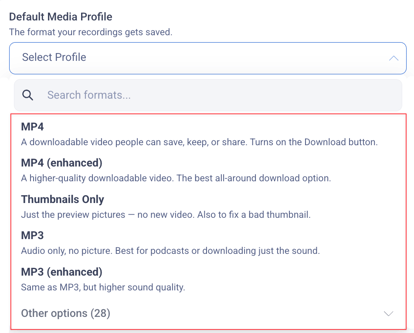
If you have auto-transcoding available, you can select one of the available media profiles.
If you need a specific media profile that is not available, please reach out to Sardius Support.
Assigning and Managing Metadata
Note: Metadata are labels that you and your team can use to organize the way that your assets can be quickly found, automated, and categorized.
The event’s metadata can allow you and users to search available assets and collate content amongst Feeds and RSS engines connected to your website, app, or external processes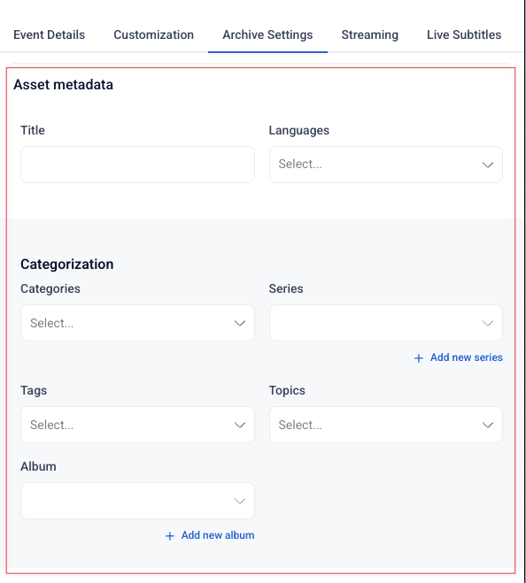
From the Event’s Archive Settings, you can enter predetermined:
Asset Details
-
Languages — The language the asset is recorded in
-
Event Duration — The length of time the asset will play
-
Air Date — The original broadcast date of the asset
Categorization
-
Categories — Assign the archived asset to one or more predefined categories in your account.
-
Tags — Attach one or more tags to the archived asset.
-
Topics — Assign the archived asset to one or more topics.
-
Album — Associate the archived asset with an existing album in your account.
-
Series — Associate the archived asset with an existing series in your account.
Tip: If your channel has Archive Default Settings configured, these categorization fields will already be pre-filled based on your channel defaults. You can update them here if this specific event needs different values.
Once you have completed adding all appropriate metadata, click “Save” in the lower right corner of the screen.
Note about Pre/Post Roll
If you are using Sardius Stream, the archived asset will contain your pre- and post-roll content.
If you are using Sardius HLS Entrypoint, the Control Panel will either ignore or keep your pre/post-roll in accordance to your channel’s default settings.
Should you desire to remove any recorded pre/post roll from your asset, we suggest using our clipping tool to create a new asset without this content.
Best Practices and Recommendations
- All live events are natively broadcast and archived as HLS. Any asset archived will natively be HLS, and will not need to be transcoded as HLS. If you do not need alternate/additional versions of your event as other file types such as MP4 or MP3, then you will not need to auto-transcode.
- Transcode as HLS if your asset needs to be used with Sardius SimLive (standard). Auto-archived assets must be natively HLS or transcoded as HLS to be used with Sardius SimLive SimLive playback.
- Transcode as HLS Enhanced if you need improved seek performance or compatibility with specific VOD workflows. HLS Enhanced produces a more optimized version of the asset for smoother on-demand playback.
- Transcode as MP4 if your asset will be used with Advanced SimLive, shared externally, or downloaded for offline editing.
- Transcode as MP3 if you only need an audio version of the archived event (e.g. for a podcast or audio library).
- If your auto-archive is not set to auto-approve, your asset will not be viewable in SimLive or other VOD processes. Only approved assets can be used in these workflows.
- Auto-transcoding is not necessary for the event to be archived.
As long as auto-archiving is enabled, the asset will be saved.