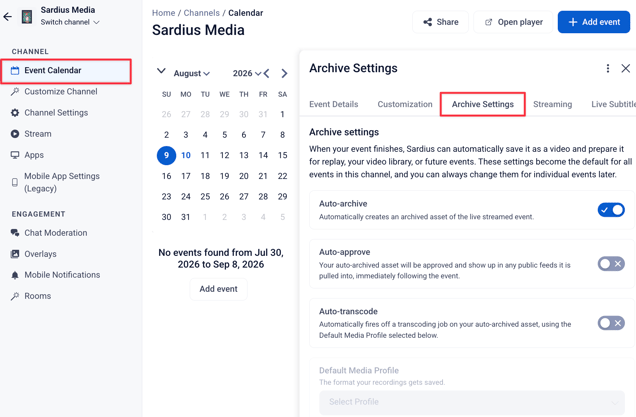
Archive settings have been moved to a dedicated Archive tab in your channel's Stream Settings, and now include expanded options for default metadata and categorization.
How to Access and Enable Archive Settings
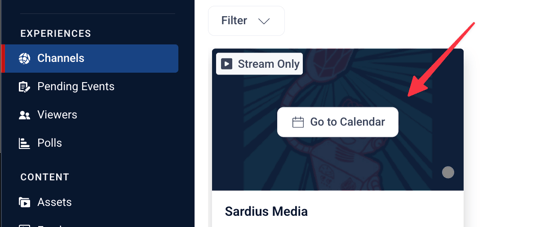
- Open the Sardius Control Panel and select Channels from the sidebar
- Hover over the channel's image and click Go to Calendar
- From the sidebar, select Stream, then click the Archive tab
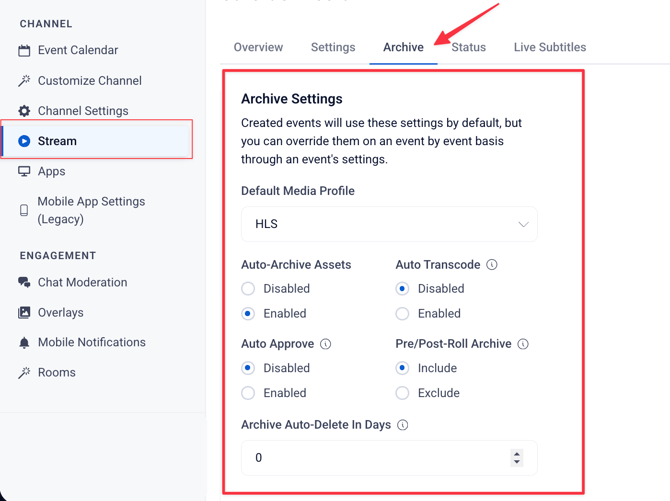
Archive Setting Specifics
-
Default Media Profile: A media profile tells Sardius how to process and format your archived asset after the event ends — for example, creating an MP4 or MP3 version in addition to the default HLS recording.
-
Auto-Archive Assets: If this feature is enabled, your live event will be saved in your account for future use.
-
Auto Transcode: If this feature is enabled, your live event will be automatically transcoded using your Default Media Profile above.
-
Auto Approve: If this feature is enabled, your archived asset will be tagged as “Approved.” Assets must be approved before they can be available for viewing and playback through a Feed.
-
Pre/Post Roll: This feature is available only to channels using Sardius HLS Entrypoint to stream events. Depending on your choice, then our system will ignore or keep any pre- or post-roll that was connected to your event.
- Archive Auto-Delete in Days: a setting that schedules an archived asset to be automatically deleted a set number of days after the event ends.
This can be set at three levels:
- Account-wide — via Admin Panel → Asset Auto Deletion (applies to newly created channels only)
- Channel default — via Channel → Stream → Archive tab → Archive Auto-Delete in Days (applies to newly created events on that channel)
- Per event — via the event's Archive Settings → Archive Auto-Delete in Days (applies to that specific archived asset)
Note: If you select “ignore” for Pre/Post Roll, you will not be able to recover these portions of your asset. It may be prudent to “keep” these and use our clipping tool to remove any unwanted video.
You can now set default metadata and categorization for archived events on a channel.
This eliminates the need to manually enter the same information every time a new event is created — particularly useful for channels with recurring programming that always requires consistent tagging.
Go to your channel > Stream settings > Archive
Then scroll down to Asset Metadata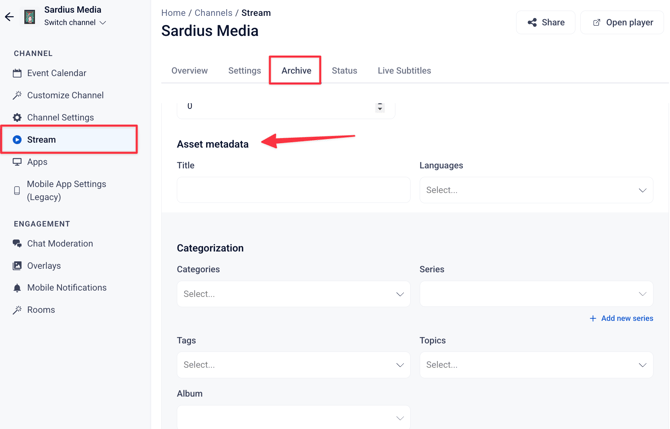
Asset Metadata
-
Title — Set a default title to be applied to all new archived assets on this channel
-
Languages — Set a default language or multiple languages for archived assets
Categorization
-
Categories — Assign one or more default categories
-
Series — Assign a default series, or click + Add new series to create one
-
Tags — Assign default tags
-
Topics — Assign default topics
-
Album — Assign a default album, or click + Add new album to create one
Saving Your Settings
Once you have configured your archive defaults, click Update Channel to save. All newly created events on that channel will automatically inherit these settings going forward. Existing events are not retroactively updated.
Setting archive settings at the event level.
-
Go to your Event Calendar
-
Create or find your event and click Edit Details
- Go to the Archive Tab and set your preferred archive settings, then save your edits.
These settings are only applied to the specific event you edit.