
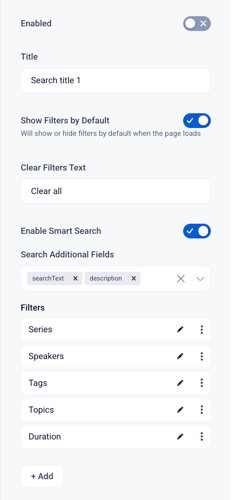
Search Page Enable Toggle
Controls the layout and behavior of the site’s search page. When Enabled is turned ON, users can access a dedicated search page where they can look for videos, series, or other assets.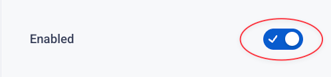
The Title
Lets you customize the heading that appears after making a search. By default, this is set to “Search.” You can change it to something more descriptive (e.g., “Browse Library” or “Results”) if desired.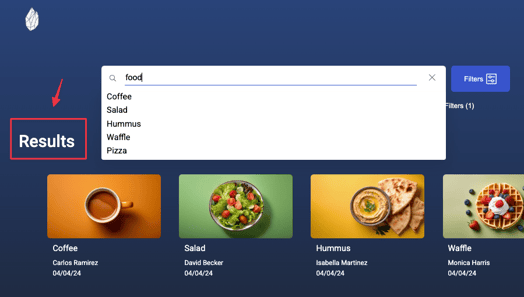
Show Filters by Default Toggle
Determines whether the filtering panel is open when the search page loads. When this is ON, users will immediately see filtering options such as categories, speakers, or tags. When OFF, the filters will remain hidden until the user manually opens them.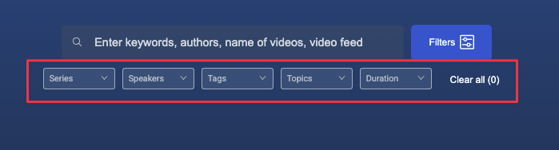
Clear Filters Text
Controls the wording of the “clear filters” button that appears to the right of the filter options. You can rename this text to match your preferred wording or tone (for example, “Reset Filters” or “Remove Filters”).
The number in parentheses, which shows how many filters are currently chosen and applied, will remain visible even if you change the text.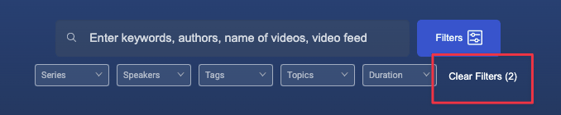
Enable Smart Search
Smart Search Smart Search expands which metadata fields the search bar queries when viewers type a query.
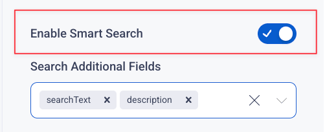
With Smart Search enabled, the search will look through additional metadata fields beyond the standard ones — making it easier for viewers to find content based on a wider range of details, not just the most common fields.
When Smart Search is OFF, the search defaults to standard behavior (matching against the default content fields only).
Tip: Smart Search is helpful for libraries with rich metadata (detailed descriptions, multiple tags, etc.), where viewers may search for terms that don't appear in the asset title.
Search Additional Fields
When Smart Search is ON, this field appears and lets you tell the search bar which additional metadata fields to include when checking for matches.
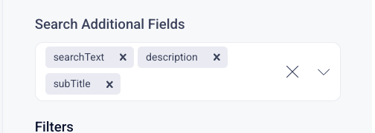
Each field you add expands what the search will look through, helping viewers find content that matches terms appearing in places like longer descriptions, subtitles, or other detailed metadata — not just asset titles.Leave it empty to keep Smart Search using only the standard fields.
Note: This field only appears when Smart Search is enabled. Turn the toggle off and the field will be hidden.
Filters
Filters allow users to narrow down search results by specific criteria such as Series, Speakers, etc. Each row in the Filters list represents a filter option that will appear on the Search Page. The order of the rows in the settings determines the order they appear in the filter bar above the search results.
Once applied, the filter updates the results instantly and displays the number of applied filters in parentheses next to the “Clear Filters” button.
Admins can customize the filters by renaming them, reordering them, or removing them entirely. Additional filters can be added by clicking + Add. This makes it possible to tailor the search experience to fit the structure of your content—for example, adding filters for “Event Year” or “Location” if those are relevant.
- Series - Displays all available series types in your library. Users can narrow results by selecting one or more series to view only content from those collections.
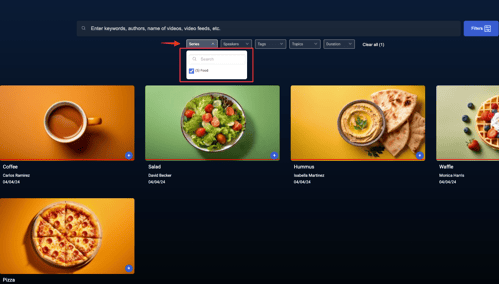
- Speakers - Lists all speakers or presenters who are tagged in your content. Selecting a speaker filter will show videos featuring that person.
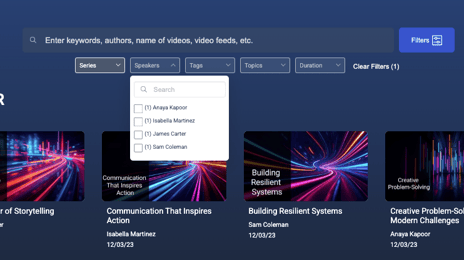
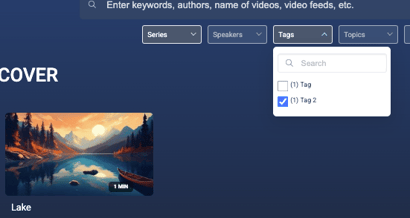
- Tags - Shows custom tags applied to your videos (such as “Leadership,” “Workshop,” or “Kids”). Users can use these tags to quickly find related content across multiple series.
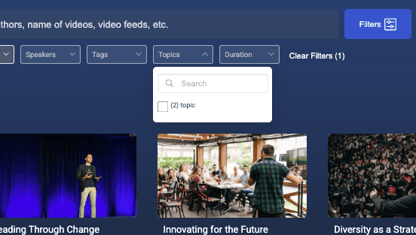
- Topics - Organizes content by subject matter or theme. For example, topics might include “Faith,” “Business,” or “Health.” Choosing a topic filter will show only videos connected to that theme.
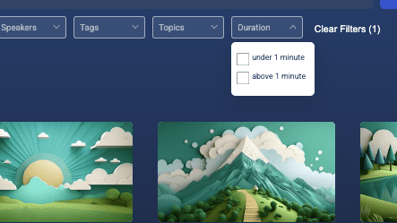
- Duration - Lets users filter content based on length. For example, they can choose short clips versus full-length sessions.
Custom Filter Examples
Event Year:
Lets users filter by the year a video was recorded or published. Helpful for conferences, annual events, or archives.
Location:
Filters videos by the event’s physical or virtual location (e.g., “Kansas City,” “Online,” “Paris 2024”). Useful for organizations with multi-site events.
Language:
Allows viewers to choose content by spoken language (e.g., English, Spanish, French). Helpful for international audiences.
For Best Practice: Keep your filter list to 5–7 options on the search page. Too many filters can overwhelm users, while too few may limit their ability to find what they want.
Collection 2.0 Layout Overview
- Next Article: Speakers Page: Display and manage a directory of featured presenters.
- Previous Article: Home Page: organize and reorder rows of content shown on the main page.