
Add an SRT Output
Updated
This tutorial will walk you through how to add an SRT Output to your Sardius account.
Before you proceed, make sure you have the following:
- The SRT destination URL and port
- A playback URL (if available)
- The encryption setting
- A passphrase
- A stream ID (if applicable)
Create Your SRT Output
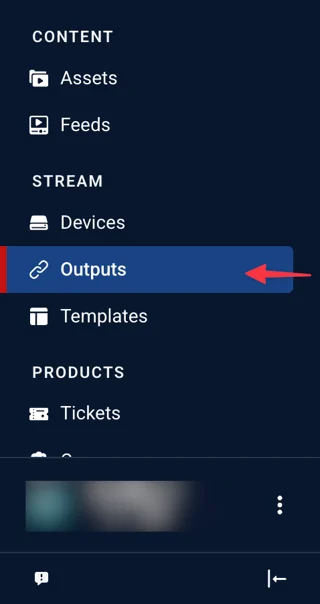
- Access the Outputs section of the Sardius Control Panel by locating "Outputs" on the sidebar.
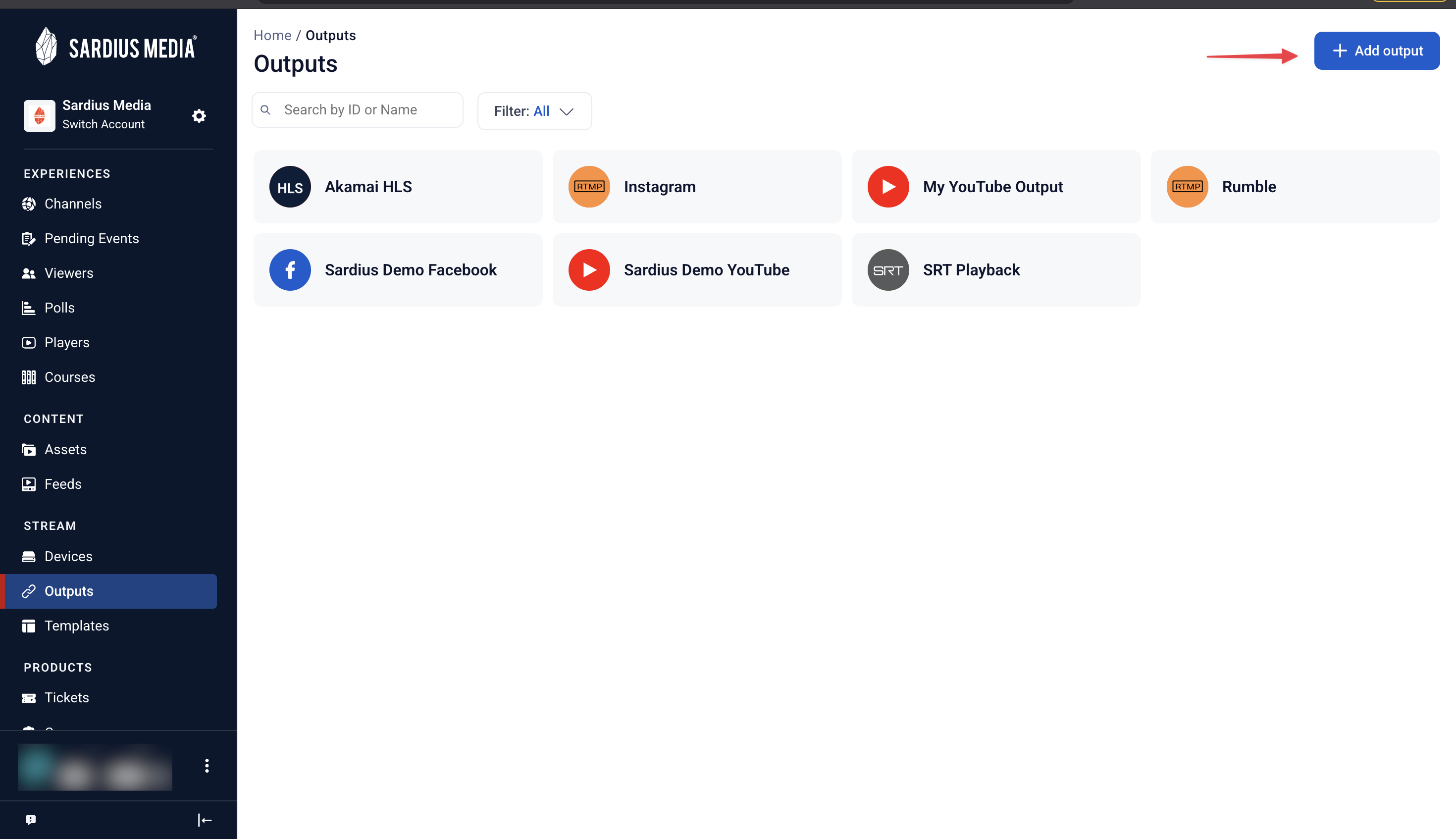
- Click "Add Output" in the upper right-hand corner.
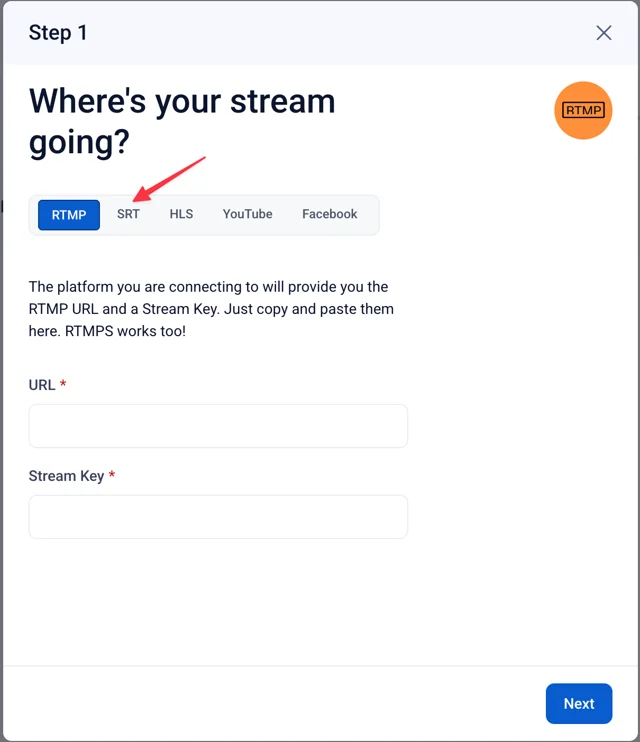
- A modal will appear in the center of the screen. Select the SRT tab.
- Fill in the following fields:
- SRT Destination Address and Port Number
- Playback URL (if available)
- Encryption — select the appropriate encryption model
- Passphrase
- Stream ID (if applicable)
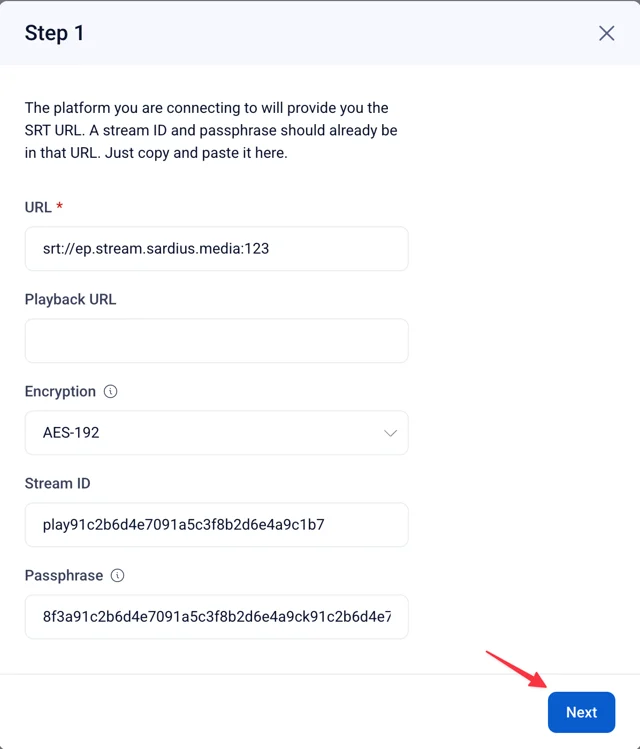
Review the information carefully, then click "Next."
- Assign a name for your output. If desired, you can also add a description.
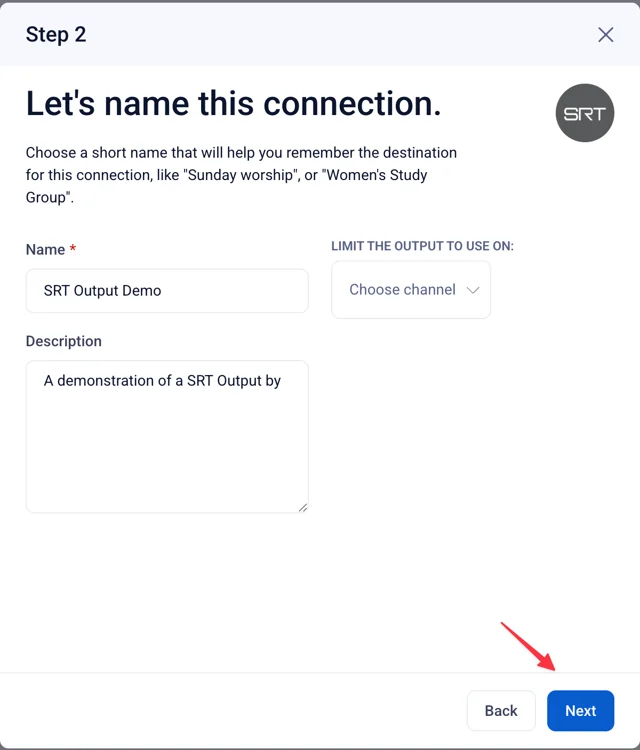
If you wish to limit the output's connection to a single channel, make that selection here. Be aware that if you limit this output to a channel, you will only be able to use this output on that channel.
Click "Next" when you're done, then take a moment to review all of your settings.
- If everything looks okay, click "Add Connection."
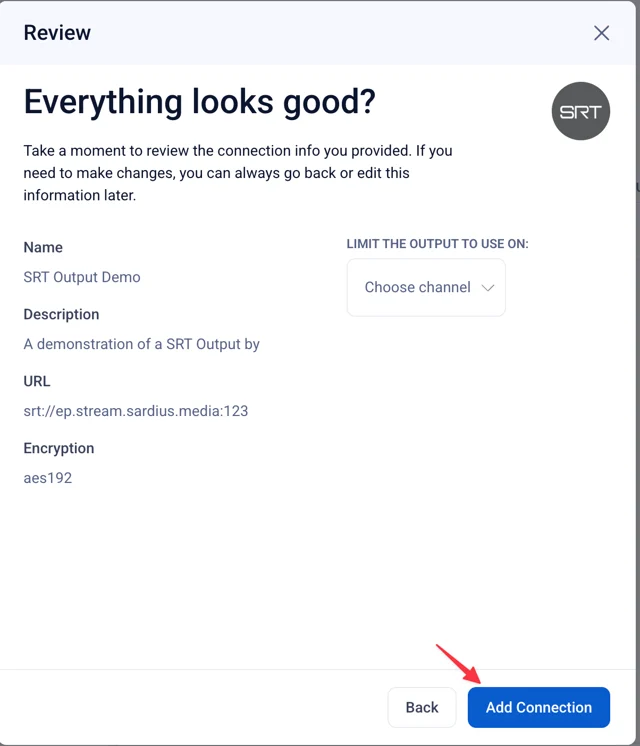
Congratulations! Your SRT Output is ready for use. You can now connect this output to any channel or event that is utilizing Sardius Stream or a paired encoder that supports SRT outputs.
At any time, you can access the Outputs section, select this output, and edit any of its settings.