
Understanding Diagnostics for Sardius EMLA Encoders
Updated
Sardius Devices provides an easy way to see what's happening inside your Sardius EMLA Encoder at any time.
The Device Diagnostics dashboard supplies multiple status reports and updates for your paired Sardius EMLA Encoder. This will allow you to see what is happening inside the encoder, detailed information and error reporting for your live streams, and performance details, all at your fingertips.
Access Diagnostics
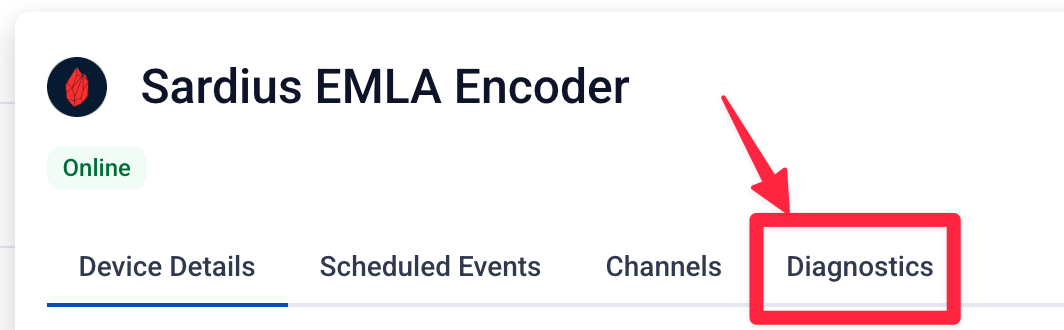
To access the Diagnostics, click on the Diagnostics Tab for the device you wish to view.
System Resources
The Sardius EMLA Encoder monitors 3 key statistics here: Memory, CPU, and System/Disk. Video Encoding on EMLA Encoders involves a careful balance between CPU and Memory. System/Disk areas are used to store encoded packets and segments before being transmitted.

Alerts
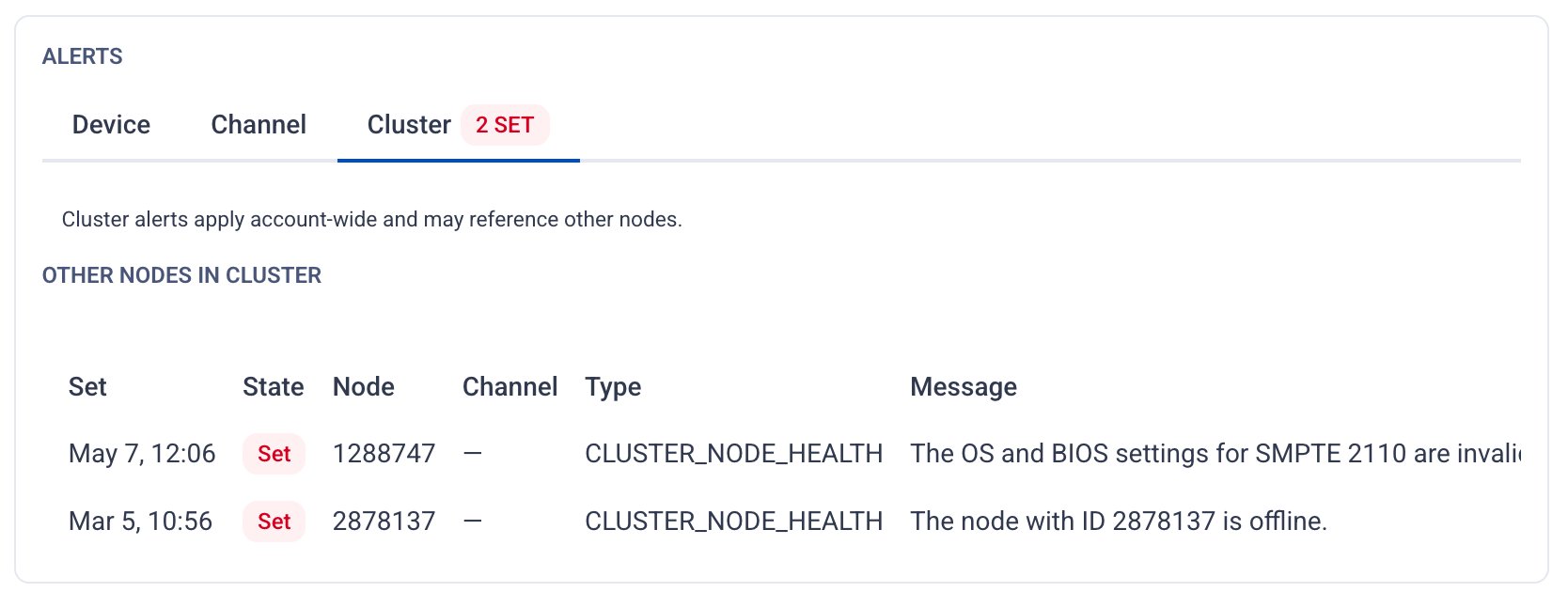
Here you can see alerts across the Device, Channel or Cluster. If there is an alert, you will have a red number beside the tab. Clicking on the tab will show what alerts are currently active.
If there are no alerts, there will be a blue bar stating that there are no active alerts.
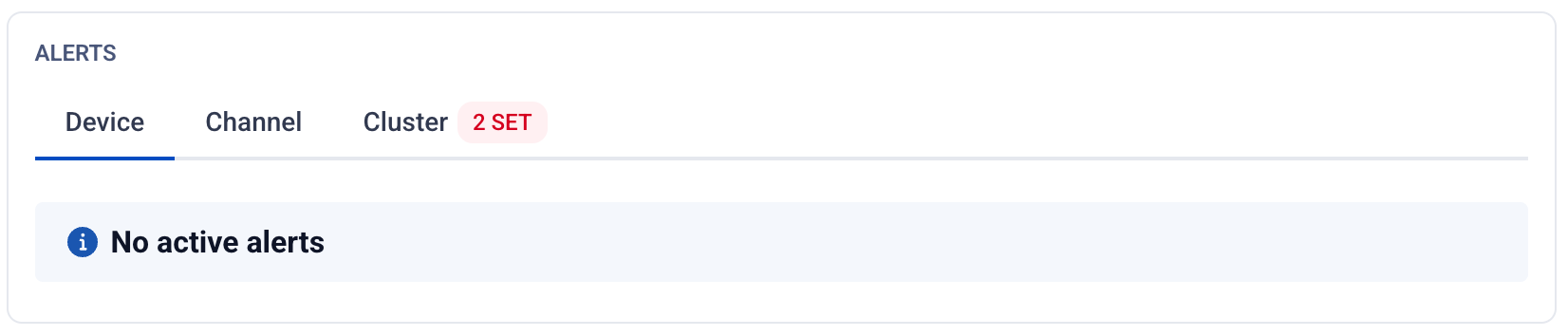
If an alert is available, you will see when the alert was set, the state it is in (set or cleared), type, and message.
If an alert gets cleared, it will remain present for 10 minutes before being cleared from the diagnostics page. Once an alert is cleared, its details cannot be retrieved.
Channel Diagnostics
This section will be active any time the Sardius EMLA encoder is streaming. Channels will appear based upon their Input Name, and will have the details pane collapsed.
Three indicators are shown, Stream, Input, and Output. These are the three portions of the workflow, and a red light in any of these indicators will guide your troubleshooting approach.

If you expand the details, you will see much more information about the encoding processes behind your livestream.
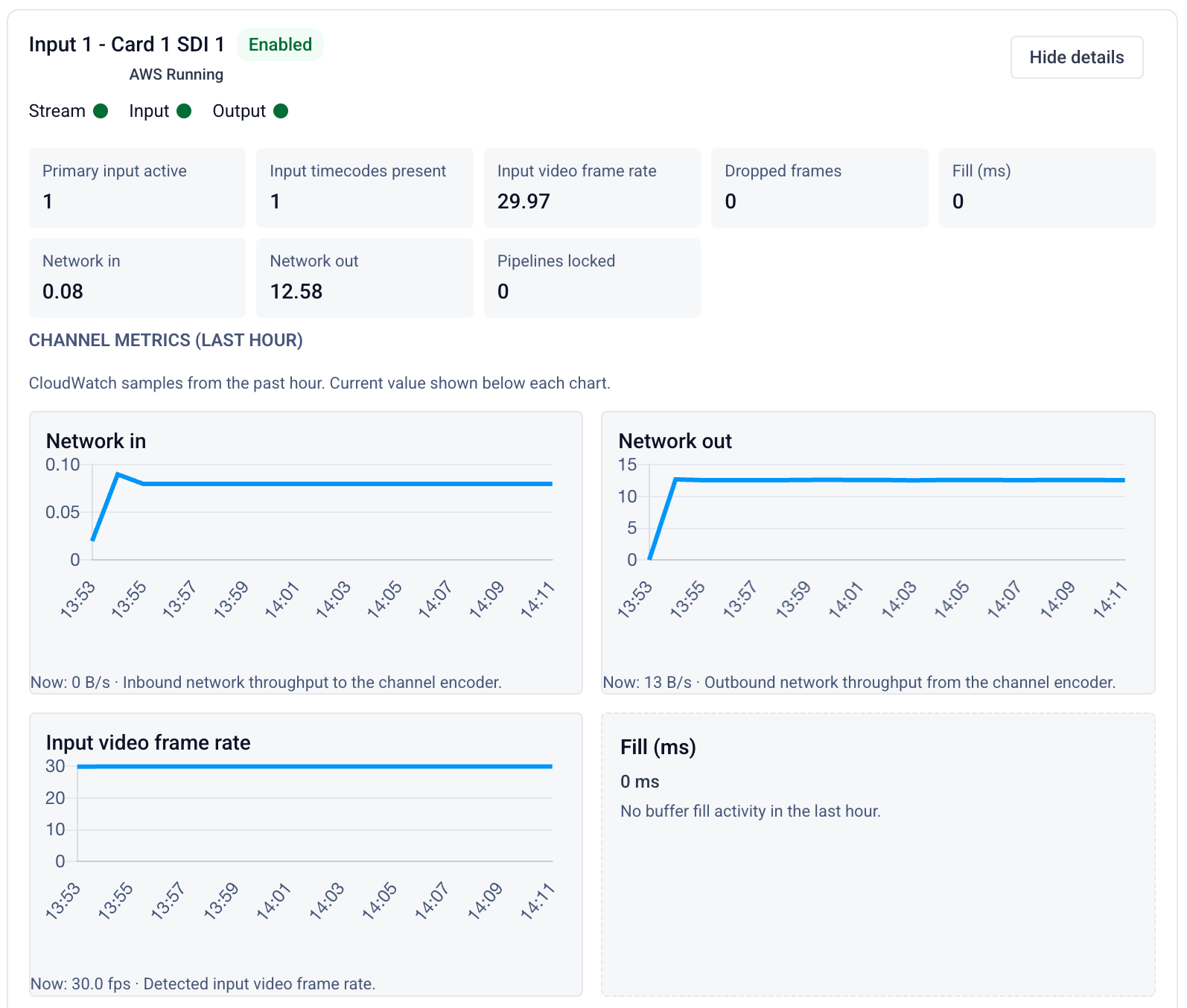
Shown here are:
- Primary input active
- Input timecodes present
- Input video frame rate
- Dropped frames
- Fill (milliseconds)
- Network In
- Network Out
- Pipelines locked
Below this area, you will see graphs tracking Network in, Network out, Input video frame rate, Fill (ms), and Dropped frames. These will show activity over the last hour, and will update every minute. Variances here can guide your troubleshooting as well.
At the bottom of the pane, you will see any Outputs (Entrypoint, Facebook, YouTube, Sardius Stream, Akamai, etc.) that are associated with the stream.