
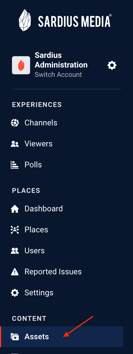
To access Assets from the Sardius Control Panel, click on Assets under Content in the navigation bar.
To search for assets, use the search bar at the top, or the filters to customize your search and view.
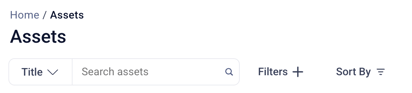
Main Search Field
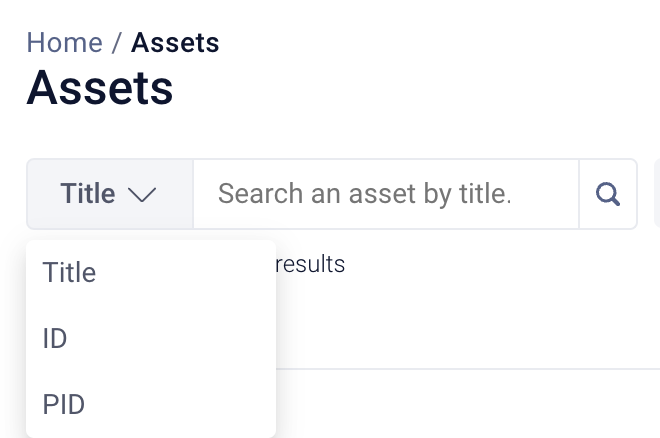
If you want to see a specific asset, use the main search field to search by Asset Title (default), ID or PID.
Click on the Title drop-down area to select whether you want to search by Title, ID, or PID and then type the relevant info into the field. To see results, click enter or click directly on the hourglass icon to see results
Filters
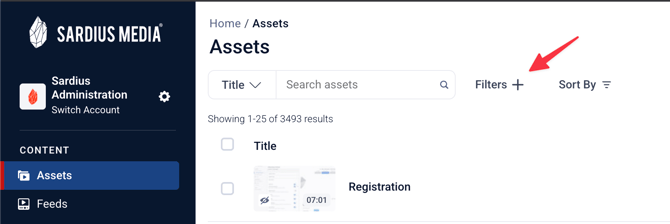
Filters can be used to filter assets in your library based on certain criteria. You can use any combination of filters when searching.
To access the Filters modal, click on Filters beside the main search field.
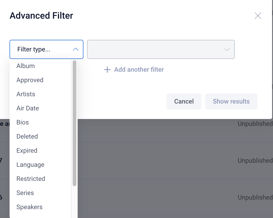
This will open a modal where you can set the Filter type and add additional filters to your query by clicking +Add another filter. When your query is complete, click Show results.
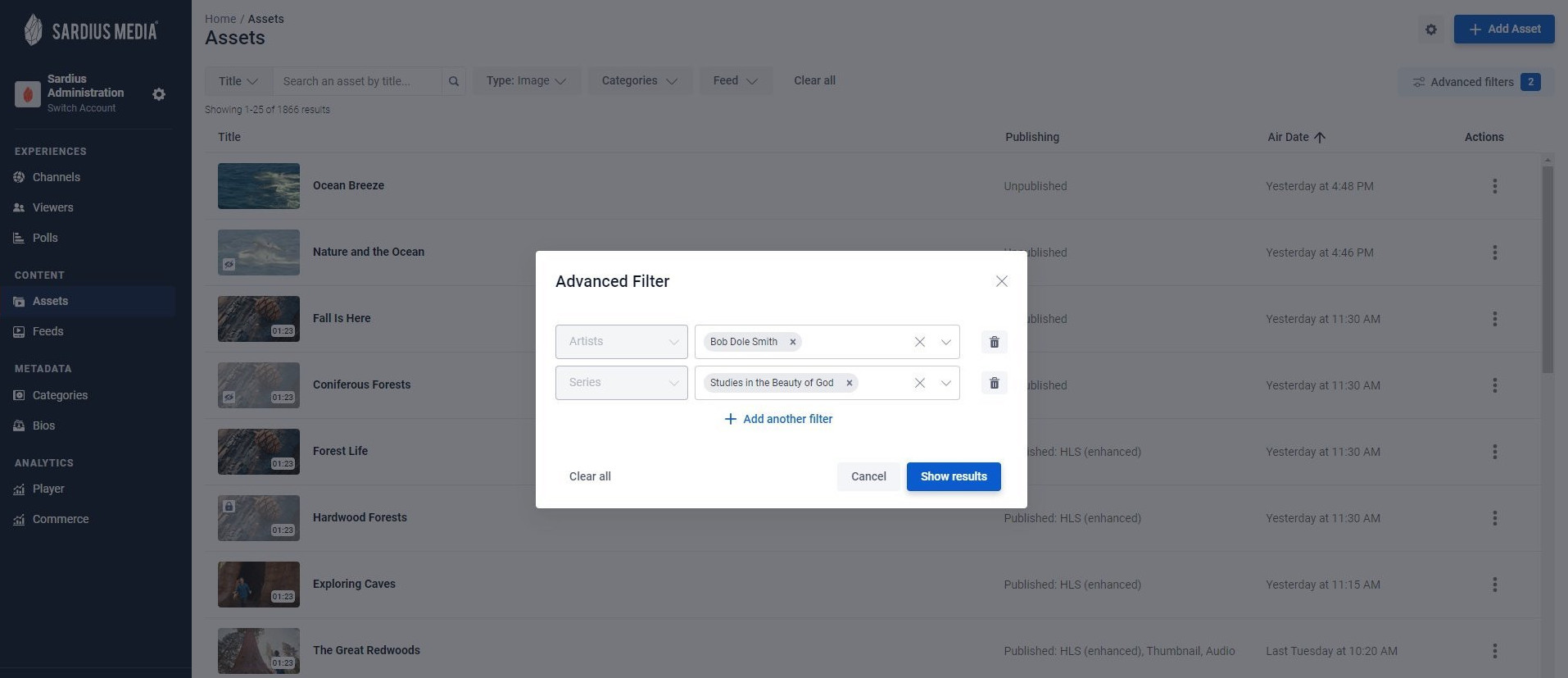
Helpful Tip: At any point, you can clear your filters by clicking on the Clear all option.