
Why They’re Useful
-
Seamless viewer experience: Magic Links eliminate login friction, which is especially helpful for large events or when onboarding guests who aren’t familiar with the platform.
-
Personalized and secure: Each link is generated for a specific viewer profile, therefore you maintain individual access tracking and analytics, even when skipping the login step.
-
Ideal for direct invitations: They’re perfect for sending VIP or internal access, distributing private content to select attendees, or simplifying access for speakers and team members.
-
Reduces support overhead: Fewer lost-password or login-issue tickets mean smoother launches and less troubleshooting on event day.
In short, Magic Links combine ease of use with data integrity, giving you the flexibility to control who watches what—without slowing anyone down.
How to Create a Magic Link
To access the Magic Link feature, go to the right side of the Viewer account and find the Create Magic Link area.
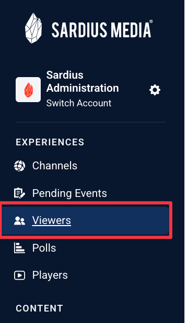
If the viewer does not already have a profile:
Click Add Viewer in the top right corner. A modal will appear where you will fill out their information, and at the bottom you will choose the event/segement you want to give access to. Make sure to save by clicking Create. 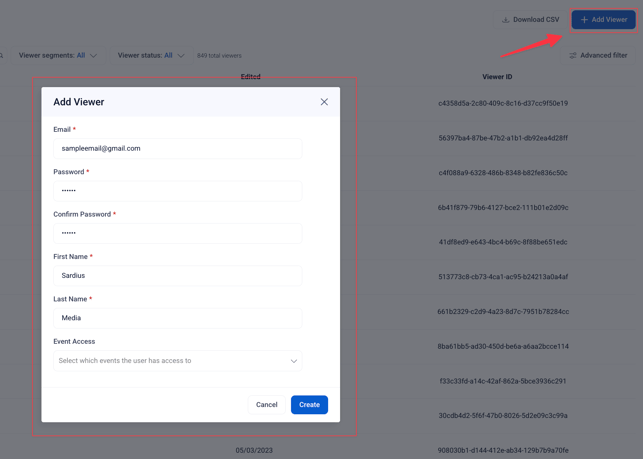
If a profile has already been created for them, simply click on their name and confirm which event they have access to.
Note: It is important that you first verify the user should have access to that specific Viewer Segment prior to sending a Magic Link.
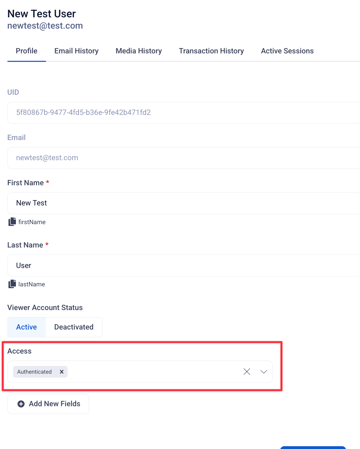
Once confirmed, click on “Generate Login Link” on the right hand side.
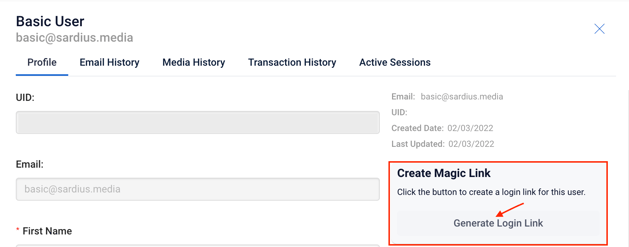
You will see a small spinning wheel appear, as the link is created. Once the link has been created, it will appear below the button you just clicked.
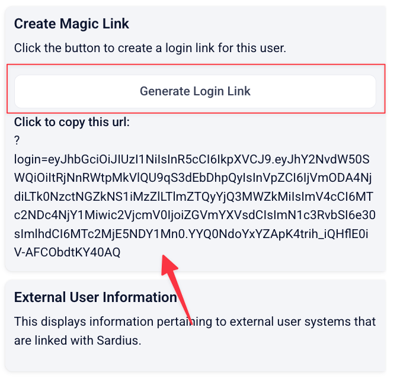
Click directly on the string of information that appears & copy it to your clipboard.
You will see a confirmation message appear directly below the string of information that shows the URL has been copied:

This string of information should then be pasted directly behind your event site URL.
Note: The unique event URL is blue, while the Magic Link portion is highlighted in red below.
Helpful Tip: The Magic Link can be sent directly to users as this longer link or you can hyperlink it to a message in an email and send it to the Viewer.
We recommend that you test the link to ensure you’ve grabbed the entire URL correctly, but remember to logout of the account before sending the access link on to the Viewer (or you will remain logged in as that Viewer).