
Creating and Customizing Templates
Updated
Templates are reusable across outputs and channels, which is perfect for consistent, tailored workflows.
Sardius provides HD and SD Default Templates for each of our Template types. These can be used as they are, and can also be duplicated for your own customization and fine-tuning. Default templates are signified with a Lock icon.
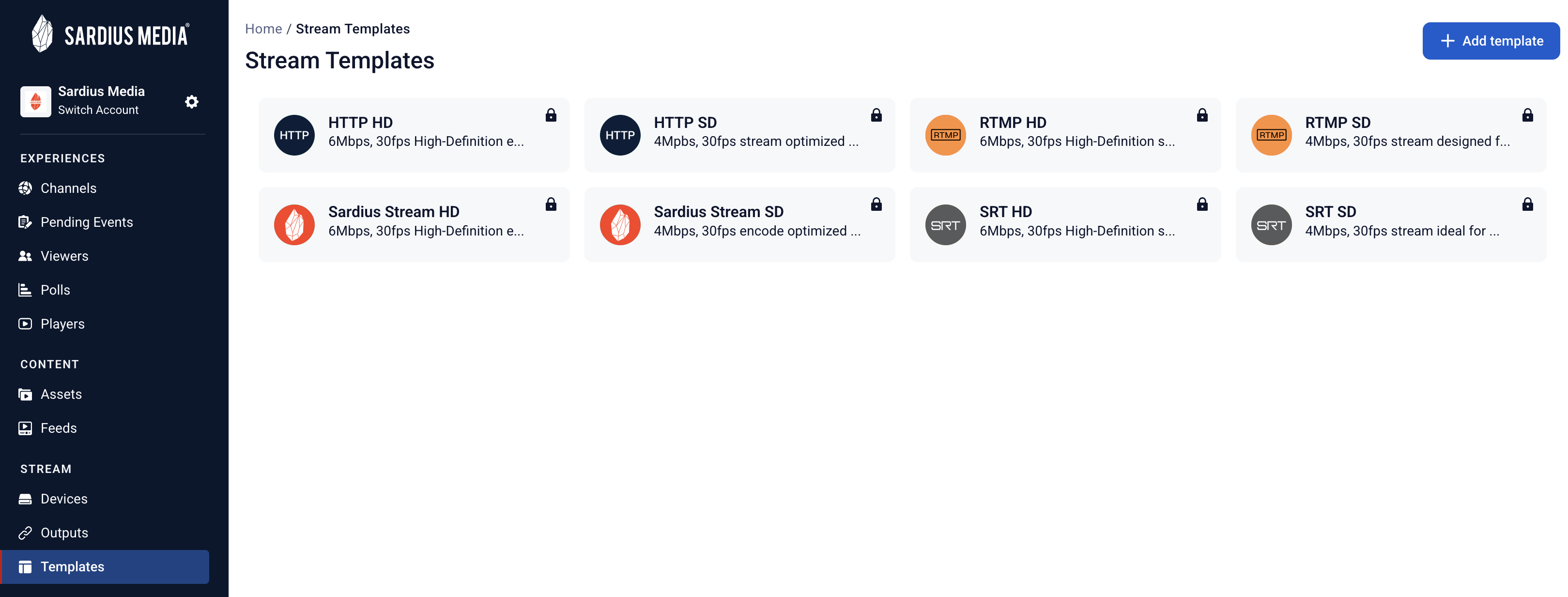
Create a Template
To create a template, click “Add Template” in the upper right corner.
In the modal, select the type of template you would like to create, then click “Next.”
A full screen editor will appear. To continue, select the encoder you are creating this template for.
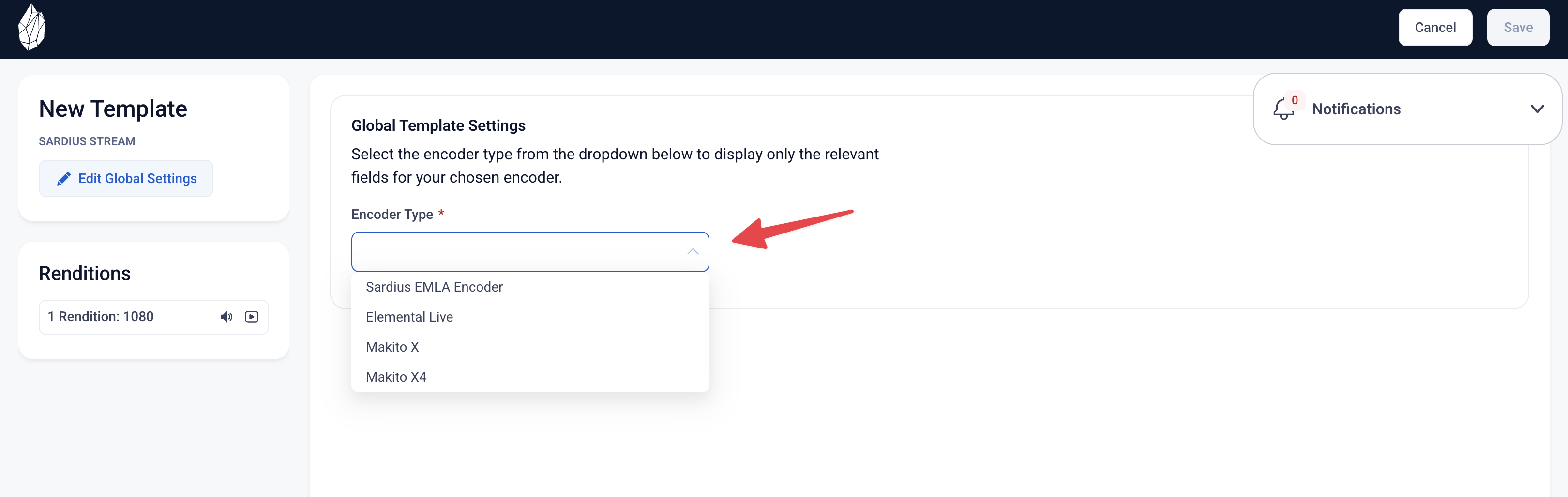
The sections available are:
-
Template Information - This contains the name of the Template, the Template Type, Access to Global Settings, and Duplicate/Delete functions
-
Renditions - This section will show how many renditions are available to this template. Sardius Stream and RTMP templates can only contain a muxed rendition (video and audio combined), whereas SRT and HTTP Push can contain multiple muxed or unmuxed renditions (video and audio separated). You can select a rendition to customize its codec, encoding, and other settings.
- If a rendition shows a Video and Audio icon, then that is a muxed rendition.
- If a rendition shows only one icon, then that is an unmuxed rendition.
-
Editor - This will display either the Global or Individual Rendition settings and allow you to make edits.
As you edit the template, our Notifications center will advise you on missing selections, and suggest alterations to set your template up for success.
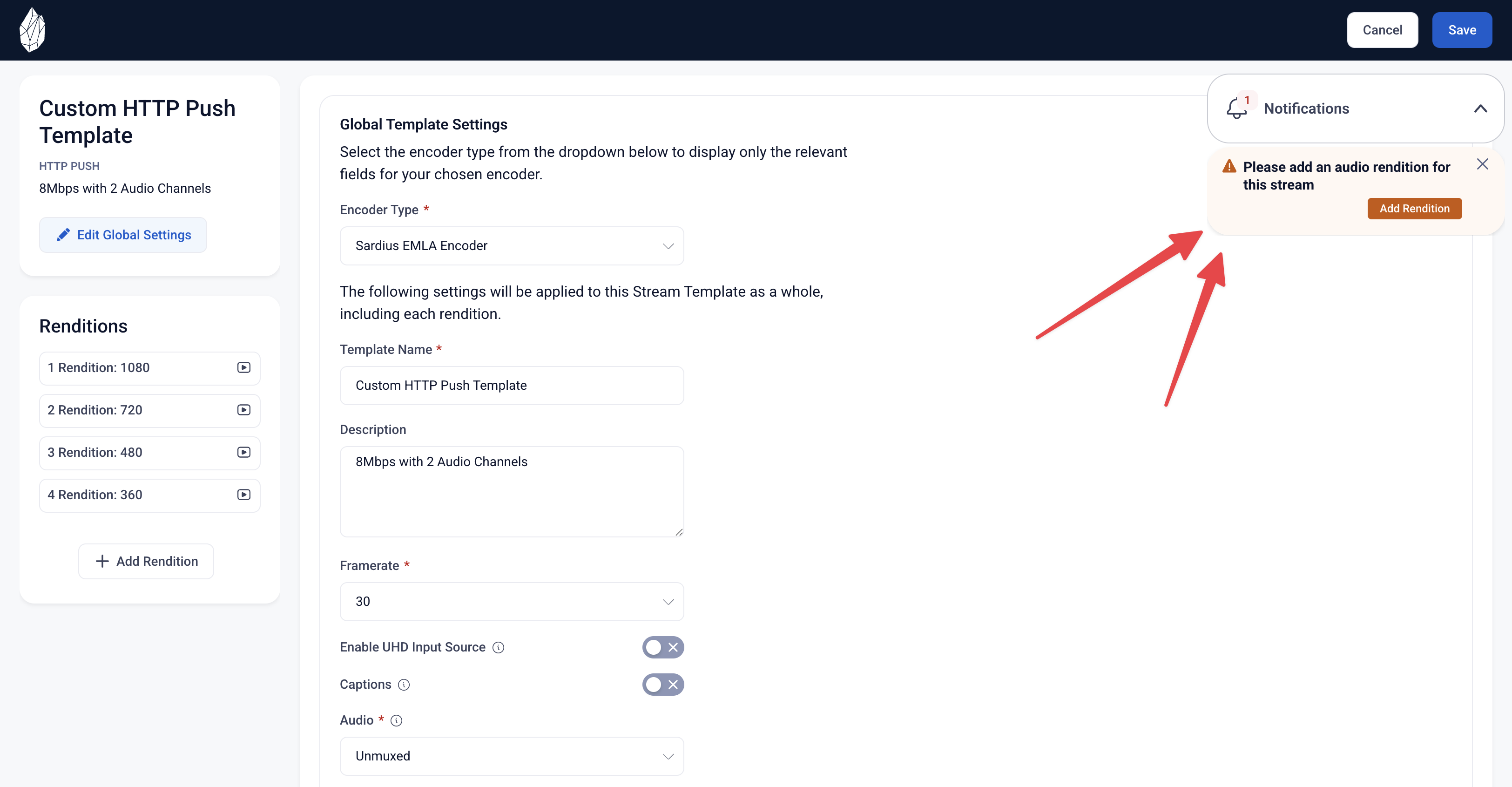
In order to save a template, all required fields must be filled. If you click Cancel, all your changes will be lost.
Duplicating a Default Template
To duplicate a default template, select that template from the library.
In the Template information panel, click on the options menu and select “Duplicate Template.”
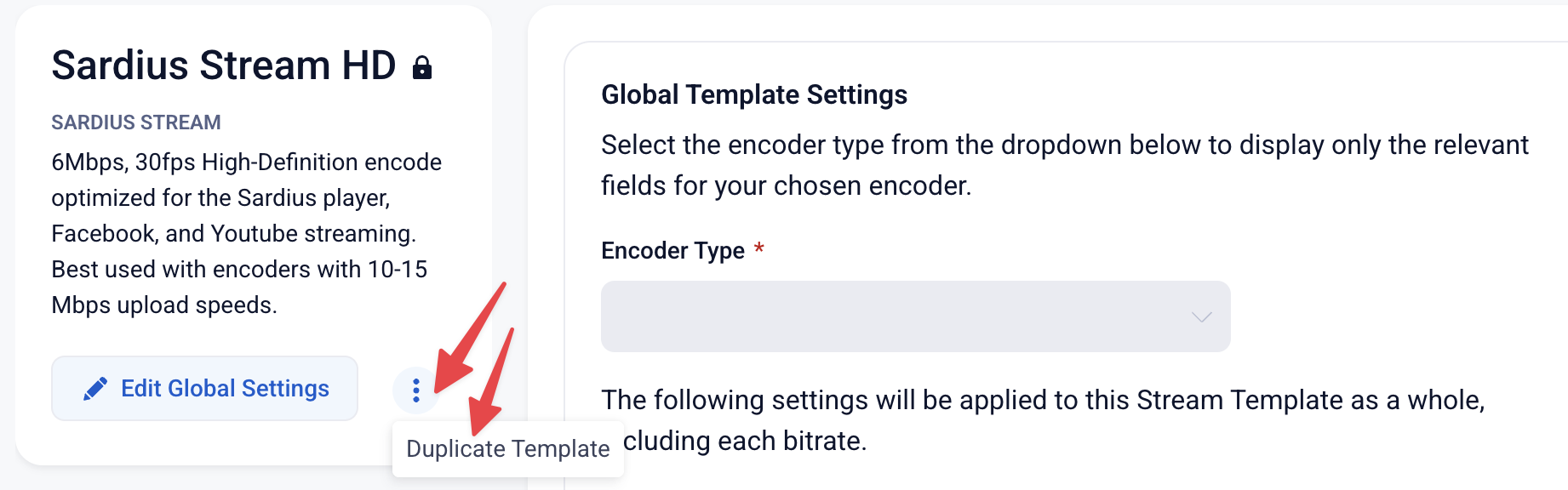
Give this new template a name, select your encoder, and then you will be free to customize your template.
In order to save the template, all required fields must be filled.
Editing an Existing Template
To edit an existing template (one without a locked icon), click on the Template.
When the full screen editor loads, you can make any adjustments as you wish.
None of your changes will be committed until you click Save. If you click Cancel, all your changes will be lost.
If you would like guidance on setting up a customized template, please contact Sardius Support.